
Remote server management or troubleshooting remote systems are some tasks that require a remote desktop solution. This is where the popular remote desktop protocols come into play: VNC vs RDP.
Although these two tools are similar in features and applications, RDP is a step ahead in terms of security, performance, and smooth user experience.
On the other hand, VNC also comes out ahead in terms of simplicity and cross-platform.
Overall, RDP is a better option if you prioritize performance and security, as the following comparisons prove. If you want to multiply these factors to have a smooth and fast remote experience, Buy admin RDP can end your limitations.
What is VNC?
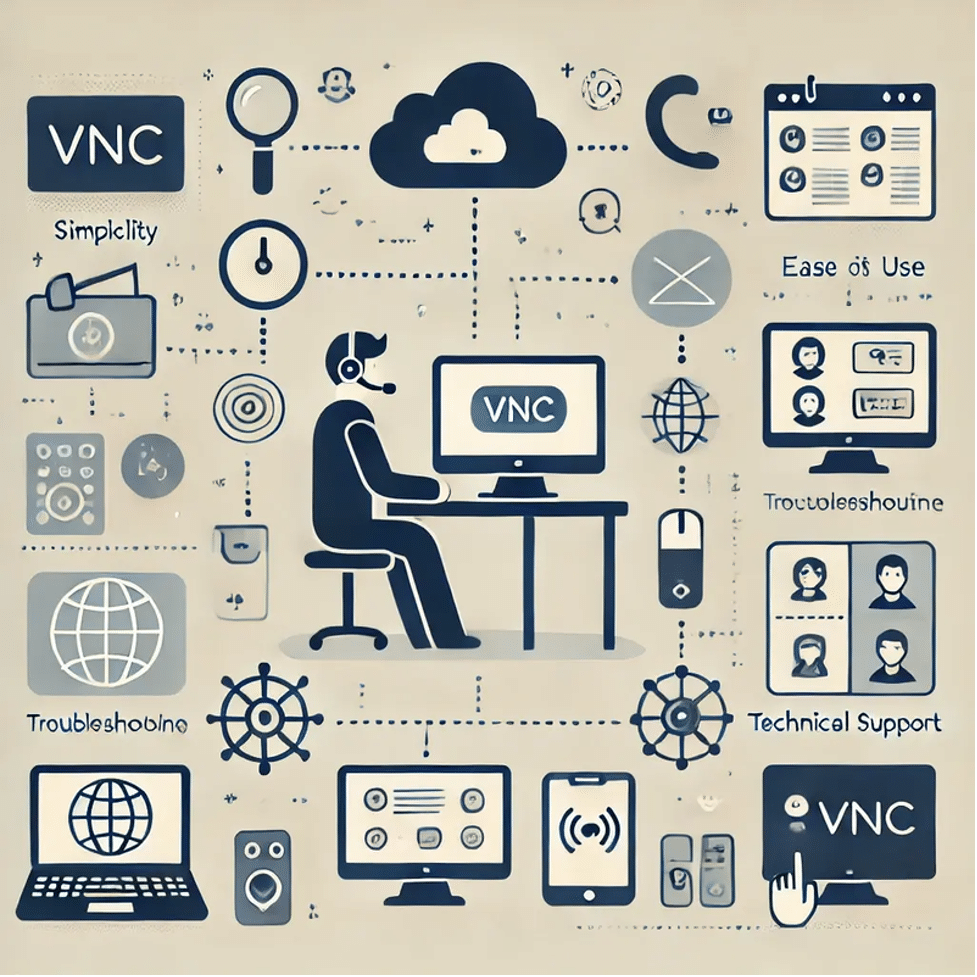
VNC (Virtual Network Computing) is an RFB-based protocol that allows platform-independent viewing and control of the target device’s desktop.
Data transfer with VNC is done in pixel format. This means the screen image is sent as pixel frames and reconstructed on the client side.
This method allows instant viewing of the remote device’s screen, but because it transfers a large amount of image data, it usually consumes more bandwidth and slows down.
What is RDP?
RDP (Remote Desktop Protocol) is a proprietary Microsoft protocol allowing users to connect to a remote device over TCP/IP and port 3389.
RDP encapsulates data in a series of encrypted packets, which prevents unauthorized access and eavesdropping.
Since RDP is a proprietary Microsoft protocol, the RDP server only works with Windows. However, the RDP client is available for almost all operating systems, including Mac, Linux, and Android.
VNC vs RDP: Quick Comparison
| Feature | RDP | VNC |
| Mechanism | Resource sharing: sends graphics commands | Screen sharing: sends image data |
| Speed and Performance | Fast: optimized for performance | Slow: higher bandwidth usage |
| Supported Platforms | Best on Windows: limited on others | Fully cross-platform |
| Security | Secure with encryption and NLA | Less secure without additional measures |
| Use Cases | Server management, remote work, software testing | Technical support, training, collaboration |
| Ease of use | More complex setup | Simple and beginner-friendly setup |
| Cost | Free with basic features: paid for advanced | Free with basic features: paid for advanced |
What Are the Differences between RDP and VNC?
VNC and RDP each excel in certain areas. To make the right choice, you must identify your needs and find the protocol that best meets those needs.
VNC vs RDP: Mechanism
VNC is a pixel-based protocol. In this way, the VNC server shares screen data as image frames with the client. The client uses this data to reconstruct the remote screen image and display the changes in real time.
The client also sends mouse and keyboard inputs to the server, reconstructing them on the remote device.
In RDP, the client connects to the RDP Server on the remote device using port 3389. The mouse and keyboard changes are then sent from the user device to the remote device over a dedicated TCP/IP channel.
In RDP, instead of image exchange, graphics commands and data required to reconstruct the user interface are sent to the client.
The screen reconstruction is also performed using this received data to provide a smooth and optimized user experience.
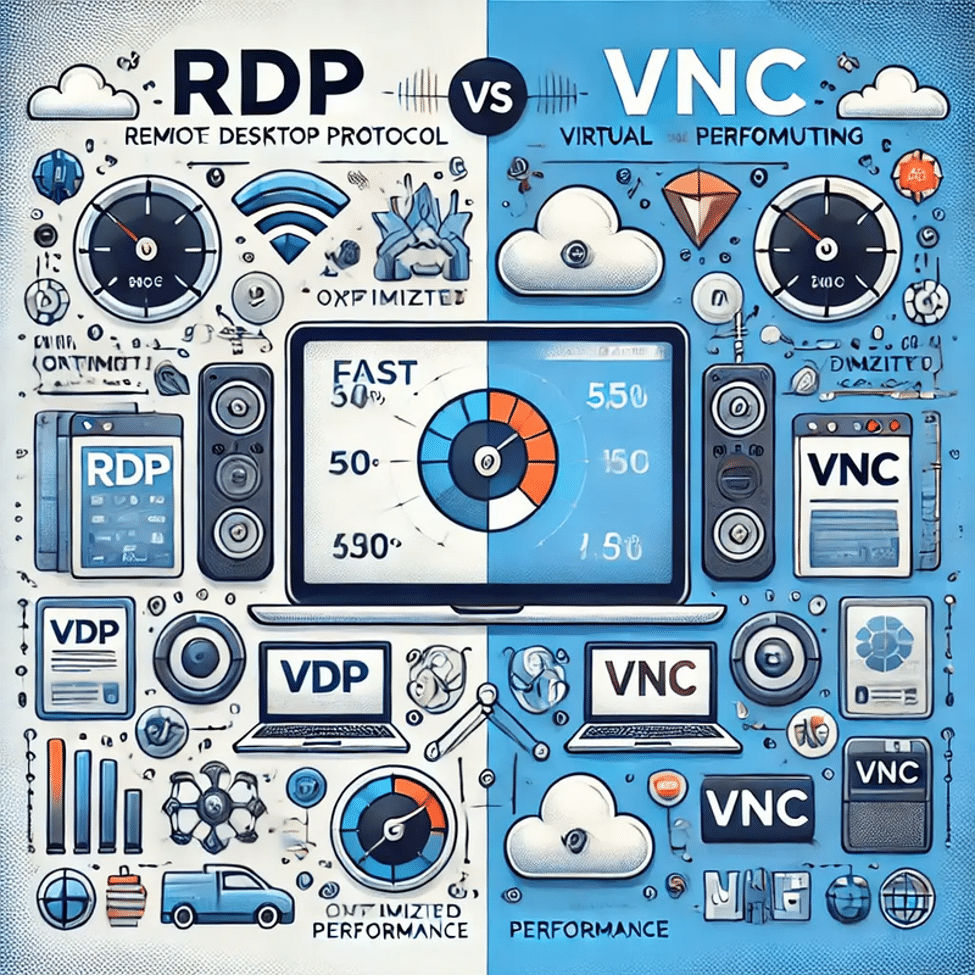
RDP vs VNC: Speed and Performance
VNC sends the entire screen content in pixels, which increases bandwidth consumption and causes high latency in interactive operations.
However, RDP provides the conditions for a smooth user experience with techniques such as data compression and Efficient Multimedia Redirection (EMR), RDP integration with the remote system’s graphics hardware, and the ability to customize display settings.
So, RDP has better performance and speed than VNC.
VNC vs RDP: Supported Platforms
RDP is a proprietary protocol from Microsoft that is optimized for Windows systems by default. Although the RDP client can be used on various platforms, such as Linux and Mac, it may have limited functionality on non-Windows systems.
On the other hand, VNC is available on all platforms, and there are no restrictions on using VNC applications on various platforms with different operating systems.
So, regarding platform compatibility, VNC gives you more freedom.
RDP vs VNC: Security
RDP establishes connections using port forwarding, while VNC uses cloud connections.
Although the port forwarding technique is exposed, RDP compensates for this deficiency by implementing security techniques such as internal encryption and Network-Level Authentication (NLA).
If the VNC software is equipped with a security mechanism, it can provide security similar to RDP’s. But if not, the chances of your device being infected with malware or other security threats increase significantly.
So, in terms of security, RDP wins the race.
VNC vs RDP: Use Cases
VNC is a screen-sharing platform that allows users to control a device remotely. Simultaneous access to a device with VNC means that the screen is shared equally with all users, and they all face the same scene.
This type of access is beneficial in the following areas:
- Resolving technical issues by the support team
- Regular maintenance
- Cross-Platform Screen Sharing
- Remote Training
- Headless Systems Control
- Collaborative Team Meetings
- Software Development and Testing
- Remote device management for people with physical disabilities
- Access to virtual labs
RDP is a resource-sharing platform where users independently connect to the remote device and perform their desired tasks.
This type of access is helpful in the following areas:
- Server management
- Employee access to their workstations
- Update and troubleshoot system problems
- Remote work
- Technical support
- Management of multiple workstations
- Access to sensitive and specialized software
- Testing software in different environments
- Data center management
- Creating virtual desktops for users
Each protocol has specific applications, and the choice between them depends on your needs and usage scenario.
So, in terms of Use Cases, there is no winner.
VNC vs RDP: Ease of use
RDP has a slightly steeper learning curve for configuring settings and features, which can be difficult for beginners.
VNC has an easier configuration process and can do its job well with minimal settings, making it easy for beginners to work with.
So, when it comes to accessibility and ease of use, VNC is more suitable than RDP.
RDP vs VNC: Cost
Both RDP and VNC are free. If you can install a free client like Windows Remote Desktop Connection for RDP and VNC viewers for VNC, you can use them for free for remote connections. However, if you need more advanced features like file sharing or multi-monitor, you can use premium software like AnyDesk and TeamViewer.
Which one should You use? RDP or VNC?
Choosing between RDP and VNC depends entirely on your specific needs and environment. But if you want to consider the right option for different situations, consider the following scenarios:
When Should You Use RDP?
Choose RDP if:
- Most of the devices used in your organization or business are Windows.
- You need advanced features like remote audio, printer sharing, or device redirection.
- You are very sensitive to data and communication security.
- You need to connect to the remote device independently and do not need to share the screen.
- You want to interact with the resources of a computer, such as programs or files.
- High performance and speed of remote connections are essential to you.
- You need the Multi-monitor feature.
- You need to manage multiple devices simultaneously.
- Quick access to remote devices is vital for emergency management of systems.
When Should You Use VNC?
Choose VNC if:
- You need to connect to different operating systems.
- Simplicity of configuration and use is important to you.
- You must share a screen with multiple users to simplify troubleshooting or remote training tasks.
- You need to access devices that don’t have a monitor.
- You want to collaborate with different groups in a shared environment.
- You need access to specific devices or software without making complicated configuration changes.
- You need to share your screen to test software or review team projects.
Common Issues in RDP and VNC
Each protocol has its uses, but like any other technology, it also has challenges. Understanding these challenges can help you make your choice easier.
RDP Challenges
- No support for screen sharing for multiple users
- Limited compatibility with non-Windows operating systems
- Requires technical knowledge to configure settings
- Depends on network stability and speed
- Requires substantial resources if multiple users connect simultaneously
- Incompatibility with some older devices or software
- Graphic limitations for running heavy games or programs
VNC Challenges
- High bandwidth consumption due to sending pixel-based image data
- Weak security by default
- Dependence on Network and Graphical Complexity
- Lack of Adaptive Image Quality
- Failure to provide independent access to each user connected to the remote device
- Dependence on the hardware power of the devices
- Limits on advanced features such as file transfer or remote printer
- Complexity in managing access security
- Low performance for graphic tasks
- Possibility of disruption in case of simultaneous connections
- Poor support for multiple monitors
Alternatives to RDP and VNC
If you’re unsure after reviewing the differences and features and want to explore alternatives, this section is for you.
The remote desktop software we will introduce below has its independent structure and protocols and offers advanced features.
AnyDesk
AnyDesk is one of the most popular remote desktop tools offering this cross-platform service. This tool is very sensitive to data security and, therefore, monitors connections with the RSA 2048 asymmetric encryption method. The paid version of this tool features screen sharing, built-in chat, and file sharing.
TeamViewer
As one of the main competitors of AnyDesk, TeamViewer offers two free and paid versions. The free version can create a fast and stable remote connection. However, if you want to benefit from other advanced features, such as remote printing and file transfer, you will have to purchase the paid version.
NoMachine
NoMachine is another cross-platform remote desktop tool that offers high performance. High image quality, support for video and image sharing, and collaboration capabilities are the main features of this program.
Of course, features such as file sharing and printer transfer are among the features of the paid version of this tool.
Conclusion
The choice between RDP and VNC depends on your specific needs. RDP is better for high security and faster performance, while VNC is a better option for ease of configuration and support for different systems.
Also, alternative tools like AnyDesk and TeamViewer, which have additional features and cross-platform support, can provide more advanced options for specific needs. The final choice should be based on your need for security, performance, and ease of use.











