
Apple Music is a favorite platform for music lovers worldwide, but it comes with certain limitations. One of the most significant challenges is that its tracks are encrypted with DRM, which means you can only listen to them within Apple’s ecosystem. What if you want to play your favorite Apple Music tracks on other devices without the Apple Music app or keep them after canceling your subscription? That’s where ViWizard Apple Music Converter comes in. In this review, we will take a detailed look at what makes this software stand out and how it works if you’re an Apple Music user looking for more flexibility.
Part 1. Why Do You Need an Apple Music Converter?
Apple Music’s DRM protection is a hindrance for users who want to have complete control over their music collection. Some of the common limitations include:
Restricted Offline Playback: Even though Apple Music allows downloading songs for offline listening, these downloads are not accessible outside the Apple Music app.
Device Limitations: Apple Music tracks are limited to devices with the Apple Music app, but most devices are not compatible with the Apple Music app.
Music after Subscription: Once you cancel your subscription to Apple Music, all your downloaded music tracks become unavailable on your device.
ViWizard Apple Music Converter resolves these issues by allowing you to convert your music into DRM-free formats, ensuring you can enjoy your songs whenever and wherever you want.
Part 2. What Is ViWizard Apple Music Converter?
ViWizard Apple Music Converter is a specialized software designed to handle the conversion of audio files. This allows users to convert a host of audio formats, including Apple Music songs, into different file formats like MP3, WAV, and FLAC, making them playable on a wide range of devices. Speaking of the service from ViWizard Apple Music Converter, these features include:
#1. Convert various audio files without any hassle
ViWizard specializes in removing DRM from Apple Music, iTunes audios, and Audible, allowing unrestricted access to your audio files on your device. What’s more, it supports the conversion of over 100 kinds of common file formats.
#2. Support several popular audio file formats
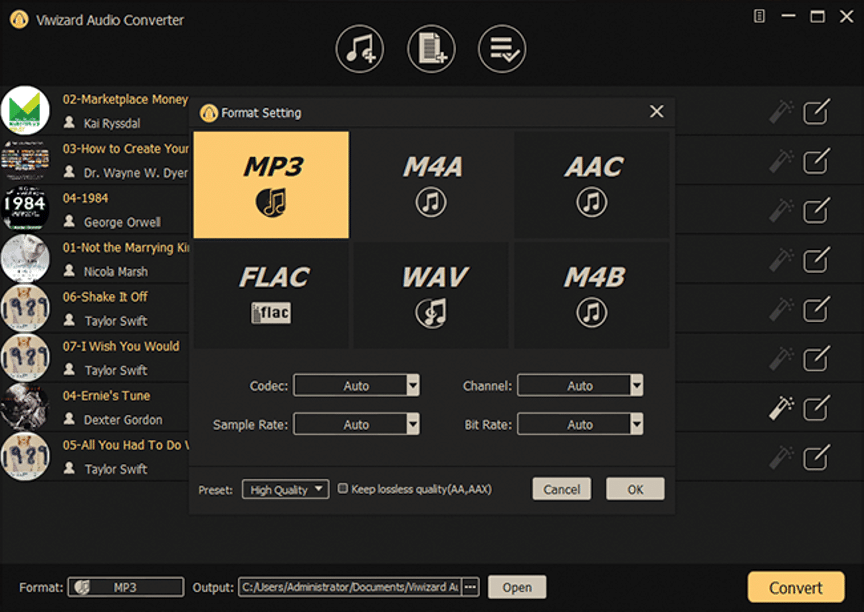
ViWizard supports a range of output formats, such as MP3, AAC, WAV, FLAC, M4A, and M4B, which ensures compatibility with multiple devices like smartphones, tablets, and even smart speakers. If you want to convert Apple Music to MP3, it is a good option.
#3. Allow to customize the audio parameter
In addition to selecting the output audio format, ViWizard empowers you the ability to customize the audio parameter depending on your demand. For better audio quality, you can personalize the bitrate, sample rate, audio channel, and codec.
#4. Offer great conversion speed and performance
ViWizard boasts an impressive conversion speed of 30x faster than real-time. This makes it ideal for users who need to convert large numbers of tracks quickly. Batch conversion is also available, enabling you to process entire albums in one go without sacrificing performance.
#5. Retain the lossless audio quality after conversion
One of the standout features of ViWizard is its ability to retain the original quality of Apple Music tracks. The software ensures there’s no degradation in sound quality, making your converted files as crisp and clear as the original.
Part 3. How to Use ViWizard Apple Music Converter?
ViWizard Apple Music Converter supports both Mac and Windows operating systems, ensuring that most users can take advantage of its features. Visit ViWizard Apple Music Converter and click on the Free Download button to download and install it on your computer. Using ViWizard Apple Music Converter is straightforward. Here’s a detailed guide on how to convert Apple Music to MP3 using ViWizard Apple Music Converter.
Step 1 Select Apple Music Songs to Convert
Start by running ViWizard Apple Music Converter then it will automatically load the Apple Music app. In your library of Apple Music, find and select any song, album, or playlist to convert. You can use the drag-and-drop feature to add your chosen tracks to the converter.
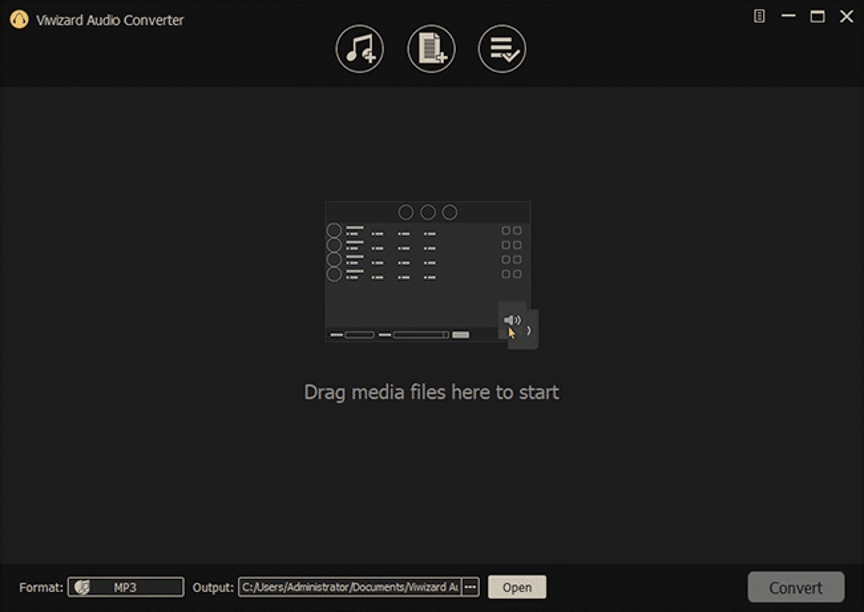
Step 2 Set MP3 as the Output Audio Format
After adding Apple Music tracks to the converter, you can click on the Format button to initiate the settings of output files. In the Format window, you can select MP3 as the output format and set other parameters like bitrate, sample rate, and channel.
Step 3 Start to Convert Apple Music to MP3
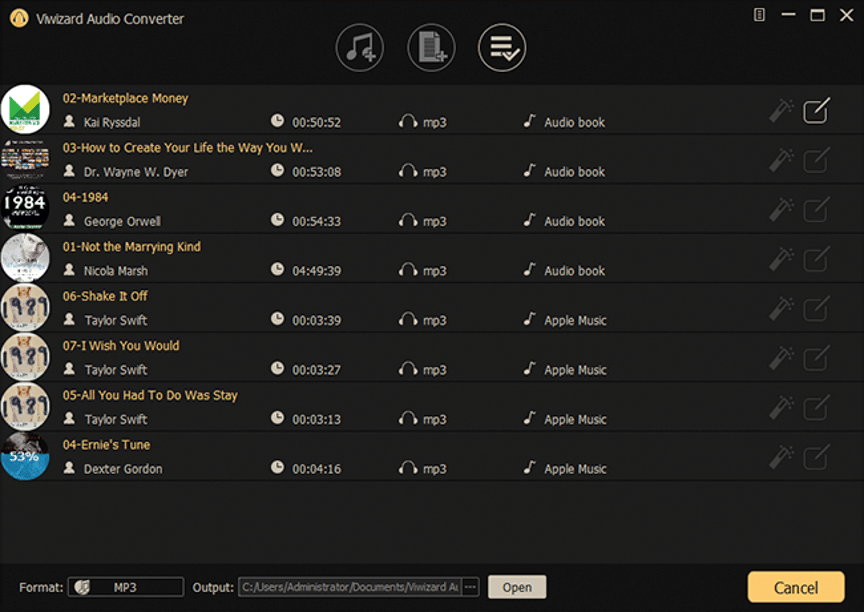
The last step is to convert Apple Music tracks to MP3 by clicking the Convert button in the bottom right corner. Wait for a while, you’ll find all the converted Apple Music tracks by clicking the Converted tab on the interface of ViWizard.
Final Words
Simply speaking, ViWizard Apple Music Converter is an excellent solution for anyone looking to free their Apple Music library from DRM restrictions. It offers fast conversions, supports multiple formats, and retains lossless audio quality, making it a must-have tool for music lovers who want full control over their collections. Try ViWizard Apple Music Converter, and you’ll find it out!











