
CS:GO is a highly competitive game, with more than one million active players around the world, with the highest number of 14% from the US. Each player, regardless of skill, tries to develop the most profitable strategy and use all the possibilities to win. Any detail can change the course of the match. The easiest way to get the better of opponents is to use CS commands and in this article, you will learn about the most useful of them. You can learn even more about CS:GO console commands, players, and matches on Profiller.net.
What is The CS:GO Console?
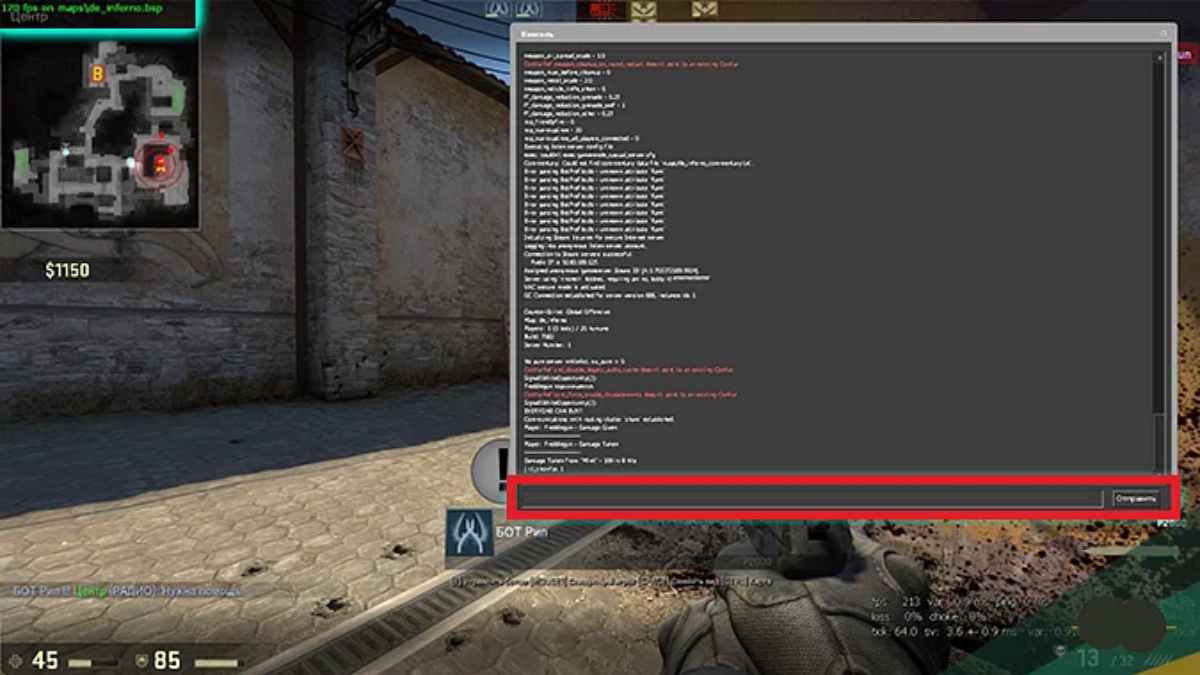
The console in CS:GO is a direct in-game command-line interface that allows you to change game settings. More than three thousand commands are available to players, which are designed to change different settings. For example, the player can use the commands:
- make the interface more convenient;
- improve game performance when using a weak PC;
- change the crosshair to improve the accuracy of shots;
- change mouse settings;
- create special conditions for training through the launch of cheat commands.
However, with console commands, players cannot change the appearance of weapons from their inventory. To do this, they need to purchase skins.
How to Use Console Commands in CS:GO?
To enter a console command, the player needs to activate the console. It’s easy to do. Just press the tilde button ~ during the game. This feature is enabled by default. In case it doesn’t work, the player can enable it in the following way:
- visit the “Settings Menu” page;
- click on “Game Settings”;
- select “Yes” next to “Enable Developer Console”.
Many CS:GO pro players use the console skillfully, which allows them to most profitably show their talent in tournaments.
List of The Most Useful CS:GO Console Commands
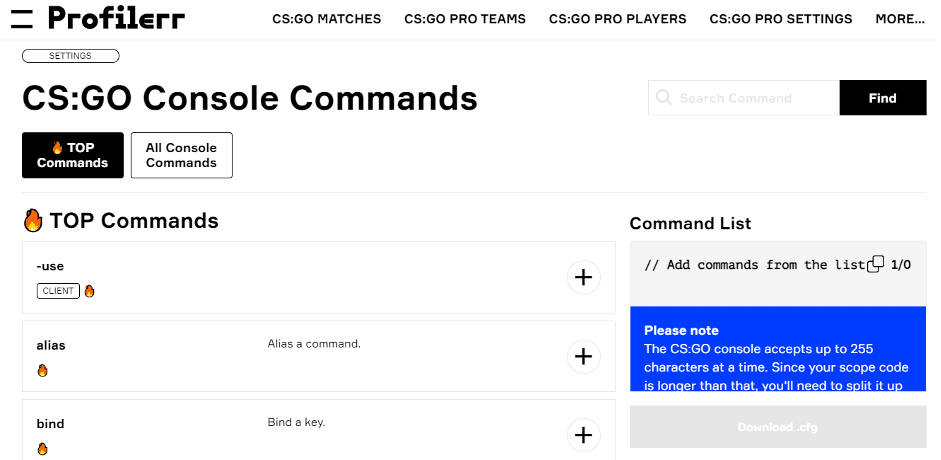
If you are new to CS:GO, then it is quite easy to get lost in the variety of console commands. We will look at the most useful teams for players, but we recommend that you do not get stuck on this. Replenish your knowledge and develop the best winning strategies. Alongside Volodymyr Huda, we gathered the most useful console commands to give you an edge against other players.
voice_scale 0.3
This is a very important command that allows the player to reduce the noise of teammates. You can lower the volume of other players to an acceptable level and focus on the game.
cl_radar_scale [value]
With this command, the player can scale down the map and zoom out the view. This is a great opportunity to examine the map in detail. Knowledge is power. Therefore, players who have access to more data can make decisions more effectively as they play. You can use a value between 0,25 and 1 to set the most comfortable mode.
cl_radar_always_centered
This is not the easiest command, but it can be very useful. Radar can mislead players. The appearance of a red dot on the edge of the map can give the player an imaginary feeling of security. With this map, you can achieve centering of the radar and view the entire map.
novid
With this command, the player can turn off annoying intro videos. Therefore, if you are a person who has already viewed this content a thousand times, this command is a real find for you. In addition, it will allow you to load the map a few seconds faster.
bot_add
This command allows the player to add a bot to a private game. This is a great opportunity to practice aiming before you start playing with real players. Entering bot_add t into the console will add the bot to the attack command. Entering bot_add ct into the console will add the bot to the defense team.
fps_max 0
With this command, the player can significantly increase frames per second (FPS). So, players even with a weak PC can unlock the maximum potential of technology. Don’t get stuck at 60 FPS, set the bar higher and win.
fps_max 0
With this command, players can instantly access important data such as frame rate, ping, and other information that allows them to assess the presence of possible obstacles in the game.
cl_righthand 0
Commands of this type allow players to change the appearance of the character on the screen. By using this feature correctly, the player can gain an advantage in the game. In this case, a command with a value of 0 allows players to move the weapon to the left hand of the character. Since by default the weapon is in the right hand.
bind “key” r_cleardecals
This command allows players to eliminate traces of blood and bullets. Some pro players use this command to clear the screen of distractions and also improve responsiveness when tracking players.
cl_hud_playercount_showcount 1
This is another useful command for those who want to organize the HUD. It is a real boon for players who want to get rid of enemy player icons. You simply see the total number of players in the game.
+cl_show_team_equipment
This is a very useful console command that allows players to see a teammate’s weapon. It is usually used to collect data on smokes or flashbangs.
Reset CS:GO Console Settings
Console commands are not needed in every match. Also, a custom configuration that is effective in one match may not be appropriate in another match. You can reset all settings and return to default values. To delete all saved commands, the player needs to use the default.config.cfg file.
Using console commands allows players to gain some advantages over opponents. However, don’t rely on them alone. Only practice with different weapons, players, and circumstances will help you achieve results in CS:GO. We recommend that you watch CS:GO competitions and learn from professionals.
Final Thoughts
Only the most resourceful CS:GO players, ready to exploit the hidden possibilities, can achieve the valuable experience that will surely lead to achievements. Use the console commands listed in this article and research new commands to improve your gaming experience. However, only regular training alone and with comrades will lead you to victory. To update your knowledge with important new data, you can use Profilerr. On this platform, you can find bind and crosshair generator, Steam ID finder, and other services.











