
The use of video editors and managers has presented a diverse and growing market of videos. From students to professional companies, they have considered videos a great source of communicating ideas and motives. However, just as important as videos are, audios play an equal role in making something valuable.
Without audio, a video is not complete. Thus, what should one do if they have audio in their computer that is to be added to a video on an iPhone? This article introduces Wondershare UniConverter, a great source of transferring audio files to iPhone.
Part 1: An Overview of Wondershare UniConverter and Its Prominent Features
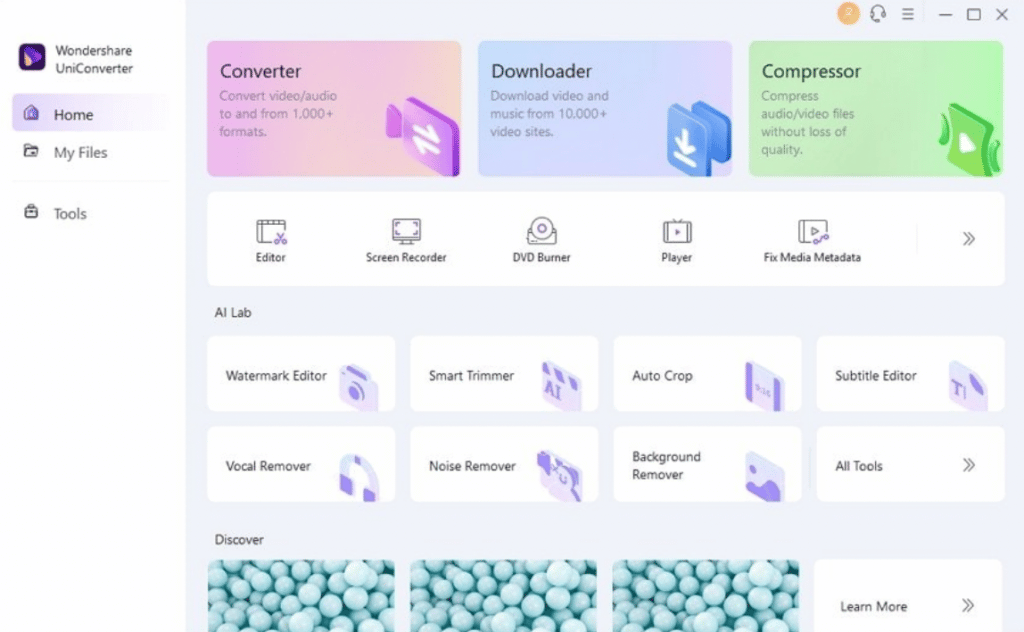
Wondershare UniConverter is a renowned video converter available in the market. It provides a variety of video editing and managing features, making it a unique tool to work with. With the ability to convert, compress, and edit videos, UniConverter has provided some great functions for managing videos, all on a single platform. This, in particular, makes UniConverter a preferred tool for working with videos.
Along with these basic operations on videos, other special functions make UniConverter a great tool. You can consider burning DVDs, changing the vocals of the video, and separating vocals from audio with the help of this platform. Such diversity does not make the tool rigorous, but it is one of the most effective tools to work with.
Key Features to Mark the Excellency of UniConverter
There are some more features that need to be addressed to the readers. If you are one of them looking for an absolute tool to work with, this list of features will significantly help you. Look ahead properly and find the best things about this video toolbox:
1. Size of UniConverter
Wondershare UniConverter does not take up much space on your computer. While it is a video toolbox providing various features, its size is one impressive thing that makes it a handy tool. Compared with other video editing software, UniConverter is much more compact and is simple in utility. Nothing complicated can be found in the tool, making it a convenient option for students and teachers.
2. Rich in Features
The availability of features is another great highlight involving UniConverter. While it is a basic video toolbox, it provides all sorts of editing functions for multiple file formats, including videos, audio, GIFs, and much more. The ability to manage such different files increases its use and provides users with different options that cover more practical needs.
3. Extensive Device Support
You can find Wondershare UniConverter to be a more prominent tool than most video editors present in the market. As a Windows user, you can surely enjoy the facility; however, you will also find UniConverter on your Mac. Along with that, Media.io also serves the purpose of a great online tool that can be used to manage videos and audio proficiently. You will surely prefer using Wondershare UniConverter the moment you realize the potential of its diverse compatibility.
4. Cost-Effective Tool
Another great thing that makes UniConverter special in the market is its cost-effectiveness. Being a video editor, most of you would consider it to be an expensive tool to buy. While UniConverter provides essential functions, it has a low fee for students and teachers, in specific. With exclusive discounts in prices, they can enjoy a minimum of $7.99/month. This proves to be a much lesser burden on the pockets of students and teachers.
Part 2: How to Transfer Audio Files from Your Computer or Mac to iPhone without using iTunes?
Do you seek to transfer your audio from the desktop or Mac to your iPhone to put it onto something or use it for other purposes? With the solution of iTunes, you might not feel comfortable using this option because it has many drawbacks.
In such a case, Wondershare UniConverter comes as a savior to iPhone users, providing a dedicated option for transferring audio files from the computer or Mac to the iPhone without needing iTunes. To perform this task, you must look into the steps featured below:
Step 1: Open Wondershare UniConverter
You must look out for the latest version of Wondershare UniConverter. As you download and install it, launch it on your computer or Mac and proceed to the “Tools” section from the left. In the “More Tools” tab, find “Transfer” and tap on it.

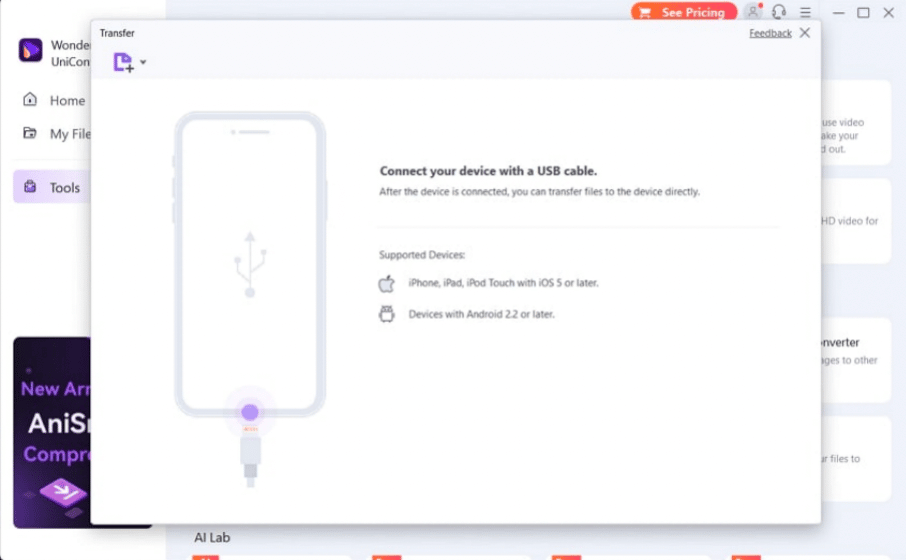
Step 2: Connect the iOS Device
Following this, you must connect the iOS device to your computer with a USB connection. You can connect iPhone, iPad, and iPod touch with iOS 5 or later versions.
Step 3: Import All Audio Files to Platform
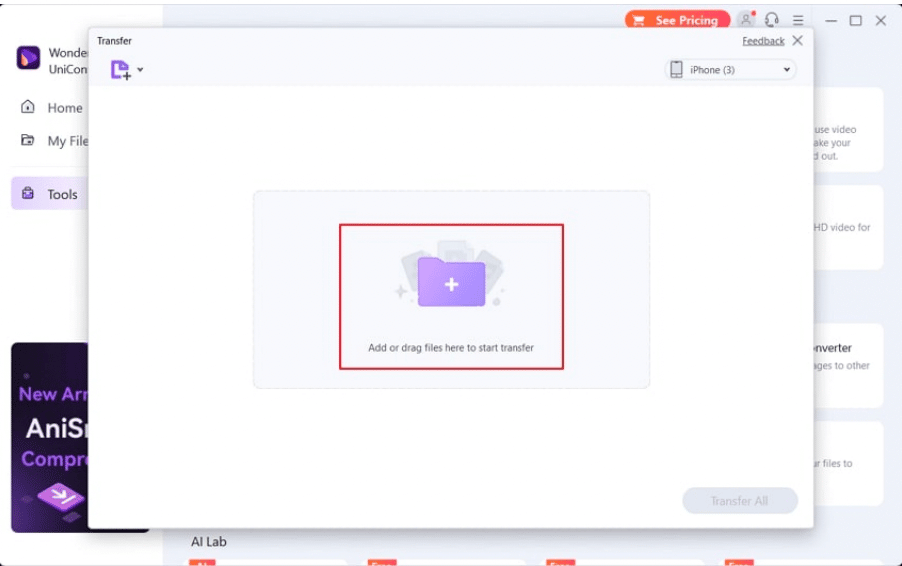
As you connect your iPhone or other iOS devices, you will be led to a new screen where you have to click on the “Add Files” button to add the audio files to UniConverter.
Step 4: Transfer Audio Files to iPhone
To add the audio files, you must click the “Transfer All” button to transfer audio files to your iPhone with the help of this simple process.

Part 3: Some More Impressive Features of Wondershare UniConverter
UniConverter provides several other features that you can find in the video toolbox. Along with transferring audio files to iPhone, you can look into the following features to know more about the tool:
1. Compress Media Files
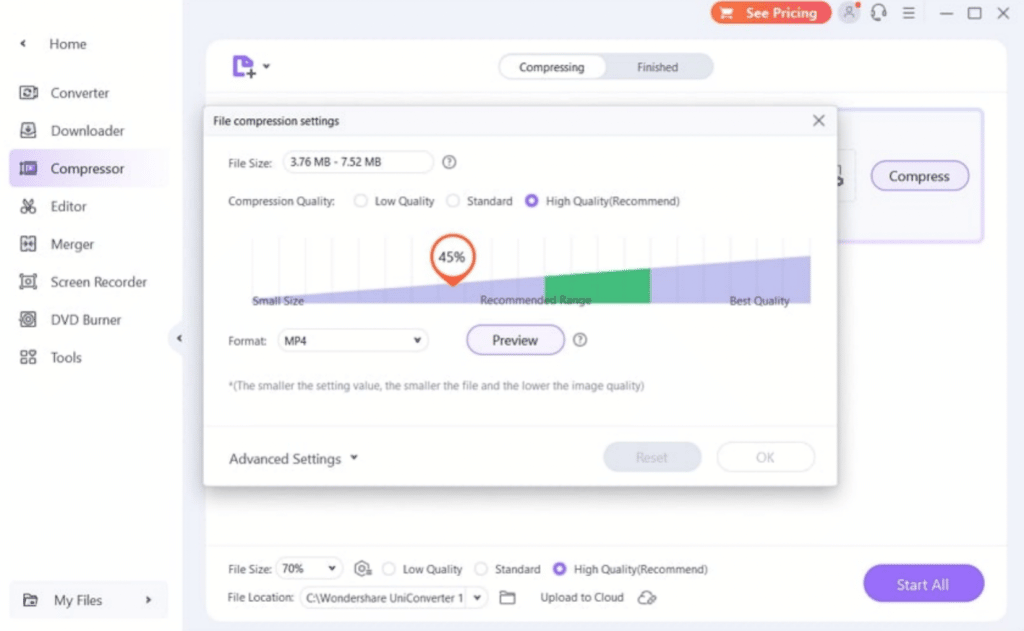
Wondershare UniConverter provides a complete option for compressing videos and audio on its platform. As it maintains the originality of the file, it provides support to more than 1000+ formats in compression. Get the best out of the compression tool with different modes that helps define the extent of its usability. You can customize the compressed videos and preview the results before finalizing everything with the video compressor.
2. Convert to Appropriate Formats
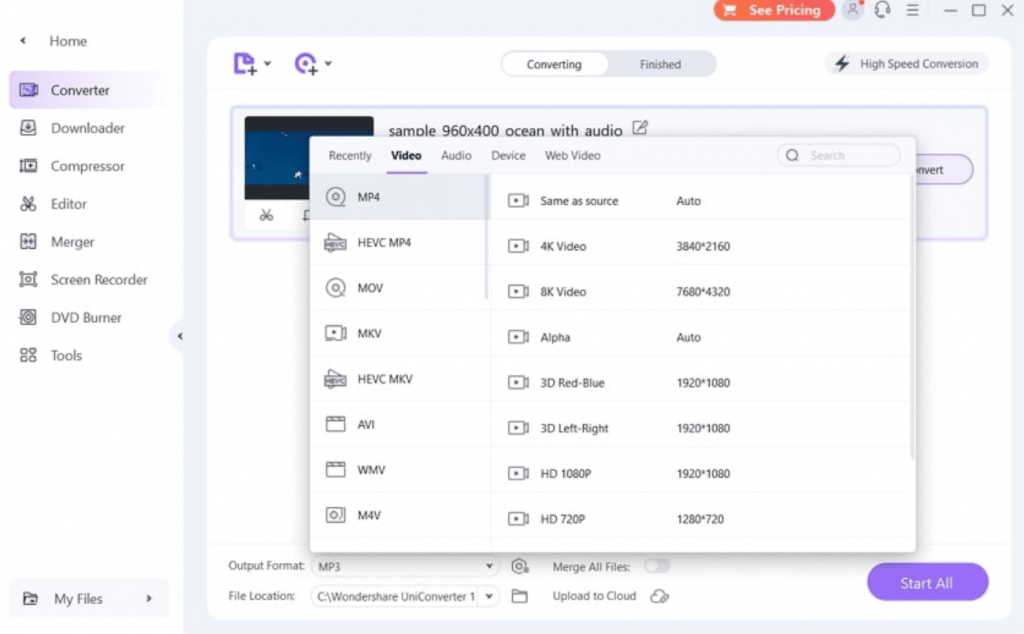
There is a dedicated conversion tool available on Wondershare UniConverter that converts your videos faster and easier for you. With support for all popular video and audio formats, you can also convert such media for video and audio. Its 120x faster video conversion, combined with batch conversion, gives it the leverage of being the best converter in the market. Find a dedicated section for converting your video according to a social media platform with lossless conversion.
3. Video Editing Platform
You can also consider editing your videos with Wondershare UniConverter to perfection. With all the essential tools, you can also seek different editing functionalities that help you create professional videos. From trimming videos to cropping them, you can easily include watermarks and apply other effects to enhance the video.
Try using subtitles in your videos so the viewers can easily understand them. UniConverter offers a dedicated audio adjustment tool that provides a qualitative quality adjustment for videos and audio.

4. Remove Vocals from Audios
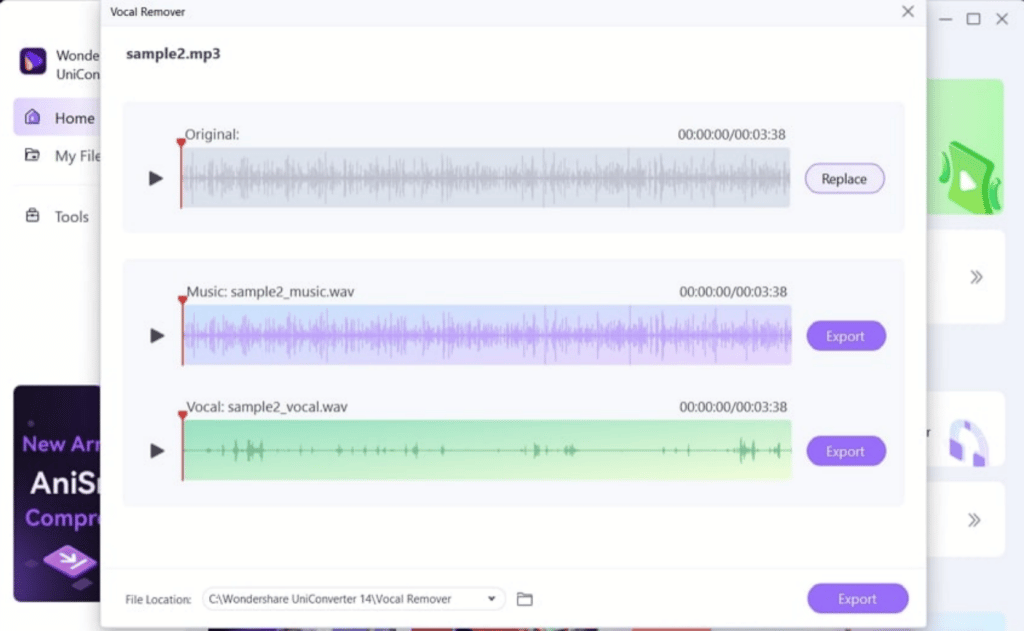
Supported by artificial intelligence, Wondershare UniConverter provides a progressive vocal remover to its users that helps them easily remove the vocals from a song. While being the best in the market, it provides a great source of removing vocals for musicians. Get the vocals or the instrumental sounds out of the song to use in the required area.
Part 4: Price and Plans Offered by UniConverter
There is a different set of pricing plans offered in Wondershare UniConverter. While the tool realizes the needs of the students and teachers, it provides separate plans to improve work efficiency at a lower price tag. You will find the following pricing plans while using UniConverter:
| Plans | Windows | Mac |
| For Individuals | Quarterly – $29.99/Quarter Annual – $39.99/Year Perpetual – $55.99 | Monthly – $19.99/Month Quarterly-$39.99/Quarter Annual Plan-$59.99/Year |
| For Students | Monthly – $7.99/Month Quarterly – $23.99/Quarter Annual – $31.99/Year | Monthly – $7.99/Month Quarterly-$23.99/Quarter Annual -$39.99/Year |
| For Teachers | Contact Their Sales Team with Complete Details |
Part 5: Verdict
This article has presented an excellent overview of Wondershare UniConverter, a smart video toolbox providing extensive video management tools at a small size and cost. With all these points in mind, UniConverter is a great tool. It provides all impressive video management tools that give effective options to students, teachers, and other professional users. Wondershare UniConverter is a must-try for users who have things to do with videos and audio.











