
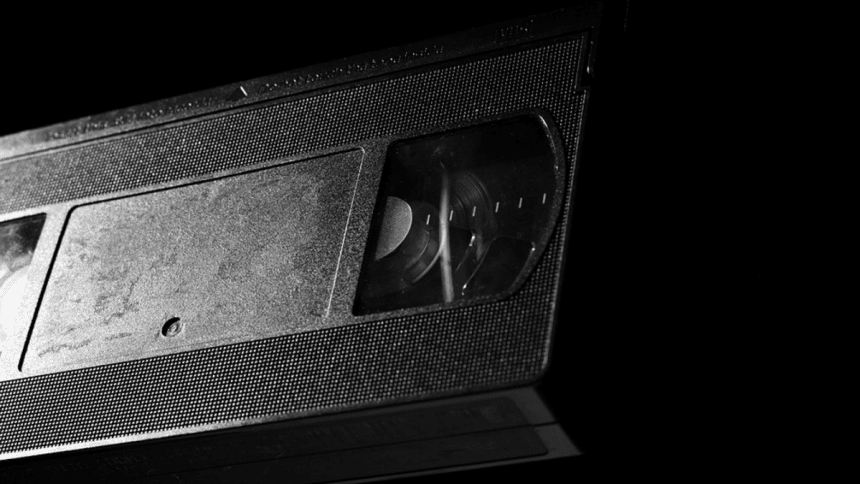
Your VHS memories are precious. It is important to save these special moments as they are not just videos but windows into your personal history and those you love. If you have old VHS tapes, then converting them to digital format is an excellent solution to keep your memories safe and secure for future generations. In this post, we will share with you an easy step-by-step guide on how to convert VHS tapes to digital format.
Equipment and Software Required
For the tech-savvy, VHS to digital conversion task may be highly rewarding. However, in the case of the DIY solution, it might be time-consuming. Before you get started, make sure you have all of the necessary tools to guarantee a seamless and stress-free process while keeping your priceless VHS tapes secure:
- VHS player;
- Video capture card;
- Audio-video (AV) cables;
- Computer;
- Video capture software;
- Video editing software (optional);
- External hard drive (optional).
Step-by-Step Guide for Digitizing VHS Tapes
Once you have all the necessary equipment in place, it is time to begin the digitizing process. While it may seem to be a big endeavor at first, the procedure is really rather simple and can be broken down into a few basic parts.
- Connect your VHS player to a digital video recording device — Using the appropriate connections, connect your VCR video output to the video input of your digital video capture equipment (usually an RCA or S-Video connection). Similarly, connect your VHS player’s audio output to the audio input of your capture device.
- Connect your capture card to your computer — Connect your capture device to your desktop or laptop computer using the wires that came with it. To connect the gadget to your laptop or desktop display, you will most likely need a USB or HDMI connection.
- Install and launch your preferred video capture program on your PC — Configure the program to detect your capture equipment and make any required adjustments, such as video quality, file format, and capture time.
- Play your VHS tape and begin recording — Insert the VHS tape into the VHS player and click play. When the tape begins playing, use your video capture software to start capturing the video and audio.
- Monitor the recording process — Keep an eye on your computer screen as your VHS tape plays to check for any problems with visual quality or audio sync. Should you encounter any issues, you might need to modify the settings of your capture equipment or clear the video heads on your VCR player.
- Stop recording and save your digitized video — When your VHS tape has completed playing, stop recording in your video capture program. Save your digitized video in your preferred file format and in the target location.
- Edit your digitized video — If you want to edit your video, import it into your preferred video editing program. Trim, enhance, and edit your video content as needed, then save the ready-made movie.
Time waits for no one, and technology is no exception. You may have already recorded precious family moments on VHS to preserve these memories. However, those days are long gone, and VHS has become entirely obsolete. If you’re like many others, you probably have a collection of VHS tapes collecting dust in a cupboard but haven’t possessed a VCR in over a decade. This issue should be solved until it is too late.
Final Say!
With the right equipment and software, it’s easy to convert and edit your video, and then share old VHS videotapes with others. Follow the above tips and convert all those precious videos into a digital format that your children and grandchildren will be able to access in the future.











