
Rescue Data First if USB Accessories Disabled
When you connect a USB device to your Mac computer, you may encounter an error message saying USB Accessories Disabled or USB Devices Disabled. The additional error message is Unplug the accessory using too much power to re-enable USB devices or Unplug the device using too much power to re-enable USB devices.
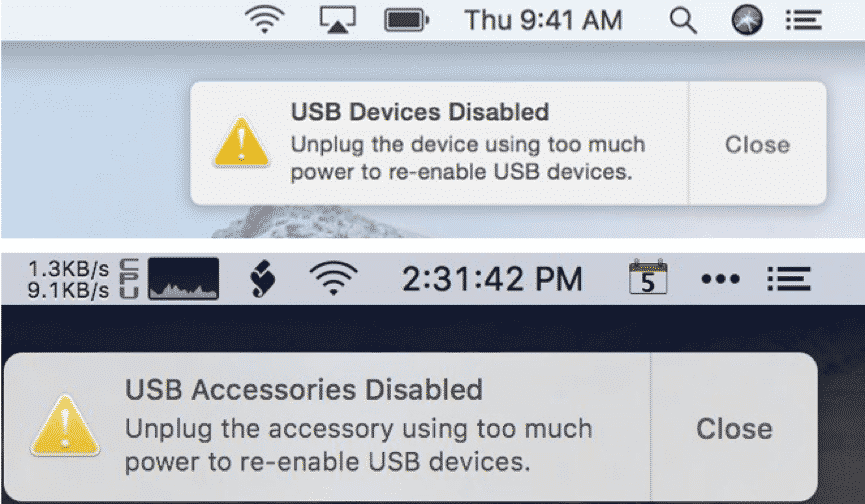
When this issue happens, you will be unable to use the USB device as normal. If it is a data storage device that contains many important files, you’d better first rescue the files in it and then take some measures to get rid of the issue.

You can try Stellar Data Recovery for Mac, professional Mac data recovery software, to get your data back from the inaccessible USB device. This software can recover data from different kinds of storage devices like internal hard drives, external hard drives, USB flash drives, memory cards, etc. on Mac. This software has a trial edition. You can go to the download center of MiniTool Software to get it.
This software is very easy to use. You can open it to select the data types you want to recover, click the device you want to scan, and then choose your needed files to recover.
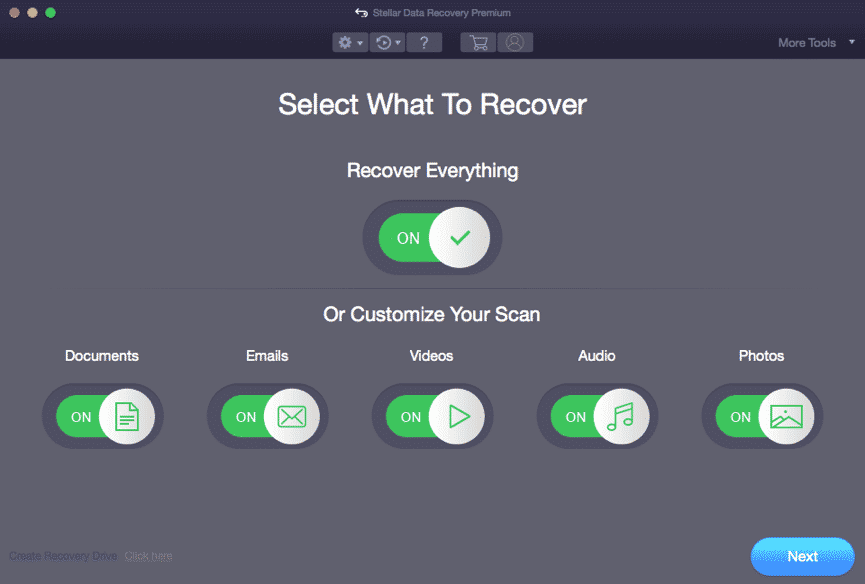
After data recovery, you can feel free to fix the USB Accessories Disabled or USB Devices Disabled issue.
How to Fix USB Accessories Disabled or USB Devices Disabled?
The methods to solve this issue are various. Now we will show you some that are worth trying.
Solution 1: Use the USB Device as a Self-Powered Device
As mentioned in the beginning, the additional error message of the issue is unplug the accessory using too much power to re-enable USB devices or unplug the device using too much power to re-enable USB devices. You can see that this issue can happen when the power is not enough. So you can use the USB device as a self-powered device and then check whether the issue can disappear.
Solution 2: Use a Powered USB or Thunderbolt 3 Hub
To solve the power issue, you can also use a powered USB or thunderbolt 3 hub to connect your USB device to your Mac because this connection method can power to and from your computer. This can offer enough power for your USB device or accessory.
Solution 3: Unplug the Unnecessary USB Devices from Mac
Every plugged USB is using power on your Mac. The more USB devices there are, the more power they will consume. If you want to get enough power for the USB device that is bothered by the USB Accessories Disabled or USB Devices Disabled issue, you can unplug the unnecessary USB devices and then check whether the faulty USB goes back to normal.
Solution 4: Plug the USB Device Directly to Mac
Another way to solve the power issue is to directly connect the USB device to your Mac rather than using a multiport USB adapter. This should give your USB device enough power to work.
Solution 5: Make Sure You Are Using the Right USB Port and Cable
If your USB device is designed with a USB 3 specification, it will not get enough power if you are using a USB 2 port or cable. So, you need to check whether you are using the right USB port or cable. If not, you should use the right USB and cable, and then check whether the issue disappears.
Solution 6: Try a Different Cable or Adapter
If the USB cable or adapter you are using is damaged, you can also encounter USB Accessories Disabled or USB Devices Disabled. So, you can try a different cable or adapter to see whether the issue can be solved.
Solution 7: Try another Port
At times, the USB port on your Mac can be damaged. But there is always more them one USB port on the computer. To rule out this possibility, you can try another USB port and see whether your USB device can work normally again.
Solution 8: Update the Device Driver
The USB device driver is always keeping up-to-date to fix the reported issues and bugs. The USB Accessories Disabled or USB Devices Disabled issue you are facing can occur because you are still using an outdated device driver. So, you can update the device driver to have a try.
The way to update the device driver is to update your Apple software on your Mac. You can go to Apple logo > System Preferences > Software Update to see whether there is an available update. If yes, you can follow the onscreen guide to perform a software update.
There are also some other available methods. For example, you can reset SMC or PRAM/NVRAM to see whether the solutions can work. However, if you can’t solve the issue by yourself, you can ask a professional for help.











