
![Image 1 of Title: [Solved] How to Recover Emptied Trash on Mac 2025](https://ilounge.pro/wp-content/uploads/2025/11/image_1-38-860x541.png)
Recover Files From Emptied Trash on Mac With & Without Software
“I had a Keynote presentation in Trash when I emptied it (no idea why it was there). Is it possible to recover it and if yes, how to recover emptied Trash on Mac?”
____A Question from Reddit
![Image 1 of Title: [Solved] How to Recover Emptied Trash on Mac 2025](https://ilounge.pro/wp-content/uploads/2025/11/image_1-38.png)
Keeping your Mac organized requires regularly clearing out unnecessary files. The Trash Bin on your Mac is a convenient place for holding deleted files on a temporary basis. But it’s easy to accidentally delete some important files from it.
In other words, it means permanently deleting them for good. In that case, things get a little murky which brings us to your query, “Can you recover emptied Trash on Mac?” And if so, how? This article answers all!
Can You Recover Emptied Trash on Mac?
So, is it possible to recover emptied Trash on Mc? To answer simply, yes. When you empty Trash, macOS deletes links to files, but actual data remains on storage device until new data overwrite it. So, you can use specialized data recovery software, Time Machine, or iCloud backup to recover items from emptied trash on Mac. That’s possible until new data replaces old data.
How to Recover Emptied Trash on Mac With Software?
You can use specialized software like 4DDiG Mac Data Recovery to recover emptied Trash on Mac with ease. With a high success rate, 4DDiG has become one of the most favored data recovery tools among Mac users. This program harnesses advanced algorithms to scan deeply and locate traces of deleted files.
It can recover various file types like documents, photos, and videos, increasing your chances of retrieving files you need. But make sure to stop using your Mac immediately after you realize you’ve accidentally emptied Trash. Using it further can overwrite deleted files, making recovery with software impossible. Here are key functionalities of 4DDiG Mac Data Recovery:
- Regain data from Mac and Mac-based devices (USB, SD card, SSDs, HDDs, etc.)
- Extract data from various data loss scenarios (formatted, corrupted, hidden, deleted, crashed system, lost partition, virus attack, etc.)
- Fast scan and free preview before saving recovered files.
- Recover data from iCloud local directory (photos, videos, contacts, notes, etc.)
- Supports M1, M1 Pro & M1 Max, macOS Sonoma, and T2 chip.
Given below is a guide on how to recover emptied Trash on Mac with help of this tool:
Step 1: Download, install, and run Mac Trash recovery tool on your Mac. Then, choose “Trash” from list of storage devices and click “Scan.”
Step 2: The tool will scan for deleted Trash files. But you can pause or stop scan once you find your targeted files. Preview categories like “Deleted Files” in “Tree View” or file type in “File View.”

Step 3: Once you’ve recovered files from your Mac’s Trash, press “Recover.” This will save them in a safe place on your Mac.
How to Recover Emptied Trash on Mac for Free?
Other than using specialized software, you can use iCloud or Time Machine backup to recover items from emptied Trash on Mac. Here they are:
Solution 1: Use iCloud Backup
If you’ve synced your Mac with iCloud, the deleted files might be in a recent backup. Therefore, you can recover emptied Trash on Mac for free from an iCloud backup from when files existed, but this means fully restoring your Mac. Also, remember, that iCloud only keeps deleted files for 30 days. To do so:
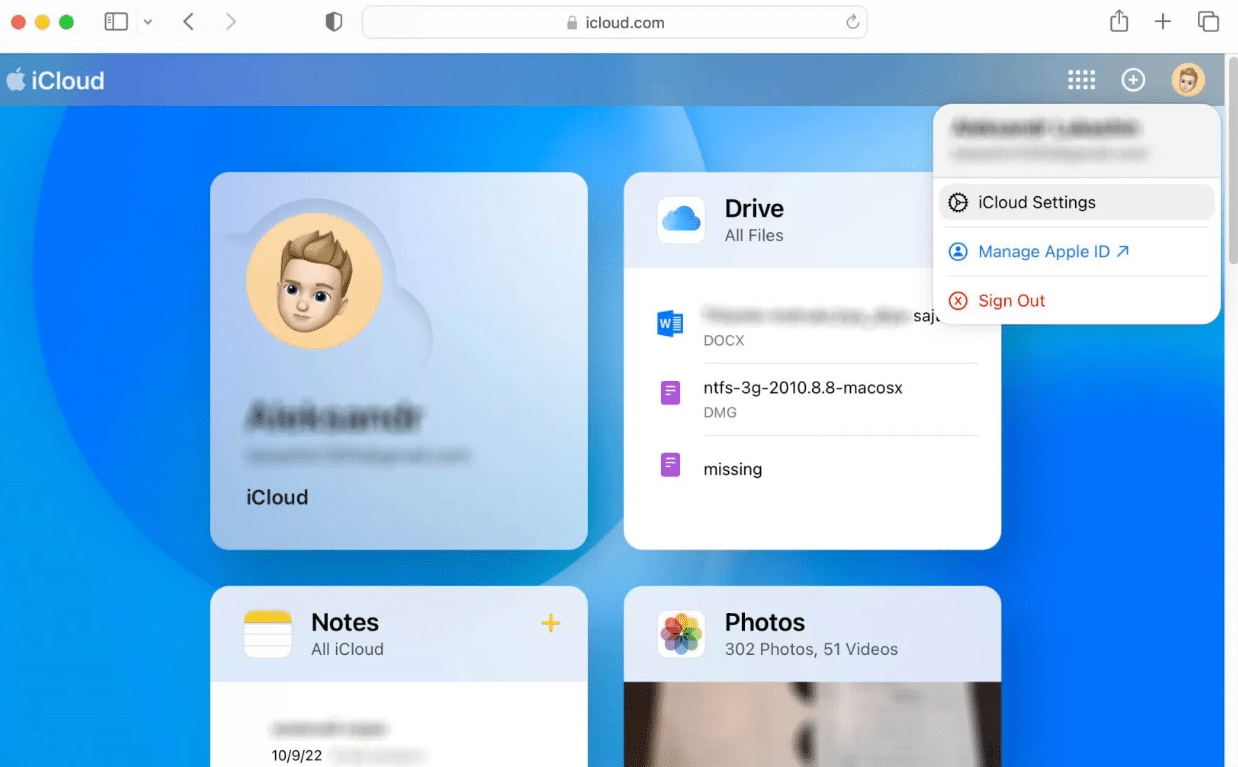
Step 1: Sign in to iCloud.com with your personal Apple account. After that, click “Account” and you’ll see “iCloud Settings.” Choose it.
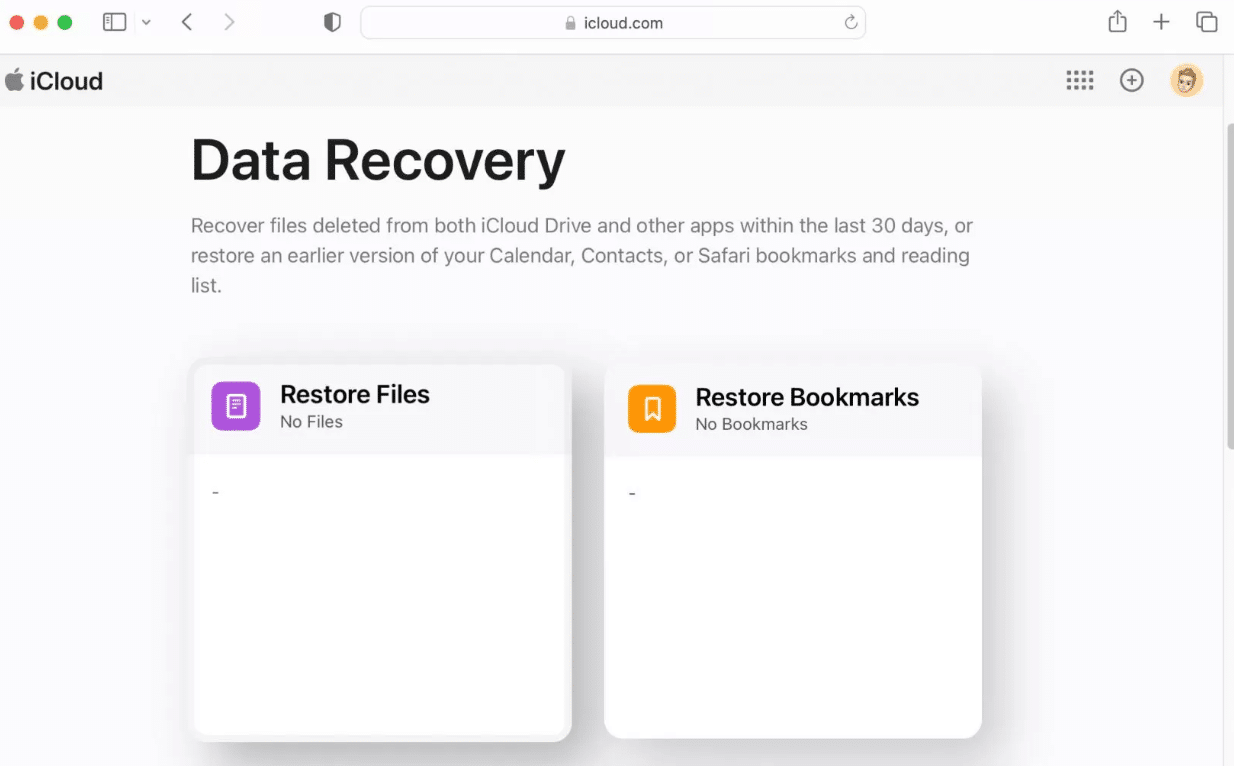
Step 2: Select “Restore Files” in section called “Data Recovery.”
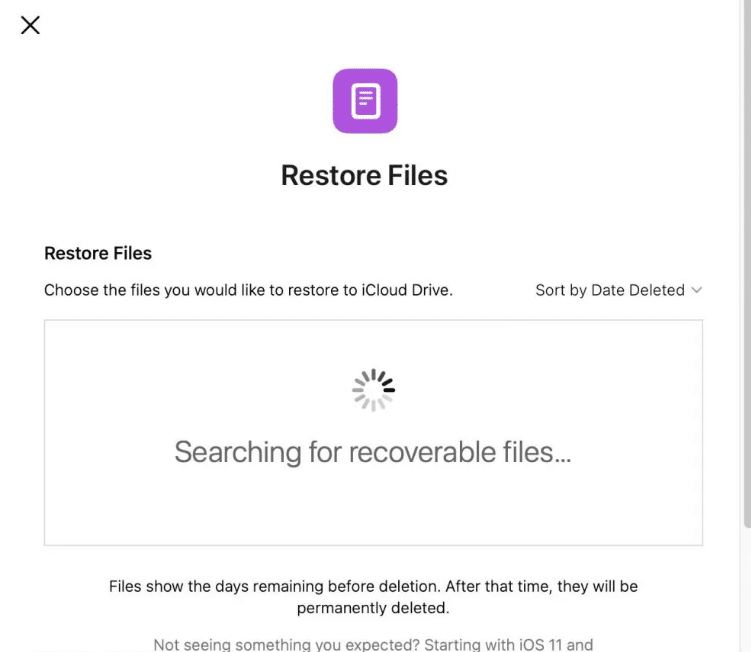
Step 3: You’ll see a list of files for recovery. Check boxes next to ones you want to recover, or choose “Select All” instead. Next, click “Restore Files” to recover files you lost from Trash.
Solution 2: Use Time Machine Backup
Time Machine is a built-in tool that regularly takes snapshots of your Mac’s entire storage, including files, apps, settings, and the Trash. When you empty Trash, those files are removed and aren’t included in subsequent backups.
However, Time Machine can recover files from emptied Trash on Mac. It does this by restoring your computer to a state in past when files were still in Trash or on your drive. If you’ve synced your Mac with Time Machine, here’s how to recover emptied trash on Mac without software:
Step 1: You’ll have to attach your “Time Machine” backup disk to your Mac.
Step 2: The next step is to click an icon that looks like a clock at top menu and choose “Browse Time Machine Backups. ”
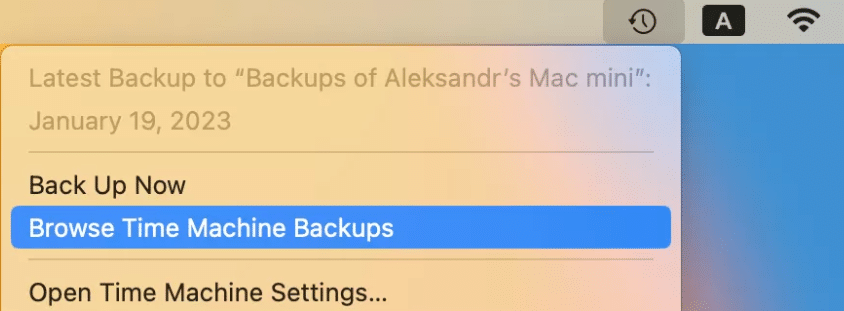
Step 3: Find files in their original locations, choose desired version by date, and click “Restore.”

Solution 3:Use Terminal (For Advanced Users)
Terminal is another built-in Mac tool and the last button to push when it comes to recover emptied Trash on Mac free. It employs a command line interface that can be complicated to use for beginners. So, be careful if you don’t know how to use it to avoid data loss. Here’s how to recover emptied trash on Mac using Terminal:
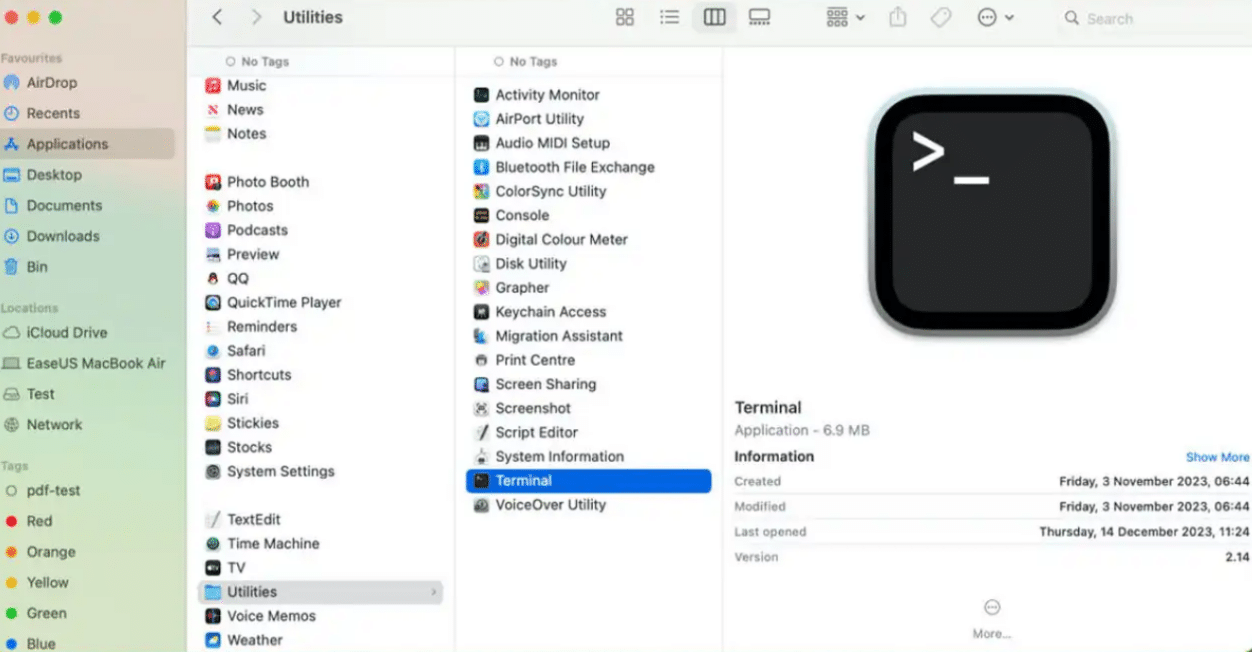
Step 1: Open “Terminal” from “Finder.” Then, choose “Applications.” Open “Utilities,” and hit “Terminal.”
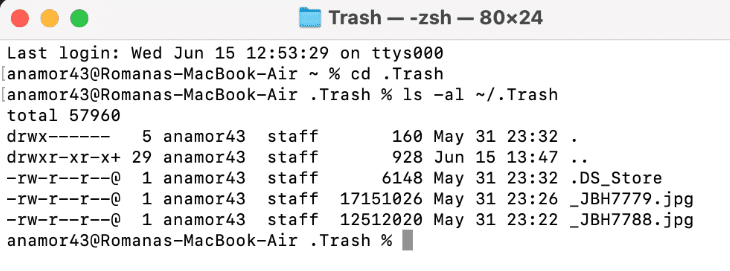
Step 2: Write “cd .Trash.” Press “Enter.” Then write ls -al ~/.Trash.” Press “Enter.”
Step 3: Write “mv ccc” (replace “ccc” with deleted file’s name. Press “Enter.”
Step 4: Type “exit” to close Terminal. Open “Finder” and search for restored files.
How to Recover Emptied Trash on Mac Without Software?
If above options fail to recover items from emptied Trash on Mac, consider a data recovery service. Mostly, these services use advanced techniques to recover data from damaged or corrupted storage devices. They have higher success rates, especially with overwritten data, formatted drives, or complex file systems. Here’s how to find a reputable data recovery service:
Step 1: Surf online for a reliable data recovery service and contact them for an estimate and shipping instructions for sending your Mac storage drive.
Step 2: Ship your storage device to their center. Following that, technicians will assess storage device and provide a more accurate recovery estimate.
Step 3: If you agree to their price, they will recover data from Trash and transfer it to a new storage device.
Step 4: Once recovery is complete and paid for, they’ll ship a new storage device to you.
Safety Tips to Prevent Data Loss on Mac
We’ve discussed above how to recover emptied trash on Mac without software and with software. However, any situation could arise in future that could cause data loss. To prevent it, here are some precautions:
- Regular Backups – Use Time Machine for automatic backups to an external drive and consider cloud storage for added security.
- Keep Software Updated – Regularly update macOS for patches against bugs and security vulnerabilities and use third-party antivirus software for extra protection.
- Avoid Accidental Deletion – When deleting files, use “Command + Z” keys to undo accidental deletion, and protect your Mac storage drive from physical damage. Also, use a password or fingerprint login to prevent unauthorized access to your Mac.
Final Words
Emptying Trash accidentally on your Mac without checking for important files can lead to severe data loss, affecting your work. But can you recover emptied Trash on Mac? This post answered this query by sharing how to recover emptied trash on Mac without software and with software.
To recover emptied Trash files without software, you need an iCloud or Time Machine backup or knowledge of using Terminal. However, the best option is to use specialized recovery software like 4DDiG Mac Data Recovery. It can recover data from various internal and external storage drives, including Trash, and from different data loss scenarios.











