
I recently removed a few contacts and their messages. Now, I want to recover deleted contacts on iPhone. I was told that restoring through Summary tab in Settings would help, but I can’t find it. Help plz!
—A Question from Reddit
You’re trying to call your bestie for a last-minute hangout, but their contact seems to have disappeared. You’ve checked everywhere, even “Recently Deleted” folder, but no luck. It’s with a sinking heart that you realize you’ve accidentally deleted their number. Now, the problem is they live too far for you to visit them and ask for their phone number again.
So, here the question comes to mind, “Can you recover deleted contacts on iPhone if you try to restore them?” Don’t worry, though. We’ll answer this query of yours as well as share numerous effective solutions for iPhone contacts recovery both with/without backup.
Part 1: Can You Recover Deleted Contacts on iPhone?
It depends on whether you have a backup for your iPhone or not on cloud. After you have iTunes or iCloud backup, the next thing is to recover deleted contacts on iPhone from backup.
However, if you’re more interested in learning how to recover deleted contacts on iPhone without backup, there is only one way that is possible. On iPhone, if useful contacts are removed or lost, you have to get a professional iPhone contacts recovery tool. In a serious situation where you’re unable to restore your iPhone contacts contact Apple Support for a solution.
Part 2: How to Recover Deleted Contacts on iPhone Without Backup?
In absence of an iTunes or iCloud backup, or if Gmail is not an option to recover deleted contacts on iPhone, try out Tenorshare UltData. This iPhone data recovery software allows you to retrieve specific data types such as contacts while leaving out the rest. Let’s find out what more this tool offers:
- Can recover 35+ file types including contacts, photos, messages, videos, etc.
- Can fetch content from Messenger, KakaoTalk, Instagram, LINE, WhatsApp, etc.
- Can restore data directly from iOS devices, iCloud, and iTunes backups.
- Offers a 98% success rate.
- Provides a “Backup & restore data” feature for LINE, Viber, WeChat, WhatsApp, and iOS system repair.
- Clean and simple interface; No techical knowledge required.
Here’s how to recover deleted contacts on iPhone without backup with aid of Tenorshare UltData:
Step 1: Open UltData on your computer. Select “iPhone/iPad Data Recovey” to proceed.
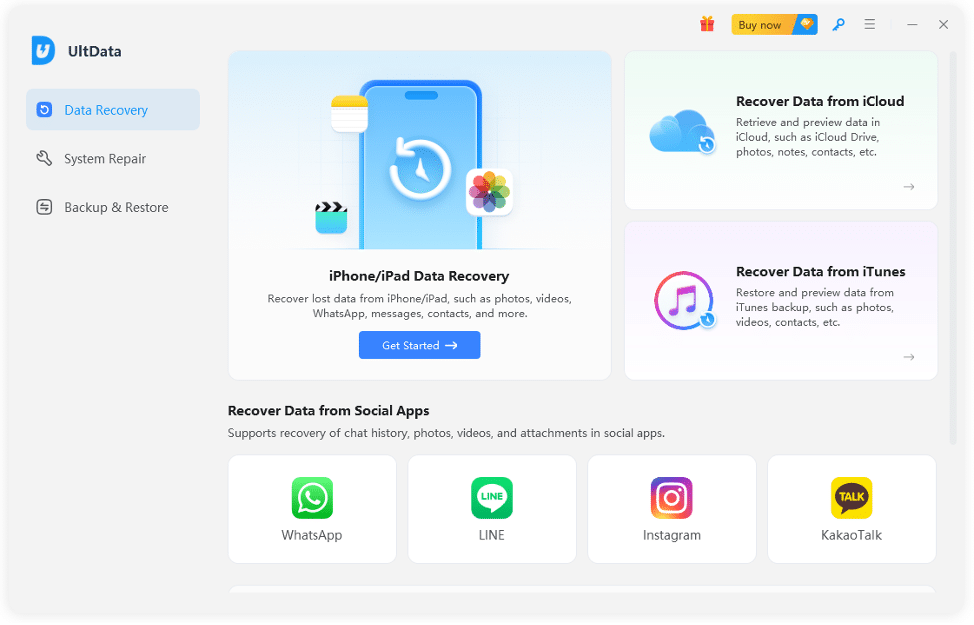
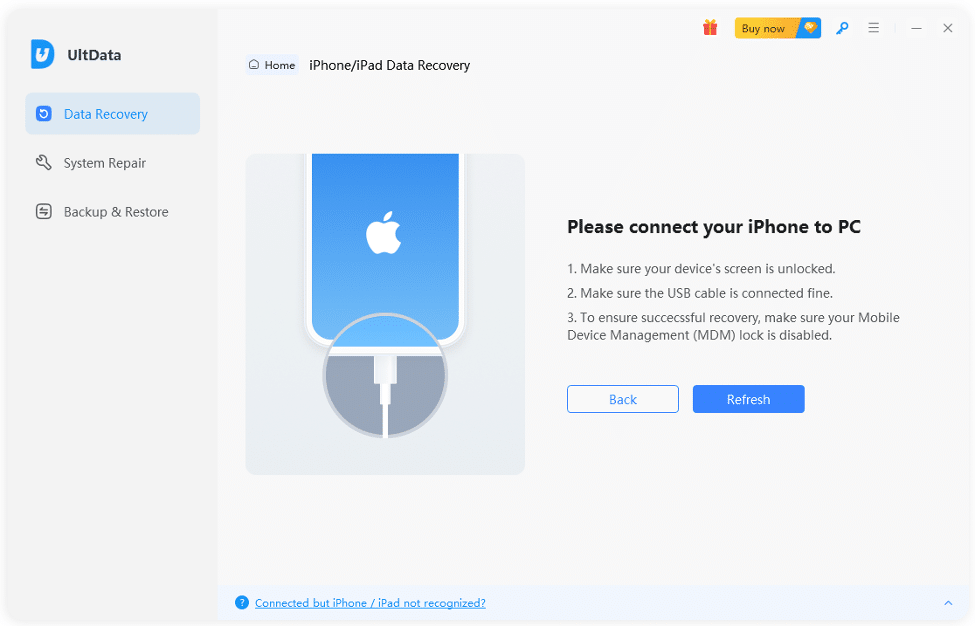
Step 2: Attach your iPhone to your computer. Then, make certain it is unlocked. Then, tap “Trust” if asked.
Step 3: Once connected, choose “contacts” for scanning. Then, click “Scan.”
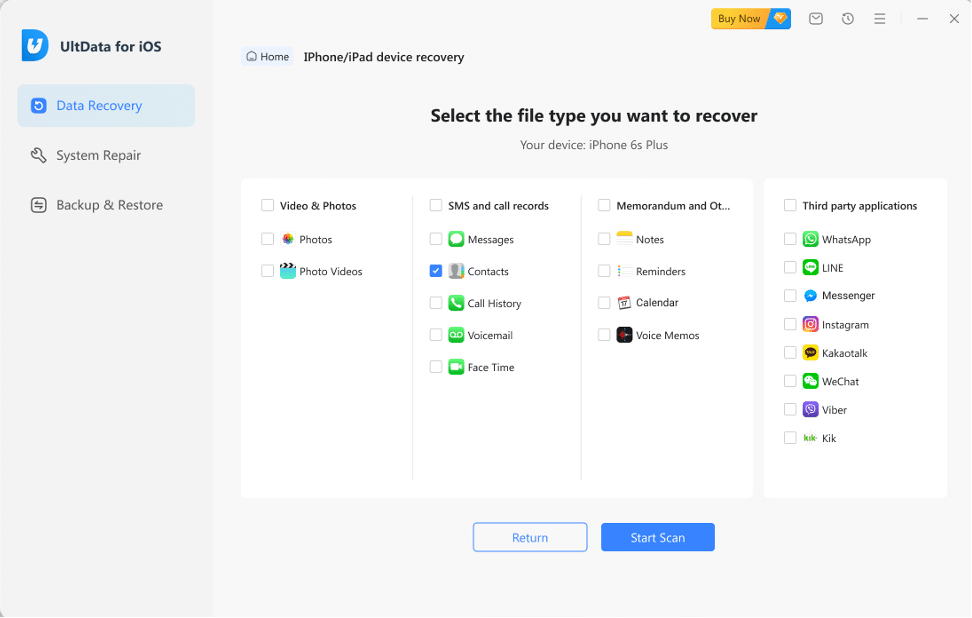
Step 4: Preview scanned files, select ones you need, and click “Recover.” You can recover files to your computer or directly to your iPhone (contacts and messages only).

Part 3: How to Recover Deleted Contacts on iPhone With Backup?
Here’s how to recover contacts from iCloud on iPhone, iTunes, and a Gmail account with in detailed steps. Pick a method based on which service you’ve used to store your iDevice backup:
Option A: Recover Deleted Contacts via iCloud Backup
You can restore your contacts from a recent backup you’ve made of your iPhone files on iCloud. However, you must have synced your iDevice data with iCloud prior to deleting contacts. If you’ve already synced, here’s how to recover contacts from iCloud on iPhone:
Step 1: Launch a browser on your iPhone or another device. Then, open iCloud.com. Next, input your iCloud account credentials. This is to sign into your account.
Step 2: Move down. Then, select “Data Recovery.” Then, tap “Restore Contacts.”
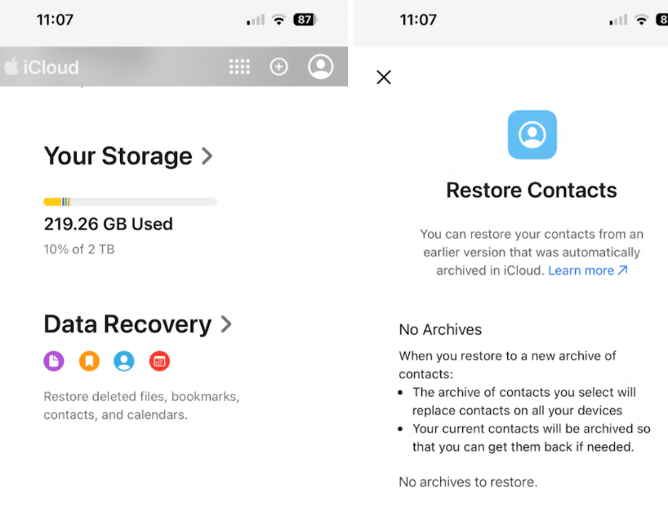
Step 3: Choose an iPhone backup from just before you deleted your contacts. Click “Restore” next to it. Tap “Restore” again.
Option B: Recover Deleted Contacts from Gmail
If you use Gmail, your contacts might be saved there. Thus, in a situation where you’ve removed them from your iPhone and are also without backup, just sync your contacts in your iPhone Settings. Here’s how to recover lost contacts on iPhone with your Gmail account:
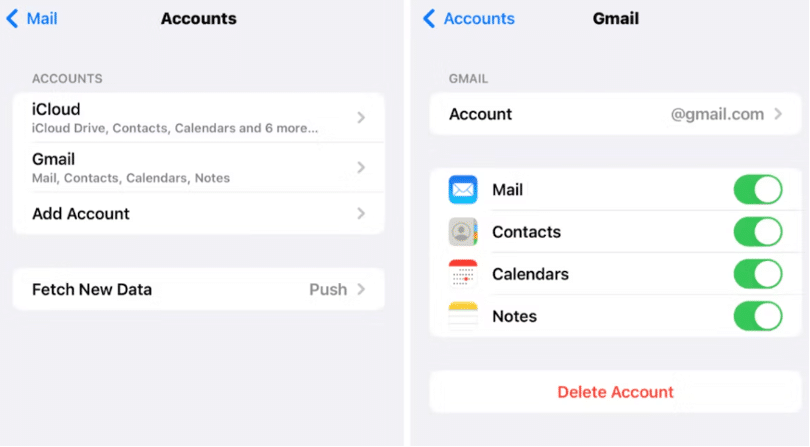
Step 1: On your iPhone open “Settings.” After this, move down and select “Mail.”
Step 2: Tap “Accounts.” Then, choose “Gmail.”
Step 3: Switch on “Contacts,” This will sync your Gmail contacts with your iPhone and also across all devices where you use your Gmail account, other than your iPhone.
Option C: Recover Deleted Contacts by iTunes Backup
Every time you synchronize your iPhone with iTunes, it stores a copy of your iDevice data. But first, to learn how to recover lost contacts on iPhone make certain that iTunes backup is enabled. However, restoring from iTunes will return your iPhone to state it was in prior to when a backup was made. This means you could lose any data added or changed since then. So, use this method only if you’re okay with reverting to that previous state. Here is how:
Step 1: Run iTunes on your computer. Then, attach your iPhone to same PC.
Step 2: Click your device icon. After this click “Restore Backup” in “Summary” section.
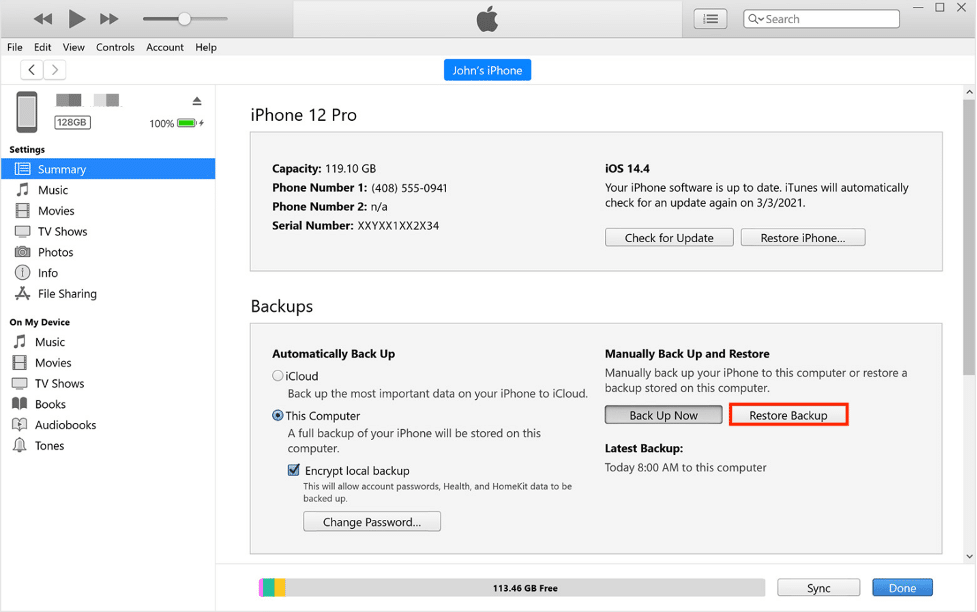
Step 3: Choose an iPhone backup you want from a drop-down menu. Then, tap “Restore.”
Option D: Contact Apple Service
As a last resort, if no method works, learn how to recover contacts from iCloud on iPhone with help of Apple Service. Contact them, explain your situation, and request data recovery. Apple can usually recover data erased within past 30 days. If your contacts were removed more than 30 days ago, you may need to try a specialized iPhone contacts recovery tool.
FAQs About How to Recover Deleted Contacts on iPhone
Q1: How to retrieve deleted phone numbers on iPhone without iCloud?
You can learn how to recover deleted contacts on iPhone without backup with help from iTunes, or, better, with Tenorshare UltData. This tool permits users to selectively choose file types to retrieve rather than restore whole backup.
Q2: How to find hidden contacts on iPhone?
iPhones don’t have a “secret folder” for contacts. But you can check for hidden groups in “Contacts” app or search results if they’re not turned off.
Bottom Line
You can recover deleted contacts on your iPhone from an iTunes or iCloud backup or your Gmail account. But if your query is also, “Can you recover deleted contacts on iPhone without a backup,” the answer is yes, You absolutely can. If you don’t have a backup, Tenorshare UltData can help you retrieve contacts directly from your iPhone. It also allows choosing file types you want to restore and provides a preview of the recovered data.











