
We use Microsoft Word and other text editors daily to create and edit documents. This electronic means of writing documents has made our life so much easier.
But this convenience comes with a cost. If your document is not saved properly, you may lose it if your computer suddenly shuts down. And that is a problem a lot of users face when working in Microsoft Word and other text editors.

But there are ways to recover unsaved word document from any PC that you want. Today we will talk about common ways to recover an unsaved word document and how we can prevent data loss in the first place. And we will also tell you how you can perform data recovery using Wondershare Recoverit.
Common Ways to Recover Word Document
Losing your important word documents due to a stupid power cut can be a real disaster. However, it is possible to recover these files without using the help of any third-party software. Let us explore the available options.
Microsoft’s Data Recovery Measures
If you were editing your document in Microsoft Word, then you just might be lucky. In the latest versions of Word, Microsoft keeps a backup of any recent unsaved documents even if your computer shuts down abruptly.
When you restart your PC and go to Microsoft Word, you may see a message on your screen notifying you about unsaved word documents. Other than that, you can follow the steps given below.
Step 1: Click on the File tab located in the upper-left corner of the screen.
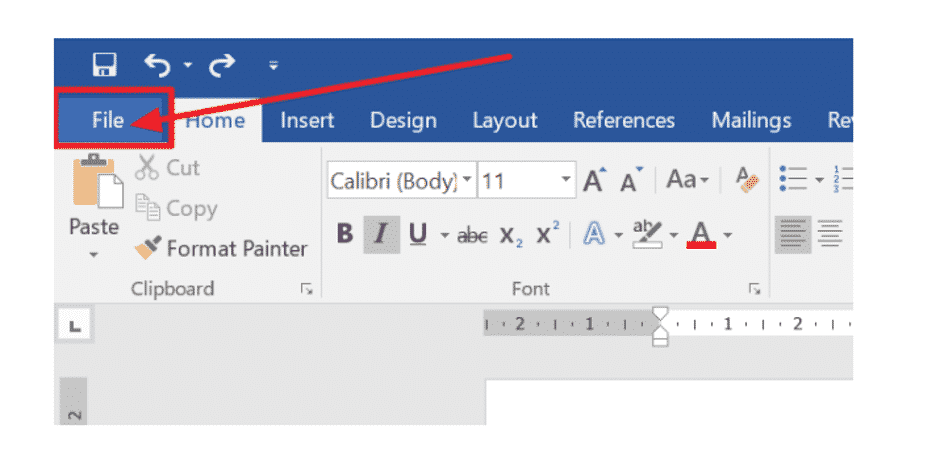
Step 2: Click on Manage Document. A drop-down menu will open up. Select Recover Unsaved Documents from the menu.
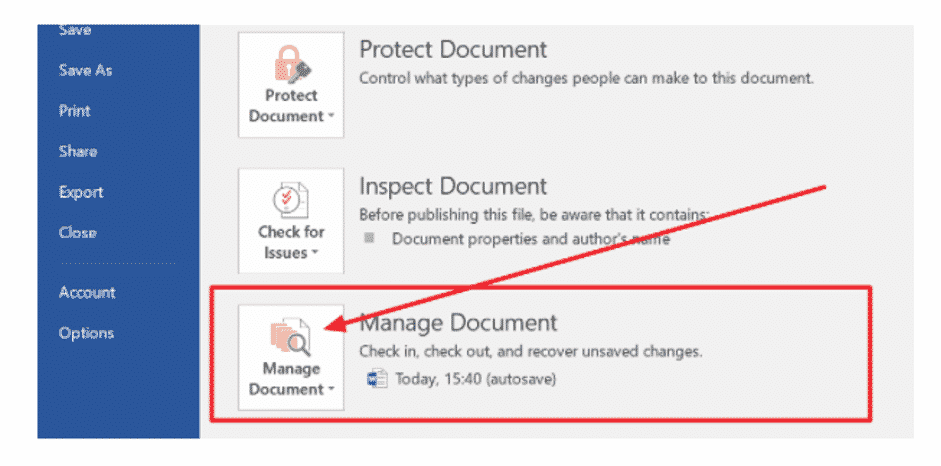
Step 3: It will open up the UnsavedFiles folder in your file explorer. From there, look for the unsaved document. If you lost the document recently, you might find it here.
Step 4: Once the unsaved file opens up in Word, save the file by clicking on the Save As button that appears on the top of the screen.
If you do not find the unsaved document in that folder, but you own a Microsoft 365 subscription, you should check out the following locations. There might be a backup of your unsaved file in there.

If you are using Windows 10 version 2004 or higher, you can install the Windows File Recovery tool from the Microsoft Store. They can be used to recover word documents if the files are not present in the backup locations.
How to Recover Word Document with Recoverit
If none of the solutions work, you need to use dedicated data recovery software like Wondershare Recoverit. It is a pretty powerful data recovery tool that can recover any file from any computer.
Follow the steps below to recover unsaved word documents using Wondershare Recoverit.
Step 1: Download and install Wondershare Recoverit from the official site. Once you open the app, the window will show you all the storage devices and partitions present on the computer.
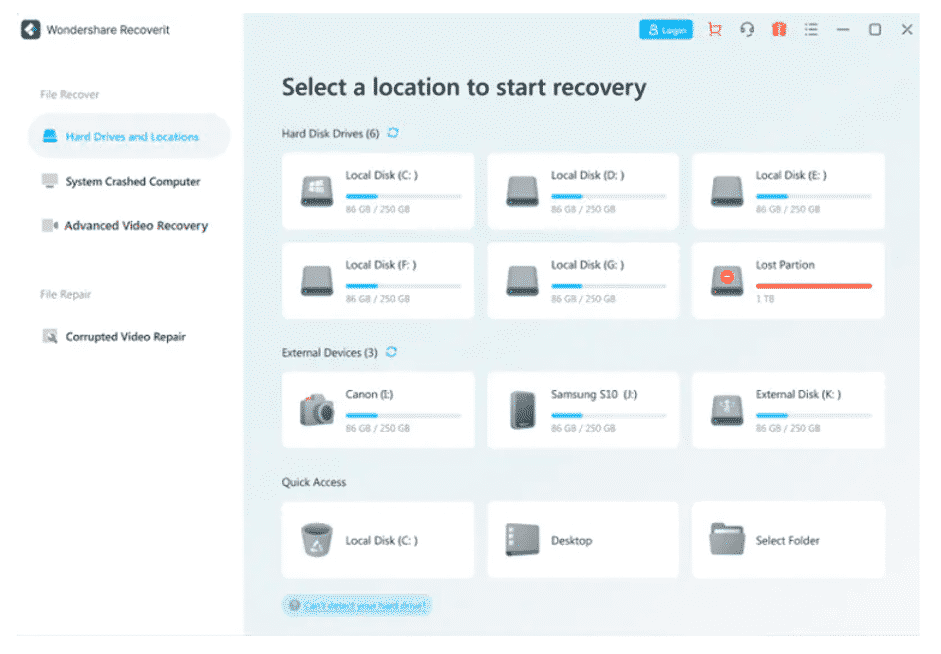
Select the C: drive (this is where the backup files may stay. Else, select the partition where you saved any previous copy of the document) and click on Start.
Step 2: Now, Recoverit will start scanning the drive for any file that can be recovered. Now, Recoverit’s ability to search massive hard drives quickly is what made us like it. After their latest updates, it takes very little time to scan the same hard drive partition compared to other data recovery software.
Plus, you can use different filters to pinpoint the file you are looking for. This makes the searching process much faster.
When scanning the drive, Recoverit shows you real-time results of the scan. So, you can pause or stop the scan as soon as you spot the file you want to recover.
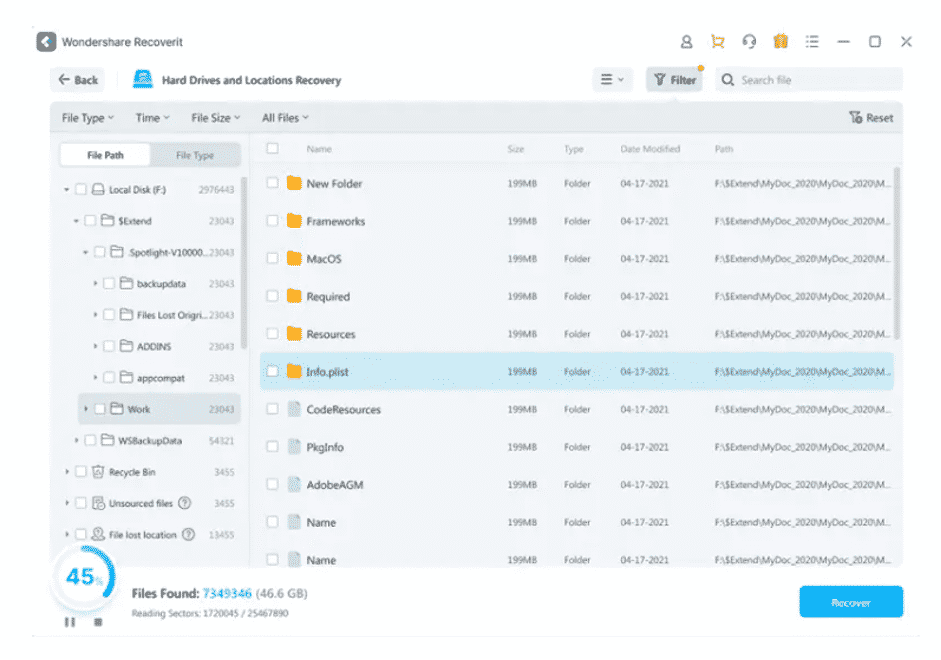
Step 3: Before you proceed to recover any deleted file, Recoverit allows you to look at the preview of the recovered file. Click on the Preview button after selecting a file or simply double-click it.
This will open up a window where you will see a preview of the file that you want to recover. Whether it is an image, a word document or a pdf file, you will be able to see a preview of it.

Satisfied with the preview? Then simply click on Recover located on the bottom right corner of the window and save it to your desired location.
And that is how you can perform data recovery on an unsaved word document. As long as a trace of the file is present in your hard drive, Recoverit will surely find it for you.
Tips to Avoid Word Document Loss
Yes, there are tools that will help you recover all your unsaved word documents. But why not take measures to prevent that from happening in the first place so that we can live without any tension?
The major reason you may lose an unsaved word document is sudden power loss. So, the first thing you should do is buy an Uninterrupted Power Supply (UPS). These are pretty handy items to provide battery backup even during a power cut.
Even the cheapest UPSs can give approximately ten minutes of battery backup after a power cut. So, you will have enough time to save your document.
If you have an active internet connection all the time, then you can rely on services like Microsoft Office 365 or Google Docs. They constantly save your document on the cloud for every single action you take – be it pressing the space bar or typing a single letter. Thanks to them, your document will continuously be saved to the cloud until your computer turns off. So, even if there is a power cut, you can rest assured that your work is saved.
Closing Words
Losing an unsaved document is a common problem for desktop users. However, getting them back is a piece of cake with the right knowledge and tools. Always make sure that you have a UPS or constantly save your work in the cloud so that all your hard work doesn’t go to waste. And in case you still lost your word document, Wondershare Recoverit has your back.











