

In today’s fast-paced project environments, staying on top of timelines is more important than ever. Whether you are a project manager, freelancer, team lead, or stakeholder, the ability to make a timeline that clearly shows your project’s status is a game-changer. One of the best tools available for this is Office Timeline, which provides powerful features for tracking ongoing projects visually and effectively. This article explores how you can master visual project tracking using Office Timeline Online through baseline comparisons, color-coded indicators, and stakeholder collaboration.
Why Visualizing Project Progress Matters
Visual project timelines help you communicate progress more effectively than traditional spreadsheets or text updates. When you create timeline, and a snapshot of your project’s status, including tasks completed, current activities, delays, and upcoming milestones. This clear visual representation allows team members and clients to grasp what’s happening at a glance.
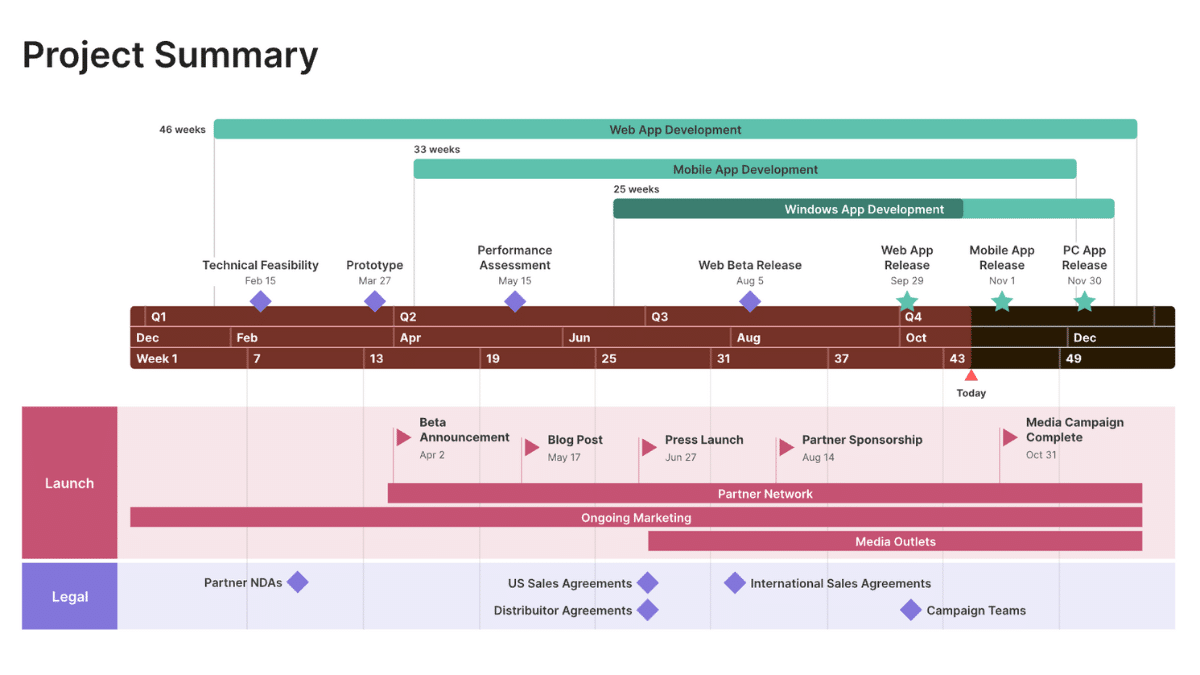
With a tool like Office Timeline Online, project updates become more than just reports—they become interactive, shareable, and informative visuals that facilitate real-time decision-making.
Set Project Baselines vs. Actual Timelines
One of the most powerful features you can use in Office Timeline Online is the ability to set baselines and compare them with actual progress. A project baseline is essentially the original plan—a roadmap of what was supposed to happen and when.
When you make a timeline using Office Timeline Online, you can lock in this baseline and track how your project progresses against it. This feature is crucial for identifying delays, scope creep, and resource management issues early. The platform automatically compares your actual completion dates to planned milestones and highlights variances, giving you valuable insights into your project’s performance.
By visualizing these differences, you’re better equipped to adjust timelines, manage expectations, and provide data-driven status reports.
Use Color-Coding to Identify Delays and Advancements
Color is a powerful visual cue. Office Timeline Online allows users to apply custom colors to timeline bars, milestones, and tasks. This feature is especially useful when tracking project changes and highlighting what’s on time, ahead of schedule, or falling behind.
When you make a timeline using this feature:
- Use green to represent on-track tasks.
- Use blue to show completed milestones.
- Use red to flag delays.
- Use orange or yellow to indicate potential risks or areas needing attention.
These visual indicators help teams quickly identify problem areas and act before delays affect the overall delivery. Color-coding also adds clarity during meetings and presentations, reducing the need for long verbal explanations.
Share Real-Time Updates with Stakeholders
Effective project communication depends on keeping stakeholders in the loop. Office Timeline Online offers multiple ways to share project visuals in real-time, which is ideal for remote and hybrid teams. Once you make a timeline, you can:
- Share it via a link that always reflects the latest changes.
- Export it as a PowerPoint slide, image, or PDF for formal reports.
- Embed the timeline into team collaboration tools or project management platforms.
This level of transparency builds trust and allows stakeholders to monitor progress without waiting for scheduled updates. It also encourages accountability within the team, as everyone can see their tasks and deadlines in context.
Track Milestone Shifts Over Time
Project timelines are not static—they evolve. A smart project manager always monitors how milestone dates shift due to internal or external factors. Office Timeline Online makes this easy by allowing you to update timelines as changes occur while keeping a record of previous dates.
When you make a timeline with this feature in mind, you create a living document that tells the full story of your project’s journey. This helps in post-project evaluations and provides valuable learning for future planning.
Empower Your Team with Visual Data
Data visualization is more than just a design choice—it’s a productivity booster. When teams can visualize what’s happening, they make faster decisions, collaborate more effectively, and feel more engaged in the process. Office Timeline Online offers the perfect balance of functionality and simplicity, making it easy to create clear, beautiful timelines that drive results.
Conclusion
If your goal is to make a timeline that not only informs but also inspires action, Office Timeline Online is your best bet. From setting baselines to color-coding and sharing updates, it transforms raw data into visuals that improve project outcomes. In today’s dynamic work environment, mastering the art of visual project tracking is not just a skill—it’s a competitive edge.











