
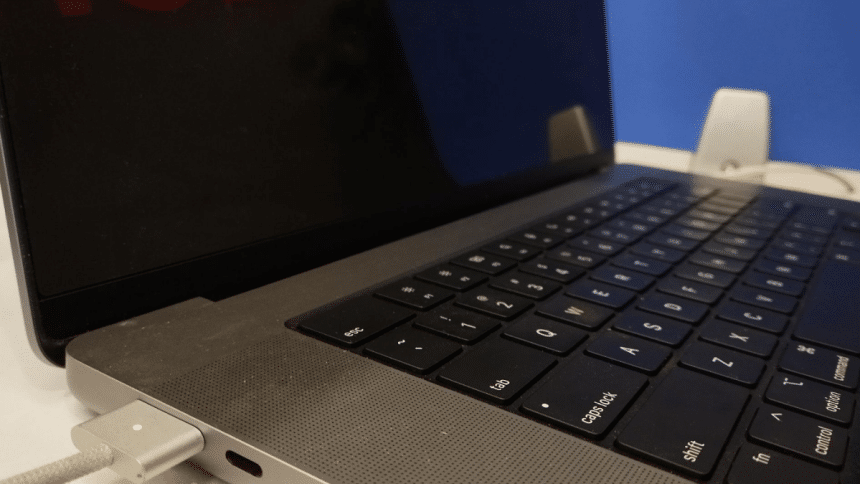
MacBook Pro is the top-tier laptop series from Apple. Usually, it lasts a couple of years with the least maintenance. Nonetheless, you may sometimes see your MacBook Pro charging but not turning on even after several efforts. At such moments, you can be freaked out and be ready to spend a few hundred dollars to fix it.
Hold on! You can apply a few tricks and fixes when MacBook Pro won’t turn on but is charging without problems. You should try resetting its system management controller (MNC), booting it into safe mode, and trying Apple Diagnose to find the solution.
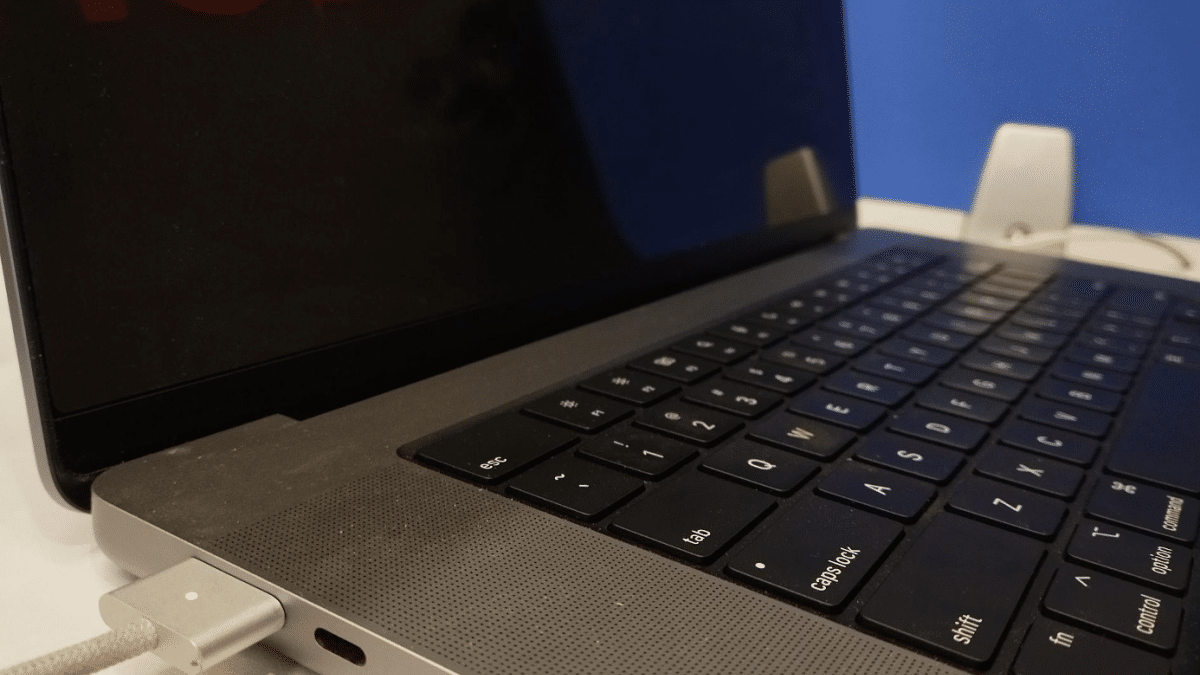
We will discuss these methods to fix the MacBook Pro if it is charging correctly but not turning on. Also, we will discuss how to diagnose a MacBook Pro that is charging but not working correctly and why it happens. So, let’s see the different ways to fix a MacBook Pro that is not turning on but charging.
Why Is My MacBook Pro Not Turning On?
It can be frustrating when you see your MacBook not turning on. However, before you dive deep into fixing it, you should understand why MacBook Pro malfunctions and doesn’t start. It includes the following reasons:
- At times, the software running on your MacBook can be buggy. So, the laptop won’t start due to glitches in the software. It often happens right after software updates due to bugs and viruses.
- There may be damaged RAM or storage space in the MacBook Pro. At times, people can drop their MacBook Pro, which affects the hardware. Thereby, with damaged components, the device won’t start.
- Also, there can be loose connections. If you have a two to three years old Pro or it has poorly dropped on the ground, the wiring and connections may become loose. Hence, it may not have the power to turn on and run.
- You may see that the battery port is showing a green signal, but the MacBook isn’t running. It means the device’s adapter is defective, and the battery isn’t charging in reality. As it happens, you need to replace the power adapter of your MacBook Pro.
MacBook Pro Won’t Turn On But Is Charging: How To Fix?
Is your MacBook Pro charging but not turning on? Do you see the green signal on your MacBook Pro port, but it doesn’t run? If so, you must first diagnose the reason for the problem and then try fixing it.
Step 1: Diagnose the battery of the MacBook Pro
First, check that the power adapter of your MacBook Pro is working correctly. See if its power adapter is connected. Also, check if its LED light is turned on or not. You can charge your device with another power adapter to know if the charging port works correctly.
For this, connect your second adapter to the device and charge it. Then, check whether or not it turns on. If your MacBook Pro turns on after connecting it with the second adapter, the diagnosis ends here. You can swap the power adapter and continue using the device.
If you see that the power adapter and battery are working but the MacBook isn’t running, continue to the next steps.
Step 2: Diagnose the hardware and monitor
Connect the MacBook with a secondary monitor and see if it works. If you see that MacBook Pro is turned on and the secondary monitor is working, you need to replace your device’s screen. So, you should check for problems with the primary monitor.
When MacBook Pro screen turns black even with proper chargers, there may be hardware problems. The screen may be pixelated or internally damaged. As it happens, you should choose macOS Recovery to start your device. After that, you can select its Disk Utility to repair the start function and see if the display comes to life.
Also, try to hear the device carefully when you press the power button. Do you hear the noise of the fans and connected hardware? Often, the fan may be damaged or blocked. So, it will stop your device from starting even if it charges properly. If the problem is hardware-related, you should take the device for a complete check-up and necessary replacements.
But before you go to an Apple Shop to replace your MacBook, try our fixes.
Step 3: Reset the SMC of the MacBook Pro
Often, you can reset the System Management Controller (SMC) in your MacBook Pro to fix the problem. However, you must first detect what chip your MacBook Pro has. In 2018, Apple introduced its T2 chip for the MacBook Pro. Earlier versions don’t have the T2 chip.
The resetting steps for MacBook Pro with and without the T2 chip differ. We will describe both options so you can work with even the older MacBook Pro versions.
SMC resetting steps for MacBook Pro With T2 Chip: Models After 2018
All MacBook Pro series from 2018 and onwards have T2 Security Chip. You can check it from the “Controller” section of the “System Information” menu. Your MacBook Pro with T2 Security Chip will show the following image:
You can press and then hold the MacBook Pro power button for 10 seconds. Then, after a few seconds, reseat the device, and it will reset the system management controller. However, this system often fails, so follow our steps below.
Once you are sure that your device has a T2 chip, follow these steps:
- After shutting down your MacBook Pro, connect it with a MagSafe adapter and ensure it is charging correctly.
- Look at the left side of your MacBook Pro keyword and find the Shift, Control, and Option buttons. Also, carefully look at the power button. It will look like the following image:

- As shown in the image above, press all these four keys simultaneously and hold them for 7 seconds.
- Then, release all four keys and turn on your MacBook Pro as usual. For checking, press the four keys again for seven more seconds to check whether the MacBook Pro is working correctly.
- You should see your MacBook Pro turning on and working properly.
SMC resetting steps for MacBook Pro Without T2 Chip Models Before 2018 (2009-2017)
MacBook Pro built before 2018 doesn’t have a T2 security chip. So, you need to choose different steps to reset its system management system (SMC). Also, the MacBook Pro from 2009 to 2017 has non-removable batteries.
The steps to reset its SMC are:
- Once your MacBook Pro shuts down, press its shift, control, and options button simultaneously.
- Also, press the power button simultaneously for 10 seconds. The order of the buttons will be similar to the image shown below:

- Then, you can release the four keys and turn on your device. It will reset the SMC in MacBook Pro without the T2 chip built before 2018.
Step 4: Boot MacBook Pro in Safe Mode
At times, the resetting of SMC might not fix the problem. Henceforth, you must choose Safe Mode to Boot your device. For this, turn on the device after shutting it down. Then, hold the Shift key immediately once it turns on. Hold the Shift Key until the login window or Apple Logo appears on your MacBook Pro display.
Step 5: Apple Diagnostic
If the problem persists, it may be due to hardware issues on your MacBook Pro. So, you must run “Apple Diagnostics” to find and fix the actual hardware problem.
First, disconnect the device from all external components. Then, hold the “D” button once you restart your Mac device. You must continue holding the “D” button until the Apple logo appears. Then, Apple Diagnostic will check the components of your device and give you a detailed report.
Conclusion
MacBook Pro is charging but not working or turning on often due to problematic System Management Controller (SMC) or hardware issues. Therefore, you must first reset the SMC to see if it works.
Then, try rebooting the device in Safe Mode and finally run its diagnostic option. If the problem is due to hardware, you should consult a technician to fix or replace it.











