
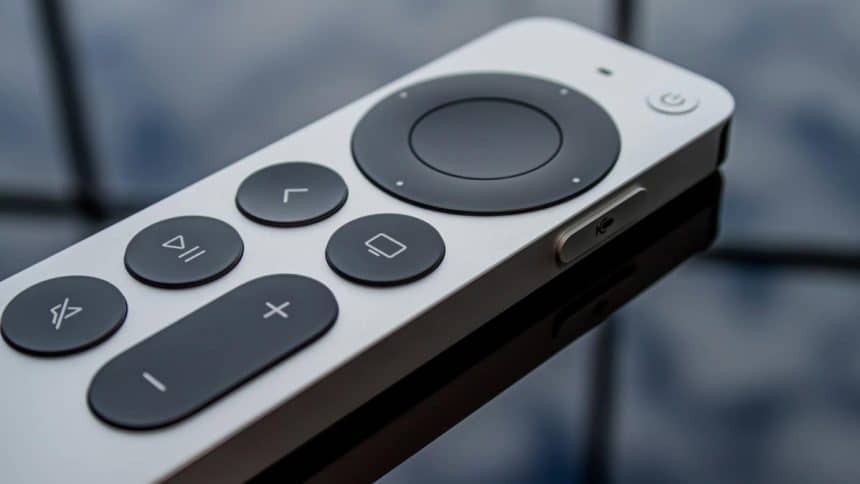
Apple TVs have very unique remote controllers because they are thin, light, and easy to use. However, there is one disadvantage behind their elegance: they can easily get out of sight. If you have lost Apple TV remote, ordering a new remote takes several days for delivery. Therefore, this guide is meant to inform you what to do if you lost your Apple TV remote and help you get control of your Apple TV back, as soon as possible.
Solution 1. Control Your Apple TV with iPhone Or iPad
If you are an iPhone user, congratulations to you, because the iPhone possesses the ability to control the Apple TV directly through a Wi-Fi network. Since this feature isn’t in the control center as the factory default, you need to add it yourself.

Step 1. Open the Settings app on your iPhone. Step 2. Select the Control Center.
Step 3. Swipe down to the MORE CONTROLS section, and find the Apple TV Remote.
Step 4. Tap the Add icon and the Apple TV Remote will shift to the INCLUDED CONTROLS section.

Step 5. Make sure you have connected your iPhone to the Wi-Fi network that your Apple TV is currently connected.
Step 6. Go to the home screen of your iPhone, swipe down from the top of the screen, and call out the Control Center.
Step 7. Tap the Remote icon and there will be a remote controller interface appears.
Step 8. Tap the Choose a TV area, and select your Apple TV from the list after device detection.
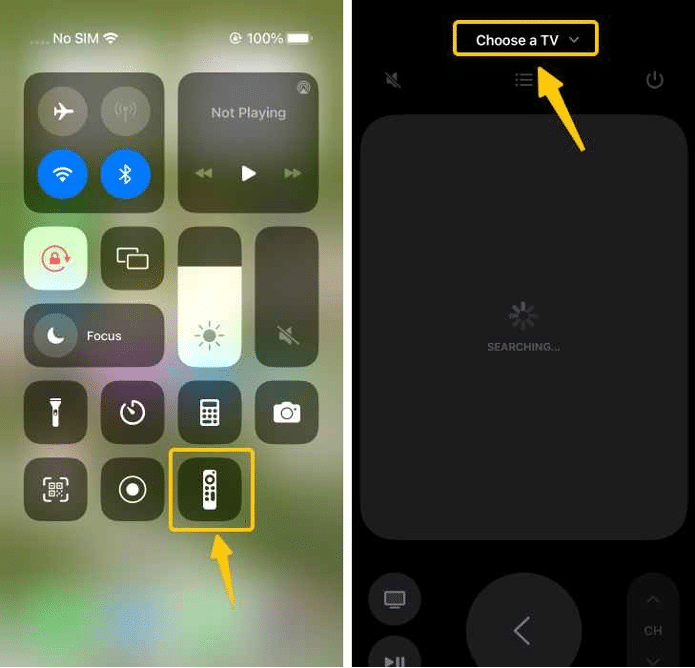
A tip for iOS 17 users: you can find the apple remote by using the built-in remote finding feature.
Step 1. Get your device with iOS 17, swipe and call out the Control Center. Step 2. Tap the Choose a TV area, and select remote find option.
Step 3. When finding start, move around and your iPhone will tell you if your remote is Far, Near, or Here.
Solution 2. Control Your Apple TV with Android
When Apple TV remote lost, and you only have an Android smart phone, the situation becomes much different. Now here comes a question: can an Android smart phone controls Apple TV like an iPhone or iPad can do so?
Where there’s a will, there’s a way. The solution is using a third-party Apple TV remote app on Android, and this will unlock the ability of your Android phone to control the Apple TV as smoothly as an iPhone does. Follow the next bit of instruction to obtain control of your Apple TV with your Android phone.
Step 1. Since the app uses Wi-Fi network as the medium to send command signals, you have to make sure that your Android phone is connected to the same Wi-Fi network as your Apple TV.
Step 2. After you have downloaded and installed the app, open the app and click the Tap to Connect area.
Step 3. Choose the Apple TV you want to connect to, and enter the PIN code that appears on your Apple TV.
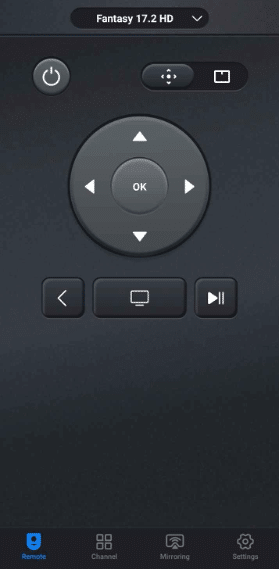
Step 4. Once the connection is established properly, the controller panel will change color depending on the type of the TV.
Solution 3. Control Your Apple TV With a Universal Remote
Apple TV supports most infrared universal remote controllers as an alternative. Therefore, if you have a universal remote with infrared, and you want to use it to make long-term control of your Apple TV, you need to learn the signal from Apple TV. In order to do that, you can follow the instruction below:
Step 1. Use your smart phones to get control of your Apple TV first with the methods above.
Step 2. Navigate to the Settings menu, select Remotes and Devices.

Step 3. Select Learn Remote.
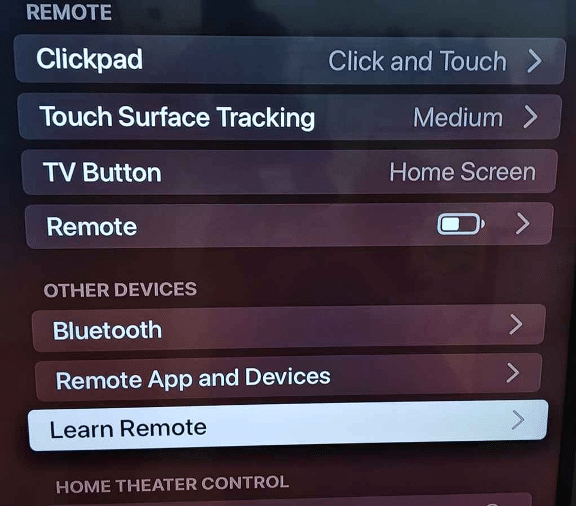
Step 4. Follow the onscreen instructions, press the buttons on the universal remote.
Tips: Apple TV doesn’t support all universal remote, so if you have encountered any problem, you’d better stick to the smart phone methods.
Conclusion
With the methods introduced above, you will be able to regain control of your Apple TV. If you are using an iPhone or iPad, you can use its built-in remote feature to control your Apple TV, and
if you have an Android smart phone, you can also do the same thing by using the Apple TV Remote app. Using your smart phone as a controller isn’t only a temporary solution, but also a long term alternative for your living-room entertainment.











