
Screen mirroring technology is nothing new, but every now and then you come across an app that offers something more than your usual app. In this LetsView review, we’ll discuss the many ways you can collaborate, share, and add a second screen for your computer or tablet.
What is LetsView?
LetsView is an all-platform screencasting tool that can be used for remote sharing and screen mirroring purposes. Unlike other screencasting tools, LetsView supports nearly every modern device, from an iPhone to an iPad and laptop.
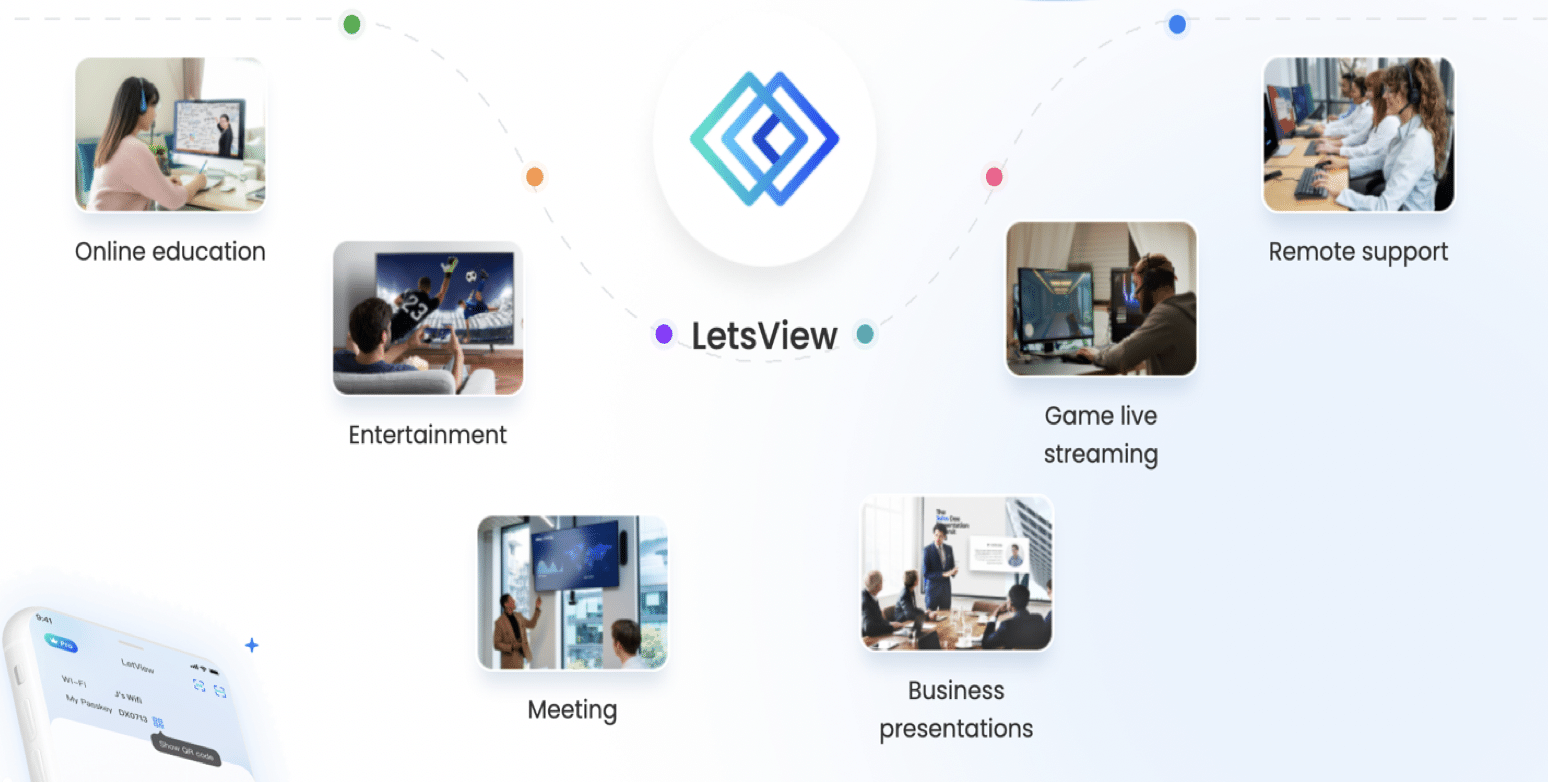
Having a screen sharing tool unlocks a world of possibilities. For instance, you might feel that a single screen is preventing you from maximizing your productivity. Or, you want to share your screen with those in your workplace as you present a meeting. In a more leisurely aspect, you may want to unwind and watch your favorite videos from your smartphone on a larger screen, such as a smart TV.
LetsView’s ‘all-platform solution’ makes it so that all you have to do is open the tool and choose from a variety of sharing and casting options. We’ll list some of the best features of Lets View.
Screen Mirroring App
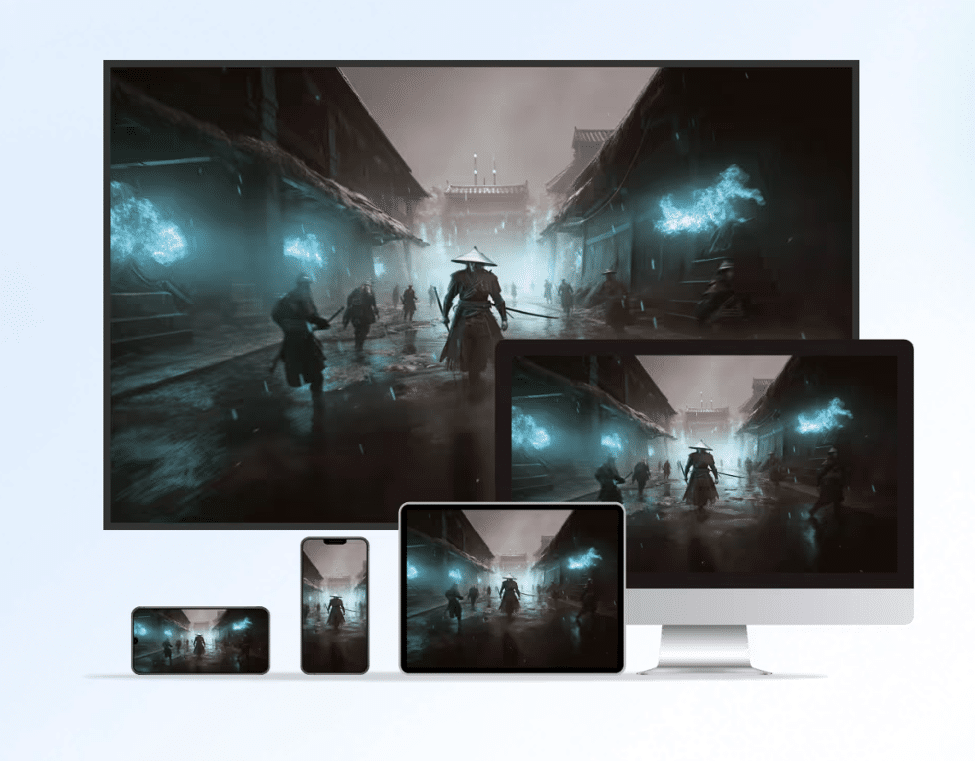
Having a handy screen mirroring app is convenient as it allows you to display content on another screen minus the wires. LetsView does this very well, eliminating the need to download or install several apps so you can mirror content from your phone or laptop to a TV or remotely.
Currently, LetsView is supported on Mac, Windows, iOS, and Android. All it takes is a quick install, then connect and have the device mirror or cast its screen.
Casting to Big Screen or TV

Anyone who has worked or used a computer will definitely know the benefit of having a second screen. Multitasking leads to better productivity, and you can have several windows open at once for this. LetsView has an added feature of wireless casting so you can just have your computer or smartphone connect to an external display.
Drawing and Add Design Capabilities
LetsView goes beyond simple casting and offers upcoming features, such as the ability to draw or design the content while in share mode. This unlocks collaborative work in the office or education and turns the tool into something that would be more useful for those who work in the remote and education industries.
Fast and Lag Free
One of the weaknesses of most screen sharing apps is that there’s a perceptible lag from the moment you try to navigate or open menus and settings. Remarkably, this is largely absent from LetsView and with a smartphone casting to a TV. The casting is smooth even while sharing an iPhone screen with a smart TV with Android.
How to Use LetsView to Mirror a Screen
Step 1. Download and Install LetsView
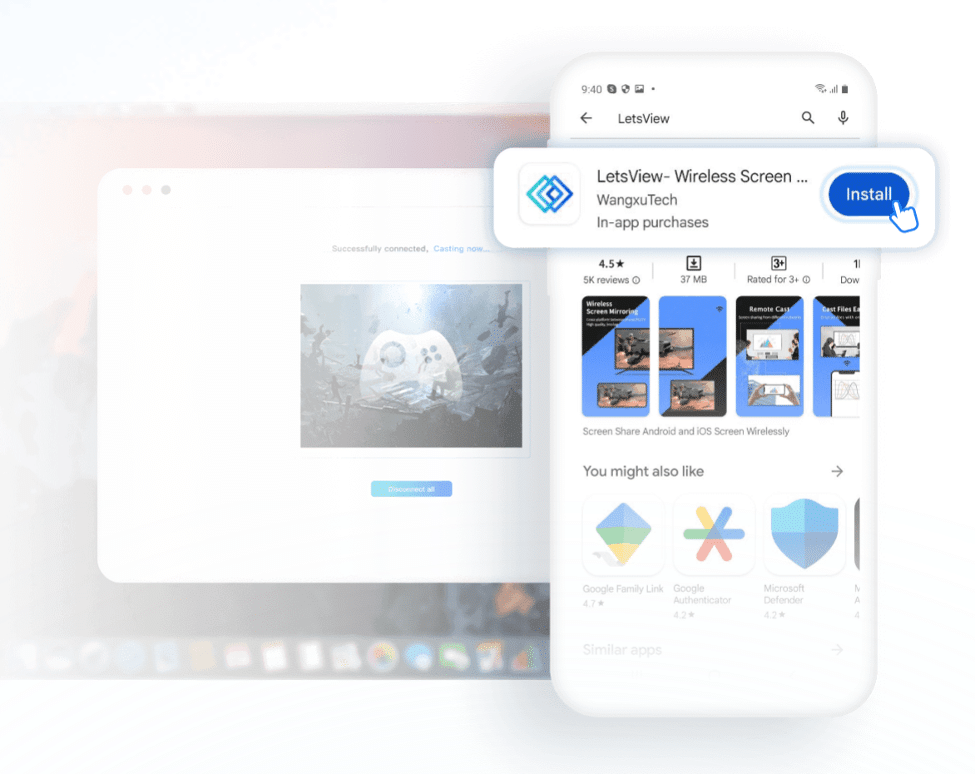
The first step is to download the LetsView tool from the official website, and then install it on your device. For iOS and Android phones, you can download LetsView from the respective app stores, while on Mac and Windows, you can head to the official website and download the tool from there.
If you plan to use LetsView on other devices, do the same step for them. This is recommended for all devices before you proceed.
Step 2. Turn on Both Devices and Connect to the Internet
The next step is to turn on the devices you want to connect and screen share with and make sure they’re connected to the internet. For instance, if you want to pass on a document from an iPhone to a TV, then you should turn both of them on.
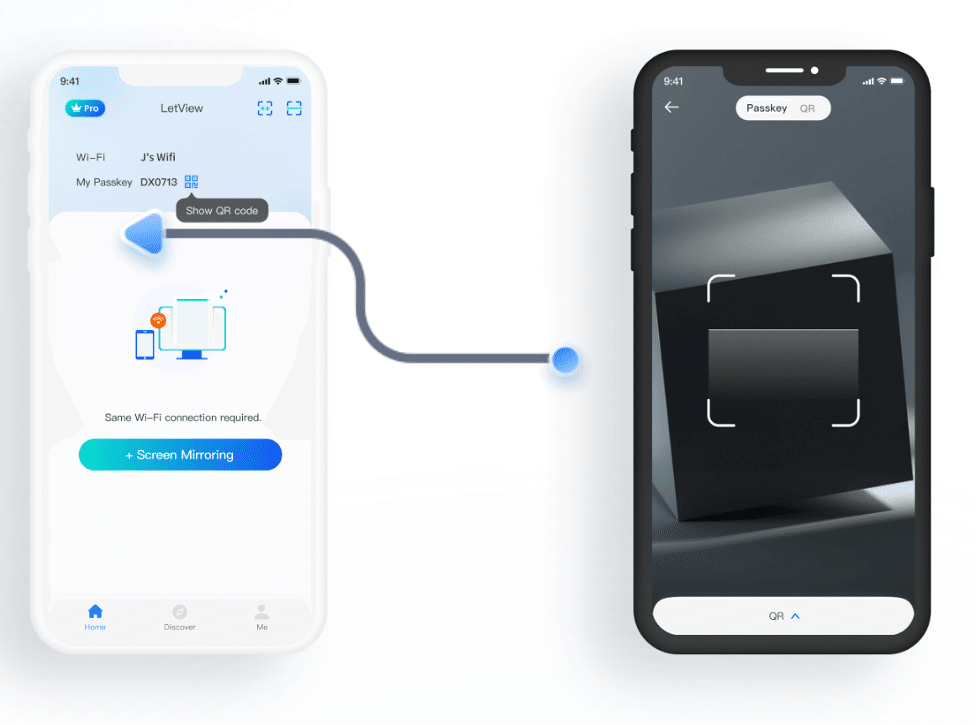
It’s worth noting that the best connection is from a stable source, which is why we recommend connecting both devices to the same Wi-Fi network. This allows the source device to ‘see’ the option to cast a screen to the recipient device.
Step 3. Follow the Instructions to Cast Screen
With the app open, follow the instructions from the source device. If it’s a mobile device, then you should open the app and read what you should do. If it’s a laptop, then you should download the PC or Mac version, open it then read the content.
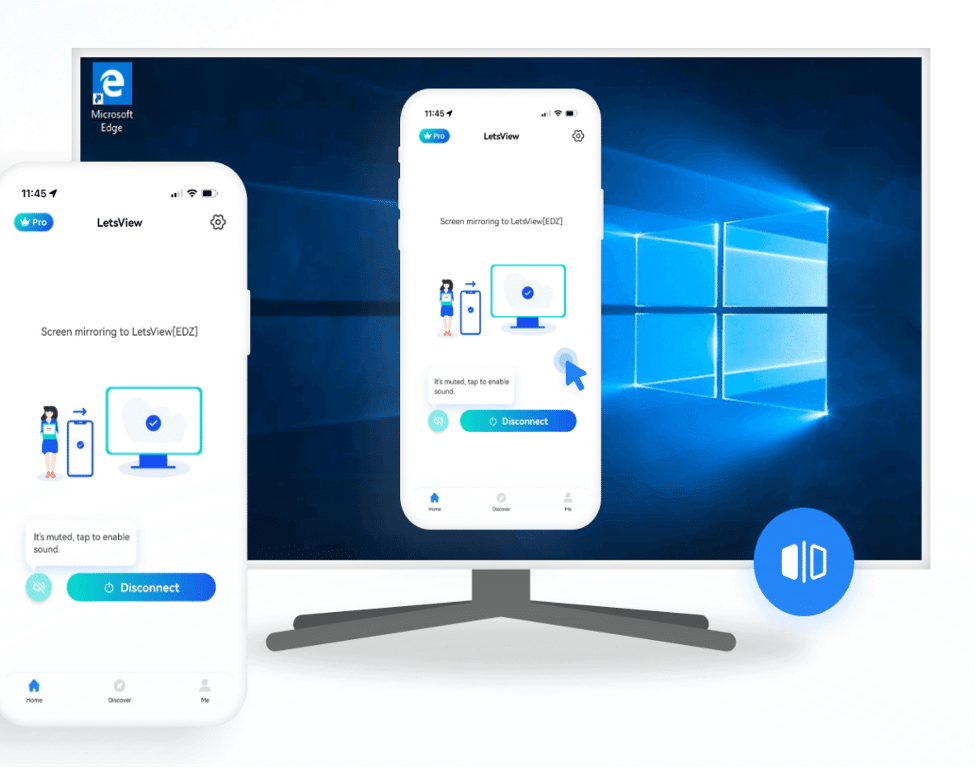
You’ll see the results of your screen sharing when the content appears on the TV or display. Keep the connection and begin work or presentation. When you’re done, simply choose the ‘disconnect’ option and turn off the devices.
Conclusion – Should You Try the LetsView Free Screen Mirroring App?
LetsView has something more to offer in the collaborative and remote workplace settings, but its casting feature is significant enough that it beats out the competition. We recommend you download the LetsView tool or app from the official website and try it today!











