
It’s frustrating if you want to finish a college assignment or work on a time-sensitive work-related task on your laptop, but it won’t turn on when you press the Power button. To help you out, this article will explore the primary causes of this issue and discuss a few quick fixes to resolve it.
Key Takeaways

If your laptop won’t turn on, this usually happens due to a damaged battery, screen, charging cable, charger, CMOS battery, or poorly seated RAM. To turn on your laptop:
- Check your laptop’s battery, charger, charging cable, and replace them if needed.
- Make sure that the laptop screen backlight or panel is not damaged.
- Hard reset your laptop.
- Reseat the RAM.
- Check and replace the CMOS battery.
Why my laptop won’t turn on?

There can be numerous reasons why your laptop won’t turn on, such as:
- Damaged battery
- Damaged screen
- Faulty charging cable or charger
- Conflicting hardware
- Bad CMOS battery
What to do when my laptop won’t turn on?
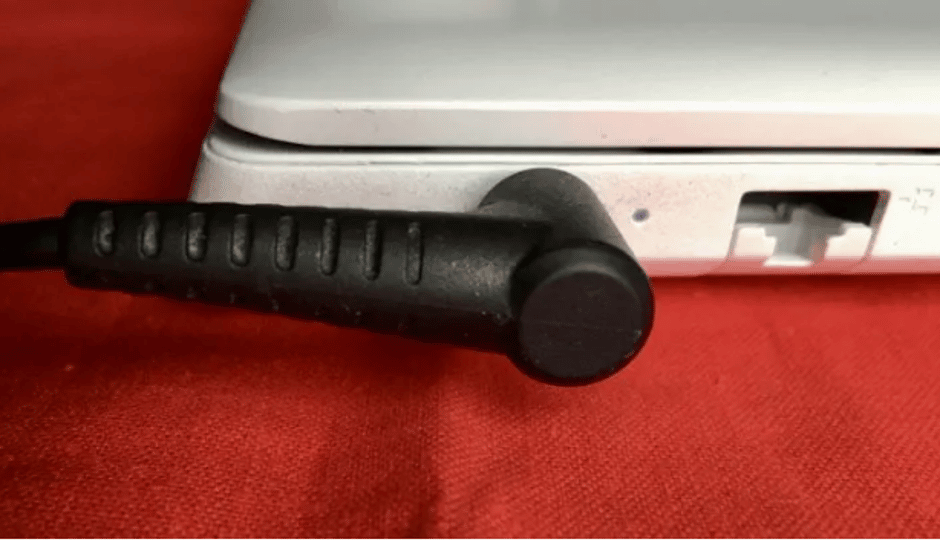
If your laptop screen won’t turn on, try the following 5 methods to resolve the issue quickly.
Check the Power Supply and Battery
Sometimes, your laptop won’t turn on due to a damaged battery, charging cable, or charger. To rule out these possibilities, first, remove the battery from the laptop and plug in the charger. If the laptop turns on this time, replace your battery from a professional repair store.
However, if the laptop fails to turn on even in the AC power mode, replace your charging cable or charger with a genuine one manufactured for your laptop.
Hard Reset Your Laptop
Another way to try turning on your laptop is to hard reset it with these steps:
- Unplug your laptop charger from the main wall and remove all external devices.
- Remove the battery.
- Next, press the “Power” button and try to hold it for at least 30 seconds.
- Reattach the battery and see if this fixes the issue.
Check Laptop Screen
If your laptop Power LED lights up when you press it, and you can hear the hard disk or fan noise, but nothing is displayed on the screen, your laptop backlight might be experiencing an issue.
To confirm this suspicion, turn off all the lights in the room and see if you can see a very faint image on the screen. If so, the laptop’s LED backlight has failed.
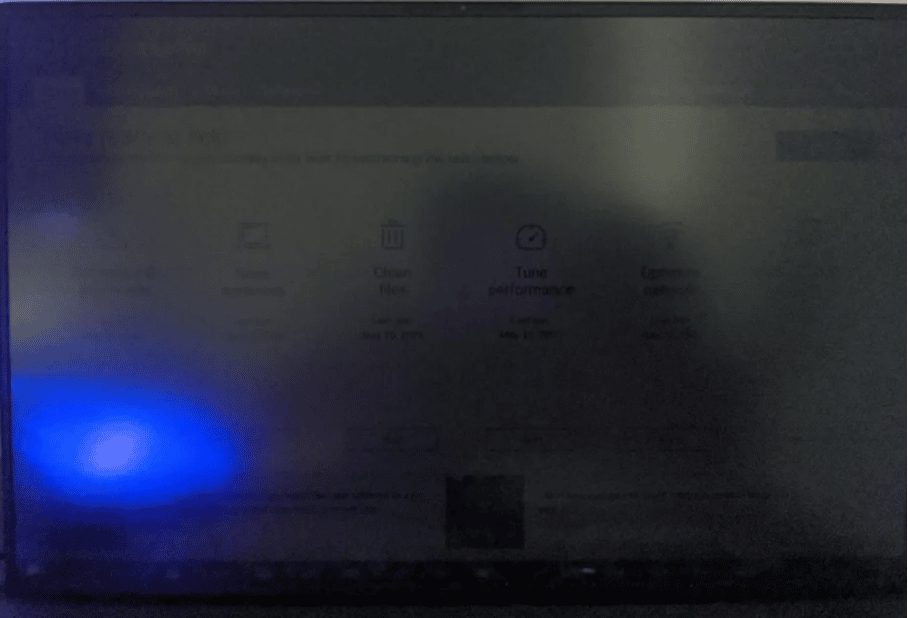
However, if there is no image on the screen at all, your laptop’s LED panel is damaged. In both cases, contact a professional to replace the damaged screen.
Replace CMOS Battery
If you hear continuous noise from the motherboard and the laptop won’t turn on, it may mean that the CMOS battery is malfunctioning.
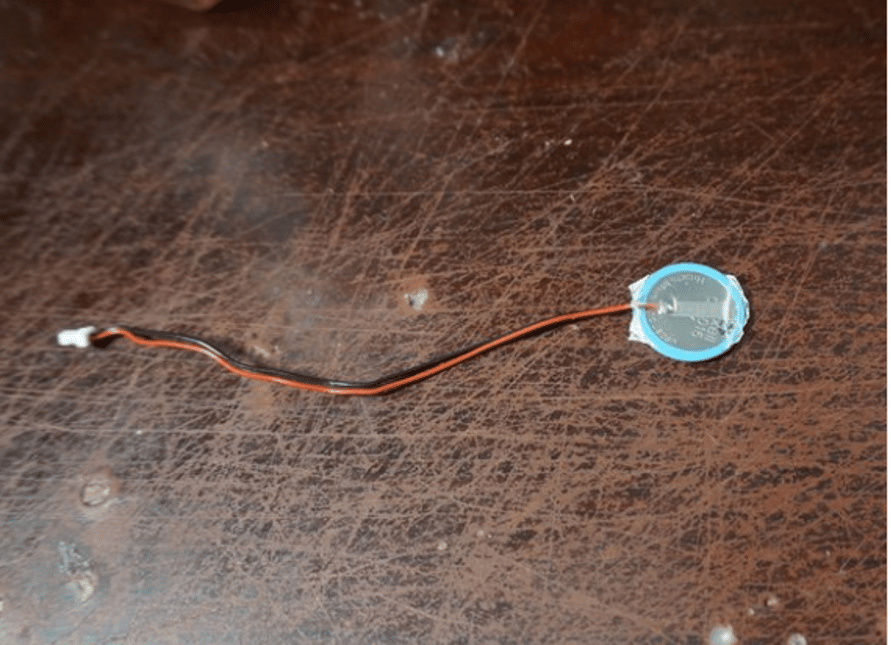
Although you can replace the CMOS battery yourself, it’s best to ask a professional to do the job for you to avoid any damage to different components of your laptop while disassembling and assembling it.
Hardware Changes
It’s possible that you might have upgraded your RAM recently, causing your laptop not to turn on. To fix this issue, try reseating the RAM this way:
- Flip your laptop and remove the RAM cover or the whole back panel.
- Now, remove the RAM and clean the RAM slot with a soft microfibre cloth.
- Reseat the RAM properly into the slot and close the back cover.
- Now, try to turn on your laptop and verify the fix.
Conclusion
In this article, we’ve explored the possible reasons why your laptop won’t turn on and provided a few solutions to resolve the issue at your home. If you’ve diagnosed the problem as hardware related, you better take your computer to a repair shop and let a professional take care of it.











