
According to Statista, 46 million people worldwide bought an iPhone last year. We can probably expect similar numbers this year; Apple’s devices remain perennially popular, and although their market share doesn’t quite match Android’s, the Cupertino tech company is still known for its unassailable brand identity and user-friendly (if not quite user-accessible) hardware and software.
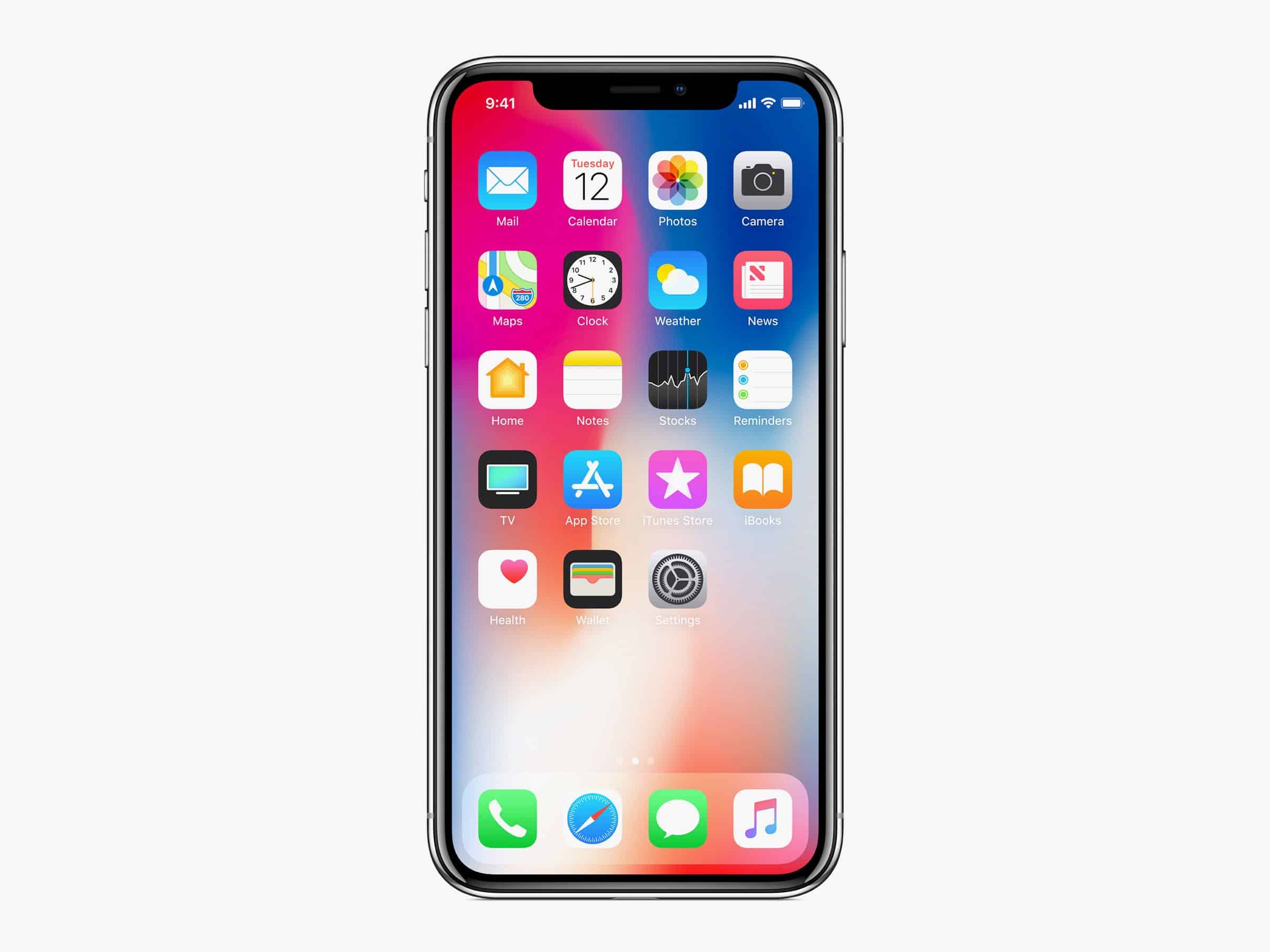
Despite this, if you’ve just bought a new iPhone, it can be difficult to know exactly where you should begin. Even lower-range iPhones have a wealth of features and functions; thanks to Apple’s closed design philosophy, every phone from iPhone XR to iPhone XS Max runs the same software with the same apps available. Here’s a beginner’s guide to what you should do with a new iPhone.
Get yourself online
An iPhone – and, for that matter, a smartphone – is nothing without an internet connection. Whether you’re on 4G or Wi-Fi, it’s important to get yourself online. Connect your device to your Wi-Fi network or to mobile data via your SIM card. Before you know it, you’ll be browsing the web, catching up with your Gemini horoscope, checking out the latest breaking news and more.
Set up iCloud backup
Losing everything on your iPhone can be a pretty terrifying experience. When you’ve gone through initial setup, it’s important to make sure your data is being backed up on Apple’s iCloud service. Just head to Settings > (your name) and find the iCloud Backup option. Larger data backups will need paid plans, but you might find the free tier is fine for you.
Talk to Siri
What with Amazon’s Alexa service and Google’s Assistant taking off in smart homes around the world, you’ll need to be savvy with Siri if you want to maximise your iPhone’s potential. Siri can help you call contacts, play music, find the weather, and much more. Even better, Siri will become smarter as you use the service, so make sure you’re always asking Siri for help.
Learn about gestures
With the new X series of iPhones (it’s pronounced “ten”, believe it or not), Apple has done away with the home screen, replacing it with…well…nothing. Instead, you’ll need to become au fait with the new gestures system. These are motions you make with your finger which allow you to access crucial features and functions on your device. Make sure you know them all off by heart.
Set up some app folders
The iPhone’s default home screen is beautiful, but it can look a little daunting and confusing. Fix that by setting up some folders. All you need to do is tap and hold an icon, then drag it onto another icon to create a folder. Think about theming your folders – things like Media, Navigation, and Productivity are good starting points. Apple will also suggest names based on the apps in the folder.
Check out the App Store
Apple’s App Store is legendary, and for our money, it’s significantly better than Google’s Play Store. Most of the apps on the Store are hand-crafted for Apple devices, and they work perfectly with the company’s full smartphone range. Get downloading – the store has everything from point and click games to productivity helpers and much more besides.
Set up Find My iPhone
If you’re anything like us, you’re clumsy and in constant danger of losing your precious iPhone. Don’t let this be the case. Set up Find My iPhone. If you lose your device, you’ll be able to use its GPS to pinpoint where it is. The standard iPhone setup process will take you through Find My iPhone, but if you missed it or skipped it you can find it in the Settings menu.
Set up Face ID
The X series of iPhones don’t have fingerprint scanners. Instead, they use Apple’s proprietary Face ID tech, which allows the phone to use your face to unlock the display. Setting this up is super easy and won’t take long. You can use Face ID for everything from personal phone security to Apple Pay (contactless payments from your device) and plenty more. If you’ve got an iPhone with a fingerprint scanner, set up your fingerprint instead.
Set up Apple Pay
Honestly, we have no idea how we ever functioned without using Apple Pay. Leaving our cards at home is convenient and secure, allowing us to travel light and still be totally in control of our transactions. Setting up Apple Pay isn’t a lengthy process, and once you’ve done it you’ll be amazed at how quick and easy it is. Bonus points if you’ve got an Apple Watch, as you can use this for Apple Pay too.
Don’t replace the default apps (mostly)
Apple’s default app suite is perfectly fine for most users and will help you do everything you need to on your device. There are more fully-featured apps out there, but for our money there are none more intuitive or useful than Apple’s own. That said, Google Maps is a distinct exception to the rule. Google’s maps app is just better than Apple’s. Sorry, Apple, but it’s true.











