
iPad is not used as often as a cell phone, so some users may forget its passcode. When you enter the wrong passcode several times, your iPad will show an “Unavailable” message and you will not be able to get into the iPad, what should you do? In this article, we will explain what does iPad unavailable mean and share the proven fixes.
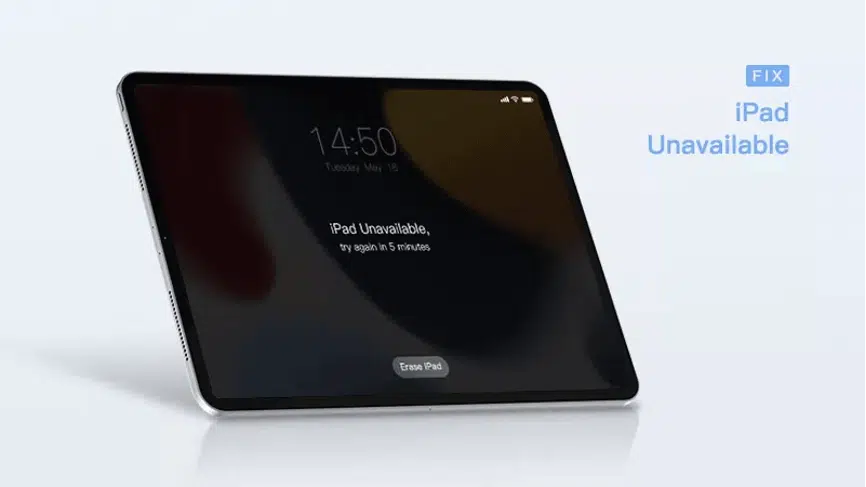
What Does iPad Unavailable Message Mean?
iPad Unavailable is a message added to iPadOS 15.2 and later. When a wrong passcode is entered multiple times, the iPadOS system will think that you may not be the owner of the iPad, and will lock the iPad automatically in order to ensure the security of the user’s private data. Prior to iPad 15.2, the device would typically say “iPad disabled”.

You might think that this is a device malfunction because you didn’t try to enter any passcode. Sometimes, an iOS software error might be a possible reason. But more often than not, the iPhone can easily be mis-touched in a backpack to enter the passcode, and then locked up, which often happens to iPads without a case.
If your iPad shows “Unavailable” or “Disabled” with a countdown message, you still have a chance to enter the correct passcode to unlock it. But if the locked iPad is no longer with the countdown message on the screen, then you can no longer enter the lock screen password. Now, how do you fix it?
The Best Way to Fix iPad Unavailable [Easiest]
iSunshare iPhone Passcode Genius is a popular tool that effectively removes the “Unavailable” message from the iPad lock screen screen. The program is an all-in-one iOS unlocking tool that quickly solves iPhone, iPad or iPod passcode problems, including lock screen passcode, screen time passcode and Apple ID passcode. It is compatible with almost all iOS and iPadOS devices.
Install and download iSunshare iPhone Passcode Genius on your computer, then follow the steps below to get rid of the “Unavailable” message on your iPad screen.
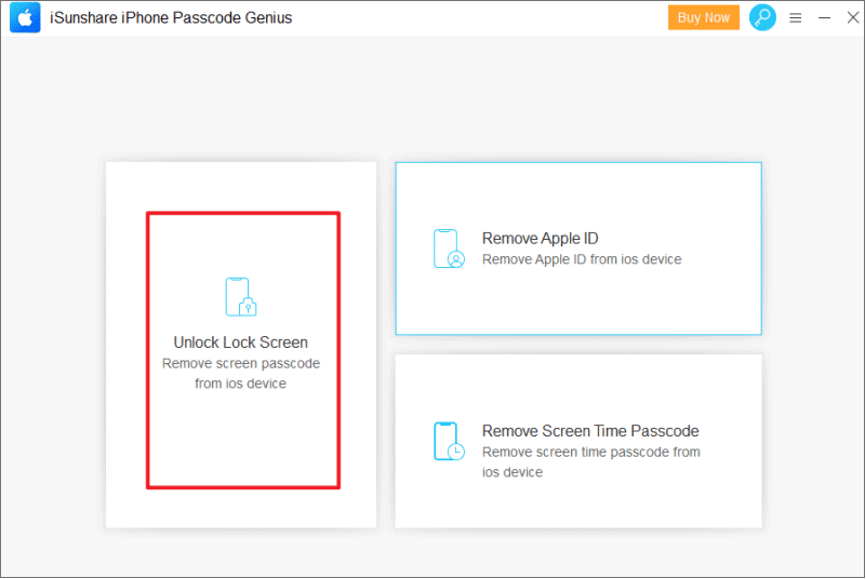
Step 1: Launch the software, it will show multiple function options on the main interface, select “Unlock Lock Screen“.
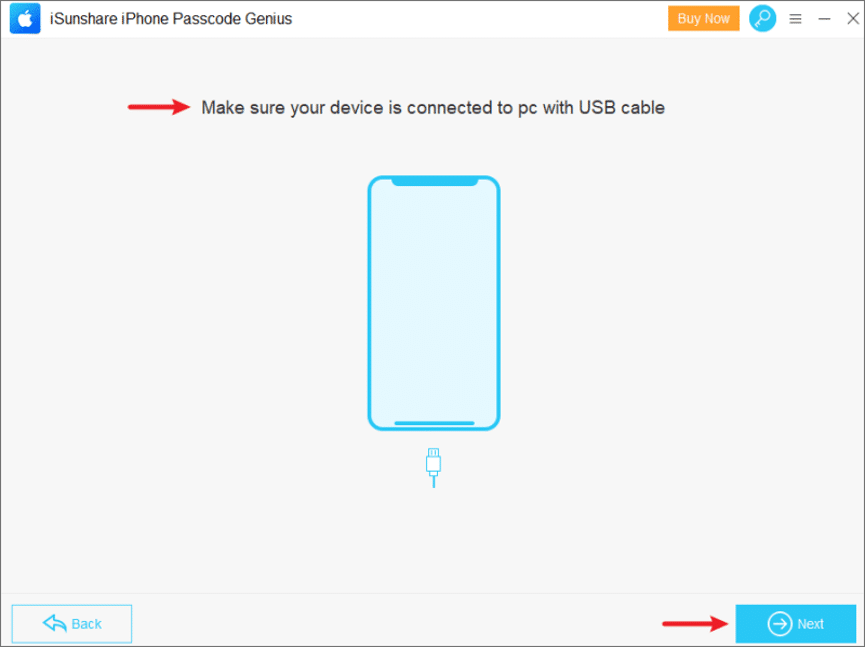
Step 2: Connect the unavailable iPad to the computer with a USB cable, and click “Next” to continue.
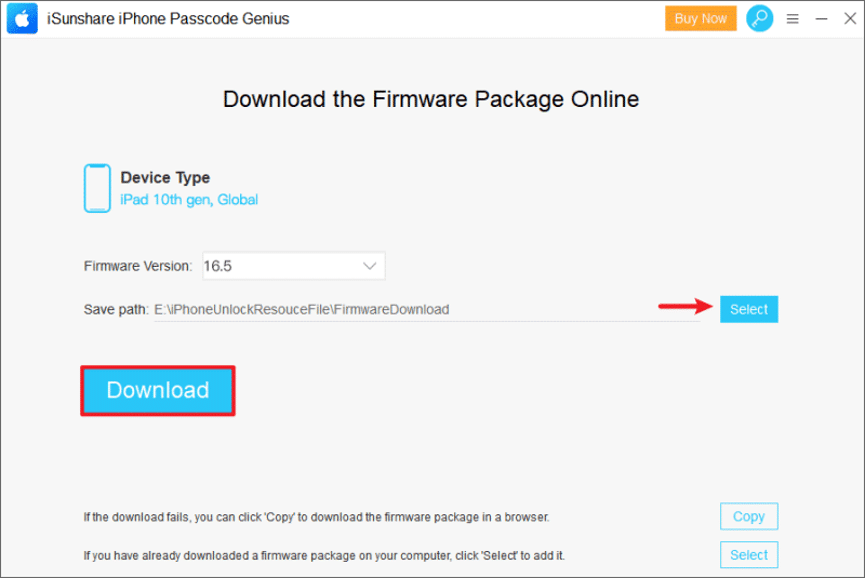
Step 3: The software will automatically detect your device information, click “Download” to get the firmware package. It is about 5GB in size, and you can click “Select” to change its save path.
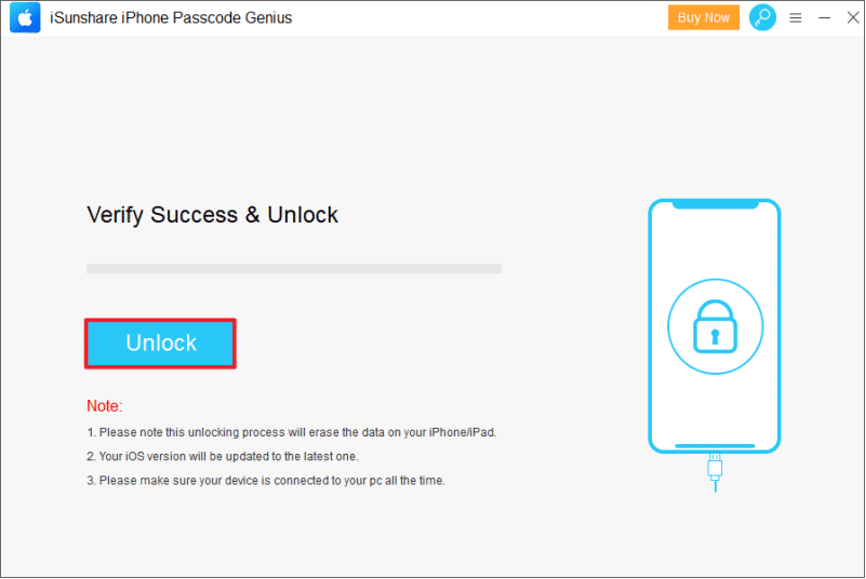
Step 4: Finally, tap the “Unlock” button, the software will start the reset process immediately. Wait for the message “Unlocked Screen Successfully” to be displayed and then your device is back to life.
How to Fix iPad Unavailable with iTunes/Finder
You can use iTunes or Finder to restore an unavailable iPad, then all its settings and contents will be erased, including the lock screen password, and the iPadOS firmware will be upgraded to the latest version.
Step 1: Launch iTunes. iTunes does not recognize a locked iPad, so you will need to put it in Recovery Mode.
iPad without a Home button: Press and quickly release the Volume Up button, press and quickly release the Volume Down button. Then press and hold the top Power button until the Recovery Mode screen appears.
iPad with Home Button: Press and hold both the Home Button and the Power Button until you see the Recovery Mode screen.
Step 2: iTunes will detect the device and ask if you want to “Restore” or “Update” your iPad, select the “Restore” option.
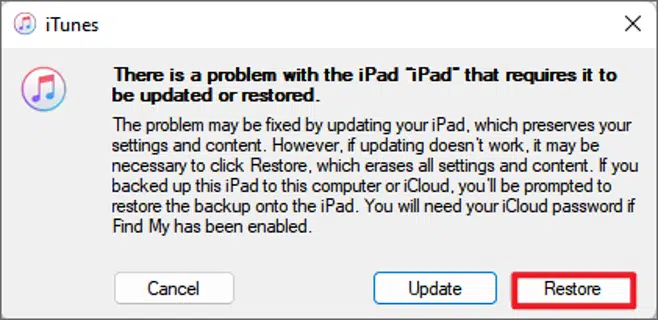
Step 3: The computer will immediately begin downloading the iPadOS software for the device and begin the restore process. After about 15 minutes, the iPad will restart and you will be ready to set it up.
How to Fix iPad Unavailable without Computer
If you’re on vacation and your iPad gives you an unavailable message because you made too many incorrect passcode, and you really need to use it. How do you fix an unavailable iPad without a computer? If you still remember the Apple ID and password that you signed in on your iPad, then you can try the following three methods.
Way 1: Fix iPad Unavailable with iCloud
iCloud is one of the official options provided by Apple to fix unavailable iOS devices, you can use it to remotely erase the screen lock passcode on your iPad, this method works only if the iPad has the “Find My” feature turned on before it is locked.
Step 1: Go to iCloud.com and sign in with the Apple ID associated with the locked iPad.
Step 2: Select “Find My” > “The locked iPad” > “Erase iPad”.
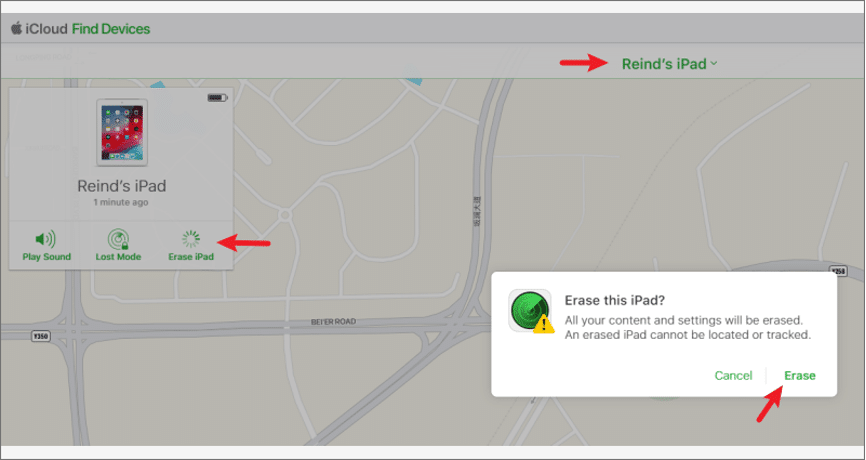
Step 3: Enter its Apple ID password and then the iPad will be reset. Waiting for the iPad to reboot, follow the on-screen instructions to complete the setup process and recover the data on the device from iCloud or iTunes backup.
Way 2: Fix iPad Unavailable with Find My App
Another effective tool for fixing iOS-unavailable devices is the Find My App, it works in pretty much the same conditions as iCloud. The major difference between the two of them is that iCloud can be signed in on any device, while Find My App only supports iOS devices.
Step 1: Sign in to the Find My App on another iOS device with the Apple ID and password from your iPad.
Step 2: Select the unavailable iPad from the “Device” list and click the “Erase This Device” button to continue.
Step 3: Enter your Apple ID password and click “Erase”, your iPad will start the factory reset immediately, just wait for the process to finish.
Way 3: Fix iPad Unavailable with Erase iPad Button
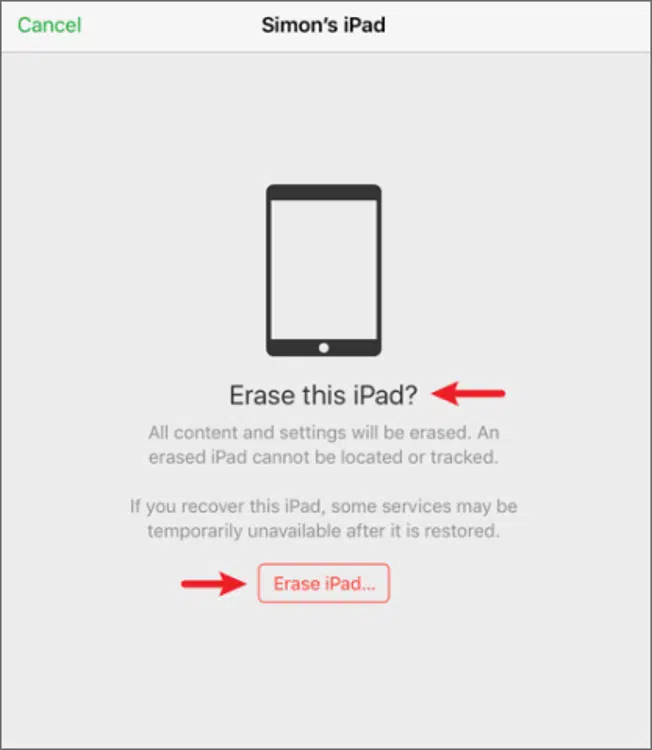
Typically, on iPads running iPadOS 15.2 and later, after it says the message “iPad unavailable, try again in 15 minutes”, if you continue to try incorrect passcodes, you should see a “Erase iPad” button at the bottom center of the iPad screen. This button is your key to fix iPad unavailable without any software or computer.
Step 1: Tap the “Erase iPad” button if it appears on the screen.
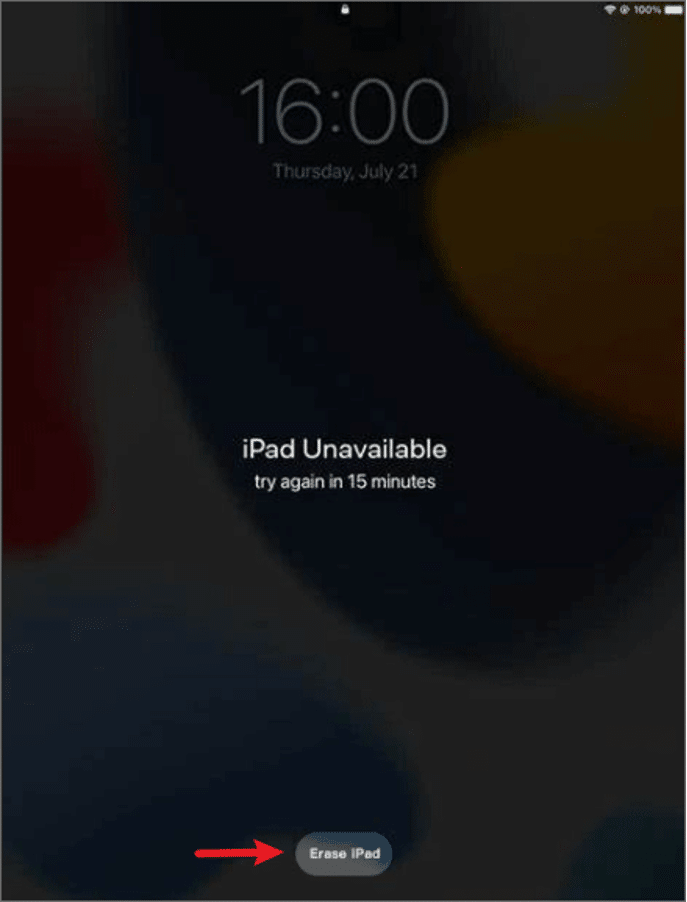
Step 2: Click on the “Erase iPad” button again for confirmation.
Step 3: Enter the Apple ID and password on your iPad to sign out, and then tap the “Erase iPad” button to erase all contents and data on the device.
Video Tutorial
Conclusion
This is all about what iPad unavailable means and how to fix it, you can choose a fix that best suits your condition. If you don’t have Apple ID or it doesn’t have internet connection, then iSunshare iPhone Passcode Genius should be the perfect tool to get rid of “iPad unavailable” message. After resetting the iPad, you can restore the previous data from its cloud backup.











