
In a world where streaming services have taken the lead and iTunes has declined in popularity, your cherished music collection may seem overlooked by media players that emphasize cloud storage. However, Wide Angle Software has come to the rescue with its latest offering, Waveform – a modern iPhone music manager app for your PC.
Waveform: Manage your iPhone music from your PC
The Waveform Music Player app is a breath of fresh air for users who crave an intuitive music management experience. This lightweight iTunes alternative redefines the way you interact with your music library, whether you’re interested in playing, transferring, or organizing your music on both your iOS devices and your PC. Best of all, the app can be downloaded completely free from the Microsoft App Store on your Windows 10 and Windows 11 computers.
View and Play Your Music in Waveform
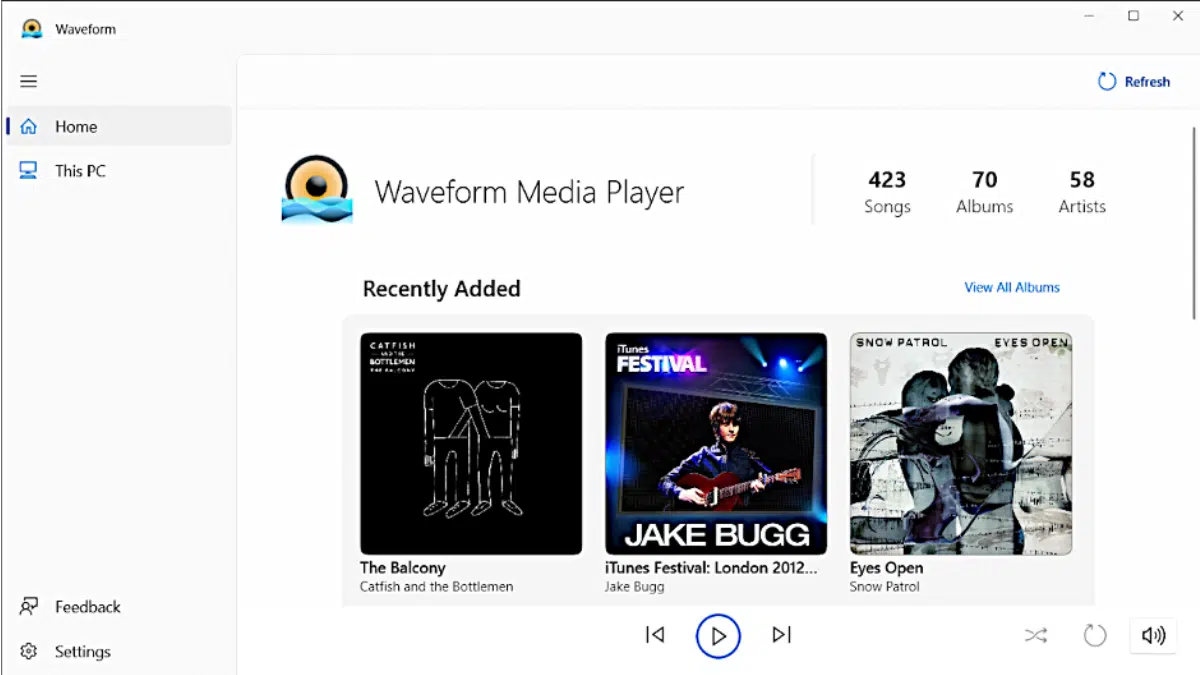
The Waveform app conveniently finds and displays all music on your PC within a single library. This ensures that you can easily locate and play your PC’s music with minimal effort.
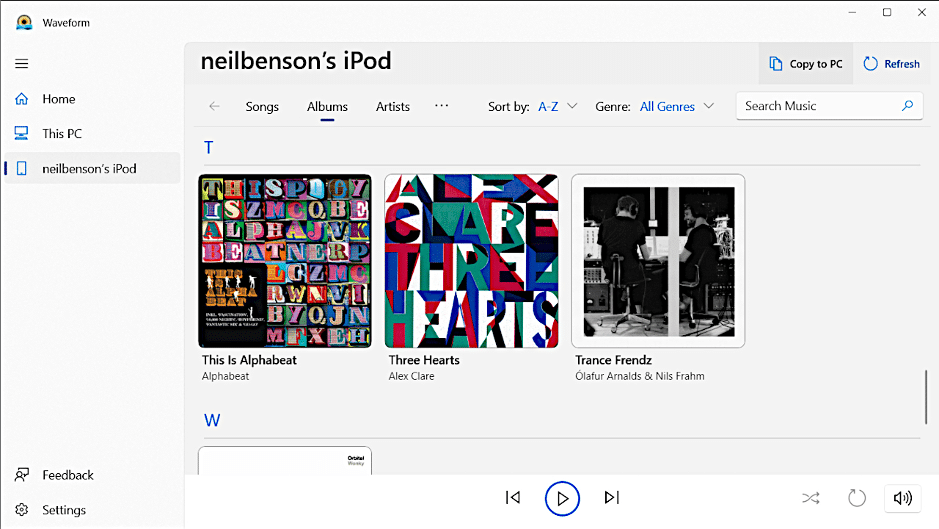
Additionally, if you connect your iPhone, iPod, or iPad to your PC, the app will also to view and play all the songs downloaded to your iOS device via Waveform on your PC.
Waveform offers additional organizational tabs, like ‘Albums,’ ‘Artists,’ and ‘Playlists’ to help you manage your music effectively in the app.
Transfer Music Between Your PC and Your iPhone
The Waveform app simplifies the process of transferring music between your PC and iOS devices. You can your copy songs from your PC to your iPhone in just a couple of clicks without deleting songs already there, as well as transfer your music from your iPhone to your PC.
How to transfer your music from your iPhone to your PC
To copy your songs from your iPhone to your PC simply follow the steps below:
- Download and install Waveform on your PC and open the app.
- Connect your iPhone to your PC using a USB cable.
- Select the songs or playlists you wish to transfer, or choose all your music with Ctrl+A, and click on ‘Copy to PC’ in Waveform.
- After the transfer is complete, you’ll receive a Copy completed. You can now safely disconnect your iPhone from your PC.
How to transfer your music from your PC to your iPhone
If you prefer to copy your songs from your PC to your iPhone, Waveform has you covered. To transfer songs from your PC to your iPhone without syncing or removing existing music, proceed with the following steps…
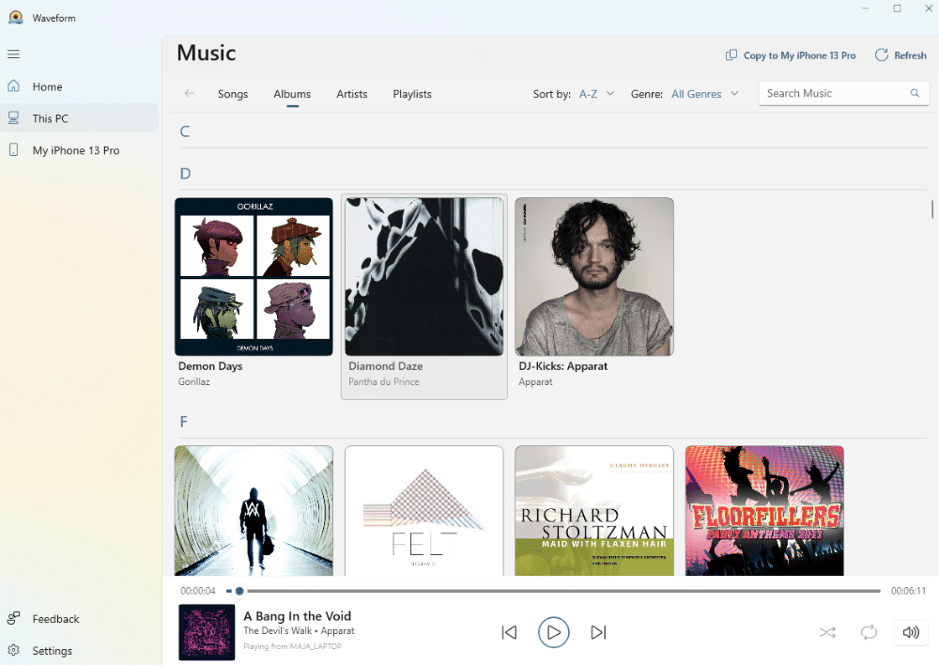
- Launch Waveform and navigate to the ‘This PC’ section. Here, you’ll find a detailed display of all the music stored on your computer.
- Connect your iPhone to your PC using a USB cable.
- Select the songs, artists or albums you wish to copy.
- Click ‘Copy to [device name]’ in Waveform to transfer selected songs from your PC to your iPhone.
After successfully copying your music to your iPhone, you can easily access it. To do this, open your Music app on your iPhone, and you’ll find your copied music displayed there. Enjoy your music on the go, seamlessly transferred from your PC to your iPhone through Waveform.
Transfer Music Between Two iPhones via PC Using the Waveform App
Waveform simplifies the process of transferring music between two iPhones via your PC. First, you can use Waveform to copy music from the first iPhone to your PC. Then, connect the second iPhone to your PC and use Waveform to transfer music from your PC to the second iPhone.
Download Missing Album Art and Create Custom Playlists
The Waveform Music Player app will also improve your music library experience by automatically finding and displaying any missing album artwork for your songs.
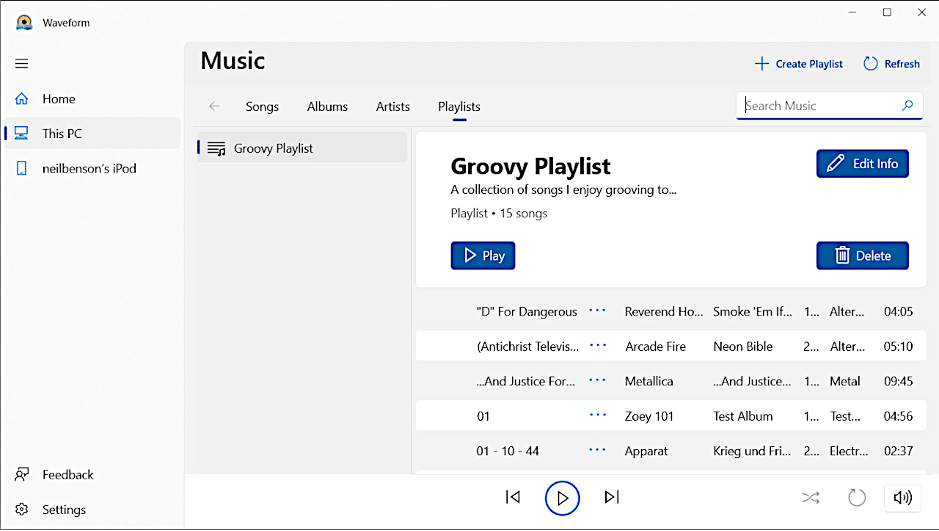
You can also use the app to create your own custom playlists allowing you to organize your music library to suit your mood, workout routine, focus needs, road trip vibes, or any other preferences.
Conclusion
In a digital landscape dominated by streaming services and a dwindling iTunes era, Wide Angle Software’s Waveform app emerges as a useful solution, offering an intuitive and free iPhone music management experience for PC users. The Waveform app simplifies the process of transferring music, making it effortless to move music between your PC and iOS devices, or even between your iOS devices. The app also enhances your music library with automatic album artwork retrieval and customizable playlists. With Waveform, the days of struggling to manage and transfer your music are over, as it provides a modern and user-friendly bridge between your cherished music collection and the digital world, ensuring your music is always at your fingertips, no matter the device.











