
The resurgence of QR Codes has allowed brands to generate QR Codes with logos that reinforce branding, offer personalized recommendations, deliver users to their top landing pages and share information on the go.
One of the major reasons for the resurgence is Apple. Apple has made it extremely easy to scan QR codes using iOS devices.
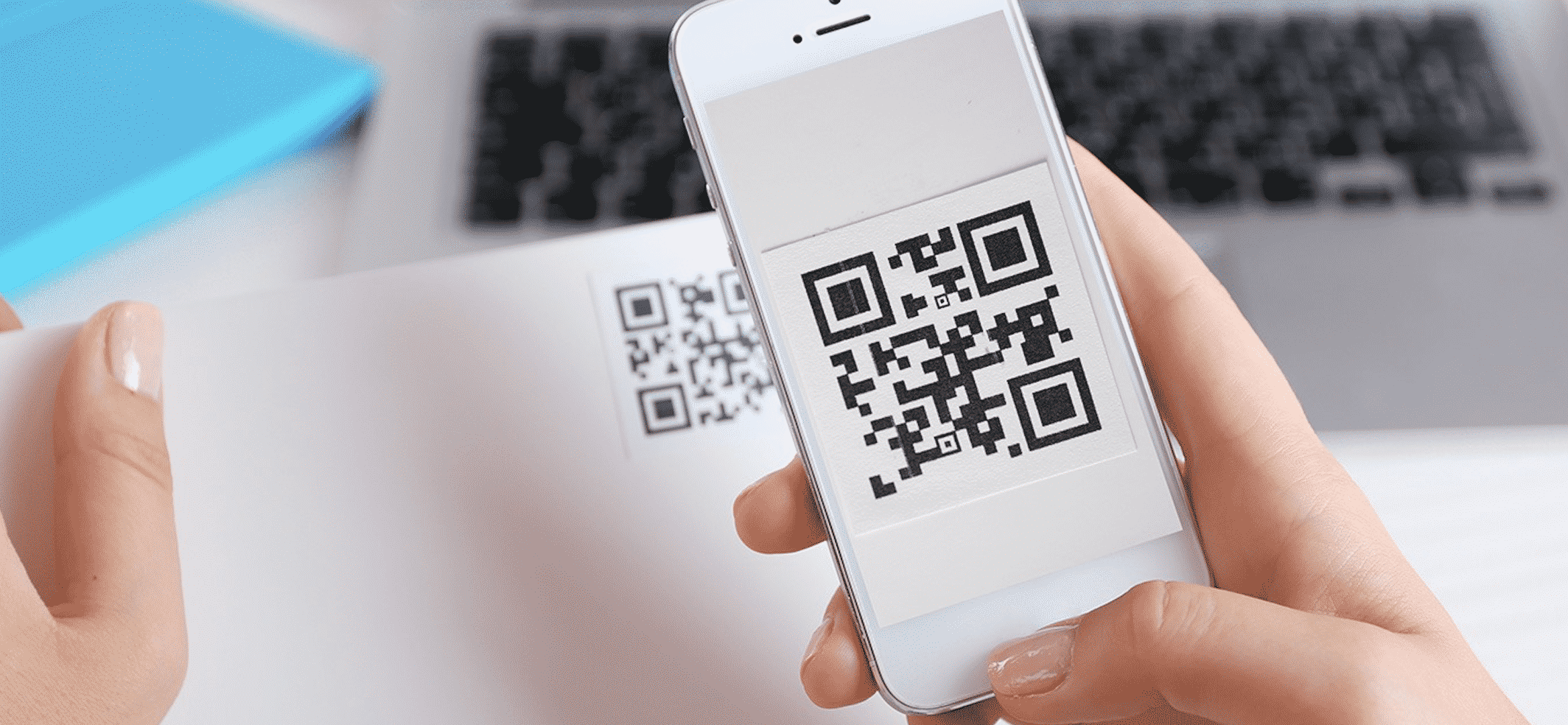
In 2017, it rolled out the in-built QR code scanner in the camera app in its iOS 11 update. So all you had to do is point your camera at the QR code, and the built-in reader would scan the code automatically – you didn’t need a third-party application anymore.
With the iOS 12 update, it added a dedicated QR code reader to its control center.
Now, with iOS 13, Apple has made quite a few updates to its QR code scanner. The interface is much smoother than it was in iOS 12 and has much better upgrades. Here’s what’s new in the iOS 13 update:
1. Markers To Scan The Code:
The iOS 13 upgrade, like its predecessor, has a dedicated QR code scanner in the Control Centre. When opened, the scanner also shows a frame with white corners. This helps you position the QR code correctly so you can scan quickly. Once scanned, it takes less two seconds for it automatically prompt an action – i.e., open safari to view a URL, downloading a vCard to your contact list, etc.
2. Scan QR Code At Night:
Earlier it was challenging to scan a QR code in the dark. The iOS 13 update has solved this problem by adding the option of switching on the flashlight when you scan the QR code. But this feature is only available if you scan a QR code using the dedicated QR scanner from the Control Center. You cannot use your iPhone’s flashlight when you scan a QR code directly from the camera app.
Android has also followed suit. The latest Android smartphones also have a native in-built QR Code reader in the camera app through Google Lens. In fact, the latest Pixel doesn’t even rely on Google Lens to scan a QR Code and offers a similar experience like iPhones.
How To Scan A QR
Code On Your iPhone/iPad:
Step 1: Open the camera app
Step 2: Point your camera at the QR code
Step 3: A few seconds later a pop up will appear prompting you to complete the action – either asking you permission to access safari or open an app
●
If you have iOS
11 or higher:
Step 1: Swipe up to view the control center
Step 2: Click on the QR code icon at the bottom right of your screen
Step 3: Point your camera at the QR code, positioning the QR code inside the white frame on your screen
Step 4: Complete the action prompted
How To Scan QR
Code On Chrome Using Your iPhone
●
If you’re using
iPhone 6S or higher:
Step 1: Find the ‘Google Chrome’ icon on your iPhone
Step 2: Hard press on the icon. A pop menu will appear
Step 3: Press on ‘Scan QR Code’
Step 4: Point your camera at the QR code and position it inside the white frame on your screen
●
If you have an
older iPhone:
Step 1: Swipe right from your home screen
Step 2: On the search bar type ‘QR code’
Step 3: The results will start appearing as you type
Step 4: Scroll down to find chrome, under which you’ll find the ‘scan QR code’ option. Tap on it
Step 5: This will open chrome’s QR code scanner. Point your camera at the QR code and position it inside the white frame on your screen
Step 6: Perform the prompted action
However, this feature is only available on iPhones and not on your iPad.
Apple’s iOS 13 update significantly improved the experience of scanning a QR code. This only shows how popular QR codes are becoming more and more popular every day…











