
Have you ever accidentally deleted an important file on your Mac? It’s a frustrating experience that can make you feel like all hope is lost. But fear not, because there’s a solution – Stellar Data Recovery Professional for Mac. This powerful tool allows you to retrieve deleted files from your Mac with ease, and we’re going to show you exactly how to use it in this blog post. So if you want to learn how to recover those precious files that seemed lost forever, keep reading!
What is Stellar Data Recovery Professional?
Stellar Data Recovery Professional for Mac is a software that allows you to recover lost or deleted data on your Mac. It can retrieve files and folders that were accidentally deleted, or lost due to system crashes, formatting errors, or any other logical reason.
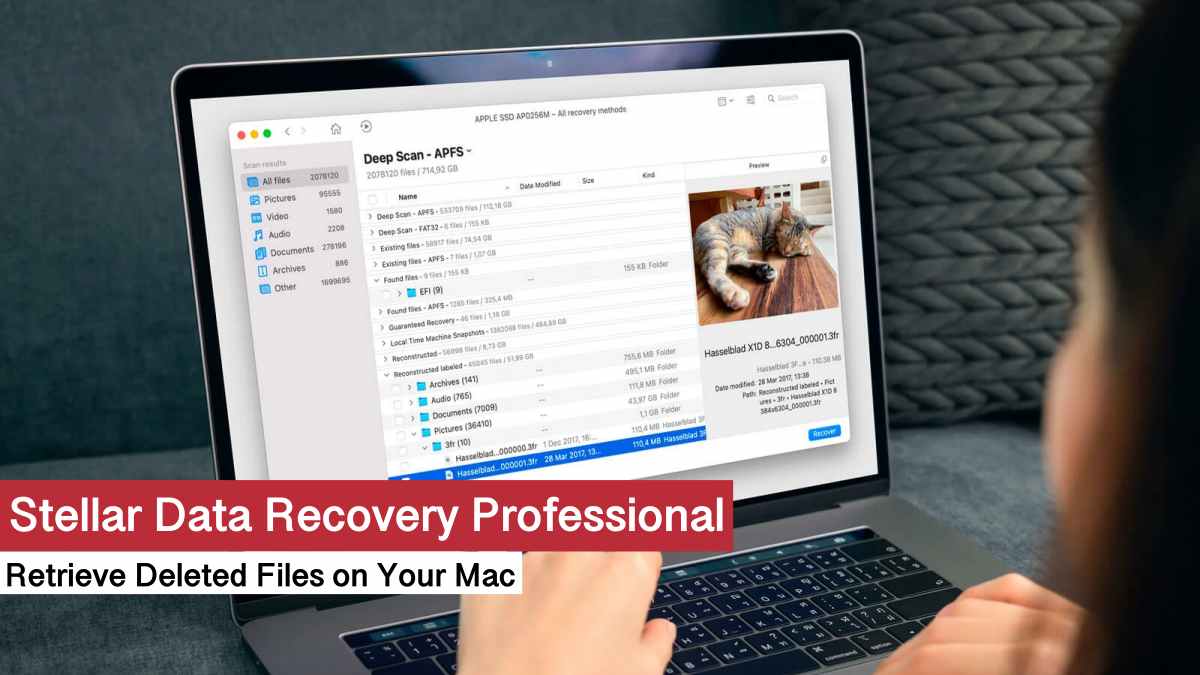
This powerful tool is designed with advanced scanning algorithms to restore various file formats such as documents, photos, videos, audio files, and more. In addition to the standard recovery features of data recovery for mac also has the option to recover data from crashed or non-booting Mac through an activated link without using any external bootable device.

The software supports recovery from different types of storage devices including external hard drives, memory cards, and USB flash drives. It works with HFS+, FAT32, and APFS formatted partitions.
Stellar Data Recovery Professional for Mac is easy-to-use even if you’re not tech-savvy. The interface guides users through each step in the recovery process making it simple for anyone who needs their data back quickly without losing time trying to figure out how the software works.
How to Use Stellar Data Recovery Professional to Retrieve Deleted Files on Your Mac
Stellar Data Recovery Professional is an effective tool for retrieving deleted files on your Mac. Here’s how to use it:
First, download and install the software onto your computer. Then, connect your external hard drive to your Mac.
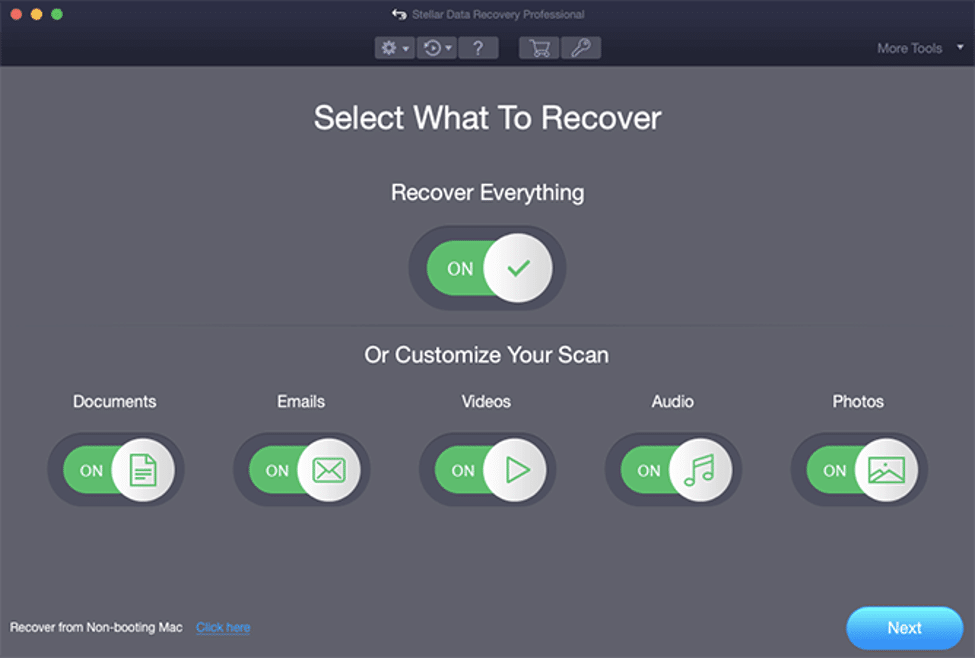
Next, run Stellar Data Recovery Professional for Mac and select the data you want to recover.
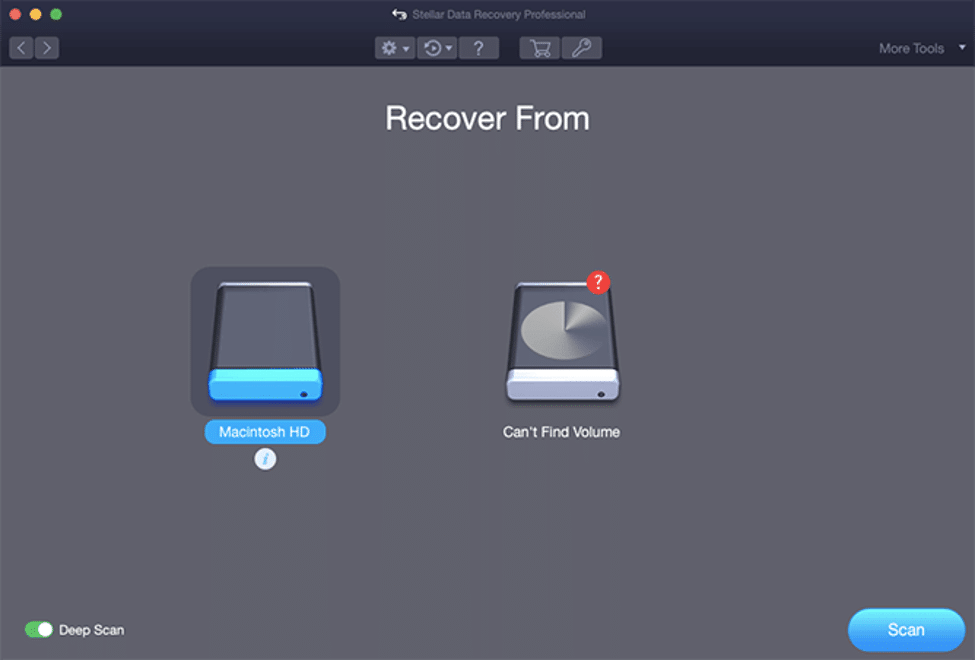
Now, select the external hard drive from the list of drives showing on the screen & Click on “Scan” and wait for the program to scan through all available sectors in search of deleted files.
Once the scan is complete, you will see a list of all recovered files found on your external hard drive. Select any file or folder you want to recover by checking its box and click “Recover.”
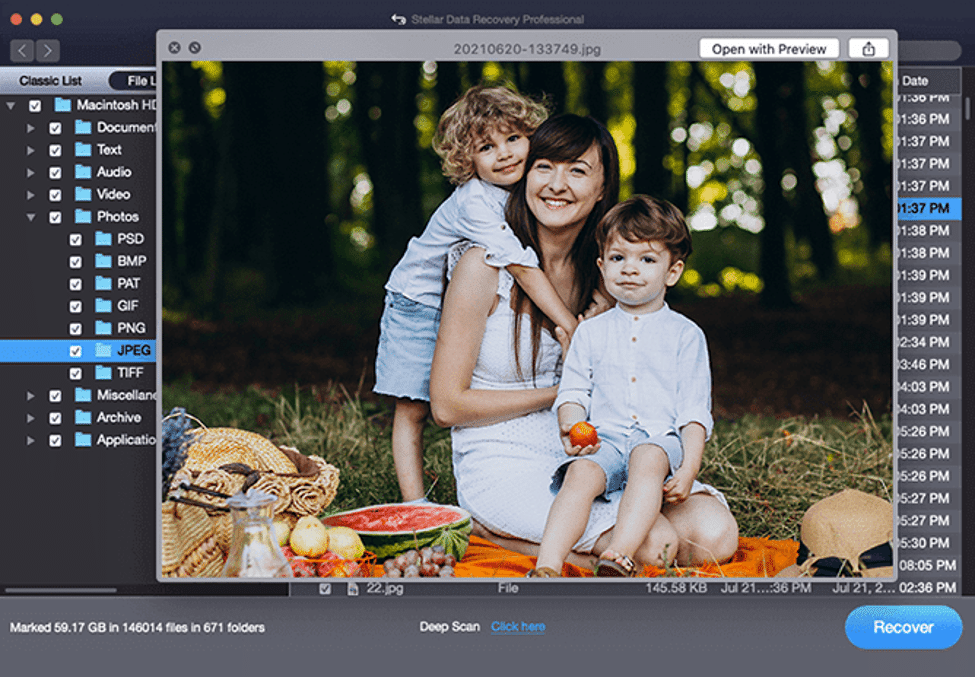
Choose a new location to save recovered data before clicking “OK” to complete the recovery process.
With these simple steps, you should be able to retrieve any accidentally deleted files from your Mac using Stellar Data Recovery Professional without hassle!
Pros and Cons of Stellar Data Recovery Professional
Stellar Data Recovery Professional is a great tool for anyone who wants to retrieve lost or deleted files on their Mac. However, like with any other software, there are both pros and cons to using this tool.
One of the biggest advantages of Stellar Data Recovery Professional is its user-friendly interface. Even if you’re not tech-savvy, it’s easy to use this software without much guidance.
Another benefit is that Stellar has an option for deep scanning your storage device which can recover even the most complex data loss situations. This means that you have a higher chance of finding all the files you need back again.
On the downside, one major disadvantage is that while it provides basic recovery options for the free version but to access advanced features such as RAW file recovery or recovery from crash or non-bootable Mac, users will have to pay for upgraded version.
Additionally, depending on how large your external hard drive is or how many files were deleted – scanning might take longer than expected which can be time-consuming and frustrating.
Whether or not Stellar Data Recovery Professional works best for you depends entirely on what your needs are.
Conclusion
If you have unintentionally deleted important files from your Mac, don’t panic! With Stellar Data Recovery Professional for Mac, you can retrieve those lost files quickly and easily. This powerful software provides an excellent solution for recovering data in a few simple steps. Give it a try today and experience its outstanding performance yourself!











