
Learn how to use an iPhone IMEI Checker to ensure the authenticity of your device before purchase. Avoid buying stolen or counterfeit iPhones by verifying the IMEI for blacklists, carrier locks, and warranty status.
Buying a used iPhone can be a great way to save money while still getting a premium device. However, with the rise of counterfeit products and stolen phones on the market, it’s crucial to verify the authenticity of the iPhone before making a purchase. One of the most reliable ways to do this is by using an iPhone IMEI Checker. In this article, we’ll walk you through how to use the IMEI Checker to ensure your device is legitimate and not blacklisted.

What is IMEI and Its Significance for iPhones?
IMEI (International Mobile Equipment Identity) is a unique 15-digit number assigned to every mobile phone that connects to a network, including iPhones. Think of it as a fingerprint for your device — it’s globally unique and cannot be changed. Carriers and manufacturers use this number to track devices, verify their authenticity, and block stolen or lost phones from accessing networks.
For iPhones, the IMEI number plays a crucial role in identifying the device’s origin, model, and activation status. By checking the IMEI, you can confirm whether the phone is genuine, stolen, or locked by a carrier. This makes it a vital tool in avoiding scams or buying counterfeit devices.
Why You Should Use an iPhone IMEI Checker Before Purchasing
Using an iPhone IMEI Checker before buying a used device is essential for several reasons. First, it helps you avoid purchasing stolen or blocked devices. Phones reported as lost or stolen are often blacklisted by carriers, making them unusable for calls, messages, or mobile data. An IMEI check ensures that the phone you are about to buy has not been blacklisted, giving you peace of mind.
Second, an IMEI check can help detect counterfeit devices. Some fake iPhones are hard to distinguish from genuine ones at first glance. However, counterfeit devices usually have invalid or mismatched IMEI numbers that do not appear in Apple’s official records. Checking the IMEI can quickly reveal if the device is legitimate.
Finally, an IMEI check allows you to verify the activation and warranty status of the device. By reviewing the IMEI report, you can see if the iPhone is still covered under Apple’s warranty and whether it has any outstanding carrier obligations that could prevent its full functionality.
How to Find the IMEI on an iPhone
To check your iPhone’s IMEI, you need to first locate it. There are a few methods to do so:
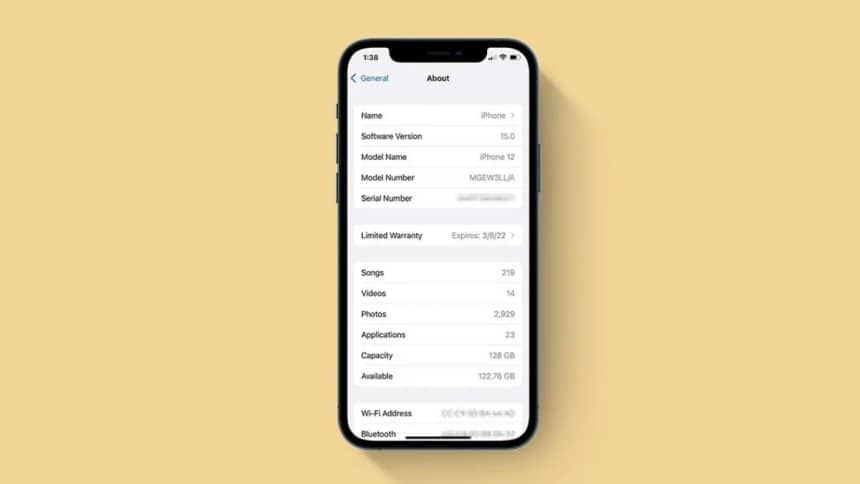
- Via the Phone Settings: Go to Settings > General > About. Scroll down, and the IMEI number will be listed.
- On the SIM Card Tray: On most iPhones, the IMEI is engraved on the SIM card tray. Simply remove the tray to view the number.
- By Dialing *#06#: You can dial *#06# on your iPhone, and the IMEI will appear on the screen.
- On the Original Packaging: If you have the original box, the IMEI is printed on the back.
How to Use iPhone IMEI Checker to Verify Authenticity
Once you have the IMEI number, you can use an iPhone IMEI Checker to verify the phone’s authenticity and check for any issues. First, choose a trusted IMEI checking service such as Apple’s support page or a reputable third-party site like IMEICheck.net.
Next, enter the IMEI number into the search bar on the site. Ensure you have entered the correct 15-digit code. The service will then generate a report showing details about the phone, including its model, activation status, warranty status, carrier lock, and whether it has been blacklisted.
If the IMEI check reveals that the phone is genuine, not blacklisted, and unlocked, you can proceed with the purchase confidently. However, if the check reveals any problems, such as a blacklist or carrier lock, it’s best to reconsider the purchase or discuss the issue with the seller.
What to Do If the IMEI Check Reveals Issues?
If the IMEI check reveals that the iPhone has problems, such as being blacklisted or locked, there are several steps you can take. First, if you’re dealing with a third-party seller, contact them immediately to inform them of the IMEI check results. Ask for a refund or request that they resolve the issue with the carrier before proceeding with the sale. It’s crucial to work with a reputable seller who offers transparency and return options in such cases.
If the phone is locked to a specific carrier due to unpaid bills or contractual obligations, you may need to contact the carrier to inquire about unlocking the phone. In some cases, the carrier may unlock the phone if the financial obligations are settled. However, if the phone is blacklisted as stolen or lost, it’s best not to proceed with the purchase, as a blacklisted phone will remain unusable on most networks.
Additional Tips for Verifying iPhone Authenticity
Beyond using an IMEI Checker, there are other ways to ensure the iPhone is legitimate. Check the serial number and ensure it matches Apple’s official records, confirming the device’s model and manufacturing details. Additionally, use Apple’s Activation Lock status tool to verify that the phone is not locked to another user’s Apple ID, which could prevent you from setting up the device.
It’s also essential to assess the physical condition of the phone. Make sure there are no signs of tampering, such as missing components or mismatched parts, that could indicate the phone has been refurbished or altered. A thorough inspection, combined with an IMEI check, will provide a comprehensive verification of the phone’s authenticity.











