

Tired of transferring photos from your iPhone to your Mac through emails, messages, or manual importing? Discover a wirelessly way to send your pictures, documents, links, map locations, etc, to an iPhone or a Mac effortlessly using AirDrop.
This Apple feature allows you to transfer files between different Apple devices directly without needing an internet or physical connection.

Here, I’ll explain how to AirDop to a Mac from an iPhone and the other way around. You’ll also learn how to handle common problems when using AirDrop.
What is AirDrop? Explained!
AirDrop is Apple’s way to facilitate file transfers between their devices. It was introduced in Mac OS X 10.7 Lion and iOS 7 as a means of close-range wireless communication. With it, you can easily share files with a nearby Mac, iPhone, iPad, or Apple Vision Pro.
It uses TCL (Transport Layer Security) encryption over a direct peer-to-peer WiFi connection to ensure fast and secure transfers. During the file sharing, the source and target devices communicate directly, with no need to route data through the internet or a third-party server.
How to turn on AirDrop on iPhone and Mac?
If you want to share files via AirDrop, ensure that both devices have Bluetooth and Wi-Fi enabled and are within 30 feet of each other. Additionally, AirDrop must be turned on for the receiving device.
To turn on AirDrop on an iPhone:
- Open the Control Center. (Swipe down from the top-right corner of your iPhone’s screen if using an iPhone X or a newer model; swipe up from the bottom of the screen if using an older model.)
- Tap the WiFi and Bluetooth buttons to turn them on.
- Hold the WiFi button and then tap AirDrop.
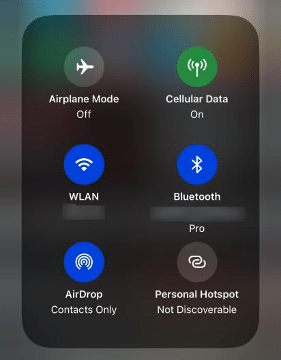
Enable AirDrop on an iPhone
- Choose whose files your iPhone can receive.
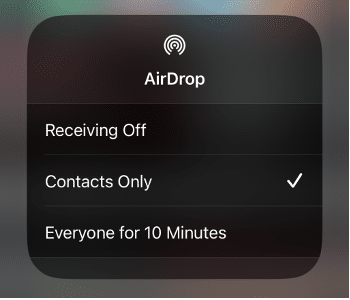
Decide what devices can send files to your iPhone
Receiving Off: Receive files from no one; turn off AirDrop.
Contacts Only: Only receive files from people in your Contacts list.
Everyone: Receive files from any Apple device in range.
Everyone for 10 minutes: Accept files from any sender for 10 minutes.
To turn on AirDrop on a Mac:
- Go to the Apple menu > System Settings/Preferences.
- Click WiFi and enable it.
- Click Bluetooth and turn it on.
- Open a Finder window and click Go > AirDrop. (If AirDrop doesn’t show up, it’s not supported by your Mac.)
- Click the drop-down menu of “Allow me to be discovered by.”
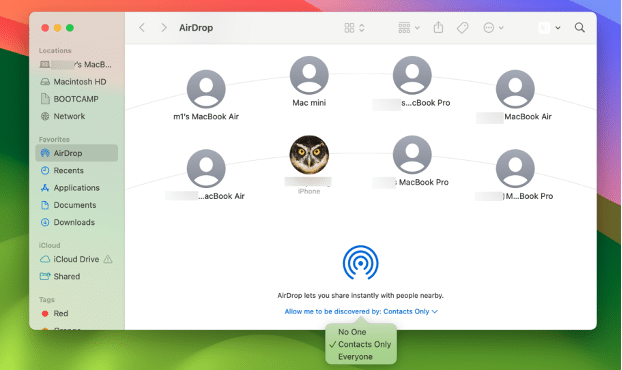
Enable AirDrop on a Mac
- Select who can send files to your Mac.
How to AirDrop from an iPhone to a Mac?
Now that you have set up AirDrop on the devices you want to receive files, you can share contents any time you want, as long as the devices are close to each other.
To AirDrop from an iPhone to a Mac, follow these steps:
- Select or open the file you want to AirDrop from your iPhone to the Mac.
- Click the Share button.

Tap the Share button to use AirDrop on an iPhone
- Tap your Mac with the AirDrop icon. If you don’t see your Mac, tap AirDrop and then select your Mac.
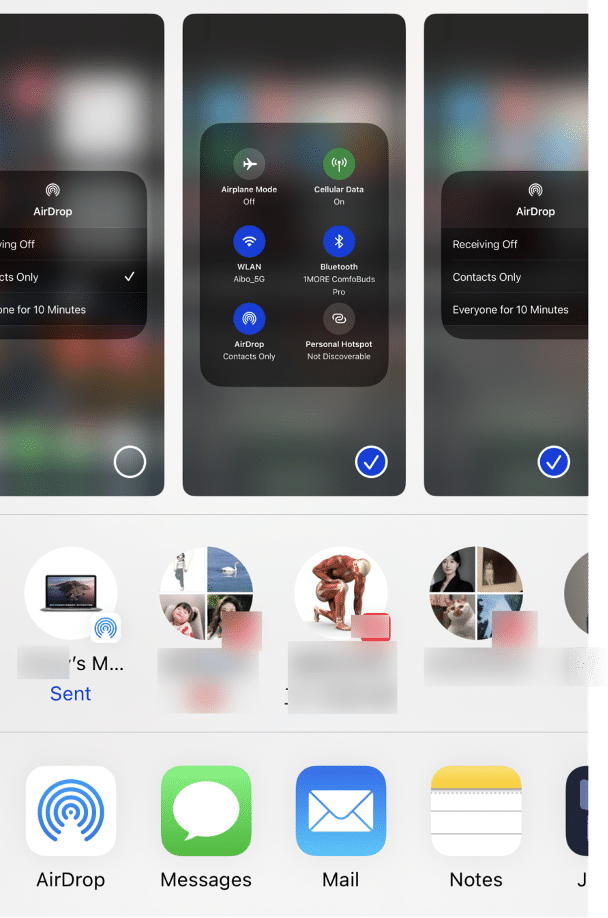
Send files from an iPhone to a Mac
- The transfer will start automatically. Once the file is received, you’ll be notified by a sidebar message.
- Open your Downloads folder to view the file.
How to AirDrop from a Mac to an iPhone?
Similarly, you can AirDrop from a Mac to an iPhone easily. To do this, you can take the following steps:
- Select the file you want to share.
- Right-click on it and tap the Share button.
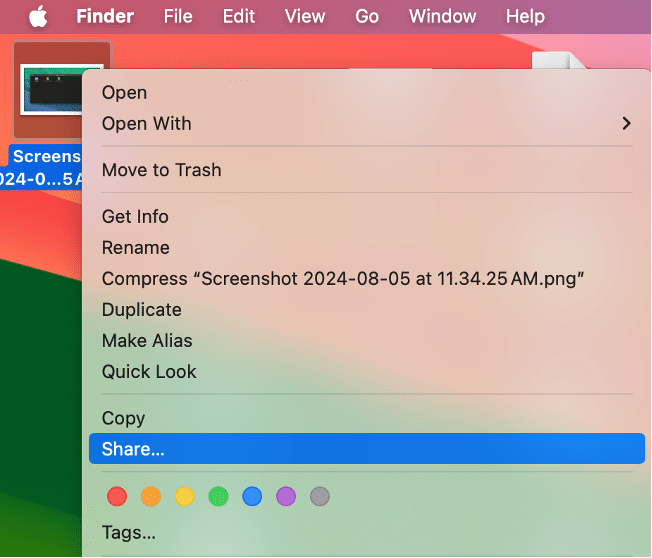
Click Share to access AirDrop on a Mac
- Next, select AirDrop.
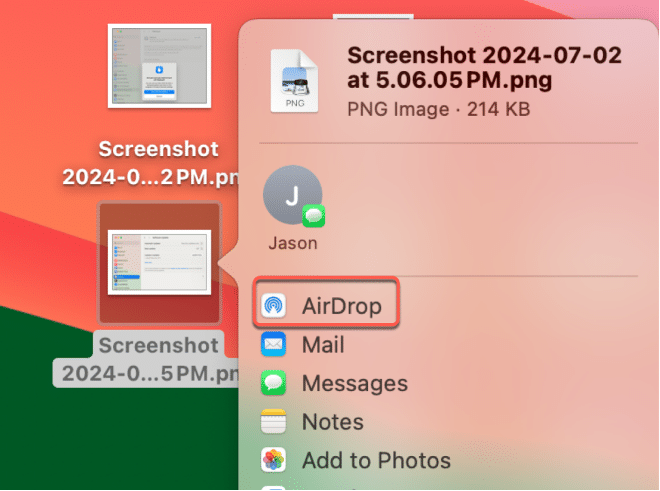
How to AirDrop from a Mac
- Click the iPhone recipient from the list.
- Once the file is transferred, it will open automatically on your iPhone.
If it’s a photo or video, it’ll be saved to the Photos app; if it’s a document, it’ll be stored in the Files app.
How to fix AirDrop not working?
AirDropping files between an iPhone and a Mac is a straightforward process. However, you can still experience issues during the transmission. Here’s a list of common problems in which AirDrop doesn’t work as expected:
- AirDrop is not showing up in the Control Center
- Mac doesn’t receive photos sent from your iPhone
- iPhone isn’t showing up in the AirDrop list
- Tapped iPhone in the AirDrop list to share files, but nothing happens
- Mac not detected by AirDrop
- Unable to AirDrop music
If you have a similar issue, ensure you meet the following requirements:
- Both the source and target devices support AirDrop. (Supported devices include: iPhone 5 or later running at least iOS 7; all Mac models released in 2012 running OS X Yosemite or later.)
- Both devices have WiFi and Bluetooth on.
- Both devices are placed within 30 feet or 10 meters.
- The target device has AirDrop set to Contacts Only or Everyone.
Suppose you satisfy every condition, but AirDrop still won’t work; try the solutions below.
Solution 1: Use iBoysoft MagicMenu
If you can’t AirDrop from your Mac to an iPhone, use iBoysoft MagicMenu. It has an AirDrop extension that allows you to launch AirDrop directly through a simple right-click. Apart from that, it also enables you to customize the context menu on Mac with the various resources in its Extension Library, improving your work efficiency.
Just download the app and install the AirDrop extension, and then you’re free to right-click any file and select AirDrop to share it with another device.
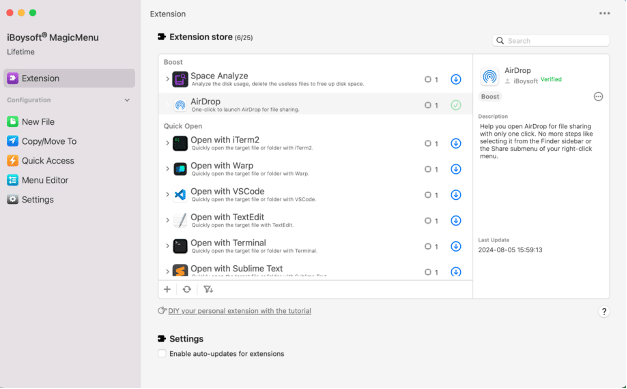
AirDrop from a Mac via iBoysoft MagicMenu
Solution 2: Disable VPN and Firewall
VPN or Firewall may block the connections, rendering the target device not detectable by AirDrop. If you’re attempting to AirDrop files to a Mac but it’s not on the AirDrop list, try turning off VPN and Firewall.
To turn off the Firewall on your Mac, go to the Apple menu > System Settings/Preferences, then select Network > Firewall and turn it off.
Solution 3: Turn off and on WiFi & Bluetooth
AirDrop utilizes WiFi and Bluetooth to transfer files on the fly. If you’re still having issues with AirDrop, try disabling WiFi and Bluetooth on your device and then turn them back on again.
On an iPhone: Launch Settings, then tap WiFi or Bluetooth to toggle it off.
On a Mac: Click the Control Center located at the far right of the menu bar, then tap the Bluetooth or WiFi pane to toggle the switch off.











