
Many people still use USB for various reasons. One reason you are still using USB could be to transfer files between storage devices. If you have files you hold dearly, you may want to transfer them to your Mac through USB.
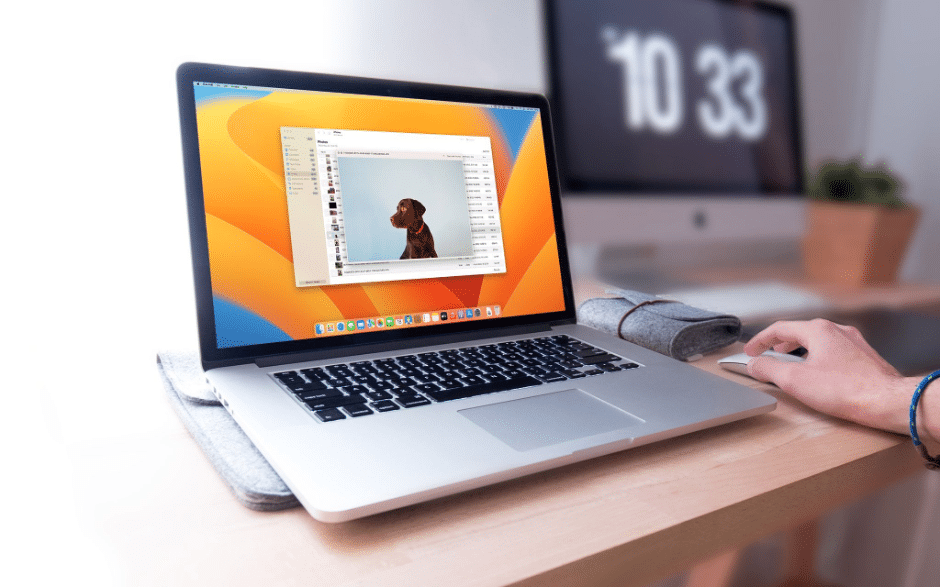
However, on some occasions, your USB may fail to connect for reasons that it is unrecognized or other. This way, your work will be delayed and you may begin to worry about your files. Here, we will show you ways to easily tackle ‘USB drive not showing up’ issues on your Mac. Some of the questions that will likely cross your mind include why is my flash not recognized? How can I make the USB drive recognized on Mac? How long will this problem last? Can it get fixed?
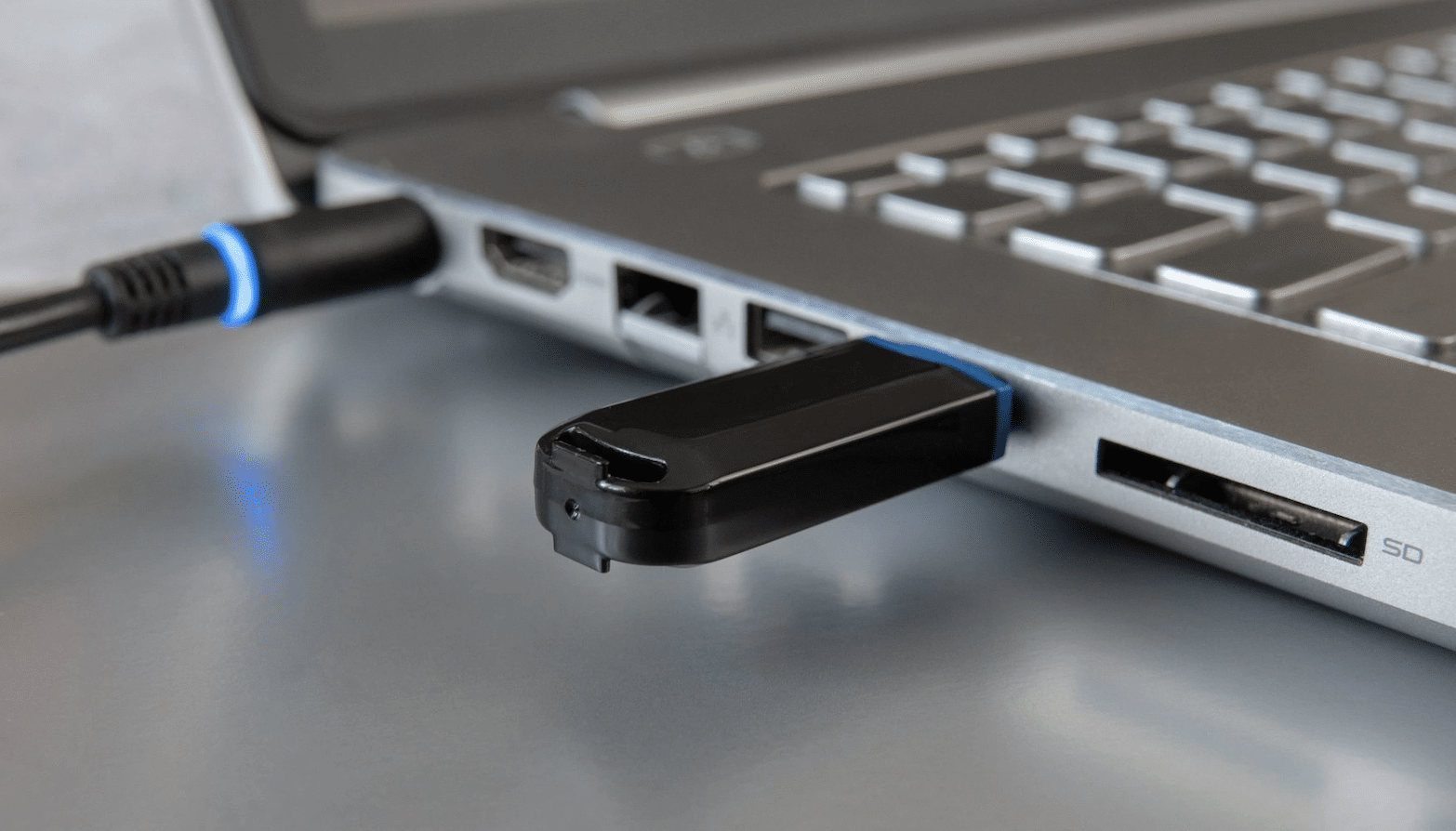
Why is my USB not recognized on Mac?
There are many possible reasons behind USB not recognized on Mac. Some of the commonly encountered reasons are explained below.
- Wrong connection: This happens when you have not properly connected the USB to the port.
- USB Corrupted: This may be as a result of the USB flash drive having been damaged or containing corrupted files.
- USB Port issue: USB ports may also fail to work due to physical damage or other reasons.
- Faulty macOS: If your Mac has a bug, the external drive will experience constant read-and-write problems. Besides, the Mac will not be in a position to recognize the problem.
- Virus infection: With a virus infected flash drive, macOS will not be able to detect your files. Besides, the virus may end up infecting your Mac files in the process.
- USB not turning on: Some models of USB drives have power switches for turning them on. Although these are rare, you may need to check if yours is the case.
How to Troubleshoot an Unrecognized USB on Your Mac
Method 1: Change the Connection
Begin by restarting your Mac to see if this can resolve the issue. If the problem persists even after your Mac restarts, then you can follow the steps below to troubleshoot.
Step 1: Pull the flash drive out of the port it is currently inserted and try fixing it on a different port. Try all the other accessible USB ports on your Mac.
Step 2: If you are currently using a connecting cable or USB-C connector, remove them all and try connecting the drive into the USB port directly.
Step 3: If you have a different Mac, try connecting the USB on it to see if the problem is solved.
Step 4: If you are using an SD card, try changing the SD card holder and see if this troubleshoots the problem.
Method 2: Change Finder Settings
Finder allows USB access to your mac. If the Finder settings are not properly set, you will need to go to Finder, then open preferences. You can always use this and other efficient techniques to recover your USB drive on a Mac. While on preferences, tap the sidebar and tick “external disks “appearing under Locations section. This way, you should be able to fix USB not showing up on Mac.
Method 3: Change Desktop Settings
In some instances, your mac may detect the USB but fail to show it up on desktop. In this case, go to finder, followed by preferences, and general. Check that the “External disks’ box is ticked. If not, tick it and check if the problem is fixed.
Method 4: Reset USB ports on Mac
Resetting USB ports on Mac is another way to troubleshoot USB not recognized on Mac. Follow the steps below.
Step 1: Begin by restarting the Mac PC and pressing Command + P + R keys until the Apple logo shows up.
Step 2: Press Command + option + Esc keys to close all the apps that are not responsive.
Step 3: Connect back the USB to your Mac. If it fails to appear, click the Apple Symbol and choose “Sleep.”
Step 4: Press any key after some time to wake up the PC.
Step 5: Close down the Mac, unplug it, then replug it 15 seconds later.
Method 5: Troubleshoot with Terminal
Step 1: Open Terminal in Utilities. Type “diskutil list” and press the return option
Step 2: Type “diskutil data disk2” to discover the disk number and press return.
Step 3: Now type “diskutil eject disk 2” and tap the return option.
Step 4: Type “diskutil list” again and tap the return option. Close the window when the USB disappears from the Terminal rundown.
Step 5: Open Console to check on your drive.
Step 6: Snap “Errors and Faults” for any errors.
Step 7: Connect the USB drive back to your Mac and check if the problem is fixed.
Method 6: Check USB Drive in System Information
System information is usually a hidden place for Mac users. If the unrecognized USB on mac persists, you may need to check it out from the System Information section.
Step 1: Visit “Applications” then “Utilities” and finally “System Information.”
Step 2: Find out if the system detects the USB or not. Tap “USB” on the left panel and check the USB flash drive information.
Method 7: Troubleshoot with First Aid
Step 1: Visit “Applications” followed by “Utilities” and finally “Disk Utility.”
Step 2: On the left panel of the Disk utility, select USB flash drive and click “First Aid” at the top toolbar.
Step 3: Tap “Run” to begin the repair.
Step 4: Select the drive and tap “Unmount” at the top toolbar. Disconnect it and connect it back in about 15 seconds.
Method 8: Upgrade Your macOS
Did your mac try to update before? Chances are it will not recognize any USB drive if the system is outdated. Check in the settings whether your Mac is up-to-date. If not, update its OS and firmware to troubleshoot the hardware issues. Remember, hardware issues and system functionality of your Mac are largely addressed by firmware updates. This will also help you recover deleted files from the flash drive on Mac.
Wrap Up
We have discussed the top 8 fixes to a USB not recognized error on Mac. Try any of the methods to troubleshoot your Mac and check if it fixes the problem. If you require to format the USB drive before the problem can be fixed, use Disk Drill by CleverFiles to ensure you are doing this without losing data.











