
Are you an iPhone user? Then I already sympathize with you because we all know how managing an iOS device and transferring stuff to and from it is a pain in the you-know-what. An Apple solution to that is iTunes but seriously . . . is anyone really a fan of iTunes? If anything, iTunes itself is a piece of work, rather than being a solution. I remember how whenever I have to use iTunes for managing my iPhone, I end Googling how to do it. It is a very complex and hard to understand tool.
So instead of searching for iTunes guides every time I have something to use it for, I started looking for user-friendly iTunes alternatives that are much simpler and easy to get a hang of. I came across a transfer tool for Apple devices called WALTR 2. I downloaded it, gave it a test run and it turned out to be way better than iTunes.
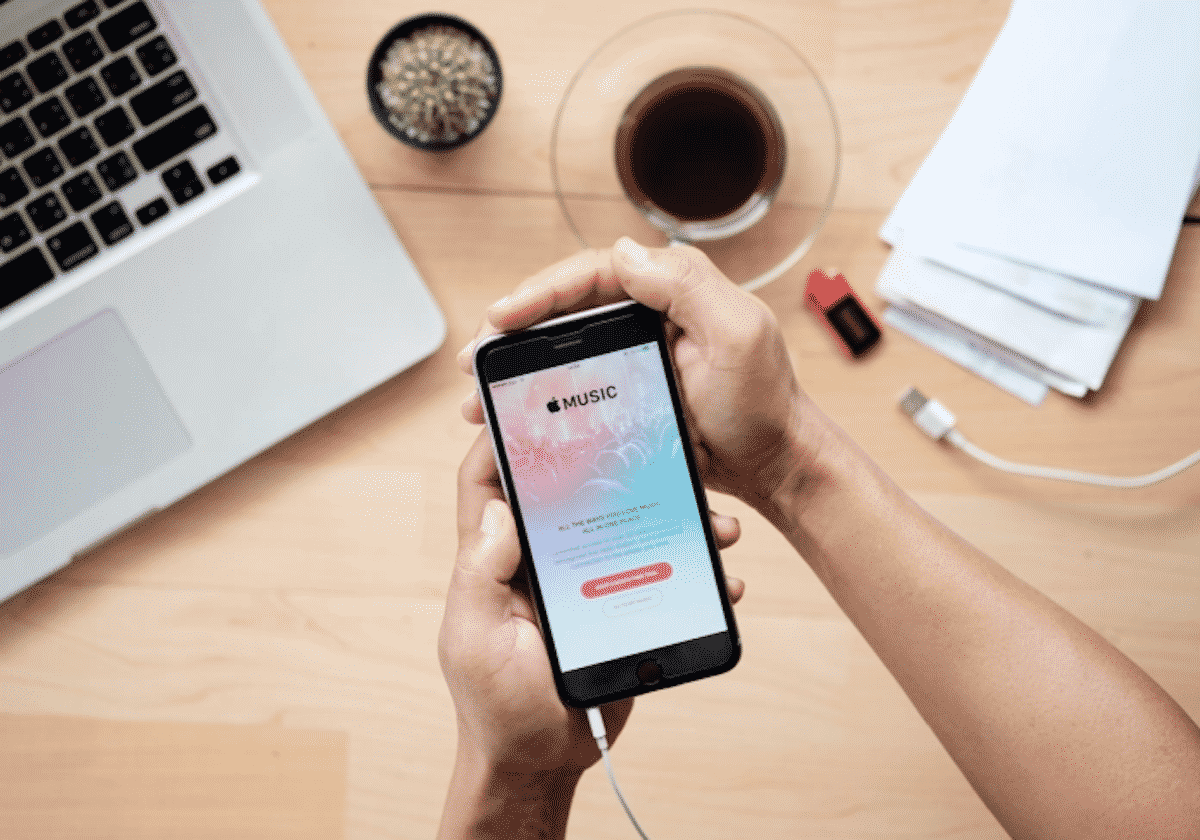
So what does it do? Let me tell you! WALTR 2 is quite a popular app that had a huge launch with hundreds of tech magazines raving about it. This all-in-one transfer tool makes it completely EFFORTLESS to manage multimedia between your computer and iPhone. Wanna know how it works? Check this guide here on how to transfer music from computer to iphone or simply continue reading to watch a video tutorial and a detailed guide.
Table of Contents
- How to Transfer Music from Computer to iPhone – Video Tutorial
- A Step-by-Step Guide on How to Transfer Music from Computer to iPhone
- Where Can I Find the Transferred Files in My iPhone?
- Main App Features
- Conclusion
How to Transfer Music from Computer to iPhone – A Video Tutorial
Thanks to WALTR 2, you will get to add your favorite multimedia to your iPhone without iTunes in just a few clicks. Watch the video tutorial below to learn how it works:
A Step-by-Step Guide on How to Transfer Music from Computer to iPhone
Before doing anything else, you need to download WALTR 2 on your Man/Windows computer first. So get your hands on the free-to-download transfer tool by clicking on the download button below!
Note: WALTR 2 has a one day free trial in which you can send unlimited files to your iOS device.
WALTR 2
Requirements: Windows 8 and higher
Latest Version: 2.7.19, 14 November 2019
Step 1: Install and launch WALTR 2 on your Mac/Windows computer.

Step 2: Connect your iPhone to your computer using its USB cable.
Note: You can also connect your iOS device to your PC via Wi-Fi as WALTR 2 supports Wi-Fi connectivity.
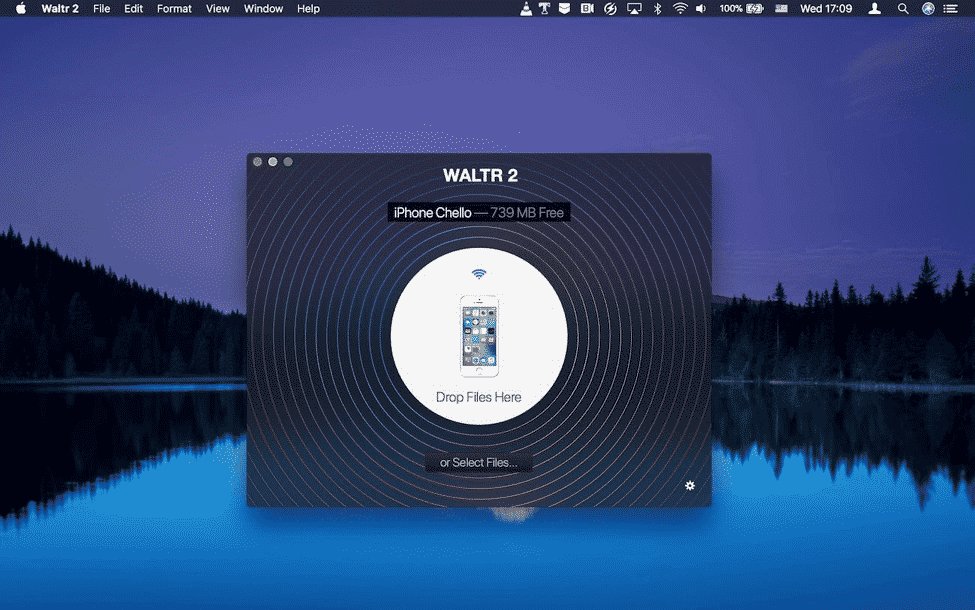
Step 3: Drag and drop the audio/video music files into the WALTR 2 app.
From a location in your PC, drag and drop any music files into the WALTR 2 box where all the magic happens. The files will instantly transfer to your iOS device. Oh and do not worry about what format they are in because, you guessed it, WALTR 2 also converts them into an iOS supported format on-the-fly. So whether your file is in FLAC, MP3 or M4A, it won’t matter! Just toss it into the app window and chill!
Oh and did I tell you about sending multiple files? Yup! you can also send entire folders of songs to your iOS device. Just drag and drop the folder into the app.

After dropping songs into the app, a progress bar will show you the transfer progress. So wait and have a candy bar while your songs are being transferred. Well honestly speaking, by the time you unwrap the candy and take your first bite, your transfer will have been finished because that is how quick this app is.
Where Can I Find the Transferred Files in My iPhone?
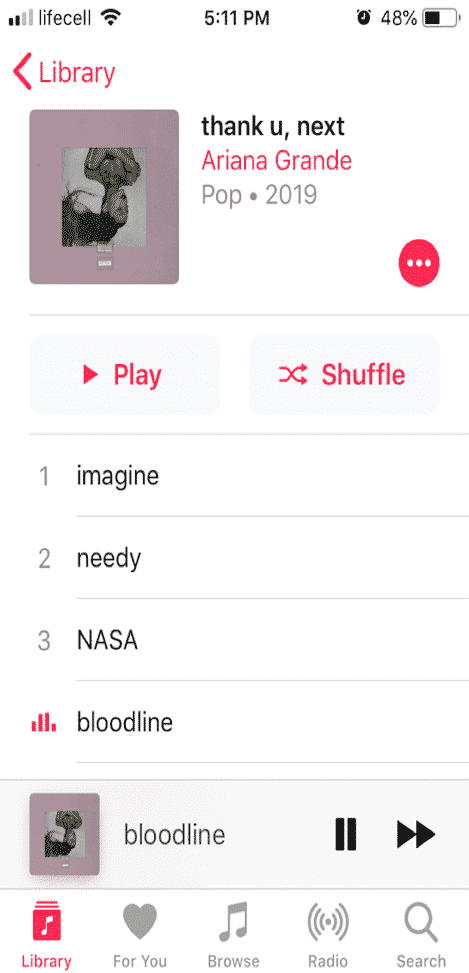
After you see the “Done” notification, pick up your iPhone to check the recently transferred music files. Your video and audio files are automatically sorted into their respective locations in your iPhone so you won’t have to look for them everywhere in your device.
For example, a video will end up in the stock Videos app or the TV app, an audio file will end up in the Music app on your iPhone, ringtone files will be in the Settings where all the other ringtones are and the PDFs or ePubs will land in the iBooks app.
Main App Features
1. Lightning Fast Speed
WALTR 2 is an insanely powerful tool that lets you transfer anything in THREE simple steps. Also, the entire conversion and transfer process literally takes seconds (depending on the file size of course). What’s more? You can send files automatically over Wi-Fi by enabling it from the little cog icon in the bottom right of the app. Who knew you could transfer music to your iOS devices in a FLASH?! ⚡
2. Automatic Format Converter
The automatic format conversion is one of the most compelling features that made WALTR 2 so popular. The app automatically converts the formats into an iOS supported format:
Video formats: MKV, AVI, MP4, MOV, m2ts, 3GP, WMV M4V, FLV, MTS, TS, MPG, M2V, DV, WEBM, RM and RMVB.
Audio formats: MP3, FLAC, APE, AAC, AIFF, WAV, WMA, OGG, OGA, WV, TTA, DFF, CUE, M4R, M4B, and TAK.
So you needn’t worry about converting a file beforehand.
3. Transfers More Than Files
You know how downloading and loading subtitles to your movies is one hell of a tedious job, especially when you are an iOS user? It is practically impossible actually. But WALTR 2 covers that for you because in addition to bringing all the metadata with the files, it also supports .srt and .ass files. Meaning that whenever you transfer a file from your PC to your iOS device using WALTR 2, it also transfers the info like track name, artist, genre, duration, synopsis, cover picture, subtitles and all the other metadata. So now you can easily watch any movies with subtitles on your iPhone. So practical, right?
4. Beyond Just A Music Transfer Tool
WALTR 2 is not just limited to music transfers. The app can also transfer the following files to your iPhones, iPads and iPods instantly.
✅ Music
✅ Ringtones
✅ Videos
✅ PDF files
✅ ePUB files
✅ AND all the metadata related to these files.
It also converts the formats for all of these files into an iOS supported format on-the-fly.
Conclusion
When compared with iTunes, WALTR 2 easily stands out because of its innovative and user-friendly features. Combining functionality and ease, WALTR 2 is basically the only app you will need to have in order to send files and multimedia to your iOS device. In three simple and fast steps, you can fill up your iPhone’s music library with all of your favorite songs!
So now that you have learned to effortlessly manage multimedia between your iOS device and your PC, give the app a try and let us know in the comments below how it worked for you.











