
Having a new iPhone is a pleasant thing. But you might be worried about the contacts on your old iPhone, including many important families, friends, colleagues, and so on. There will be five different but valuable ways for you to have a try in this post to solve your problems. I hope you can use these solutions to transfer your contacts from iPhone to iPhone successfully!
Part 1. Recommended Way: How to Transfer Contacts from iPhone to iPhone Quickly
The first method you can have a try is using a professional data transfer tool to move contacts from your old iPhone to the new one. AnyMP4 iPhone Transfer Pro is a professional program that can help you transfer contacts, photos, music, videos, messages, notes, Safari histories, etc., from your iPhone to other iOS devices and computers. And this software is available for Windows and macOS. Besides, this iPhone transfer supports managing your iPhone data on the computer. Luckily, with a straightforward interface, AnyMP4 iPhone Transfer Pro is easy to use, so you can quickly transfer contacts from iPhone to iPhone.
![How to Transfer Contacts from iPhone to iPhone [4 Tools Presented]](https://ilounge.pro/wp-content/uploads/2022/04/How-to-Transfer-Contacts-from-iPhone-to-iPhone-4-Tools-Presented.png)
Here are steps of using AnyMP4 iPhone Transfer Pro to move contacts from one iPhone to another:
1. Enter the official page of AnyMP4 iPhone Transfer Pro to get the latest software and install it on your computer.
2 .Then launch this program and use the USB cable to connect your old iPhone to the computer. Please tap on “Trust” on your iPhone. The basic information about your iPhone will be shown in the main window of this software.
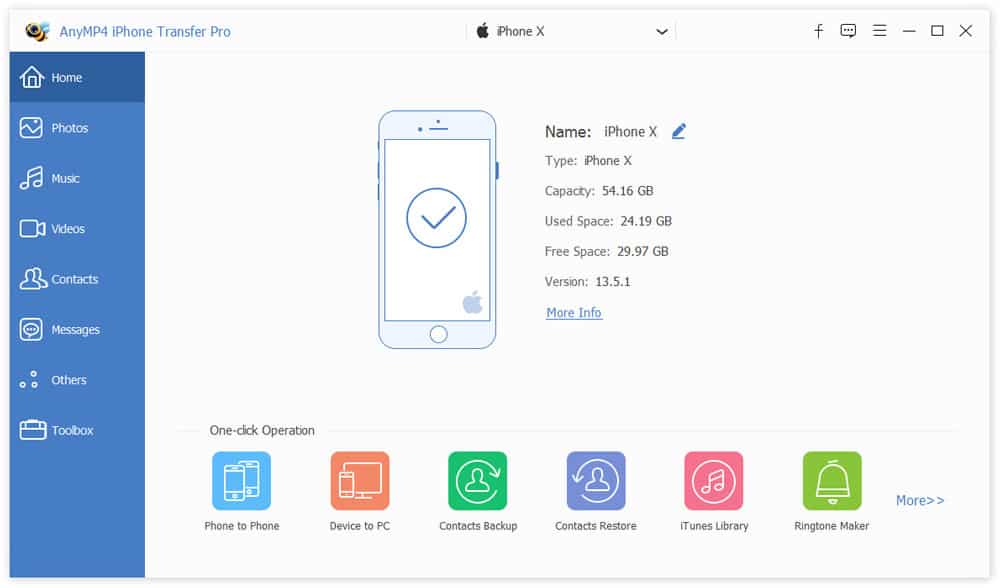
3. Later, please go to the “Contacts” tab and wait for the scanning and loading of contacts.
![How to Transfer Contacts from iPhone to iPhone [4 Tools Presented]](https://ilounge.pro/wp-content/uploads/2022/04/transfer-contacts.jpg)
4. Connect your new iPhone to the computer via USB cable. Then you can transfer contacts from iPhone to iPhone by checking the boxes of contacts and clicking the “Export to Device” icon. Before transferring, you can modify contacts by clicking the “Edit” icon.
You can also use this way to sync contacts from iPhone to Mac and Windows computers.
Part 2. How to Move Contacts from iPhone to Another Using iTunes
As you must have been an iOS user for a while, your computer must have installed iTunes. Thus, you can use iTunes to sync contacts from your old iPhone to the new one.
- At first, you have to ensure that your computer has the latest version of iTunes.
- Start iTunes and use the USB cable to connect your old iPhone to the computer.
- Then you should click the “iPhone” icon to enter the information window.
![How to Transfer Contacts from iPhone to iPhone [4 Tools Presented]](https://ilounge.pro/wp-content/uploads/2022/04/click-iphone-icon.jpg)
- Select the “Info” option and check the “Sync Contacts with” box. Then you should click the “Apply” button and the “Sync” to finish syncing contacts to the computer.
![How to Transfer Contacts from iPhone to iPhone [4 Tools Presented]](https://ilounge.pro/wp-content/uploads/2022/04/itunes-sync-contacts.jpg)
- Later, please unplug your current iPhone to connect your new iPhone to the computer.
- Then, please click the “iPhone” icon >> the “Info” option, and scroll down to the “Advanced” part to choose “Contacts”. Finally, click the “Apply” button to start syncing contacts to your new iPhone
![How to Transfer Contacts from iPhone to iPhone [4 Tools Presented]](https://ilounge.pro/wp-content/uploads/2022/04/itunes-sync-to-new-iphone.jpg)
Part 3. How to Transfer Contacts from iPhone to iPhone with iCloud
You can also use iCloud to transfer contacts from one iPhone to another. And iCloud provides two ways for you to use it.
Solution 1: Using the iCloud backup feature
- First, you should make sure that your old iPhone is connected to Wi-Fi. Then, please enter iCloud on your old iPhone by tapping “Settings” >> “[Your name]” >> “iCloud”.
- Please select “Contacts”, turn on “iCloud Backup”, and tap on “Back Up Now” to back up contacts to iCloud.
![How to Transfer Contacts from iPhone to iPhone [4 Tools Presented]](https://ilounge.pro/wp-content/uploads/2022/04/icloud-backup-contacts.jpg)
- Later, you can turn on your new iPhone to set it up. When you enter the “Apps & Data” screen, please choose “Restore from iCloud Backup” and sign in your Apple ID. And you can select the data type after that. Finally, you can move contacts from your old iPhone to the new one.
![How to Transfer Contacts from iPhone to iPhone [4 Tools Presented]](https://ilounge.pro/wp-content/uploads/2022/04/restore-from-icloud-backup.jpg)
Solution 2: Using the iCloud merge feature
If you have set up your new iPhone and backed up contacts to iCloud, you can use the “Merge” feature of iCloud.
- Please ensure that your new iPhone is connected to the network first.
- Then you should go to “Settings”, tap on your username, and select “iCloud”. After entering iCloud, please select “Contacts” and tap on “Merge”. Later, your contacts will be transferred from your old iPhone to your new iPhone.
![How to Transfer Contacts from iPhone to iPhone [4 Tools Presented]](https://ilounge.pro/wp-content/uploads/2022/04/icloud-merge-contacts.jpg)
Part 4. Using SIM Card to Import Contacts from iPhone to iPhone
You can use your SIM card to import contacts if you want to transfer contacts from iPhone to iPhone without iCloud.
- Before doing anything, you must make sure that the SIM card in your old iPhone fits into the new iPhone.
- Then you should export contacts to the SIM card on your old iPhone and insert the SIM card into your new iPhone.
- Go to “Setting” >> “Contacts” >> “Import SIM Contacts” on your new iPhone to finish the process of moving contacts from your old iPhone.
Conclusion
This page has shown you five ways with four tools to transfer contacts from iPhone to iPhone. Using AnyMP4 iPhone Transfer Pro is easy and quick, and this way does not need a network connection. And you can use this tool to manage your iPhone data on the computer. Using iTunes does not need a network connection, but you need to install iTunes on your computer first. Using iCloud is convenient because most iOS users are used to saving data in iCloud. Still, this way is network-dependent. Using a SIM card is the easiest way in this article, but SIM card has storage space limitation. You can choose a method from those based on your circumstance.











