
Getting a new iPhone is exciting but transferring all your apps and data from the old device can feel overwhelming. While moving photos and media is often straightforward, migrating apps one by one is time-consuming and impractical. The good news is that Apple offers several built-in solutions and third-party tools like Wondershare MobileTrans provide even more flexibility. Whether you’re upgrading your device or switching platforms, this guide will walk you through the most effective methods to transfer apps from iPhone to iPhone quickly, safely and without losing your data.
Section 1. 5 Built-in Ways to Transfer My Apps to a new iPhone
Method 1. Using Apple Quick Start
Easily move your apps and settings to a new iPhone using the “Quick Start” feature. Place both iPhones nearby with “Bluetooth on” scan the setup animation with the old device and enter the passcode. The transfer begins automatically. For single apps, use “AirDrop” instead.
Method 2. Manual Redownload via App Store
The easiest way to transfer apps after setup is by reinstalling them from the App Store. Simply log in with your Apple ID, open your profile and navigate to the Purchased section. From there, just hit the cloud download icon beside each app to restore them individually.
Method 3. Use AirDrop to Share App Data
AirDrop makes it simple to share apps, photos, and files between iPhones without cables. On your old device, select the items you want to move, tap the Share option, and choose your new iPhone from the AirDrop menu. Once the prompt appears, just hit Accept on the new phone to finish the transfer instantly.
Method 4. Transfer by using iTunes
Start by connecting your old iPhone to a computer and opening iTunes. To generate a backup, choose the device icon, navigate to the Summary section and click Back Up Now. Disconnect the old device once the procedure is complete. Insert a SIM card into your new iPhone, turn it on and proceed with the setup until you see the Apps & Data screen. From there, choose Restore from iTunes Backup, reconnect the new iPhone to the same computer, and open iTunes. Select the device icon, click Restore Backup, pick the latest backup file and hit Restore to transfer your data.
Method 5. Transfer by iCloud
Before starting, ensure your iPhone is connected to a reliable Wi-Fi network and that you have enough space available in iCloud. On your old device, go to Settings > [Your Name] > iCloud > iCloud Backup, enable the backup option and tap Back Up Now to create a fresh copy of your data. Once that’s done, insert your SIM card into the new iPhone and power it on.
If it has already been set up, reset it to access the setup screen again. Establish a Wi-Fi connection, proceed until the Apps & Data panel appears and then select Restore from iCloud Backup. Choose the most recent backup, log in using your Apple ID and let the transfer finish.
Section 2. Use MobileTrans to Transfer Apps to Your New iPhone
Wondershare MobileTrans is a powerful and intuitive phone transfer tool designed for seamless app and data migration across devices whether you’re switching from iPhone to iPhone, Android to iPhone or Android to Android. In only a few simple steps, you can move various types of data such as games, social apps, work utilities and much more.
In addition to app transfer, MobileTrans supports full data migration, covering contacts, messages, media files and other important data ensuring a smooth transition regardless of your device’s operating system. The tool is available in both mobile and desktop versions, offering users the flexibility to choose between a wireless or wired transfer based on their preference and device setup.
Below are the steps you can follow to move data between iPhones using the Phone Transfer option in MobileTrans.
Step 1. Begin by downloading and installing MobileTrans on your computer, then open the program. From the home screen, choose the Phone Transfer feature to continue.
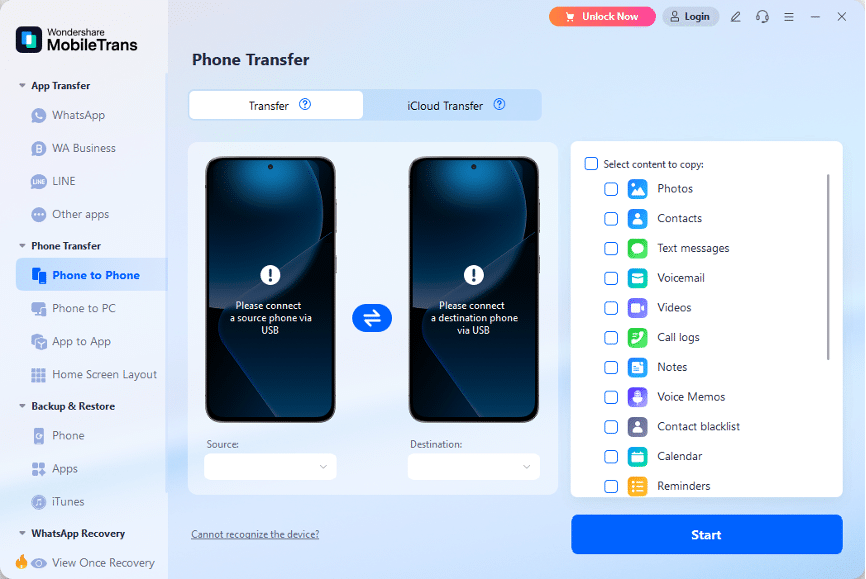
Step 2. Pair your iPhones with the computer using USB connections. Once detected, the devices will appear side by side on the screen. If needed, you can use the Flip option to swap the source and target phones.
Step 3. Select the files or apps you wish to move from your old iPhone to the new one, then click the Start button to begin the transfer. Keep in mind that at present, MobileTrans supports app transfers only between Android devices.
Note: If you want to erase existing content on the target device before copying, simply enable the Clear data before copy option. Keep an eye on the transfer progress and make sure both iPhones remain connected until the process is complete.
Once the transfer finishes, review your new iPhone to confirm that all selected files and apps have been successfully moved.
The MobileTrans mobile app makes the process even simpler. Just follow the on-screen prompts, and within a few quick steps, your data will be transferred in minutes thanks to its user-friendly design and clear guidance.
Conclusion
Transferring apps to a new iPhone is easier than it seems when using the right method. Apple offers built-in solutions like Quick Start, iCloud and iTunes for seamless migration. For added flexibility and speed, MobileTrans provides a user-friendly alternative, supporting both desktop and mobile transfers. Whether you prefer a wired or wireless setup, each method ensures your apps and data move safely and efficiently. With the right approach, setting up your new iPhone can be quick, complete and stress-free.
About Wondershare Technology
Wondershare, established in 2003, is a leading global software developer recognized for delivering smart, innovative solutions that empower users in areas of creativity, productivity and digital convenience. Driven by the mission “Creativity Simplified”, Wondershare offers a range of tools, including Filmora, Virbo for video editing PDFelement for document management EdrawMax, EdrawMind for diagramming and SelfyzAI, Pixpic, FaceHub for image recovery and editing. Wondershare, which has operations in more than 200 nations and regions, offers user-friendly tools and cutting-edge creative materials that encourage the upcoming generation of creators and expand the possibilities of digital creativity worldwide.











