

A mobile hotspot offers wireless web connection to devices on the move. Virtual Private Networks (VPNs) encrypt online traffic among many iPhone users. A VPN is essential to encrypt their internet traffic and protect online activities.
Although sharing a VPN connection using your iPhone’s built-in hotspot might seem easy, the experience is frequently worse than expected.
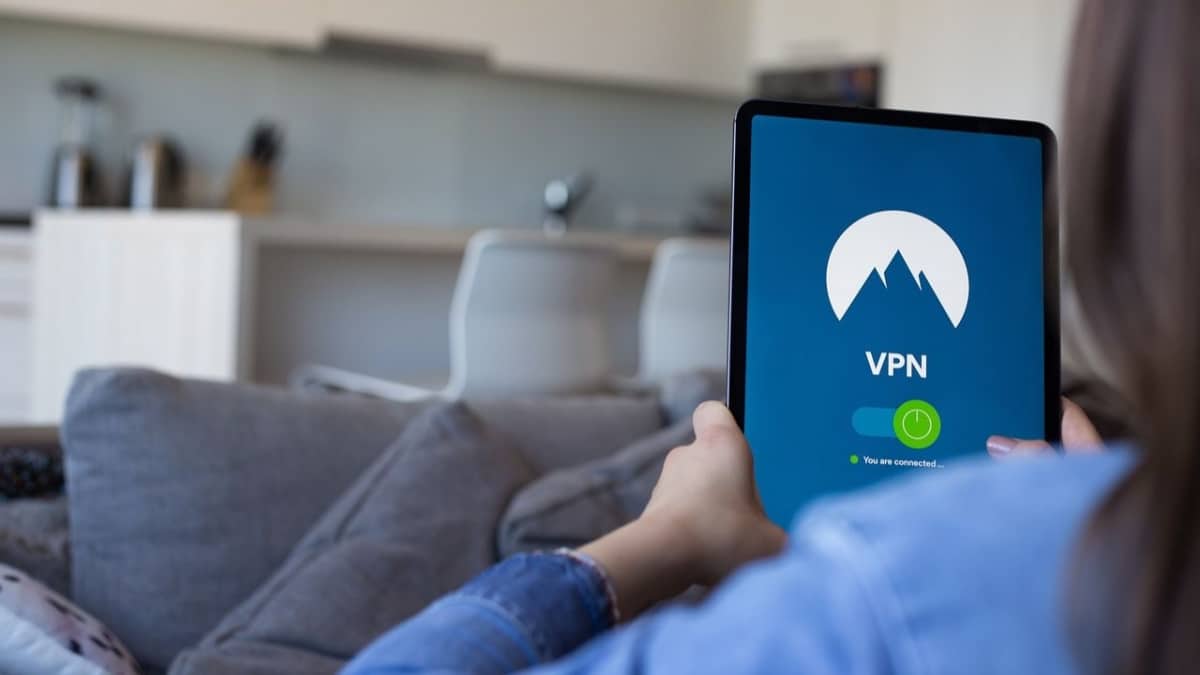
This guide clarifies why directly sharing an iPhone hotspot VPN connection isn’t feasible. It explores solutions to secure all devices when using a VPN on iPhone.
Establish a VPN Connection on your iPhone
To set up a hotspot on your iPhone, you first need a setup VPN server. ExtremeVPN offers a user-friendly solution for iOS, Mac, and Windows. Its simple interface, extensive server network, and multi-device connectivity make it excellent.
ExtremeVPN fortifies device security with end-to-end encryption. Security is boosted further with an Internet Kill Switch and military-grade 256-bit encryption.
Feature of ExtremeVPN for iOS
- Security and online privacy: ExtremeVPN keeps details hidden away. It scrambles information, preventing snoops from getting in. Iron-clad security is guaranteed, shrouding your actions with advanced protocols.
- Device compatibility: Extreme VPN works on Windows, Mac, Android, Linux, and iOS devices. Laptops, tablets, phones, and routers for home networks also work.
- Split tunnelling: Extreme VPN has split tunnelling, an advanced feature that lets you choose which connections use the VPN. This allows you to access local services faster while other traffic goes through the VPN.
- Cost: ExtremeVPN has pricing plans that don’t cost much money. You can buy a subscription for each month starting at $3.29. For people who use the internet, this affordable VPN option works well.
- Privacy policy: ExtremeVPN has a very strict no-log rule. They make sure not to collect or share any data about you. It shields users from possible dangers and tracking online. It focuses on protecting your privacy.
Steps to Configure a VPN on an iPhone
- Establishing a Virtual Private Network (VPN) connection on your iPhone is simple. First, choose a trustworthy VPN service provider like ExtremeVPN. Then, follow these easy instructions.
- Sign up with a reputable VPN.
- Download and install the ExtremeVPN application on your device.
- After logging in, you’ll see a ‘Connect’ button; click it to establish the VPN connection.
- Identify the IP address of your router where you want to configure the VPN.
- Enjoy seamless browsing, gaming, file transfers, and streaming experiences. Explore additional features and customize your network settings, including iPhone hotspot VPN passthrough configurations.
How do you share a VPN hotspot on an iPhone?
To quickly share a VPN securely, create an iPhone hotspot connection. Enable VPN for that protected internet tunnel. Then, your devices connect through the hotspot’s safeguarded channel.
- On iPhone, open settings and enable personal hotspot.
- Turn on the personal hotspot and make an internet connection if needed.
- Establish a connection with the server.
- To share a VPN connection, connect the device to the Wi-Fi network on your iPhone.
- Now, the VPN connection on your iPhone hotspot will handle all internet traffic on the linked device.
Resolve VPN Hotspot Issues on iPhone
When trying to connect to a VPN on an iPhone, you can run into problems similar to any software or application. To help you solve these issues, we advise you to watch out for the following difficulties.
You might be unable to create a proper connection even with a VPN if your local internet connection is disturbed. Check to ensure your local internet connection is reliable and correctly linked and that your VPN is up and operating.
Sometimes, a simple switch from 5G to 3G is enough to restore your connection. To make this change on your iPhone, navigate to the ‘Cellular Networks‘ setting. This easy procedure typically solves the problem and allows reconnection.
It’s possible to enter the username and password incorrectly while using your iPhone as an iPhone hotspot VPN on another device. Even while spelling corrections appear simple, sometimes even little mistakes like a missed capital letter can lead to problems with connectivity.
Conclusion
Now that you know how to share a VPN hotspot, you can easily connect your iPhone. Using a VPN to connect your phone as a hotspot, you can get similar connectivity to your normal internet service if your local internet connection goes down.
Using your mobile phone’s hotspot and connecting to the VPN offers a dependable solution whether your local internet is down or you need to view material on your PC or Mac. Use Secura VPN if you want extra security.
FAQs
Can I share my VPN connection?
Yes, you can share your VPN connection. Installing a VPN application on your computer, phone, or router can provide an encrypted connection to devices that aren’t using a VPN. However, only a reliable VPN service like ExtremeVPN can guarantee speed and security.
Is it secure to use a third-party application to share VPNs on iPhones?
We highly recommend against using a third party to share VPNs on iPhones. These apps regularly violate App Store policies and could endanger the security of your device. It is advisable to depend on reliable solutions from trustworthy sources.
How can I share my VPN with another phone?
All you have to do is install a VPN app on the other phone to share your VPN. Many VPN providers allow users to connect multiple times at once. For example, ExtremeVPN permits up to ten. So you can secure several phones or other devices with a single account.











