
If you own your business, you know how important it is to stay up to date with the latest technologies and systems used in the business world. This is especially true if you are in the eCommerce scene, dealing with constantly evolving technologies. One of the things that are becoming increasingly popular in both online business as well as physical stores is the use of online payment systems for transactions. There are, of course, an array of platforms offering alternative payment methods. However, Apple Pay, with its convenience and security, has taken the lead with Apple users. If you want your business to catch up with this new wave, your website or store should provide this option. We’re here to help you get started with setting up Apple Pay as a merchant.

What Is Apple Pay?
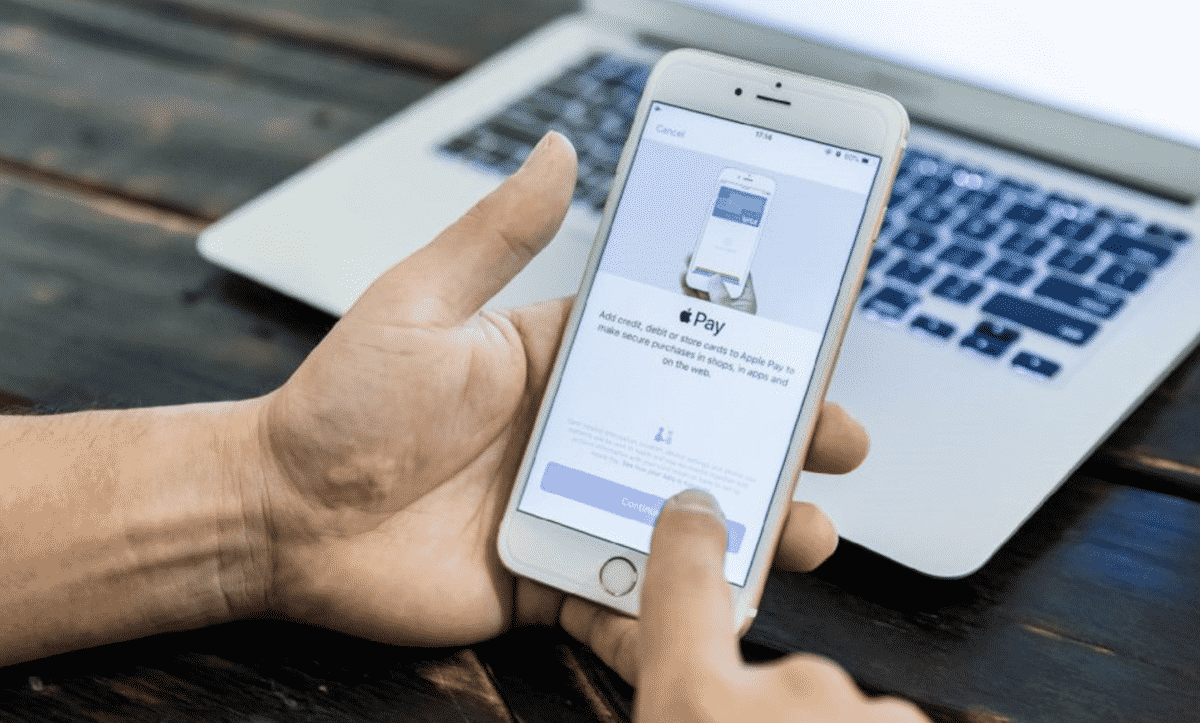
Before we get into how you can set up Apple Pay as a merchant, let’s first go over what it is and how it works, so you have the full picture. Apple Pay is Apple’s system for contactless, cashless mobile payments. It can be used with an iPhone, iPad, or even an Apple Watch. It allows Apple users to send payments to and collect payments from other users, as well as complete in-app purchases and pay for some transportation services. Apple Pay became especially beneficial during the outbreak of COVID-19, as it limits physical contact during financial transactions.
How Does It Work?
So how does it all go down, how does the money go from one apple user to another? Well, first of all, the whole show is run by a technology called near field communication (NFC). This technology allows for the wireless connection of two devices provided that they are within close proximity to each other. Usually, it would involve the Apple device and an Apple Pay merchant processor, which also uses NFC. As for security, Apple Pay will, of course, have all your credit card information; it uses something known as tokenization, a process that eliminates any chance of fraud or identity theft. The process involves sending out the credit card information to the user’s bank to be replaced with a token, which is then used for all transactions instead of the actual account details.
How To Set Up Apple Pay
1. Create Merchant ID
The first step of setting up Apple Pay as a merchant is to create a merchant ID to uniquely identify you as a business. The best thing about these IDs is that they don’t expire and can be used over multiple platforms and websites. First, you’ll need to create an Apple Developer account, and its approval could take a few days. Once that’s done, proceed to log into it, then go to Certificates, Identifiers & Profiles and choose the + sign. Click merchant IDs, then ‘continue’. You’ll be asked to fill in the merchant description and identifier name before proceeding to confirm registration.
2. Create Payment Processing Certificate
Next, you’ll need to create a certificate for payment processing, which is used to encrypt information associated with transactions. Service providers can decrypt the information by using a private key to process payments. To set it up, you also go to the identifiers section in Certificates, Identifiers & Profiles, click merchant IDs, and select the one you created. Afterward, click Create Certificate, which is right under Apple Pay Payment Processing Certificate. Proceed to create a certificate signing request on your Mac, then click ‘continue’ followed by ‘choose file’. A dialogue will appear where you can choose the certificate request file. Click ‘continue’, then ‘download’ and you’ll find the file in your downloads folder.
3. Complete Registration & Domain Verification
Now, to be able to display the Apple Pay button, you’ll need to register all major domains and subdomains. These domains are connected to your Apple Developer Team ID, which means you can register more than one domain under the same merchant ID as well as under multiple IDs. What you cannot do is register the same domain with a different Apple Developer Team ID. To register and verify your domain, repeat the same steps as before until you reach your merchant ID, then click ‘add domain’ under ‘Merchant Domains’. Enter it, then click save. Proceed to click download, then click verify. You can then verify the domain by going to Merchant Domains, then click ‘verify’ next to the displayed domain and follow the steps.
4. Use It In Several Environments
You can decide to create several merchant IDs, each with its domains. However, it’s recommended that merchants have only one ID with several domains. You can use the same ID for several websites, watchOS or iOS apps, production environments, or across test environments. If you choose to create more than one merchant ID, ensure you use the processing and merchant identity certificates that were created specifically for each ID.
Benefits Of Setting Up Apple Pay
So now that you know how to set up your own Apple Pay and integrate it into your business website, we’ll tell you what you’ll get out of it. Many merchants think it’s unnecessary to get on the Apple Pay wagon and prefer to stick to old-school methods for completing transactions. However, it’s beneficial to both the merchants and the customer. It speeds up the check-out process, so customers don’t have to fumble for their wallets or wait for cards to be processed. This in turn means shorter checkout lines for the merchant. The Apple Pay feature will also give your business an advantage over competitors for how easy it is to use. Most importantly, it’s completely secure for both the merchant and customer.

That’s pretty much all there is to know about Apple Pay, how it works, and how to set it up as a merchant. The most important thing is that once you’ve gone through the process, you make sure you let customers know that you now offer the Apple Pay option. You can do so by offering Apple Pay deals across your website to encourage people to use it. You can also utilize your social media accounts to let your customers know you have the latest technology for mobile payment.











