
Our iPhones today hold a lot of information about our lives. From our financial transactions to private messages, the iPhone shows a lot of sensitive data that its owners would prefer not to be leaked to the public. The security of your iPhone is non-negotiable. However, the fact remains that even when your iPhone is with you, sensitive information about you can be viewed by others. Your photos, messages, and credentials can all be shared without your permission.
If you’re finding it challenging to secure your iPhone, then this is the article for you. Some of the tips to be shared here might not be convenient for you at first, but it’ll enhance your iPhone security. You can follow some or all the tips, depending on how much you want to secure your data.
- Make Use of a Secure Password
The basic way of securing your iPhone is to use a strong password. You might be tempted to make use of the 4-digit code so you would be able to unlock your phone faster. The problem with using the 4-digit code, however, is that anyone who’s around you can take a peek when you’re unlocking your iPhone and have your password. Using a password that’s a mixture of letters, symbols, and digits, on the other hand, makes it harder for someone to steal your password. Setting your iPhone to request password immediately after locking it will further boost your security.
If you’re particularly protective of your data, you can set your iPhone to erase your data after 10 failed attempts. Also, you can choose not to show notifications from your lock screen.
To change to a secure password, head over to Settings à Passcode à Require passcode: Immediately. Set Simple passcode to “Off.”
- Deactivate Siri while iPhone is Locked
While Siri’s a very useful phone assistant, it’s not configured to recognize the voice of the owner of the iPhone. This can lead to Siri divulging personal information on your phone. You can set Siri to work only when your iPhone is unlocked. To do this you can go to Settings à Passcode à in the “Allow access when locked” section à Siri: off
Also, head over to Settings àGeneral à Siri à Allow “Hey Siri”: off.
- Set iPhone to Manually Join Wi-Fi
iPhones are able to automatically connect to a Wi-Fi it has been previously connected to. However, the issue about connecting to a Wi-Fi network is that your data can be siphoned from connecting to a Wi-Fi. If someone with despicable intentions can name his/her Wi-Fi the same as a public network and you connect to it, your information would be revealed to them.
To remove the automatic connection to Wi-Fi, head over to Settings à Wi-Fi à ask to join networks: on.
- Use Quality VPN
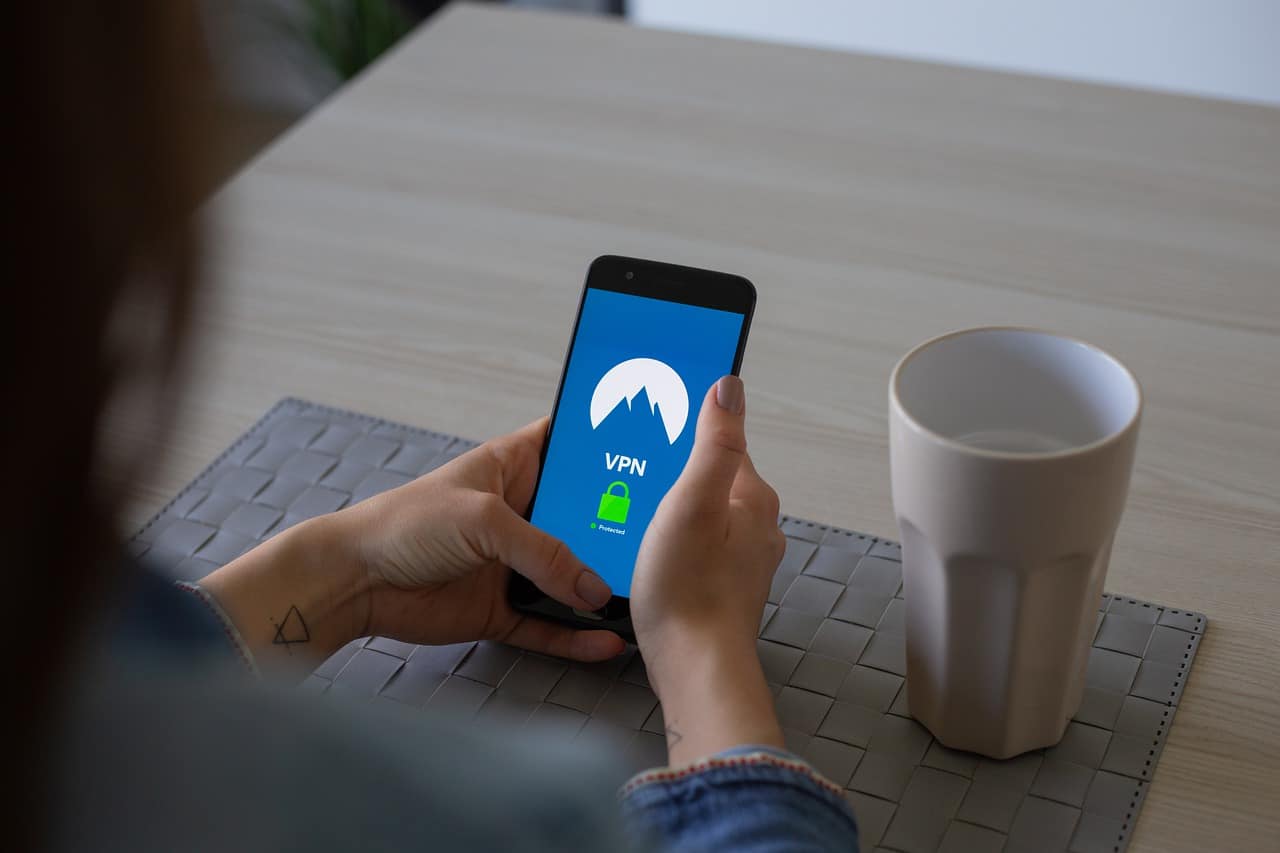
VPN stands for Virtual Private Network. It serves to change your location and encrypt the internet data being downloaded to and uploaded from your phone so third parties wouldn’t be able to examine it. Some VPNs are free while several others require monthly payments.
You’ll need a good VPN for your iPhone so you can properly encode your internet traffic.
- Disable Browser Cookies
Cookies are documents created on your browser by most websites on your iPhone. Any website you’re using will send you a prompt to accept cookies. These cookies reveal sensitive information about you and your device and your browsing behavior. Cookies are the reason you get logged in immediately to a website once you visit it without having to log in again. They are useful but can reveal information about cybercriminals.
Turning off cookies in your browser(s) can cause inconvenience. It goes a long way to securing your data.
To disable browser cookies, head over to Settings à Safari à Privacy & Security à Do Not Track: on, Block Cookies: Always Block.
If you’re using another browser, head over to the browser settings and navigate to the privacy section, you’ll most likely find the option to turn off cookies there.
- Switch on the USB Restricted Mode
USB restricted mode is found on newer iPhone models. It stops devices from accessing your iPhone after it has been locked for more than 60 minutes. Even the best of hackers would not be able to make use of advanced and custom applications to get past your lock screen code to access your iPhone.
To switch on USB restricted mode, head over to Settings à Touch ID & Passcode. Type in your passcode. Make sure ‘USB Accessories’ is not permitted on the lock screen and set it to ‘off’. If you use an iPhone X, you can check your Face ID settings instead
- Switch on two-factor authentication
Two-factor authentication ensures that even if someone get your password, the person wouldn’t still be able to unlock your iPhone. Two-factor authentication codes change every few seconds, so it’s a very competent feature for iPhone security.
To enable two-factor authentication, head over to Settings à Tap your name à Password & Security à “Turn on Two-Factor Authentication” and follow the prompts.
Your security is a necessity and not an option. Securing your iPhone has several advantages like protecting your financial data from hackers who could have otherwise sold your information on illegal online credit card shops. Boosting security on your iPhone will also make it unattractive to pickpockets and mobile phone thieves. You’ll also be able to withhold your sensitive data from malicious people who could have otherwise used it for blackmail or could have sold it to corrupt organizations that use customer data for bad purposes.











