
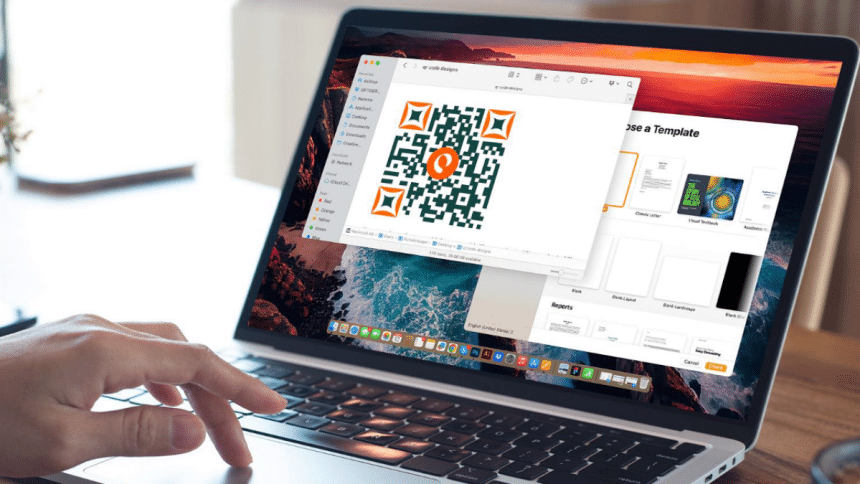
You don’t have to reach for your phone whenever you encounter a QR code while working on your Mac device—scanning can be done directly on it.
Knowing how to scan QR codes on Mac devices (whether iMac or MacBook) can save time, organize your work, and simplify access to information.
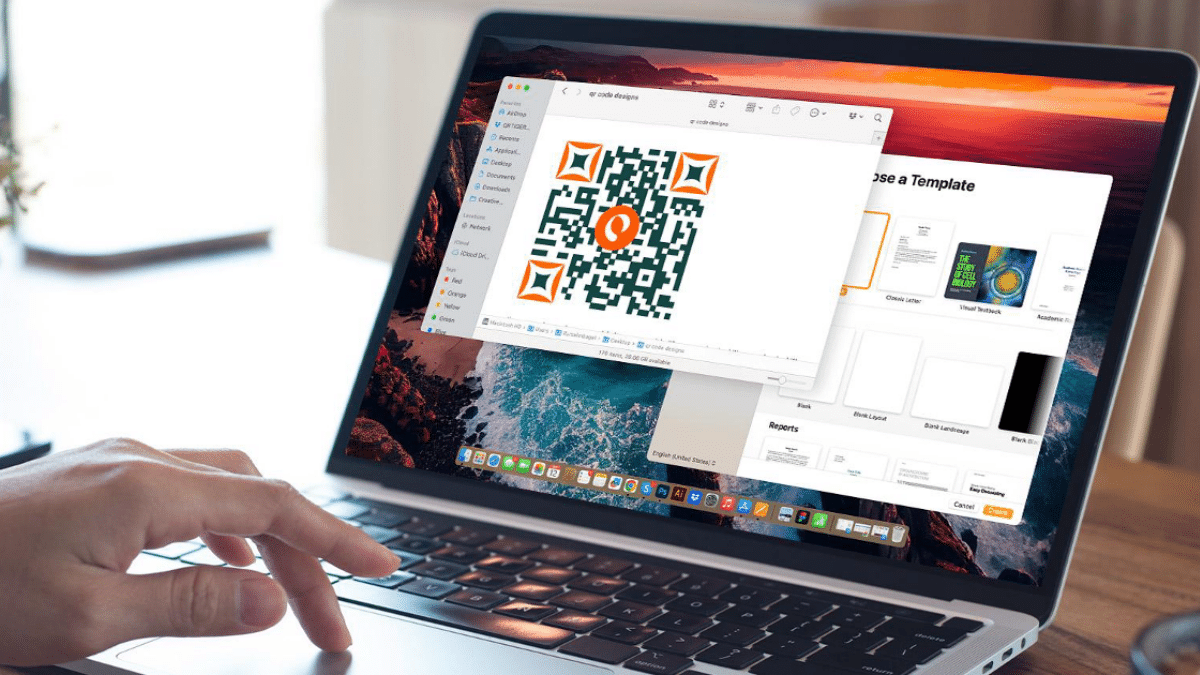
Whether you’re using native Mac tools, third-party apps, or pairing with your iPhone, there are multiple ways to make QR scanning simple and efficient.
Here’s everything you need to know to get started.
How to scan QR codes on Mac using native tools, third-party apps, and iPhone
You can scan any QR code on your Mac device if it is of good quality or made with the best QR code generator online. Let’s look at the different approaches you can try when scanning a code.
Using native macOS tools
Even though most MacBooks do not have a built-in Mac QR scanner, you can still scan QR codes using the camera and the Preview or Photos app. Here’s how:
- Open Preview or Photos and select Camera as the input.
- Place the QR code in front of the camera so it’s visible on the screen.
- Wait till the code is clear and steady. Once macOS recognizes it, it’ll open a prompt to visit the link.
Scanning with third-party apps
There are plenty of third-party apps you can use to increase your scanning options. To use one, download the app from the AppStore, launch it, and follow the on-screen instructions to scan your code.
Top third-party apps for scanning QR codes on Mac include:
- QR TIGER QR Code Generator: This QR code maker slash scanner app offers an easy-to-navigate interface and quick and reliable scanning, suitable for users with many scanning needs.
- QR Code Reader: A straightforward app for quickly displaying QR code content.
- QR code and Barcode Scanner: Offers multi-purpose scanning functionality for scanning QR codes and barcodes.
- Quickmark Barcode Scanner: Allows the scanning of a variety of content types.
- Free QR Code Reader: A basic scanning app that allows simple scans, suitable for occasional use.
Using the iPhone’s continuity camera feature
With the macOS continuity feature, you can do an iPhone QR scan and share the results instantly with your Mac. Here’s how to use this method:
- Right-click where you want the QR code information to appear on your Mac. This could be Notes, Mail, or Finder.
- Select “Import from iPhone” and then “Scan Document.”
- Point your iPhone’s camera at the QR code. Once clear, the camera will capture it and instantly share the results on your Mac screen.
Tips to help you scan QR codes with ease
You now know how to scan QR code on Mac devices. Now, here are useful tips to further simplify the process:
- Scan the QR code in an area with good lighting so it is easy to read.
- Ensure the QR code is of high quality to avoid scanning issues.
- Place the QR code in the center of the camera for faster detection.
- Enlarge the QR code on your screen to improve readability.
- Adjust the angles to ensure it fits properly if the code isn’t recognized immediately.
- Clean the camera lens to ensure it scans accurately.
- Use a reliable app.
How to create your own QR codes: Meeting personal and professional needs with the best QR code generator
QR codes are great tools that allow easy sharing of information. Its versatility makes it a useful tool in both personal and professional endeavors.
You can create QR codes to share links, promote events, share content, and even promote your business.
On Mac devices, the process is simple. You just have to use the right tools, especially if you want a dynamic code that can be updated anytime.
To ensure you can use QR codes for different purposes over a period of time without having to make new codes, you will need a code generator that supports the creation of dynamic codes.
The best dynamic QR code generator allows you to create high-quality codes with content you can update anytime without compromising the code’s quality.
Ideally, the generator should be compatible with your device, allow the creation of a wide range of QR code types, and offer lots of customization options.
It should also be user-friendly, so you can download the app and follow the on-page instructions to create a suitable QR code.
Make the most of QR codes on Mac
Now that you know how to scan QR code on a Mac, you can manage your projects better without seeking alternative scanning methods.
Using tools that allow you to scan, create, and update QR codes while on your Mac can simplify things further.
A dynamic, multi-purpose QR code generator should meet your QR scanning and creation needs. This will enable you to save time, manage your projects more efficiently, and maximize QR codes’ capabilities even on your Mac device.











