
iLoungeiLounge
  • News
    • Apple
      • AirPods Pro
      • AirPlay
      • Apps
        • Apple Music
      • iCloud
      • iTunes
      • HealthKit
      • HomeKit
      • HomePod
      • iOS 13
      • Apple Pay
      • Apple TV
      • Siri
    • Rumors
    • Humor
    • Technology
      • CES
    • Daily Deals
    • Articles
    • Web Stories
  • iPhone
    • iPhone Accessories
  • iPad
  • iPod
    • iPod Accessories
  • Apple Watch
    • Apple Watch Accessories
  • Mac
    • MacBook Air
    • MacBook Pro
  • Reviews
    • App Reviews
  • How-to
    • Ask iLounge
Font ResizerAa
iLoungeiLounge
Font ResizerAa
Search
  • News
    • Apple
    • Rumors
    • Humor
    • Technology
    • Daily Deals
    • Articles
    • Web Stories
  • iPhone
    • iPhone Accessories
  • iPad
  • iPod
    • iPod Accessories
  • Apple Watch
    • Apple Watch Accessories
  • Mac
    • MacBook Air
    • MacBook Pro
  • Reviews
    • App Reviews
  • How-to
    • Ask iLounge
Follow US

Articles

Articles

How to Repair your Apple Charger

Last updated: Jul 4, 2019 6:04 pm UTC
By Lucy Bennett
How to Repair your Apple Charger

Few people would dispute that Apple is an innovative and popular brand. However, even then, this doesn’t mean that bad luck can’t strike with a product or two – especially when clumsy customers come into possession of them! Even the best chargers can break from time to time for a myriad of reasons, and when that happens, its best to prepare for the repair!


There’s also the case that sometimes Apple overprice their products, so if you’re frugal with your money, it might be best to try and fix things yourself than invest in replacements straight away. That said, you should be prepared to swap components out in the worst-case scenarios!
Consequently, here’s how to repair your apple charger.
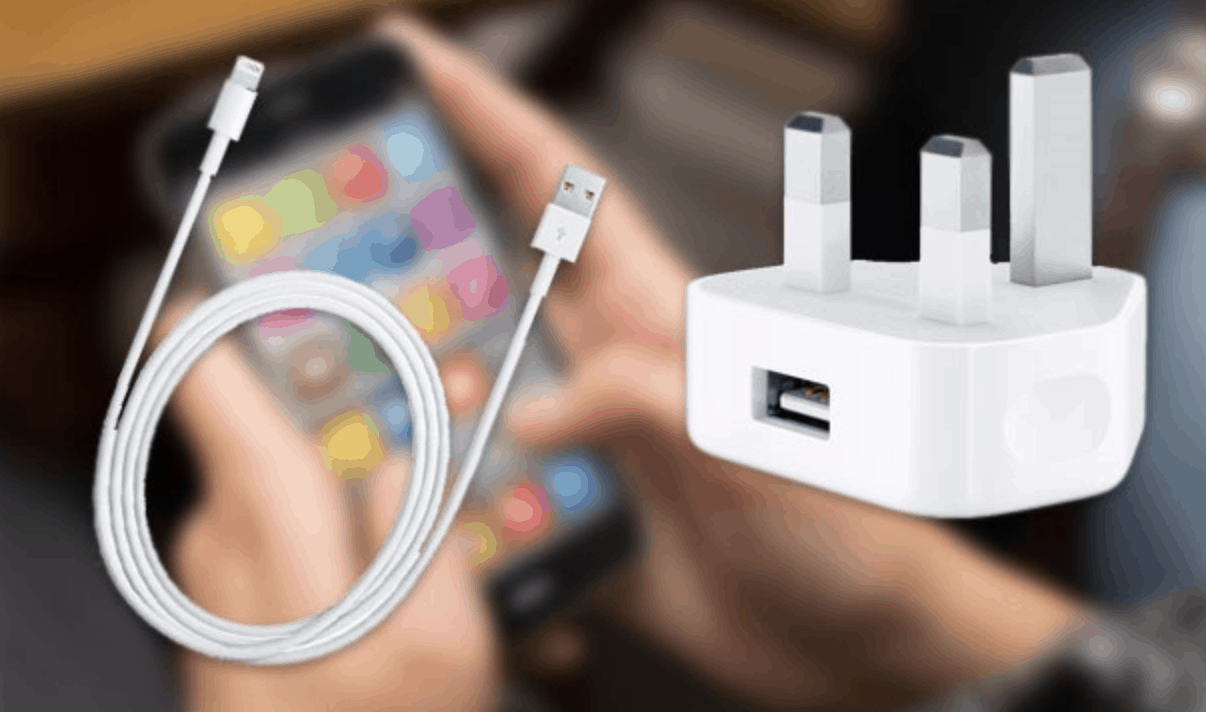
How to Repair your Apple Charger

Careful inspection

When your apple charger breaks, start off with a careful inspection. After all, you can’t repair anything without first locating the issue. Look over both the USB cable and the plug and see if you can identify any problems like chewed components or dented and dirty prongs. Additionally, it’s also worth checking the power outlet itself, so test other sockets with different chargers to see if there’s any problems with those or indeed your own devices ports. It may all just be a false alarm where the charger itself is concerned!
After your inspection, it’s time to ascertain as to whether or not you can make any repairs yourself…


Repair or replace?

Depending on the extent of the damage and your level of expertise, you may want to make repairs yourself. In that case, you can utilise companies like RS Components to get all the equipment you need to make progress here. If damage is discovered in the wiring of the cable, a careful hand, a keen eye and a tactfully used soldering iron might just be enough to mend any breakages you find.

The charger may also not be working in the event of a twisted cable. If that’s the problem, gently detach the cable from the plug and your device and straighten it out. Cover any eroded plastic with some gaffer tape to protect any exposed wires, and then reattach the cable to the plug and your device. This will ensure that the charge isn’t disrupted in future, nor vulnerable to any further damages.


If the cable is in good condition and the power adapter is at fault, it’s probably best to call in an expert or replace the plug entirely if you’re not proficient with electronics. Not every repair can or should be made by you, and there’re some things that can’t be fixed so easily. If you tinker, you may just make things worse, and at the very least waste your time.

Conclusion

Only the most easy and basic repairs can really be made on an Apple charger. Beyond that, a decision needs to be made as to whether it’s worth your time and effort. Remember, you’re still repairing the whole charger even if you’re just buying a new plug, so don’t shy away from that option if it’s absolutely necessary!



Latest News
The 14-inch MacBook Pro with M5 Chip 16GB RAM/512GB is $250 Off
1 Min Read
Noise and Static on AirPods Pro 3 Still Unfixed
1 Min Read
New iMac with 24-inch OLED Display May be Brighter With 600 Nits
1 Min Read
The 15-inch M4 MacBook Air 256GB Is $250 Off
1 Min Read
Internal Kernel Debug Kit from Apple Reveals Tests for a MacBook with A15 Chip
1 Min Read
Apple Currently In Talks With Suppliers for Chip Assembly & Packaging of iPhones in India
1 Min Read
Apple Allows Easier Battery Replacement For M5 MacBook Pro with 14-inch Display
1 Min Read
The Apple Watch SE 3 44mm GPS is $50 Off
1 Min Read
20th Anniversary iPhone May Launch in Two Years
1 Min Read
Better Image Generation Capabilities and Apple Music Integration Coming to ChatGPT
1 Min Read
A20 Pro Chip Coming to Next Gen iPad Mini OLED
1 Min Read
Amazon has the AirTag 4 Pack Marked $29 off
1 Min Read

iLounge logo

iLounge is an independent resource for all things iPod, iPhone, iPad, and beyond. iPod, iPhone, iPad, iTunes, Apple TV, and the Apple logo are trademarks of Apple Inc.

This website is not affiliated with Apple Inc.
iLounge © 2001 - 2025. All Rights Reserved.
  • Contact Us
  • Submit News
  • About Us
  • Forums
  • Privacy Policy
  • Terms Of Use
Welcome Back!

Sign in to your account

Lost your password?








