
It can be frustrating when MP4 files get damaged, especially if they hold essential work or personal files. Fortunately, fixing these files is easier than you would believe. This page provides a free guide to repair corrupted MP4 with various MP4 repair tool choices. From online video repair tools to programs like VLC and 4DDiG, these fixes can help restore your videos in a few short steps.
Content
Way 1: How to Repair MP4 File Online with 4DDiG Free Online Video Repair?
Designed as a web-based MP4 repair application, 4DDiG Free Online Video Repair presents a user-friendly approach for corrupted video correction free of downloads. Here’s how you could apply it:
- Go to 4DDiG Free Online Video Repair.
- To add the corrupt MP4 file, click “Upload Video”. Once done, the online gadget will start the video repair automatically.
- After the fix is finished, you can preview the fixed videos to check them. Finally, save them to your device if you are satisfied to them.
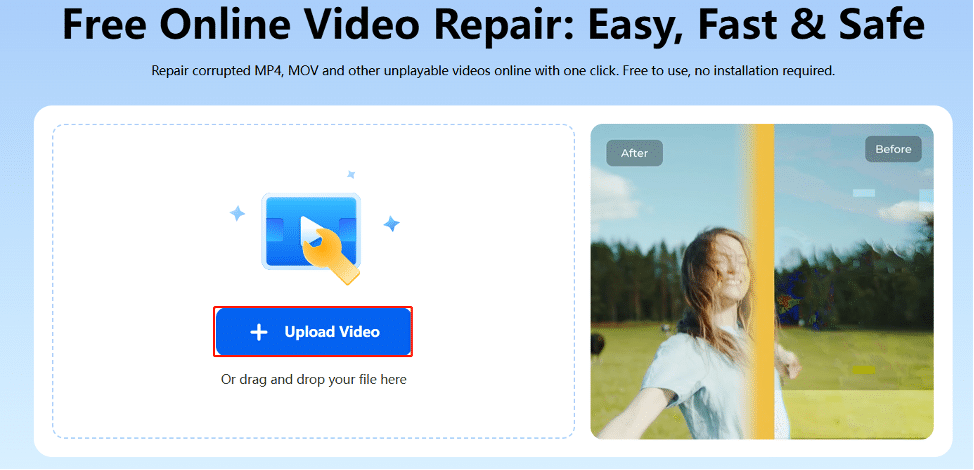
4DDiG provides afree online MP4 video repair service that does not require sophisticated software. It is a dependable mp4 repair tool supported for several file types, making it ideal for consumers looking for a quick, efficient fix.
Way 2: How to Repair MP4 with VLC for Free?
VLC Media Player is an efficient MP4 repair freeware tool since it features built-in capabilities for fixing video files, surpassing media player capability. Here’s how VLC might help to fix corrupted mp4 file:
- Open VLC, then navigate to “Media” > “Convert/Save”.
- Click “Add”, then choose the corrupted MP4 file.
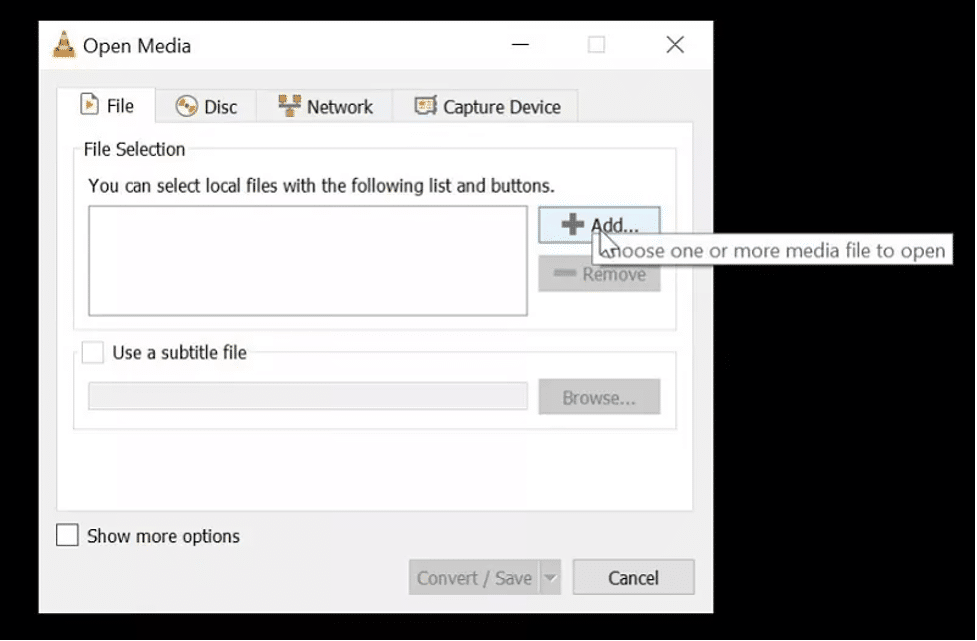
- Choose “Convert/Save” and then use a compatible output format (such as MP4 or AVI).
- To start the process, click “Start”. Re-encoding the video by VLC will help to fix small corruption problems.
Especially if you currently use the media player, VLC provides a quick approach to fixing broken MP4 files for free. This approach is efficient for light corruption and an excellent choice when looking for ways to fix broken MP4video files.
Way 3: How to Fix Corrupt MP4 Files Free Using FFmpeg Command Line?
Professionals use the potent, freely available FFmpeg program for media processing. Although FFmpeg is a functional MP4 repair solution for corrupted MP4 files, it is somewhat technical knowledge. Using FFmpeg, here’s how to repair corrupted MP4 files:
- Get FFmpeg installed on your PC or Mac from its official website.
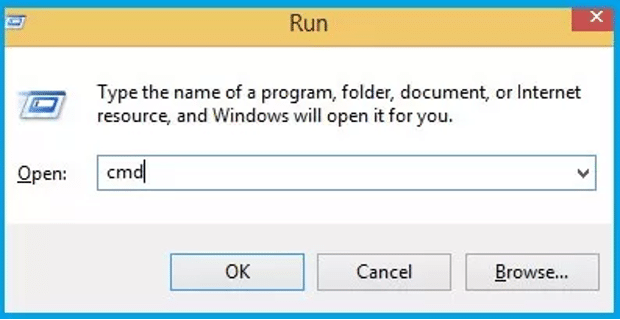
- Press “Windows + R”, type “cmd” and press Enter to open the Command Prompt.
- Type the following command:
cd Desktop
ffmpeg -i input.mp4 -c copy output.mp4. Name your corrupt MP4 file instead of “input.mp4“.
- Press Enter. FFmpeg will generate fresh and repair added damaged MP4 video files.
Note: This method can only repair the MP4 videos that are slightly damaged.
Way 4: Best Way to Repair Corrupted MP4 Files Using MP4 Repair Tool [High Success Rates]
If the above-mentioned steps fails to work, it is considered the MP4 videos are broken severely. Amid this, a reliable and powerful MP4 repair software is requisite. Fortunately, I found such a software: 4DDiG Video Repair. It is a leading solution in this domain that entitles us to fix any video errors and repair corrupted MP4 and other file types with a great success rate.
No matter your videos are broken, corrupted, fuzzy, distorted, grainy, unplayable, or choppy and how severely they are damaged, 4DDiG AI Video Repair will help you fix them perfectly in a short time. Besides, it can remove noise and blur from your videos and add colors to the old videos, making them clearer and more vivid.
➤ What Makes 4DDiG Video Repair Outstanding
To learn more about it, please read on its outstanding features below:
- Professionally repair MP4 and other severely corrupted videos with AI technology
- Simple to user for beginners without technical requirements
- Supports several widely used video formats: MP4, MOV, MKV, 3GP, AVI, and more
- Effectively ratch repair multiple files at once, saving time
- Remove noise and blur from videos with AI sharpening technology
- Colorize black and white videos with vibrant hues
- Can fix videos from computers and most storage media (SD card, USB, etc.)
- Additional feature, upscale video quality to 4K or higher
➤ How to Repair Damaged MP4 Video Files with 4DDiG Video Repair
Only with 3 steps, you can successfully complete the MP4 video repair.
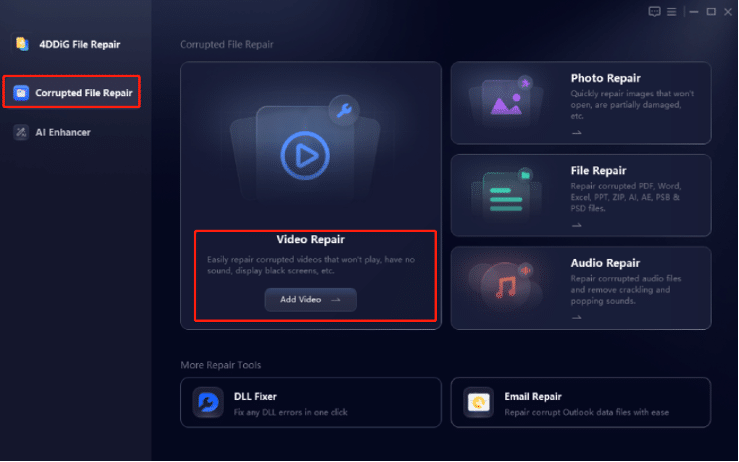
- Add Corrupted MP4 File: Launch the software and go to “Corrupted File Repair” > “Video Repair”. Then click “Add Videos” button to import your problematic MP4 video files.
- Kick Off Repair Process: Once all videos are loaded, click the lower-right “Repair All” button to start fixing.

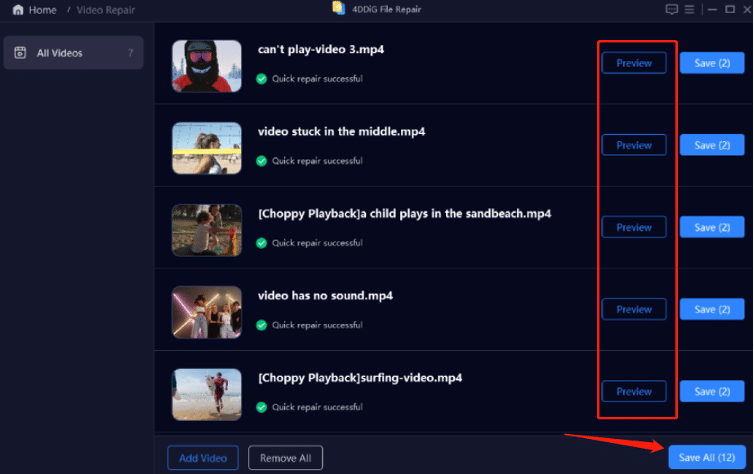
- Preview and Save Fixed Videos: Once the repair is complete, preview the video to confirm it’s fixed, then save it to your device.
⭐Note: Many users turn to 4DDiG Video Repair for its advanced AI technology, wide range of video format support, extensive compatibility, and high success rate. What makes it win among its competitors is that it can fix any video issues no matter how seriously those videos are corrupted.
Tips for Preventing MP4 Corruption
Always better is avoiding file corruption. These pointers should assist you in avoiding MP4 file repair requirements. These suggestions will help you guarantee the safety of your films and lower the demand for MP4 repair freeware.
- Back-Up Regularly: To stop data loss, save critical MP4 files on external disks or cloud storage.
- Use Quality Storage Devices: Select premium USBs or hard drives to prevent problems causing MP4 corrupted video damage.
- Safely eject storage: To prevent data corruption, always use your device’s safe removal option.
- Guard Against Viral: Use current antivirus software to stop virus-related file damage.
FAQs about MP4 Corrupted Video Repair
Here are some questions frequently asked by other users:
Q1: Can VLC repair MP4?
Indeed, re-encoding the video allows VLC to fix little errors in MP4 files. Just open VLC and use the repairmp4 file online directions described here.
Q2: How to play a corrupt video file?
Try opening the file with VLC or fix it using 4DDiG Video Repair. Also, you can try to change the file’s extension.
Q3: How to fix corrupted mp4 files on Android?
Android smartphones allow you to use a mobile-compatible MP4 repair freeware tool or move the file to a computer for repairs.
Q4: How to uncorrupt a video file for free?
Fix corrupted files with free solutions from VLC Media Player or 4DDiG Free Online Video Repair.
Final Thoughts
This tutorial provides a spectrum of techniques for fixing corrupted MP4 files, from more complex choices to free online MP4 corrupted video repair. We advise 4DDiG Video Repair for optimum results. It effectively repairs faulty MP4 files, is dependable, and is easy to use. Selecting the correct tool can help you rapidly and easily restore your videos.











