
Are you exploring how to remove the background from a picture on your iPhone? Not surprisingly, having the ability to edit and remove the background from your iPhone’s image has many advantages.
Removing the background from the picture on iPhone enhances image quality by erasing distracting elements. Moreover, it also focuses attention on the subject of the photo. Apart from that, it makes photos look more professional and polished.
We will show you the three best ways to remove the background from the picture on iPhone. Using any of these methods, you can easily and efficiently remove the background from your photo.
Ways to Remove Background from Picture on iPhone
You can remove the photo background using different methods. We have researched and tested each method individually and come up with the three best methods. These methods will save up your time and effort.
Here are the three best methods to remove the background from the picture on iPhone:
- Erasing the background from the picture on iPhone using the Background Eraser app
- Removing the background from the picture on iPhone using the Blur Photo Editor app
- Removing the background from the picture on iPhone using the default Photos app
How to Remove Background from Picture on iPhone using the Background Eraser app
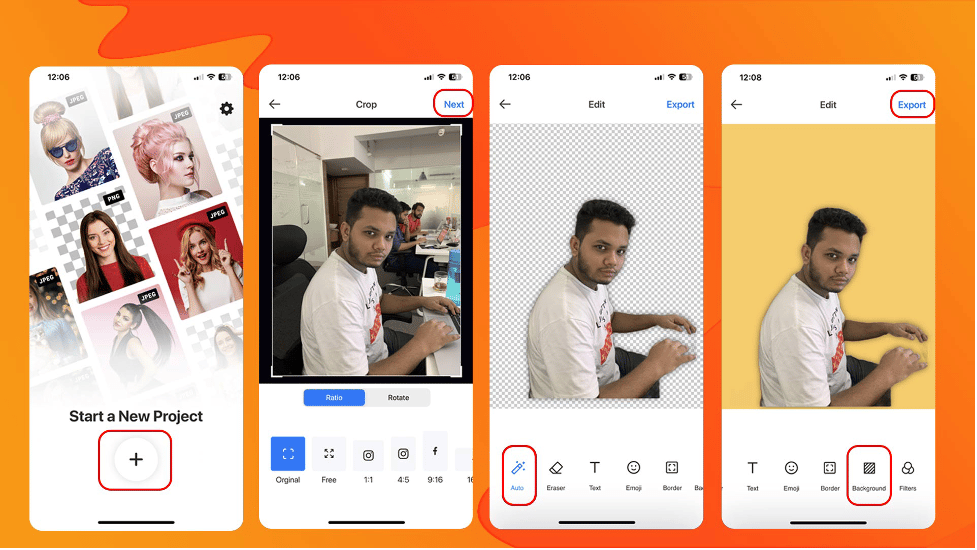
Background eraser is an excellent third-party iPhone app that instantly removes the background from pictures and easily creates transparent or colourful backgrounds on your iPhone. Moreover, the Background Eraser app lets you apply different photo editing and background-changing functionalities to your iPhone photos.
Hess brown, on his blog published at Applavia, also suggested this fantastic app on the methods for photo background removal. Moreover, some other authors also suggested this app for background removal on different blogs published on different websites.
To remove the photo background from a picture on iPhone using the Background Eraser app, follow the steps bellow.
- Install the Background eraser app on your iPhone from the App Store.
- Lunch the app and tap on the “+” icon on the first screen.
- Select your desired picture from which you want to remove the background
- If you want, you can crop, rotate or change the image ratio of your picture. If you don’t need to, just tap on “Next”
- Then tap on the “Auto” button to remove the picture background automatically. If you want, you can remove the background manually by tapping on “Erasing” button. I recommend using the automatic background removal option because it is easy and accurate.
- You can add different backgrounds, texts, and emojis to your picture.
- Finally, tap on the export to save the picture.
How to remove background from the picture on iPhone using the Blur Photo Editor app
Blur photo editor is also an amazing app for blurring picture’s background. It can remove unwanted objects in the background with automatic background detection and unique blurring filters. Moreover, you can manually remove or blur the background. Apart from that, it also works as an excellent photo editing app.
To remove the photo background from the picture on iPhone using the Blur photo editor app, follow the steps below:
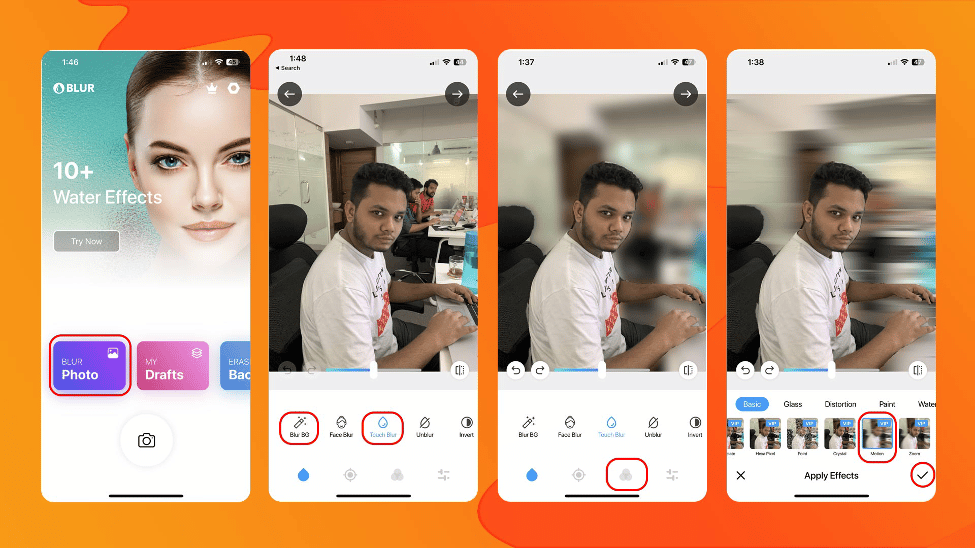
- Install the Blur Photo Editor app on your iPhone from the App Store and open the app
- Tap on the “Blur Photo” button and select your desired photo
- Tap on the “Blur BG button” to automatically detect and blur the background of the image.
- If you feel the “Blur BG ” can not perfectly detect the background, you can use the Touch Blur to detect and blur the background manually.
- Now tap on filters to add different background effects to the picture.
- Finally, tap on the Right sign button to save the editing.
How to remove the background from the picture on iPhone using the default Photos app
The default Photos app for iPhone is a fantastic app that allows users to store, organize, and view their photos and videos. Moreover, it provides features such as photo editing, sharing, and backup to Apple’s cloud service, iCloud. This app also allows users to remove the background from the image easily. The app organizes photos by year, month, and date and supports features such as Live Photos, Memories, and facial recognition for more accessible organization.
To remove the photo background from the picture on iPhone using the iPhone’s default photos app, follow the steps below:

- Open the Photos app on your iPhone.
- Select your photo
- Tap for a couple of seconds on the object you want to focus on. All the objects in the background will be erased except the object you tapped to focus.
- Then tap on the “Share” button
- A window pop-up will appear. Tap on the Save image button.
Conclusion
We have come up with the three best ways to remove the background of your iPhone image. You can try all and select the most suited one for you. But for us, the second method, removing the background from a picture on iPhone using the blur photo editor, is perfect.











