
Take a look around for a monitoring app designed for an iPhone and you will likely discover a limited range of features at exorbitant prices. Similarly, many monitoring apps also require constant access to the phone, in addition to forcing you to jailbreak the device. Honestly, this is unacceptable in 2020 as newer apps should be able to offer better functionality at an affordable price. We have got one such app for you today. We choose to review the XNSPY iPhone monitoring app because its price immediately drew our attention. We were also surprised to discover that it offers spectacular features as well. In this article, we will review these features in detail. We will also list the price and compatibility options for the app. Besides, we will go through some important issues and concerns regarding XNSPY. Do not be concerned about the difficulty in installing and using the app, because we will guide you in this department as well. Finally, we will list some important pros and cons. Let’s dive right into it.
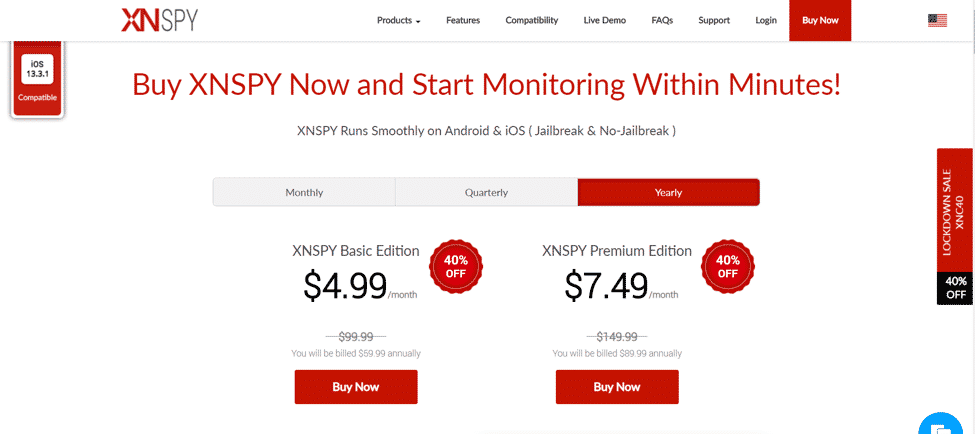
XNSPY iPhone monitoring app price
XNSPY works under a subscription-based model. There are two versions you can choose from, the basic and the premium. The premium version offers a full list of features and costs USD 7.49 per month. If you want a more affordable option, select the basic version which comes in at USD 4.99 a month. However, it does not offer all available features. We strongly recommend you choose the premium version because competing apps can run into hundreds of dollars per subscription!

Is it compatible with my iPhone?
XNSPY is most likely compatible with your device given that it supports all iOS versions above 6.0.
How to install and use XNSPY
In this section, we will detail the requirements and the process of installation and use. We will provide a step-by-step guide on how you can do so. We will then move on to how you can use different features of the app.
Step 1: Visit the official website of XNSPY and purchase “Xnspy for iOS” from the “Buy now” option.
Step 2: Enter your contact details and make secure payments.
Step 3: Check your email inbox for your XNSPY ID and password.
Step 4: Download Xnspy to a computer with iTunes preinstalled.
Step 5: Complete the installation by activating your service and connecting the iPhone to the computer with Xnspy installed on.
Step 6: Process first iCloud sync through USB. The remaining backups will take place automatically over Wi-Fi.
Step 7: Once a backup is created, you can go to your Xnspy web account and sign in to view that data.

Here is how you can use different functions of XNSPY.
- How to remotely monitor calls on iPhone with XNSPY?
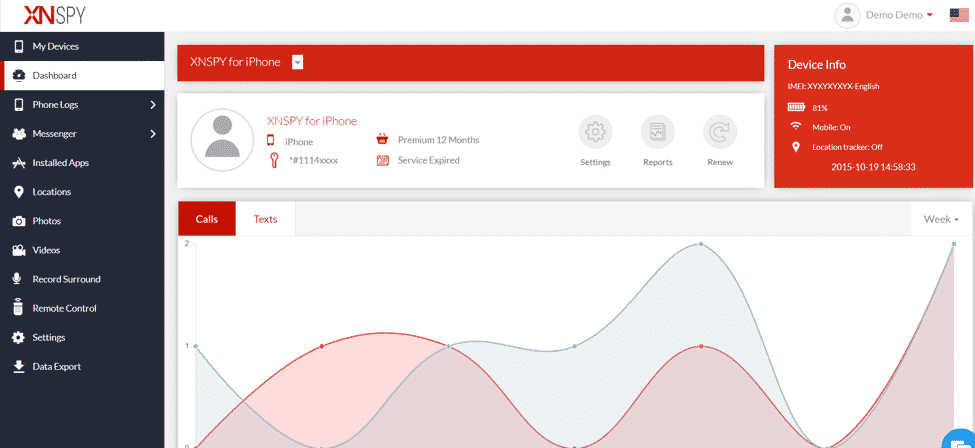
Login to your XNSPY account and select the iPhone from the Devices menu. Browse over to the left-hand side and click on the “Phone logs” drop-down menu. Select calls to view all call log data. The information is listed with the date, time, and duration of each call.
- How to read all SMS and MMS?
The process for SMS/MMS is the same. The option can be accessed from the phone logs drop-down menu. Just select SMS to view all messages. As with calls, each text message is listed with the date and time as well.
- How to read instant messaging chats?
Use the control panel to view the main menu bar on the left. Then, select the “Messenger” option. The drop-down menu will identify a range of instant messaging and social media apps. You can view all exchanged messages, along with call log data and contacts.
- How to view emails?
Select the email option through the call logs to the drop-down menu. The page on the right will then list all available emails. You can click the “Read Message” icon to read the complete email.
- How to view internet activity?
Internet history is also accessible via the call logs menu. Click on “Internet History” to view all internet activity. At the top, different menu options will be visible. You can view bookmarks and analysis here as well.
- How to view installed apps?
Click on the “Installed Apps” menu on the bar to view all applications installed on the iPhone.
- How to track GPS location?
Select the “Locations” menu to view GPS location and history. XNSPY provides a geofencing feature as well, but we will cover it in the watch list alert section.
- How do I view photos/videos?
A dedicated option for both photos and videos is accessible in the control panel. You can download the images as well.
- Can I remotely control the iPhone? How?
You can remotely control the iPhone with XNSPY. Select the “Remote Control” option in the control panel menu. The page will then show three different options called surround record, wipe phone, and lock phone. With the surround record option, you can remotely turn on the microphone to listen to the surroundings.
- How do I turn off specific functions?
Select the “Settings” menu and then click on the “Toggle features” option that has the eye
icon. You can turn any feature on and off with the click of a button.
- What is the watch list alert function and how do I use it?
This is the most impressive feature available with XNSPY. We were thoroughly impressed with its usefulness and sophistication. There are dedicated watch lists in the settings menu for words, locations, and contacts. You can add anything to these lists. The app will immediately notify you if there is any activity related to anything included in the list. That is a very advanced feature!
Important considerations before you purchase XNSPY
XNSPY is a smartphone monitoring app that has been designed for use by parents or employers. The former typically use it to oversee their child’s digital life and protect them from harm. On the other hand, employers usually use XNSPY to boost productivity and improve transparency in the workplace. However, take note that using XNSPY without the consent of the other party is illegal. XNSPY is a legal and ethical smartphone monitoring app.
That being said, there are important pros and cons of the app as well.
XNSPY Pros & cons
XNSPY advantages
- The app is the most affordable iPhone monitoring app currently available on the market.
- There are live customer support and a dedicated demo version available on the app’s website.
- The watch list alert function is highly sophisticated and useful.
XNSPY disadvantages
- XNSPY does not offer a content-filtering or website-blocking tool.
- You may have to access the iPhone for a moment if the iCloud backup feature is disabled.
- The basic version of the app does not offer many useful features.











