
High ping in Marvel Rivals can turn an exciting match into a frustrating battle against lag. Every millisecond counts in this fast-paced hero shooter, where split-second decisions can mean the difference between victory and defeat.
This guide will help you tackle those pesky ping issues with practical solutions to enhance your gaming experience. You’ll discover:
- Proven methods to stabilize your Internet connection
- Essential router optimization techniques
- Smart server selection strategies
- Expert tips for maintaining low latency
Whether you’re dealing with rubber-banding characters or delayed ability activations, these battle-tested solutions will help you achieve smoother gameplay and maintain your competitive edge in Marvel Rivals.
Understanding Ping in Online Gaming
Ping represents the time it takes for data to travel from your device to the game server and back. Think of it as a digital game of catch – the faster the ball (data) travels between players (your device and the server), the smoother the game feels.
A low ping value (measured in milliseconds) creates responsive gameplay where your actions register instantly. High ping causes those frustrating moments when:
- Your character moves with a delay
- Abilities activate seconds after you press buttons
- Enemies seem to teleport across the screen
- Your hits don’t register properly
High latency disrupts your gaming experience through packet loss – when bits of data fail to reach their destination. This creates a disconnect between what you see and what’s happening in the game. In Marvel Rivals, packet loss can mean:
- Missing crucial ability combinations
- Failing to dodge enemy attacks
- Rubberbanding (character snapping back to previous positions)
- Disconnections from matches
The impact of high ping becomes particularly noticeable in fast-paced combat games like Marvel Rivals, where split-second decisions determine victory or defeat.
Factors Affecting Ping in Marvel Rivals and How to Optimize Them
Your gaming experience in Marvel Rivals depends heavily on multiple network-related factors. Let’s dive into the key elements that impact your ping and discover practical solutions to enhance your connection quality.
Server Region Impact
The physical distance between you and the game servers plays a crucial role in determining your ping. Players connecting to servers in their region typically experience:
- 15-50ms ping for local connections
- 50-100ms ping for nearby regions
- 100+ ms ping for cross-continental connections
Pro tip: Select servers within your geographical region through the game’s server browser to minimize latency.
Internet Service Provider (ISP) Considerations
Your ISP’s quality directly influences your gaming connection. Here’s what to look for in an optimal gaming internet package:
- Download speed: Minimum 25 Mbps
- Upload speed: Minimum 5 Mbps
- Consistent connection without frequent dropouts
- Low network congestion during peak hours
Network Traffic Management
Background processes can significantly impact your ping in Marvel Rivals. Take these steps to optimize your connection:
- Close unnecessary browser tabs and applications
- Pause system updates during gameplay
- Disable automatic cloud backups
- Stop any ongoing downloads or uploads
Router Configuration
Your router settings can make or break your gaming experience:
- QoS (Quality of Service): Prioritize gaming traffic
- Channel Selection: Choose less congested Wi-Fi channels
- Firmware Updates: Keep router software current
- DNS Settings: Use gaming-optimized DNS servers
Connection Stability Checklist
Before launching Marvel Rivals, run through this quick stability check:
- Run a speed test to verify connection quality
- Check for ISP maintenance schedules
- Ensure no other devices are hogging bandwidth
- Verify router firmware is up to date
- Test connection stability with ping tools
Network Hardware Considerations
The quality of your networking equipment impacts your connection stability:
- Use Cat6 or better Ethernet cables
- Consider a gaming-focused router
- Keep network devices in well-ventilated areas
- Replace aging equipment showing signs of degradation
Wired vs. Wireless Connections: Which is Better for Low Ping?
When it comes to achieving the lowest possible ping in Marvel Rivals, wired connections are the clear winner. An Ethernet cable creates a direct link between your device and router, eliminating the interference and signal issues that often occur with wireless connections.
Key Benefits of Wired Connections:
- Consistent signal strength without wireless interference
- Reduced packet loss during data transmission
- Lower latency due to direct connection
- No impact from physical obstacles or electronic devices
Wi-Fi signals have to pass through walls, furniture, and other wireless devices, which can create bottlenecks and increase ping. These obstacles can cause your connection to fluctuate, resulting in sudden ping spikes during important gameplay moments.
Ethernet Connection Advantages:
- Up to 50% reduction in latency compared to Wi-Fi
- Stable connection speeds regardless of distance from the router
- No interference from other wireless devices
- Improved security through physical connection
For competitive Marvel Rivals players, investing in a good Ethernet cable can make the difference between executing a perfect combo or missing it due to input delay. The stability of a wired connection provides the responsiveness needed for precise character control and timing-sensitive abilities.
Optimizing Router Settings for Better Ping in Marvel Rivals
Router settings optimization plays a crucial role in achieving lower ping rates for Marvel Rivals. Here’s a detailed guide to configure your router settings for peak gaming performance:
Basic Router Optimization
- Set QoS (Quality of Service) to prioritize gaming traffic
- Enable gaming mode if available
- Update router firmware regularly
- Configure DNS settings to use faster servers
- Disable unnecessary features like guest networks
Port Forwarding for Marvel Rivals
- Access your router’s admin panel
- Navigate to port forwarding settings
- Add Marvel Rivals’ specific ports
- Save and apply changes
Gaming Router Benefits
The Netduma R3 Gaming Router offers specialized features designed to minimize ping:
- Geo-Filter Technology: Blocks connections to distant servers, ensuring you only connect to nearby locations for optimal ping
- Steady Ping: Reduces ping spikes by managing network traffic
- DumaOS Interface: User-friendly dashboard for real-time network monitoring
- Anti-Flood: Prevents bandwidth saturation from other devices
- Device Prioritization: Guarantees your gaming device receives maximum bandwidth
Advanced Router Settings
- MTU Size: Set to 1500 for optimal performance
- Channel Width: Use 20/40MHz for 2.4GHz and 80MHz for 5GHz
- Channel Selection: Choose less congested channels
- MIMO Configuration: Enable if supported
- Buffer Bloat Reduction: Activate fq_codel or similar algorithms
These optimizations create a stable, low-latency connection essential for competitive Marvel Rivals gameplay. A gaming router like the Netduma R3 simplifies these adjustments through its specialized interface and automated features.
Monitoring Your Ping and Choosing the Right Server in Marvel Rivals
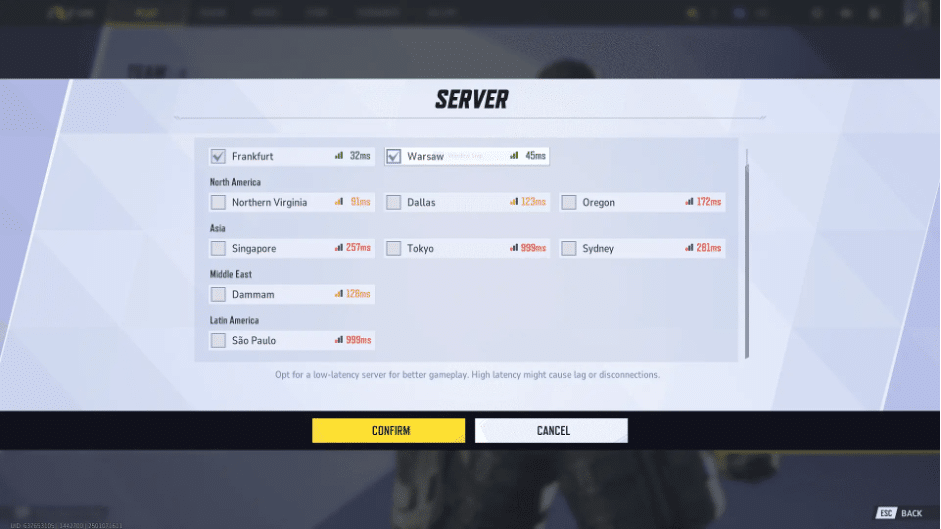
Real-time ping monitoring is essential for maintaining optimal gameplay performance in Marvel Rivals. Here’s how to activate and use the in-game ping display:
Enable Ping Display
- Open the game settings menu
- Navigate to Network or Interface settings
- Toggle the “Show Network Stats” or “Display Ping” option
- Your current ping will appear in the corner of your screen
Understanding Ping Values
- Green (0-50ms): Excellent connection
- Yellow (51-100ms): Good connection
- Orange (101-150ms): Fair connection
- Red (150ms+): Poor connection
Server Selection Tips
- Pick servers during off-peak hours for better performance
- Create a list of preferred servers with consistently low ping
- Test different servers through custom matches before competitive play
- Avoid servers showing high packet loss or unstable connections
Best Practices for Server Selection
- Run a quick ping test to multiple servers before joining matches
- Note down servers that consistently provide sub-50ms ping
- Consider time zones when selecting servers – local peak hours can affect performance
- Use the server browser’s filter options to sort by ping values
The in-game ping display serves as your connectivity health monitor. Keep an eye on sudden ping spikes or consistent high values, as these indicate potential connection issues that need addressing.
Additional Tips for Reducing Lag in Marvel Rivals
Your gaming experience can suffer from high ping due to background processes consuming valuable bandwidth. Here’s how to optimize your system for better performance:
Close Resource-Heavy Applications
- Shut down streaming services like Netflix or YouTube
- Exit file-sharing programs and torrent clients
- Stop any automatic updates or cloud syncs
Optimize System Settings
- Disable Windows Update during gaming sessions
- Turn off automatic updates for games on platforms like Steam
- Close web browsers with multiple tabs open
Clear System Resources
- End unnecessary background processes through the Task Manager
- Disable startup programs that auto-launch
- Clear temporary files and cache regularly
Network Prioritization
- Use Quality of Service (QoS) settings to prioritize gaming traffic
- Consider using network monitoring tools to track bandwidth usage
- Set Marvel Rivals to “High Priority” in Task Manager
These system-level optimizations complement your network setup and can significantly reduce in-game lag spikes and latency issues.
Conclusion
Your gaming experience in Marvel Rivals depends on having a stable, low-ping connection. The strategies in this guide – like using wired connections and optimizing router settings – provide a strong base for competitive gameplay. Start by making these changes one by one and keep an eye on your ping improvements.
Remember: every millisecond counts in fast-paced combat.
Here are a few important actions you can take today:
- Connect via Ethernet cable
- Choose the closest server
- Monitor your real-time ping
- Keep background apps closed
By improving your connection, you’ll have smoother matches, quicker response times, and a better gaming experience in Marvel Rivals. Now go out there and show off your skills on the battlefield with your newly optimized connection!











