
For better computer performance and new features, updating the Windows operating system is necessary. However, this could be a frustrating experience when you find your files are lost after updating Windows. Is there any solution to recover lost files after Windows update? Keep reading to find your preferred method.
You can use the Search utility on your computer to verify whether your files are moved to other locations after you update your computer to Windows 11. If you find disappeared files with Windows Search, just start with your Windows 11. Otherwise, you need to work with the following methods to find lost files.
Method 1. Sign out the Temporary Profile
You may log into a temporary profile after upgrading your computer to Windows 11. In this case, it is difficult to discover your old files. You can check whether you have a temporary account with the following steps.
Step 1. Press Win + R to open the Run window.
Step 2. Type cmd into the dialog and hit Enter to open Command Prompt.
Step 3. Type SET and hit Enter. You can determine whether you are logged into a temporary profile by checking the information: USERPROFILE=C:\Users\profilename.
Step 4. If you are in the temporary profile, restart the computer and log in with your account.
Afterward, you should verify whether your files have reappeared. If not, please move on to the next method.
Method 2. Log into the Administrator Account
In some cases, if you create a new account when upgrading to Windows 11, your files and folders will not show up on the computer and some files are inaccessible due to insufficient permissions. Thus, you may think the Windows 11 update deletes files on your computer. But you can try to switch to your old administrator account to get those files back.
Step 1. Type Computer Management into the Windows search bar and hit Enter to open the window.
Step 2. Shift to Local Users and Groups > Users > Administrator.
Step 3. Right-click on Administrator and choose Properties.
Step 4. Under the General tab, you should untick the Account is disabled option and click Apply > OK to complete the operation.
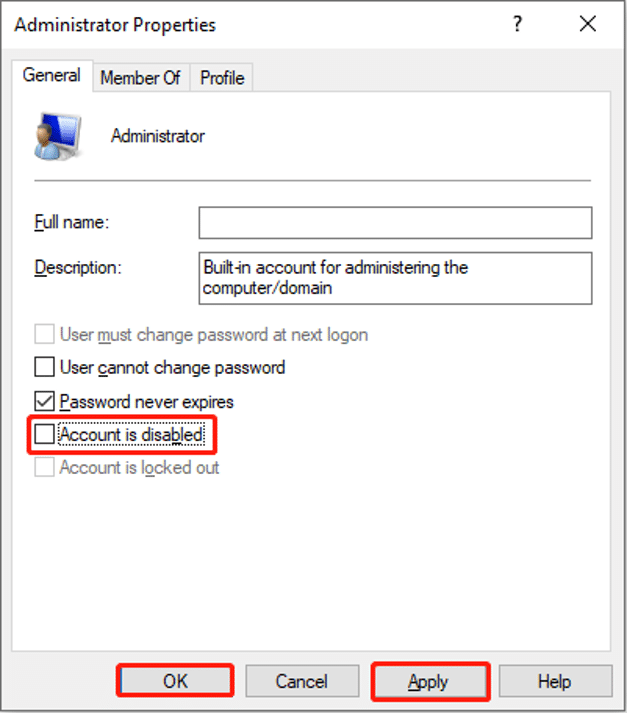
Now, you can log out of the current account and then sign into your old administrator account to check if this method helps you find lost files after Windows 11 upgrade.
Method 3. Recover Files Using MiniTool Power Data Recovery
The most efficient method to recover lost files after Windows upgrade is using professional data recovery software. Among numerous security data recovery services, MiniTool Power Data Recovery can be your prior choice due to its powerful functions and convenient operations. You can get free data recovery software to perform a preliminary scanning on your computer, checking if the necessary files can be found.
Step 1. Launch this software to enter its main interface. You can choose a partition where the lost files are stored or scan a specific location on your computer. The latter choice can shorten the scan duration to a large extent. Here I scan the Desktop as an example.
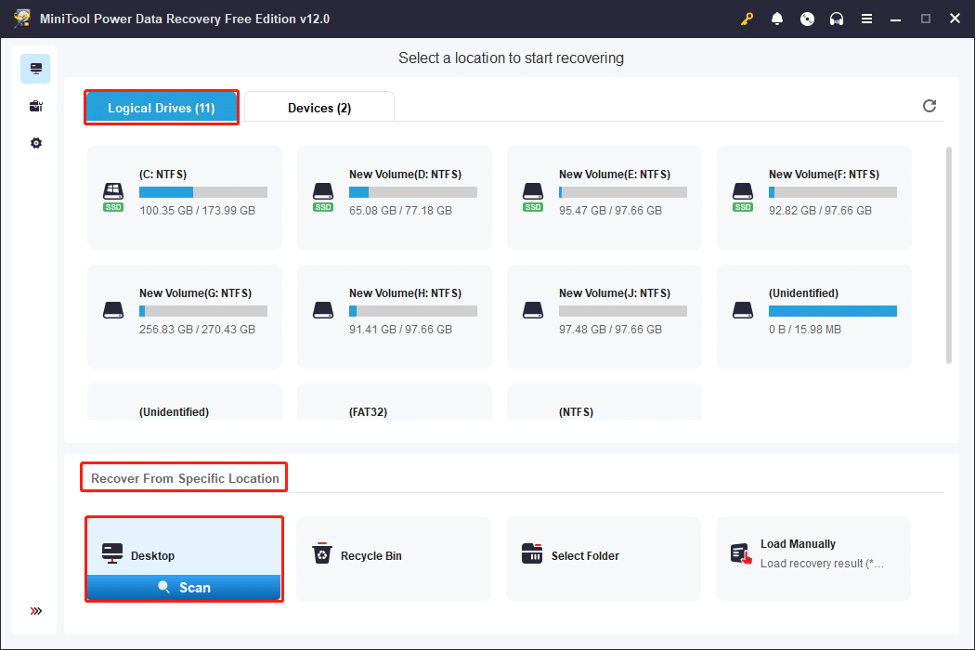
Step 2. When the scan process is complete, you can look through the file list to find whether the required files are found. Here are several features that can assist you find the target files quickly. For instance, you can quickly locate target items by setting filter criteria, viewing files by file types, and searching files with their names. Additionally, before saving files, you can use the Preview feature to verify the file content.
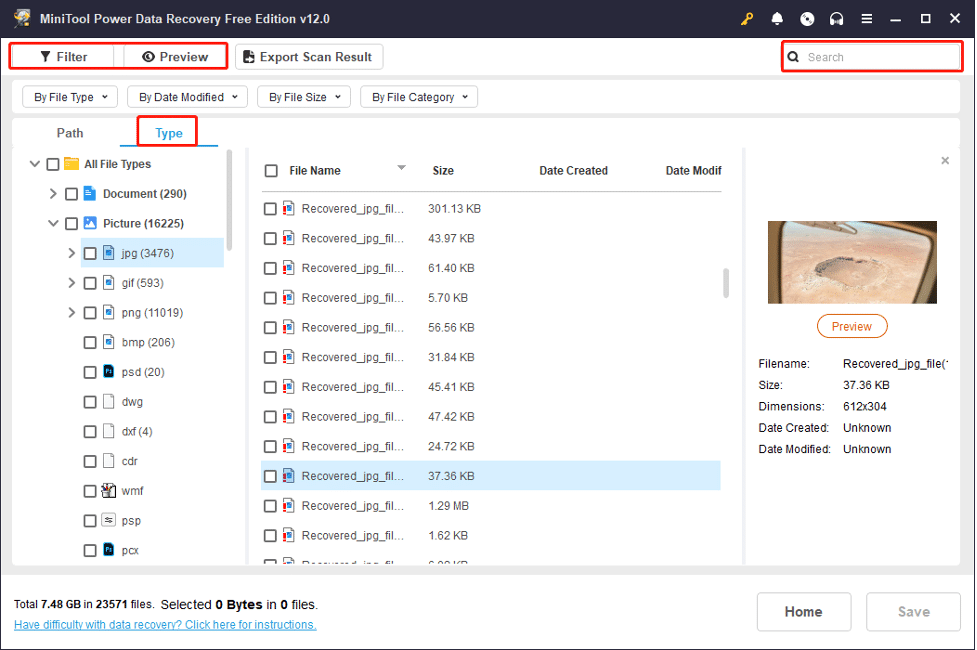
Step 3. Tick the files you want to restore and click the Save button to choose a new destination. Do not save files to the original path, which may cause data overwriting.
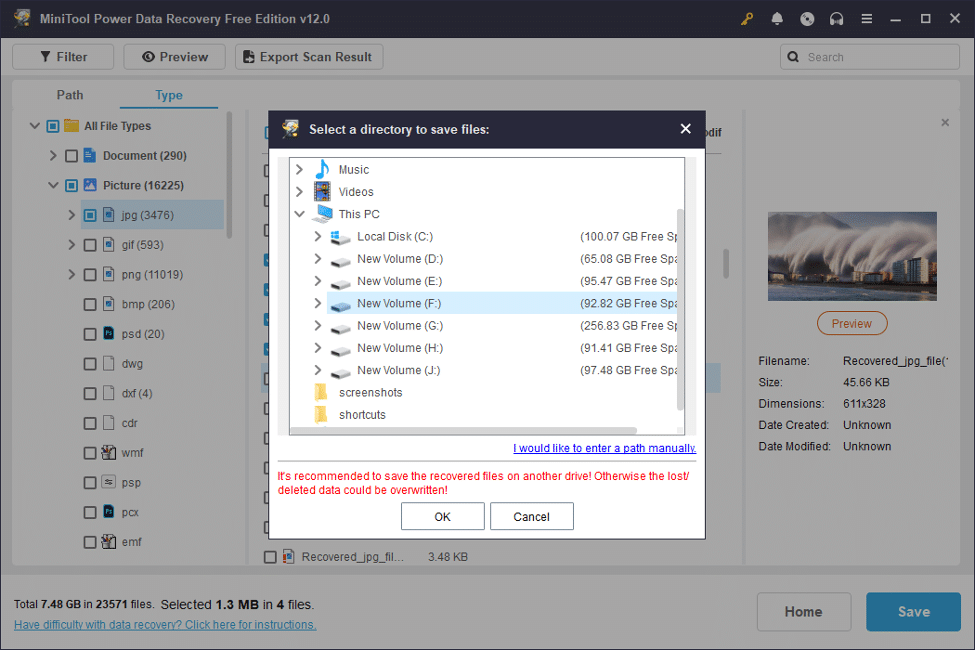
You will receive a small prompt to inform you the recovery process is complete. After that, go to the destination to check the restored files.
Conclusion
You can get several methods to recover lost files after Windows update. Data recovery should always be completed as soon as possible. You can try the above methods to find one that works in your case. When the lost files are successfully restored, just start to enjoy Windows 11.











