
When Apple launched iOS 12.4 and iOS 13 for public use, iPhone and iPad users naturally flocked to it to experience what it had to offer.
The promise of having a faster, more secure and smarter smartphone is undeniably appealing. But soon, some iOS users experienced issues with bugs and iOS 13 problems, one of which was significant data loss.
If you’re one of those who experienced this unfortunate event, don’t lose heart. There’s a way to solve data loss problem after updating to iOS 13 via data recovery tool PhoneRescue. This includes lost contacts, photos, videos, imessages, notes and others.
Before anything else, for individuals who haven’t updated or still undecided, you have the chance to win an iPad Pro or cool Beats! All you have to do is visit and answer the question if you intend to update to iOS 13. It’s that simple!
Going back to our topic, here’s a detailed guide on how you can recover lost data after updating to iOS 13.
Did You Make An iTunes or iCloud Backup?
When was the last time you did a backup of your files via iCloud or iTunes? If it was just recently, then you’re saved. All you need to do is to go through the motions of getting back precious files by using the backup.
Restoring Lost Data After iOS 13 Update via iTunes
Upon launching iTunes on your computer, choose your iDevice then go to Summary. Click on “Restore Backup” to view backup info and select the backup created prior to your iOS 13 upgrade.
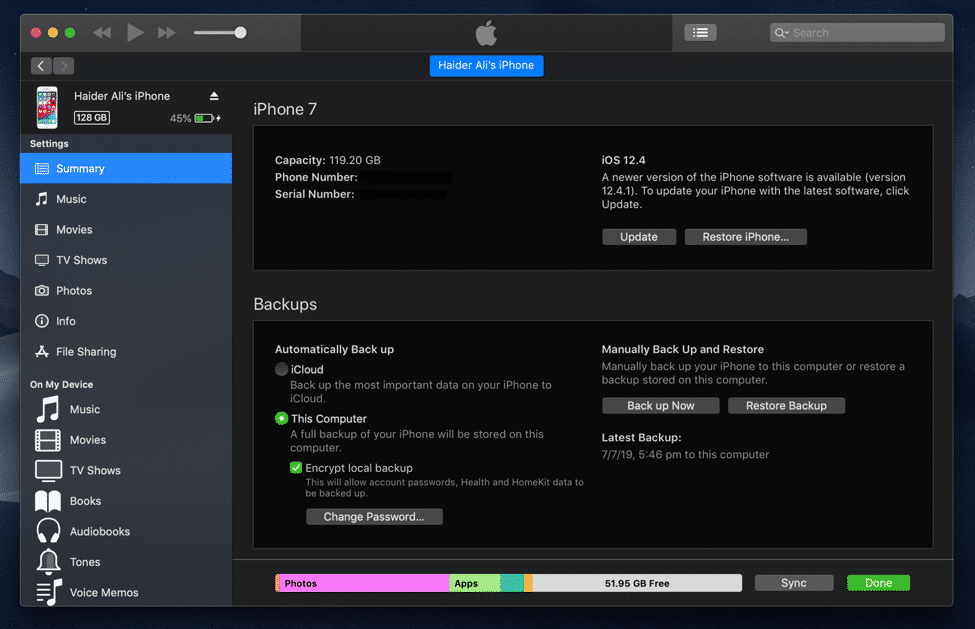
While convenient, this solution sometimes poses problems such as figuring out the changes you made after you did the backup, and weighing if those changes are worth more than restoring the files and documents.
Restoring Lost Data After iOS 13 Update via iCloud
iPhone and iPad owners who have backed up their data on iCloud may get back any lost or missing data. But keep in mind that in doing so, you will need to reset your device to Factory Settings, and all data in it will be erased completely.
To proceed, go to Settings > General. Tap Reset > Erase All Content and Settings > then enter your password. Once your iPhone is set, go to Apps & Data > Restore from iCloud Backup > then sign-in to iCloud to restore the backup you’ve made prior to the upgrade.
The Easiest Method To Recover Lost Data After iOS Update
But what happens if you didn’t opt to back up your data on iCloud or iTunes? Are all those data lost forever?
The good thing is that there’s a proven solution you can perform even without having backed up vital data. More often than not, those deleted files may still be hiding in the device, and will only be completely erased when new data is introduced.
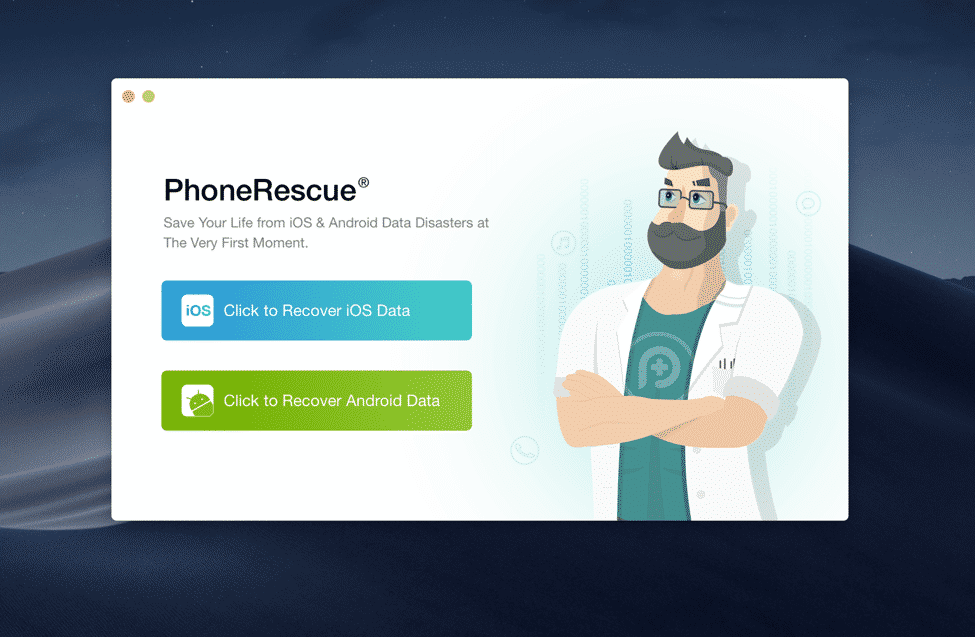
A good data recovery software for the iPhone or iPad can get the job done. PhoneRescue for iOS is an excellent data recovery tool that can find lost data and recover deleted iPhone photos and other files after updating to iOS 12.4 or iOS 13.
PhoneRescue allows users to get more control over the recovery process. With the app, you’ll be able to rescue essential data and recover deleted iPhone photos without needing to overwrite or delete the data you have on your iOS device. It’s one of the best backup extractors that can view, access and extract contents from your iTunes or iCloud without having to completely reset and erase any data.
How To Recover Lost Data After iOS 13 Update (even without Backup)
Here’s how you can get back those important files after you’ve updated your iPad or iPhone to iOS 13:
Step 1. Download and install PhoneRescue for the iOS on your computer.
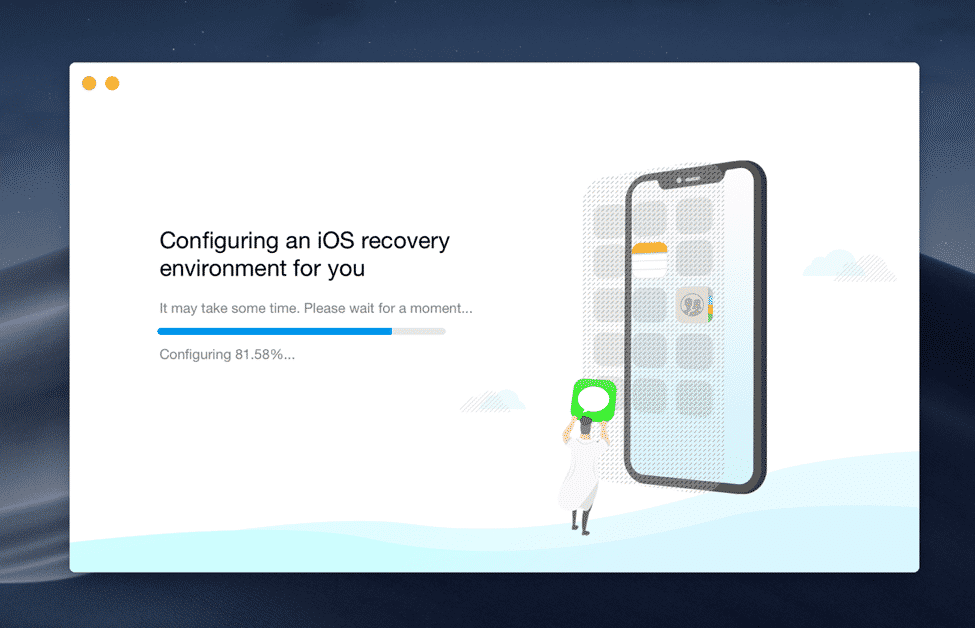
Connect your iPad or iPhone to the computer with a USB cable. Open PhoneRescue and wait for the software to recognize your device, then click on the arrow icon to proceed.
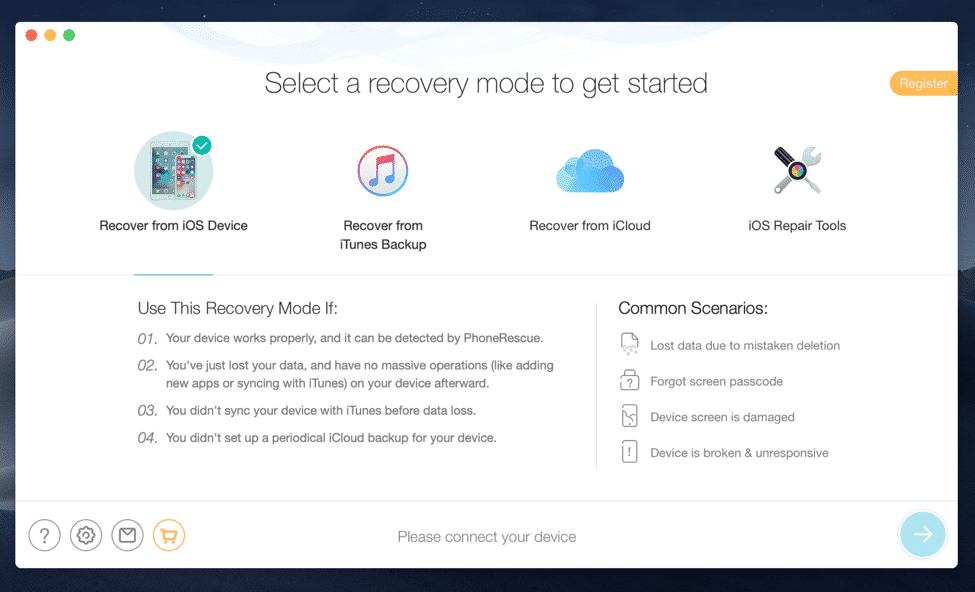
Step 2. Choose from the types of data the kind you want to recover, then press OK.
Step 3. Preview then select data you wish to recover, then click on ‘to Device’ or ‘to Computer’ and wait for the software to get all-important files back for you.











