

There’s a moment every Apple user dreads: the missing photo album, the Mac that won’t boot, or the iPhone that refuses to unlock after an update. Apple builds its devices to feel bulletproof, but data loss still happens—and when it does, it’s disruptive. I felt it firsthand when I fumbled my iPhone on a crowded New York sidewalk and watched it land screen-down—yep, heart-stopping moment.
From iCloud backups that don’t cover enough to iPhones that die after a swim, recovery isn’t always as simple as logging in and restoring. But that doesn’t mean you have lost your stuff permanently. With the right mix of Apple’s built-in tools, backup strategies, and sometimes professional repair services, you’ve usually got a path back.
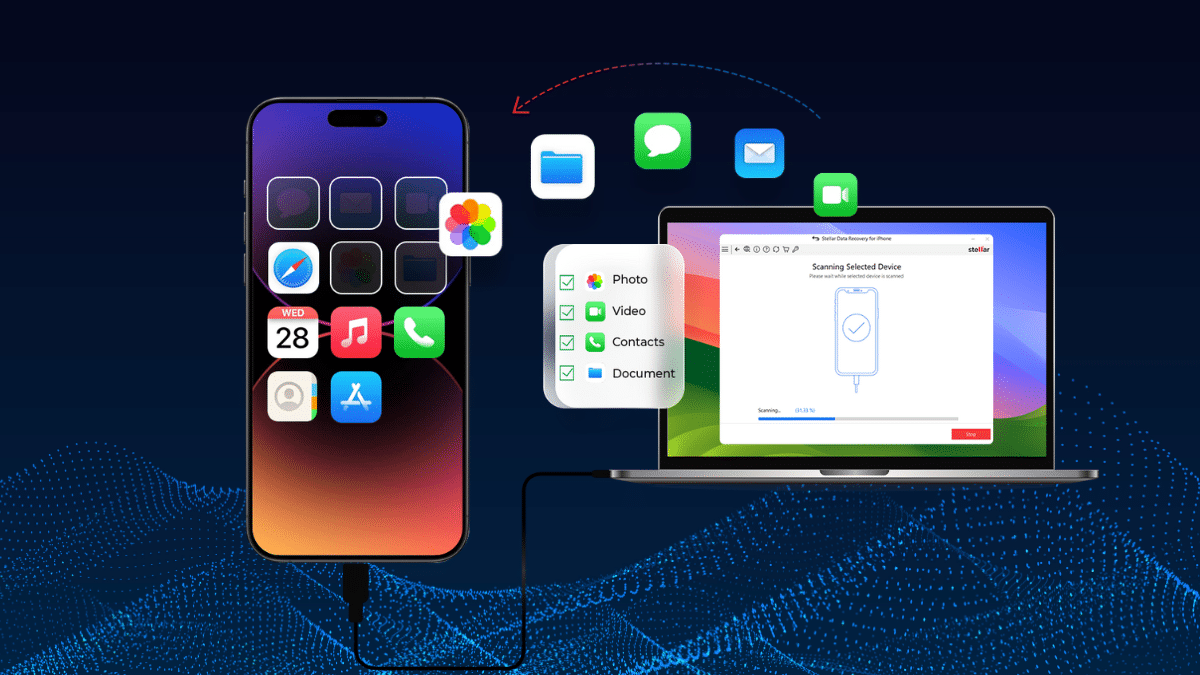
Why Data Goes Missing on Apple Devices
The scenarios are pretty familiar:
- Accidental deletion. A tap in the wrong place can clear files you still need.
- Updates that misfire. If you cut off an update for your iPhone or Mac, it might mess up your system.
- Factory resets. Good for clearing bugs, terrible if you didn’t back up.
- Hardware damage. Cracked screens, water damage, or a dead SSD can make storage inaccessible.
- Lost or stolen devices. Even with Apple’s “Find My” protections, the data inside isn’t always retrievable. In such situations, the only probable solution is contacting data recovery technicians like MDrepairs.com. They might be able to pull data from damaged devices.
Apple’s ecosystem—iCloud, Finder, Time Machine—catches a lot of these situations. But it’s not perfect. That 5GB of free iCloud space? It fills up almost instantly, and most users don’t realize they aren’t backing up their entire phone until it’s too late.
iPhone and iPad: First Lines of Defense
iCloud Restore
If your iPhone or iPad was regularly backing up, restoring is straightforward: wipe the device, sign in with your Apple ID, and pull down your last backup. Everything comes back—apps, photos, messages—though it can take hours or days depending on your Wi-Fi. The catch: anything created after that last backup is gone.
Finder or iTunes Restore
A computer backup offers another lifeline. Plug your iPhone or iPad into a Mac or PC, open Finder or iTunes, and select Restore Backup. It’s faster than iCloud, and you don’t need internet bandwidth. Still, it only brings you back to the snapshot date of that backup.
Recently Deleted Folders
Apple quietly gives you a 30-day grace period across Photos, Notes, Messages, and the Files app. If you just nuked a file, check there first—it may still be waiting to be recovered.
When There’s No Backup
This is where things get dicey. Third-party recovery software can sometimes dig into the iPhone’s storage and retrieve photos, texts, or contacts. The results are different every time. Your success depends on if new files have been saved over the ones you deleted. It’s not a magic bullet, but it can work if you act quickly. When software isn’t enough, though, that’s where the pros come in—and they’ve got some serious tricks up their sleeves.
What Pros Do to Save Your Data
When your iPhone’s screen is shattered or your Mac won’t even hum, data recovery experts take over, and it’s pretty wild how they pull it off. Places like MDrepairs.com, serving folks from New Jersey to New York and beyond with secure mail-in options, start with a free evaluation—they check your device without risking more damage.
It’s intense stuff. They work in cleanrooms—think sci-fi-level sterile—so no speck of dust ruins the delicate parts. For a Mac’s hard drive, they might swap out busted heads or fix SSD controllers. On iPhones, they sometimes pop out memory chips directly. They use high-end tools, like gear from Ace Labs, to read raw data, then software stitches your files back together.
Macs throw in extra headaches with APFS encryption, but pros handle it. The process? They image the drive (make a copy), scan for fragments of your files, and verify what they recover. Simple deletions are easier, but physical damage—like a waterlogged iPhone or a scorched MacBook—takes serious skill. Success rates are high for pros, even with wrecked devices, and turnarounds can be quick, like 24-48 hours. Plus, most offer “no data, no fee” deals, so you’re not out of pocket if they can’t deliver.
Broken and Lost iPhones
Sometimes the data isn’t gone—it’s locked behind hardware that won’t cooperate.
- Cracked but working screen: If you can still enter your passcode, plug the phone into a computer and back it up immediately.
- Dead phone: Water damage or hardware failure often means your only shot is restoring from an older iCloud or computer backup.
- Lost or stolen phone: If iCloud sync was on, log into iCloud.com from another device to retrieve contacts, notes, or photos. Without sync or backup, the data’s gone with the device.
Macs: Bigger Screens, Bigger Stakes
iPhones may be more common victims of accidents, but Macs often hold more valuable data—entire work projects, media libraries, and archives that can’t be replaced.
Time Machine
If you’ve been running Time Machine, you’re in good shape. The system quietly takes hourly and daily snapshots. Lose a file? You can roll back a single document. Lose the whole system? Boot into macOS Recovery, pick Restore from Time Machine Backup, and you’re back to where you left off.
iCloud Drive
Many Mac users lean on iCloud Drive for Documents and Desktop folders. Deleted files live in a “Recently Deleted” section on iCloud.com for 30 days. Handy for slip-ups, but not comprehensive, especially for larger drives.
No Backup
Without backups, your options shrink. Macs with modern SSDs complicate recovery further: APFS and TRIM mean deleted files are often truly wiped, not just hidden. Recovery utilities can sometimes pull fragments, but results are inconsistent. This is where having a backup strategy—or calling in professional data recovery—makes the difference.
When Updates Go Sideways
Apple’s software updates are usually seamless, but when they fail, they fail loudly.
- iOS/iPadOS: A botched update can leave a device stuck in a boot loop or force a restore. If you don’t have a backup, that restore wipes everything.
- macOS: Interrupted installs can corrupt the startup disk. macOS Recovery can usually reinstall the OS, but user data may not survive.
These aren’t everyday events, but when they hit, backups are your only insurance.
The Limits of iCloud
For all its convenience, iCloud isn’t a full backup solution. Here’s why:
- Storage ceiling. Free users get 5GB, which doesn’t even cover one modern iPhone’s photos.
- All-or-nothing restores. To bring back permanently deleted iPhone data, you usually have to wipe the device and start fresh.
- Sync confusion. iCloud is a sync service as much as a backup tool. Delete a file on one device, and it disappears everywhere.
That’s not to say iCloud isn’t useful—it is. But relying on it alone is asking for trouble.
Smart Habits That Save Data
It’s better to prevent losing your data than to have to get it back. A few rules to live by:
- Run both iCloud and local backups. Redundancy matters.
- Audit your iCloud settings. Make sure the apps you care about are actually included.
- Keep an external copy. Photos, documents, and creative work should live on a drive outside your laptop or phone.
- Move fast after deletion. The longer you wait, the lower the odds of recovery.
- Fix failing hardware early. A weak battery or dying drive usually shows signs before catastrophic failure.
Bottom Line
Apple devices are designed to be resilient, but they’re not invincible. iCloud and Time Machine cover most everyday mishaps, but they have blind spots—limited space, sync quirks, and the need to wipe before restoring.
When things go wrong without a safety net, recovery gets harder. That’s when specialized tools or professional shops become the fallback. Whether it’s an iPhone drowned in the sink or a MacBook that won’t power on, your chances of getting data back are higher than you might think—as long as you know where to look and act quickly.











