
With the increasing number of people working remotely, online meetings have become a regular part of our daily work routines. Zoom, being one of the leading video meeting solutions, is widely utilized for virtual meetings.
During important work discussions conducted through Zoom, you may find it beneficial to record the entire meeting for later analysis or future reference. In this blog post, we will guide you through the process of recording Zoom meetings without requiring explicit permission.

Zoom offers a convenient meeting recording feature that allows hosts to easily capture the entire session with a simple click of a button. As a host, you have the privilege to initiate and control the recording process effortlessly. On the other hand, if you are a participant, you typically need to request permission from the host to record the meeting.
However, there may be situations where you have a personal reason to record a Zoom meeting without permission. In such cases, certain tools can assist you in achieving this objective discreetly and efficiently. These tools provide additional functionalities beyond the standard recording options available in Zoom. By leveraging these tools, you have the ability to capture Zoom meetings without requiring explicit permission, all while being mindful of the ethical considerations and legal implications involved.
Notice: Recording a Zoom meeting without obtaining consent from all participants can have serious privacy and legal implications. It may compromise sensitive information and erode trust. Participants must be notified and give clear approval before any recording takes place. Additionally, please be aware that regulations and laws regarding recording meetings differ across countries.
Record Zoom Meeting without Permission
If you’re using a Windows computer, you have various options available to record Zoom meetings. In addition, we will also provide methods for recording Zoom meetings on both Windows and Mac systems. This way, you can choose the approach that suits your specific operating system.
Xbox Game Bar (Windows 10)
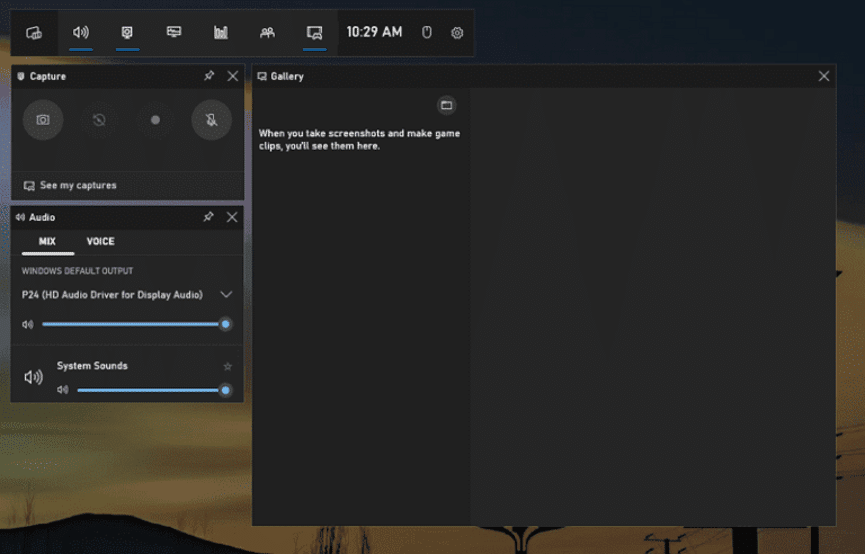
Xbox Game Bar is the buily-in recording feature available on Windows. It allows you to capture and record your screen for most PC games and app Windows. Though the feature is not rich it meets you basic need for screen recording on Windows 10. Check below for how to record Zoom meetings without permission using XboX Game Bar.
- Open the Zoom app on your computer and go to the online meeting you will attend. Keep the Zoom window on.
- Press “Windows+G” to launch Xbox Game Bar on your PC. You will see several small window here.
- On the Capture window, you will see the window XboX Game Bar is capturing, Make sure you see Zoom Meeting here and then click the record button to start the record the meeting.
XboX Game Bar can only record the main screen of the Zoom app. Any other operation made by you outside of the Windows, like sharing your screen, will not be recorded.
SurFlex Screen Recorder (Windows and Mac)
If you find the OBS studio is hard to manage, then you can try other screen recording software on the marketing. SurFlex Screen Recorder is a screen capturing and recording tool that makes screen recording effortless anyone. You can drag your mouse to select part or full screen to record. Also, you can easily select the audio source you would like to recording. If you want to save an extra copy of audio for your screen recording video, you can easily get this done by ticking the option in the Settings. Now check how to screen record with SurFlex Screen Recorder.
- Install SurFlex Screen Recorder on your computer and launch it.
- Based on your demands to record full or part of screen, you can click “Full Screen” or select a region on your screen by clicking on “Select Region”.
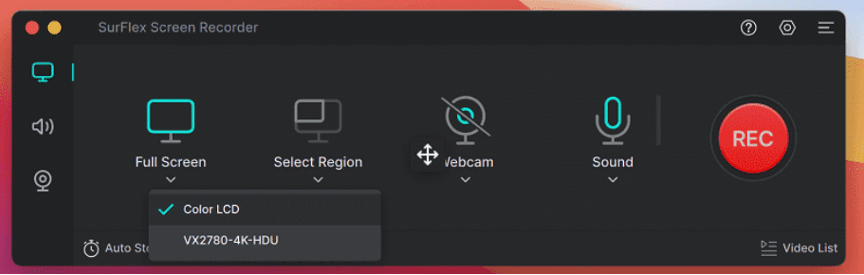
- Configure the audio inputs, you can select system sound, microphone sound, both, or none.
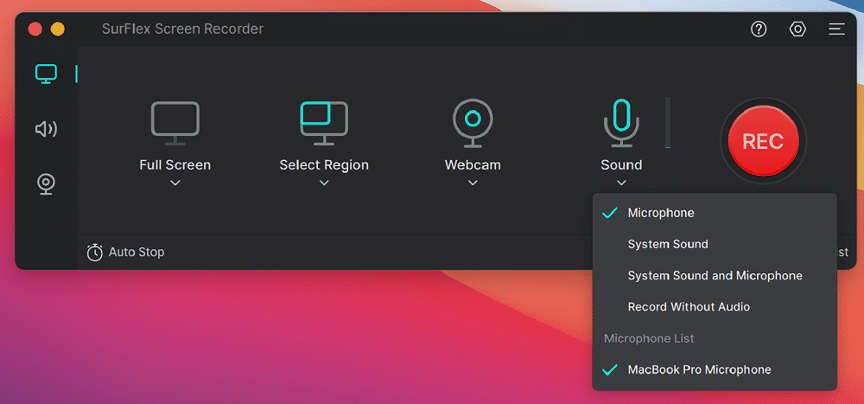
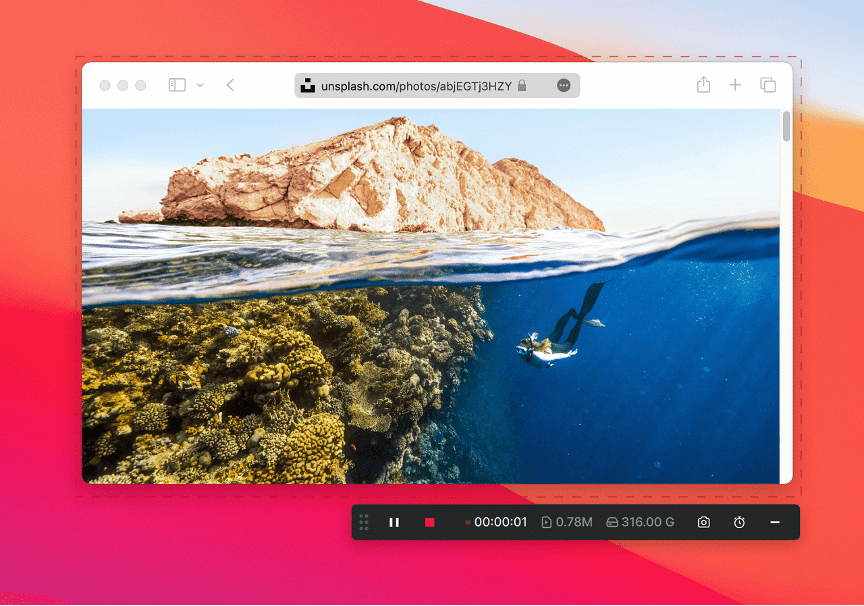
- After all is set, click the recording icon to get started.
- After you get the content you need, click the stop icon on the toolbar to end the recording.
OBS Studio (Windows and Mac)
OBS is a free and open-source screen recorder that offer you powerful and processional recording function on both Windows and Mac. With OBS Studio, you can record your screen with flexibility. Apart from recording feature, OBS Studios also allows you to steaming video content. As its feature is rich and professional, you need a hard learning curve to manage this screen recorder. If you prefer an easy-to-use tool, you can skip to next method.
- Download and install OBS Studio from its official site.
- In the Source section, click the “+” icon and select “Display Capture”. Confirm the operation.
- Then move the Zoom window at the top of your screen.
- Then go back to the OBS Studio and click Start Recording to start capture your screen. Then swith to Zoom meeting.
- After the meeting ends, click “Stop Recording” to finish the recording. You can go to File – Show Recording to find the recorded video.
This is the basic recording option provided by OBS. If you want to record the Zoom window only, you may need some more professional configuration.

Conclusion
With any of the three tools, you are able to record Zoom meetings without permission on your computer. Whether you a professional user or a casual use want to record a Zoom meeting, you get your choice here. If you would like to simple and direct method, you can try XboX Game Bar and SurFlex Screen Recorder. If you prefer to use a free and challengeable screen recorder, you can use OBS Studio.











