
Introduction
The need for recording a phone call on your smartphone may arise due to several reasons. For instance – meetings, trainings, interviews, agreements, and more. Also, the calls might be recorded to preserve an important conversation with a dear one or to keep it as evidence. So, if you too are in one of the above or similar situations, and working out to find the solutions, you have come to the right page.
In this topic, we will discuss the best tools and methods on how to record a call on Android and iOS devices.
Part 1. Is It Illegal to Record A Phone Call?
Before proceeding with anything else, it is important to find out if is it illegal to record a phone call.
The legalities of recording a phone call differ from country to country. It is important to check the federal and state laws regarding phone call recording. For instance, in some countries, the law requires the consent of all the involved parties in the call recording whereas, in a few states, the content of one party is enough. Thus, it is advisable to cross-check the laws before proceeding with any methods or solutions for call recording.
Part 2. How to Record A Call on Android & iOS?
Android and iOS devices have no built-in or direct option for recording phone calls, but there are workarounds and apps available to get the task done. In this section of the topic, we will let’s go through some of these solutions.
Method 1: Using The Tracking App To Record Calls (Android & iOS)
Using a tracking app is the most reliable and safe way to record calls on Android and iOS devices. Multiple options for these apps are available, but one that we recommend here is KidsGuard Pro. Compatible with Android, iOS, Windows, and Mac the app is 100% safe to use and allows recording calls along with an array of other useful features. The key features of the app can be checked as below.
- Android and iOS-based tracking app that is safe and undetectable
- No need to root or jailbreak the target device
- Allows recording the voice of the caller as well as the called party
- The screen of the target phone can be recorded remotely and secretly
- The sound around the phone can be recorded
- Images and screenshots can be taken remotely
- Monitoring and tracking of all the device activities like calls, messages, photos, and more supported
- All the installed social media apps and its activities can be tracked
- Tracking Phone location in 4 modes- GPS location, location history, WiFi location, and geofence.
Steps to record calls using KidGuard Pro
Step 1. Visit the KidsGuard Pro site and sign up for an account. Get a suitable plan to use all the features of the app.
Step 2. Next, complete the necessary configurations and install the app on the target device following the instructions.
Step 3. Once the app is successfully installed on the target device, move to the dashboard to monitor and remotely control the target phone.
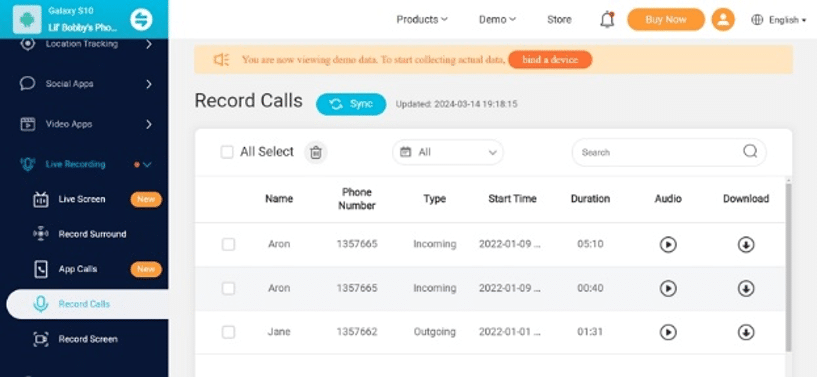
Step 4. For call recording, choose the Live Recording > Record Calls option at the left side tab on the main dashboard interface.
The calls will be recorded and the details can be checked from the right-side tab. You can hear the recording from the app dashboard itself or can also download it locally.
Method 2: Using Google Phone App (Android)
“How can I record calls on Android?”
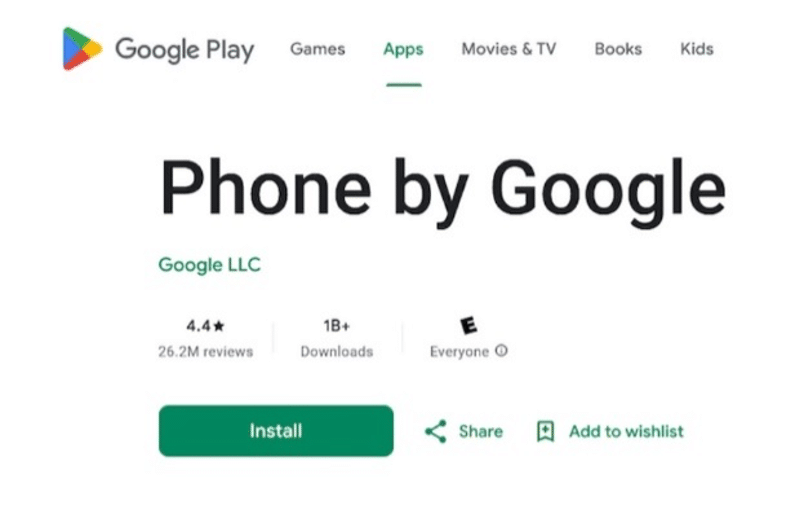
Google Phone app is another method by which you can record the calls on your Android devices. The app if not pre-installed on your phone can be downloaded from the Play Store.
Steps on how to record a call on Android using Google Phone App
Step 1. First of all, ensure that the Google Phone app is installed on your phone and is the default calling app.
Step 2. Next, during the incoming or outgoing call, a Record button can be seen on the call screen. To start the call recording, obtain the content and click on the Record button. An announcement will appear to everyone on the call that it is being recorded.
Step 3. At any time during the call, tap on the Stop button to end the recording. The recording will be saved to the call log automatically.
Method 3: Using Voice Memos App (iOS)
Voice Memos is an iOS-based app that converts your device into a portable audio recorder. Also, additional features like trimming, replacing, and more can further fine-tune the recordings if needed. The calls on your iOS devices can be recorded using built-in and external microphones, and Bluetooth headsets.
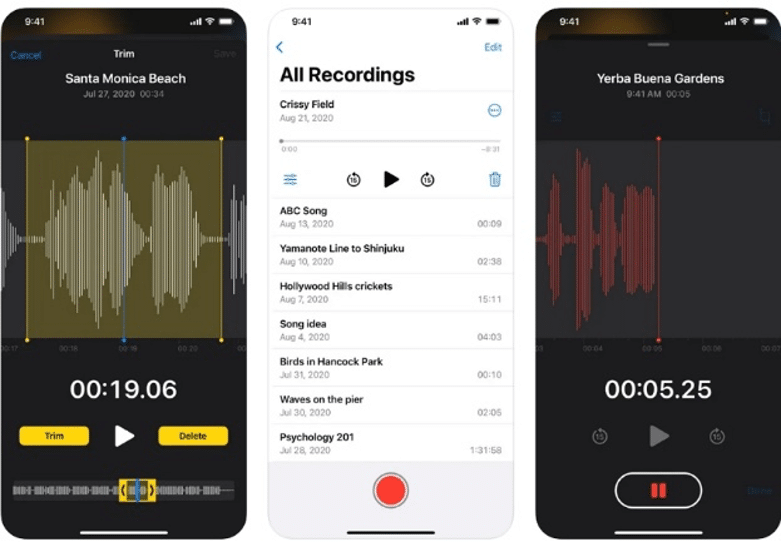
Steps on how to record a phone call on iPhone using the Voice Memos app
Step 1. On your iOS device download and install the Voice Memos app.
Step 2. Choose to record the call using the option. Stop the recording when done.
Step 3. The recording will automatically save with all the details and can be referred back.
Part 3. How to Record Other’s WhatsApp Call Without Them Knowing
WhatsApp in addition to messaging is also widely used for making calls and if you are looking for a tool to record these calls without the person knowing, KidsGuard Pro is an excellent one. The app once installed on the target Android or iOS device works from the background in disguised mode and allows monitoring and remotely performing multiple actions. Recording WhatsApp calls remotely is also supported by the app.
Steps to record WhatsApp Call using KidsGuard Pro
Step 1. Go to the site page, create an account and get a plan.
Step 2. On the target phone download KidsGuard Pro app. Install the app as per the instructions.
Step 3. Once the app is successfully installed, move to the dashboard on your KidsPro account.
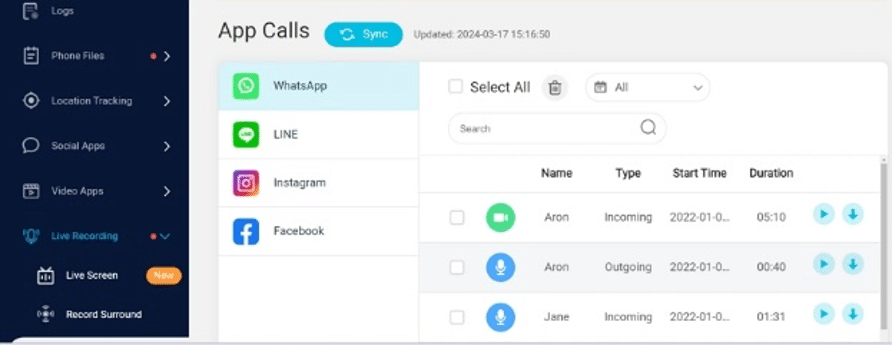
Step 4. On the main dashboard interface, go to Live Recording > App Calls and then select WhatsApp.
The WhatsApp incoming and outgoing call recording details will appear on the screen.
Conclusion
Hope you have found a solution to your query on how to record a call on Android and iOS devices. Though Voice Memos and Google Phone app are options available, they offer limited functionality and also they do not work undetected. Here KidsGuard Pro is an all-around solution for recording calls and tracking other activities of an Android or an iOS device and that too without the person knowing.











