
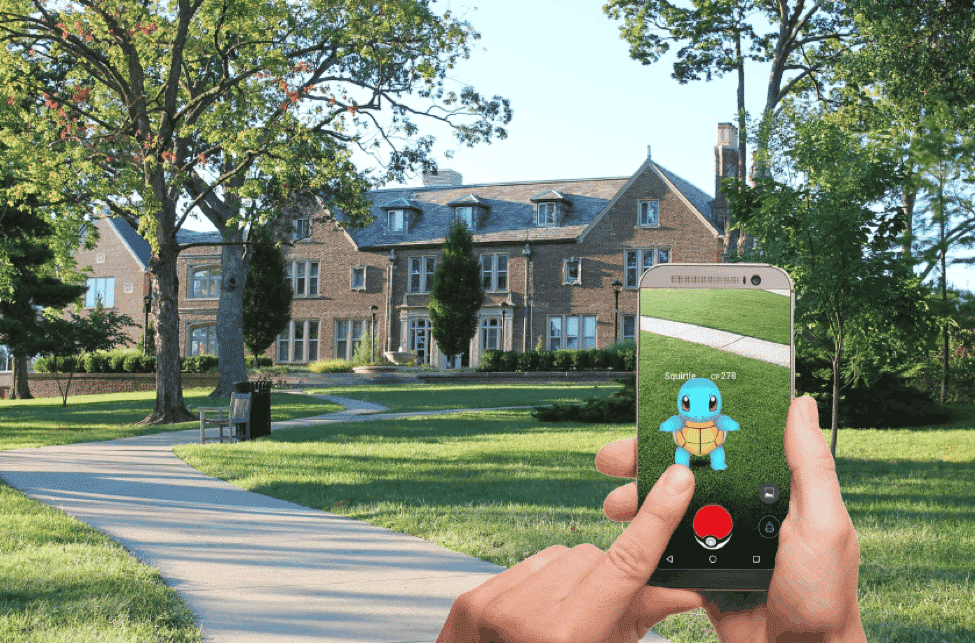
Pokemon GO was the augmented reality-based game that took the play store by storm back when it was first launched. Although, with time the hype reduced a lot, there are still millions of players who play this game on their smartphone.
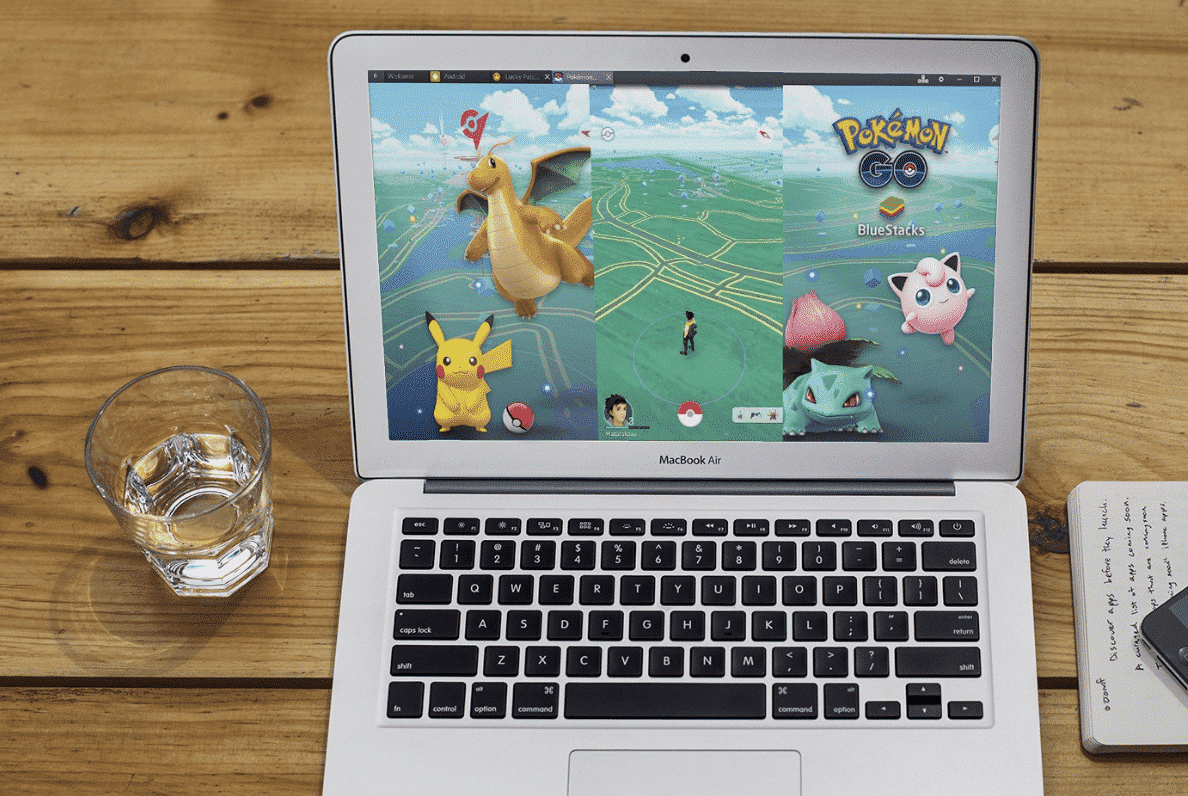
But what if your phone’s hardware does not support the minimum requirements for playing this game. Worry not, you can play Pokemon GO on your PC as well. Let’s see how.
Requirements
You will need an app for rooting your Android device as well as Bluestacks, the app that will help you run this game on your PC. Let’s list down what you need.
- KingRoot – This app will help you to get access to the root of your device.
- BlueStacks – This is a popular Android Emulator which will help you to run the game on your desktop.
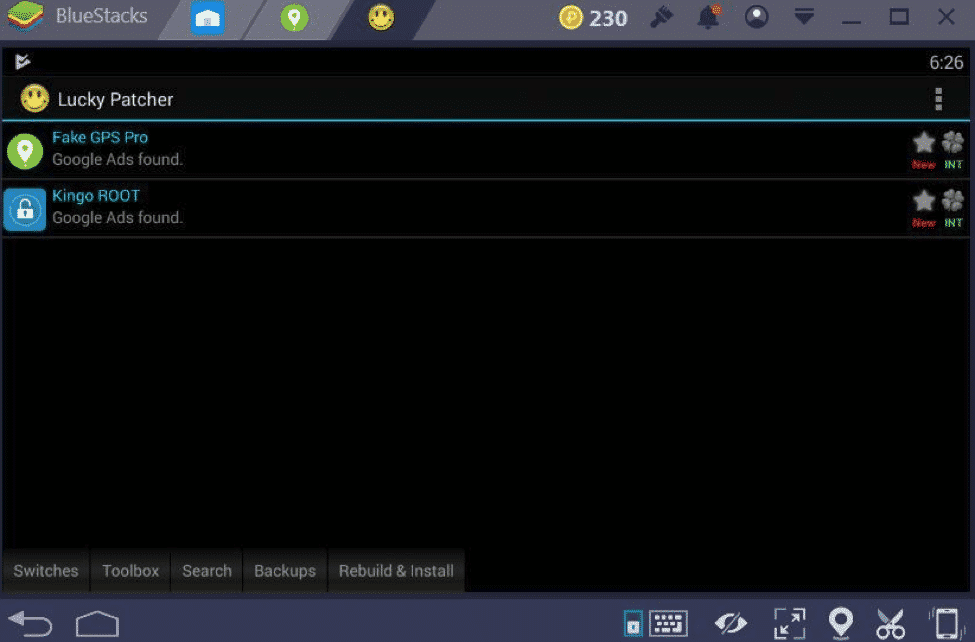
- Lucky Patcher – This patcher application will help the user to get access and control all the permissions of the app that you installed on your smartphone.
- Fake GPS Pro – We all know that for playing Pokemon GO, the player needs to keep moving in real time since the Pokemon are located at different locations. Fake GPS Pro emulates player movement. The app is paid but you will get the free version at many third-party app stores.
- Pokemon GO APK – You can download the APK from other sites. However, be sure to follow our instructions before installing the APK.
How to Play Pokemon GO on Your Desktop
Install BlueStacks
- Download and install BlueStacks on your desktop.
- Sign-in using the Google Account you are using on your Android phone.
Install KingRoot
You have to install KingRoot on BlueStacks since you cannot install it separately on your personal computer.
- Download the APK from AndroidCrew
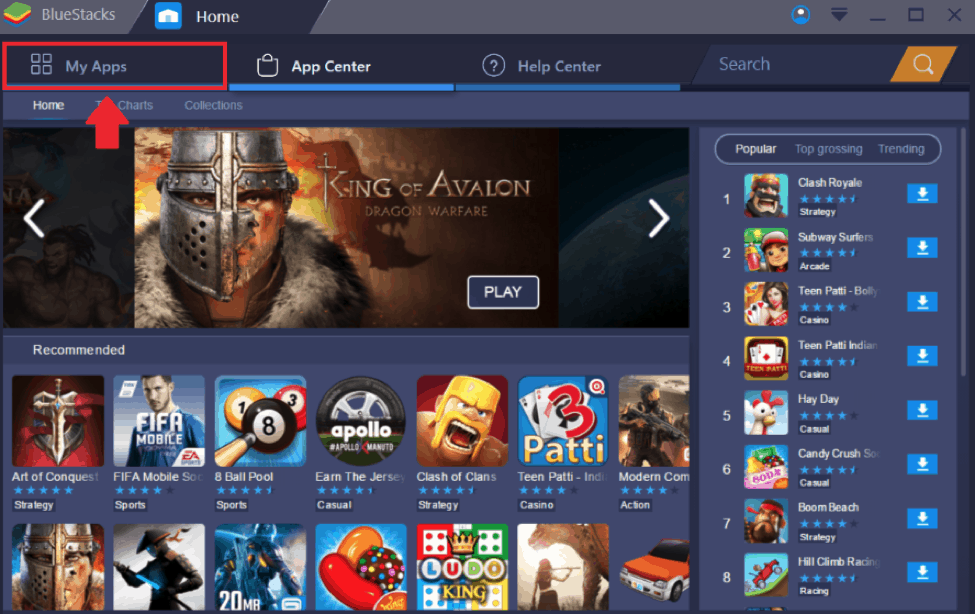
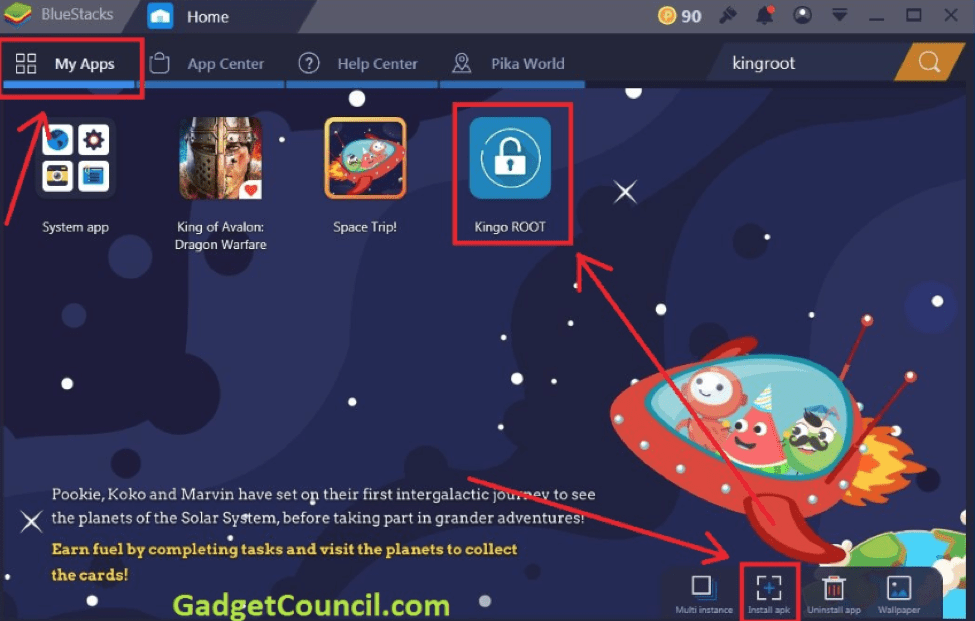
- Install it and you will be able to find it within the “My Apps” tab in BlueStacks.
- Open it and click on “No Root”.
- KingRoot will now optimize the device. Once that is done, close it.
Restart BlueStacks
Now that you are done with KingRoot, restart BlueStacks once again. Go to settings which you will find on the top of the app and select “Restart Android Plugin”.
Installing Fake GPS Pro
You can install this app either from play store or from any third party app store by downloading the APK. Install it the same way through BlueStacks as you did with KingRoot.
- Installing Lucky Patcher
- Install the app through BlueStacks.
- Once done, it will ask the user to provide permission for accessing the installed applications.
- Allow it and in the next step, rebuild and install the app.
- Browse to BstSharedFolder and install Fake GPS Pro as a system app using Lucky Patcher.
Restart BlueStacks in order to make the changes effective.
Running Pokemon GO
All the prerequisites being completed, its time to install the Pokemon GO APK using BlueStacks just like you did with the previous applications.
- In BlueStacks, go to settings and select Location.
- Set the mode to High Accuracy.
- Disable the GPS settings of Windows, since it will interfere with Fake GPS Pro.
- Go to Lucky Patcher and you will see Fake GPS Pro in the app list.
- Go to settings and make sure that Expert Mode is checked.
- Choose a location from the map by clicking the back option.
- Save the location in your favorite list and click on the orange colored Play Button. This will set up a fake location on which you will start your gameplay.
All the hard work is completed, run Pokemon GO on your PC. As soon as you launch the game, you will be able to find your fake location. If location is not detected, go to Fake GPS Pro and again choose a different location. That’s it, happy playing. If you have any problems or doubt while running the procedure, do let us know in the comments. Also, let us know if you have any other easier procedure for running Pokemon GO on your PC.











