
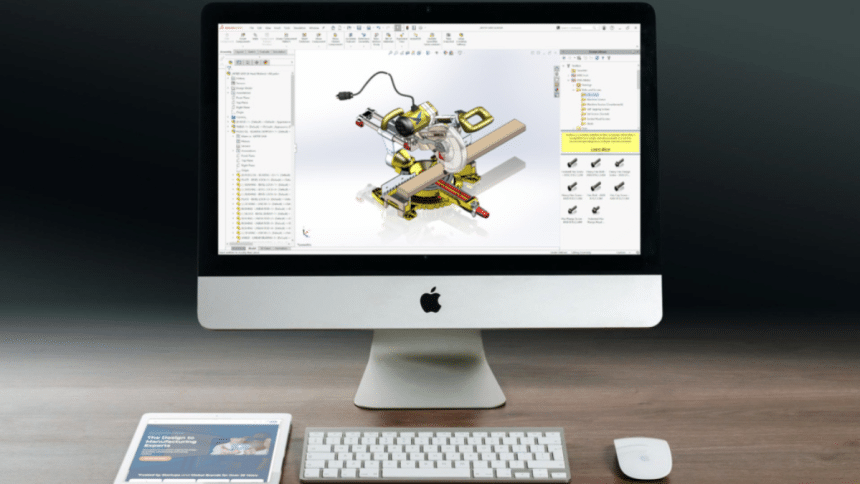
Apple’s macOS is known for its polished user experience, robust security, and a wide variety of creative applications. Yet for specialized Windows-only software like SolidWorks, Mac users often find themselves navigating a tricky landscape. Whether you’re an engineer, product designer, or simply someone who needs to open a SolidWorks file, the lack of native macOS support can pose a hurdle. Below, we’ll explore the methods that make viewing and editing SolidWorks files on your Mac possible, along with some tips to help you pick the approach that best suits your workflow. We’ll also share a useful resource for anyone looking for a deeper, step-by-step guide.
1. Why SolidWorks Dominates the CAD Realm
SolidWorks is a powerhouse in the 3D CAD sector. Developed by Dassault Systèmes, it’s widely embraced by professionals across industries for its intuitive interface, robust tools, and broad simulation capabilities. However, because it’s engineered to run exclusively on Windows, Mac users sometimes worry they’ll miss out on essential design collaborations. Thankfully, a variety of workarounds exist, so you don’t have to give up your Mac to be productive.
2. Determining Your Needs: Viewing or Editing?
Viewing
If you only need to look at parts, assemblies, or drawings—perhaps to review a design, confirm a dimension, or brainstorm with a team—then a simpler tool may suffice. Specialized viewers or web-based platforms can load SolidWorks files in read-only mode, allowing you to inspect every angle without the complexity of a full SolidWorks installation.
Editing
When you need to modify geometry, run simulations, or export new file versions, a basic viewer won’t cut it. You’ll need more robust solutions, typically involving Windows itself. This can be achieved through dual-boot setups, virtual machines, or remote desktop services.
3. Four Ways to Access SolidWorks Files on a Mac
3.1 eDrawings Viewer and Other View-Only Tools
- eDrawings Viewer for Mac
Offered by Dassault Systèmes, eDrawings Viewer is a free utility that reads SLDPRT, SLDASM, and SLDDRW files. It allows for 3D manipulation, markup, and measuring. However, it doesn’t provide the full editing suite you’d get in SolidWorks. - Online Viewers
Several websites let you upload CAD files and examine them directly in your browser. These services can be convenient in a pinch, though you’ll likely need stable internet and can face file size limits.
3.2 Boot Camp (For Intel Macs Only)
- Dual-Boot Setup
Boot Camp Assistant allows you to partition your Mac’s drive to run Windows natively. After rebooting into Windows, you can install SolidWorks just as you would on a PC. This typically delivers better performance than other solutions, since SolidWorks runs on bare-metal Windows hardware. - Drawbacks
You must restart to switch between macOS and Windows, and Apple Silicon Macs (those using M1, M2, etc.) aren’t supported. If you have an Intel-based Mac, ensure you allocate enough storage and meet SolidWorks’ hardware recommendations.
3.3 Virtual Machines
- Parallels, VMware Fusion, or VirtualBox
These let you run Windows inside macOS, so you don’t have to reboot. You can bounce between Mac and Windows apps seamlessly. - Performance Considerations
Heavy 3D modeling may push system resources to their limits. You’ll likely need a powerful Mac with ample RAM, and some features (like advanced graphics rendering) might be slower than a native installation. Still, for moderate design tasks, this solution can work well.
3.4 Remote Desktop Solutions
- Access Your Own Windows PC
If you own a separate Windows machine with SolidWorks installed, you can remotely control it from your Mac using Microsoft Remote Desktop or similar tools. You’ll see the Windows interface on your Mac’s screen and can operate SolidWorks as though you were physically present at the Windows computer. - Cloud-Based CAD
Some providers host Windows environments in the cloud, pre-loaded with CAD software. You log in through a virtual desktop interface, and the provider’s servers handle all the computational heavy lifting. This is especially attractive if your Mac hardware isn’t strong enough for full-blown CAD operations.
3.5 Cloud-Native PDM with Sibe
sibe.io offers a modern, cloud-native alternative for managing SolidWorks files on any operating system, including macOS. As a Product Data Management (PDM) solution built for teams using CAD tools, sibe.io enables Mac users to organize, version, and collaborate on SolidWorks projects without needing to install or virtualize SolidWorks locally. It centralizes file access, maintains file dependencies between assemblies and parts, and avoids the chaos of manual folder management or ad hoc cloud storage. While it doesn’t replace SolidWorks for modeling, it streamlines workflows by letting teams review designs, manage revisions, and share feedback entirely in the browser—perfect for hybrid teams and Mac-first environments.
4. Preparing for a Smooth Experience
4.1 Hardware and Graphics
SolidWorks demands significant GPU power, a multi-core CPU, and plenty of RAM. If you plan to do more than just viewing—especially complex assemblies or simulations—make sure your Mac has the resources. Virtual machines, in particular, require careful allocation of CPU cores and RAM to maintain a stable experience.
4.2 Licensing and Versions
Regardless of the approach, you’ll still need a legitimate SolidWorks license. Verify that your license type (student, professional, network) is compatible with virtual environments or remote access if you go that route. Also keep track of the SolidWorks version you’re using and ensure it’s patched and up to date.
4.3 File Management
SolidWorks assemblies can consist of multiple files linked together. Keep them organized in a unified folder structure that both macOS and Windows can access. If you’re using Boot Camp, store project files in a shared partition or external drive. For virtual machines or remote desktops, cloud storage services (like Dropbox or Google Drive) can streamline file transfers between macOS and Windows.
5. Step-by-Step Guide for More Details
If you’d like a detailed walkthrough—covering everything from quick file viewing to more elaborate virtualization and Boot Camp installations—refer to this comprehensive resource. It outlines practical steps, troubleshooting pointers, and additional tips specific to each method mentioned above.
6. Common Pitfalls and How to Avoid Them
- Insufficient Disk Space
Dual-boot or virtual machine setups can eat up storage quickly. Plan ahead so you don’t run out of room mid-project. - Graphics Driver Issues
Keep your drivers and macOS updated to ensure stable performance. Outdated drivers can cause crashes or rendering anomalies. - Network Latency
If you’re relying on a remote desktop solution, a slow or unreliable internet connection can lead to lag, making precise modeling frustrating. - Overcommitting Resources
Assigning too many CPU cores or too much RAM to a virtual machine can make macOS sluggish. Experiment to find a balance that keeps both environments usable.
7. Why Mac Users Shouldn’t Give Up on SolidWorks
Some professionals assume they must abandon their Mac for a Windows laptop or desktop if SolidWorks is a must. Yet the solutions above prove otherwise. By leveraging Boot Camp, virtualization, or cloud-based workstations, you can enjoy the intuitive macOS environment while still accessing a critical CAD tool. This flexibility is essential for modern, distributed workforces where hardware variety is the norm.
Moreover, the Mac’s reliability and integration with other creative software can actually enhance your overall workflow. Many designers and engineers appreciate Apple hardware for tasks like graphic design, video editing, or programming, but need occasional access to Windows-only engineering software. The ability to seamlessly toggle between these worlds is invaluable.
8. Final Thoughts
Working with SolidWorks on a Mac requires extra planning, but it’s entirely feasible:
- Viewers: Ideal for quick inspections and basic dimension checks.
- Boot Camp: A strong option if you have an Intel-based Mac and need near-native performance.
- Virtual Machines: Offers convenience for switching between macOS and Windows, provided you have the system resources.
- Remote Desktop: Great for leveraging an existing Windows setup or cloud-based solution, especially if your Mac hardware isn’t optimized for heavy 3D modeling.
Whichever approach you choose, a bit of setup can go a long way toward ensuring a smoother CAD experience on macOS. Whether you’re collaborating with Windows-based colleagues or simply want to maintain your favorite hardware and operating system, these strategies let you manage SolidWorks files without compromise.











