
iLoungeiLounge
  • News
    • Apple
      • AirPods Pro
      • AirPlay
      • Apps
        • Apple Music
      • iCloud
      • iTunes
      • HealthKit
      • HomeKit
      • HomePod
      • iOS 13
      • Apple Pay
      • Apple TV
      • Siri
    • Rumors
    • Humor
    • Technology
      • CES
    • Daily Deals
    • Articles
    • Web Stories
  • iPhone
    • iPhone Accessories
  • iPad
  • iPod
    • iPod Accessories
  • Apple Watch
    • Apple Watch Accessories
  • Mac
    • MacBook Air
    • MacBook Pro
  • Reviews
    • App Reviews
  • How-to
    • Ask iLounge
Font ResizerAa
iLoungeiLounge
Font ResizerAa
Search
  • News
    • Apple
    • Rumors
    • Humor
    • Technology
    • Daily Deals
    • Articles
    • Web Stories
  • iPhone
    • iPhone Accessories
  • iPad
  • iPod
    • iPod Accessories
  • Apple Watch
    • Apple Watch Accessories
  • Mac
    • MacBook Air
    • MacBook Pro
  • Reviews
    • App Reviews
  • How-to
    • Ask iLounge
Follow US

Articles

Articles

How to Loop a Video on iPhone

Last updated: Jun 14, 2023 10:47 am UTC
By Lucy Bennett
How to Loop a Video on iPhone

Whether you’re looking to create a video montage or just want to watch a video on repeat, knowing how to loop a video on your iPhone will come in handy. With the looping tool, you can set a continuous playback of any video in your Camera Roll. This allows you enjoy watching your favorite videos again and again without having to click the play button each time.


How to loop a video on iPhone

If you’d like to loop a video on your iPhone, consider using a website, that can help you do just that. Video Candy provides an easy and convenient way to loop videos without relying on the iPhone’s own built-in capabilities. One huge benefit is that it eliminates any software glitches that often occur when looping videos in iMovie or other mobile editing applications.
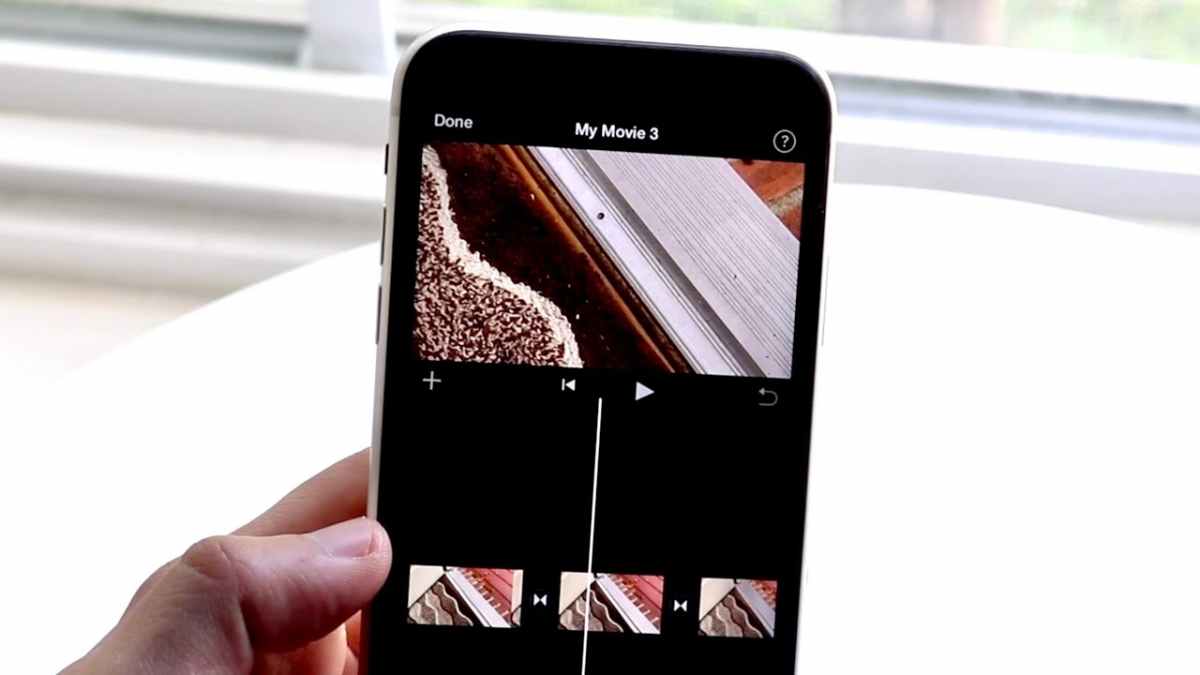
How to Loop a Video on iPhone

Here is the step-by-step tutorial on how to loop a video on iPhone online:

1. Open the video looper and upload your video.


2. Choose the desired number of repetitions (x2, x3, x4, x5, x10). Or set the infinite video looping by converting video to GIF.

3. Preview the file in the built-in player and click Export if you like it.

4. Wait for the cloud servers to process you file and save it back to your iPhone. Or continue editing it on the website.

Using an online service will save you time and energy because it doesn’t require any downloads or installation of additional software, and there is no need for any expensive hardware.


In addition, Video Candy offers a number of other video editing tools that can help you achieve amazing results on even the simplest videos. You can flip, trim, merge, speed up and slow down videos, crop them, play with audio (add music or mute) and much more!

Who will benefit from using the online service?

If you’re an iOS user who loves to edit videos, then Video Candy service is for you! This online platform does all the hard work for you when it comes to looping your favorite videos or performing other simple editing on your iPhone.


Students, professionals and casual users will find that this online service is an extremely functional and efficient way of watching and creating videos on their smartphones. Whether it’s creating instructional demonstrations or funny videos for social media, this online video editor continues to provide top quality controls with intuitive ease-of-use, so that you no longer need to switch between multiple apps to finish your projects.

Anyone with an iPhone who loves using apps such as TikTok, YouTube, Instagram and more will find that Video Candy is a great companion that allows you to add favorite music to clips and create stunning content with ease!

Final words

In conclusion, by following the above detailed guide, users can easily loop a video on an iPhone online. This is a great way to save time when continuously displaying video on an iPhone, whether it be for work, personal use, or any other purpose. With some simple steps, Apple smartphone users can now enjoy the benefit of seamless loops of their favorite videos!



Latest News
The AirPods Pro 3 is $20 Off
1 Min Read
Exynos 2600 Chip 2nm Process Revealed by Samsung
1 Min Read
New Celebrity Ad Campaign Featuring Travis Scott Released by Beats
1 Min Read
Australia Getting Hypertension Notification Feature
1 Min Read
The 14-inch MacBook Pro with M5 Chip 16GB RAM/512GB is $250 Off
1 Min Read
Noise and Static on AirPods Pro 3 Still Unfixed
1 Min Read
New iMac with 24-inch OLED Display May be Brighter With 600 Nits
1 Min Read
The 15-inch M4 MacBook Air 256GB Is $250 Off
1 Min Read
Internal Kernel Debug Kit from Apple Reveals Tests for a MacBook with A15 Chip
1 Min Read
Apple Currently In Talks With Suppliers for Chip Assembly & Packaging of iPhones in India
1 Min Read
Apple Allows Easier Battery Replacement For M5 MacBook Pro with 14-inch Display
1 Min Read
The Apple Watch SE 3 44mm GPS is $50 Off
1 Min Read

iLounge logo

iLounge is an independent resource for all things iPod, iPhone, iPad, and beyond. iPod, iPhone, iPad, iTunes, Apple TV, and the Apple logo are trademarks of Apple Inc.

This website is not affiliated with Apple Inc.
iLounge © 2001 - 2025. All Rights Reserved.
  • Contact Us
  • Submit News
  • About Us
  • Forums
  • Privacy Policy
  • Terms Of Use
Welcome Back!

Sign in to your account

Lost your password?








