
As of 2019, approximately 49.7% households across the world have a computer yet we still struggle to combat one of the most basic problems which is overheating. We often don’t realize it, but damage from overheating can be extremely harmful for computers in the long run.
There are a lot of parts on your computer such as the graphics card and CPU that tend to create heat when they are in function.
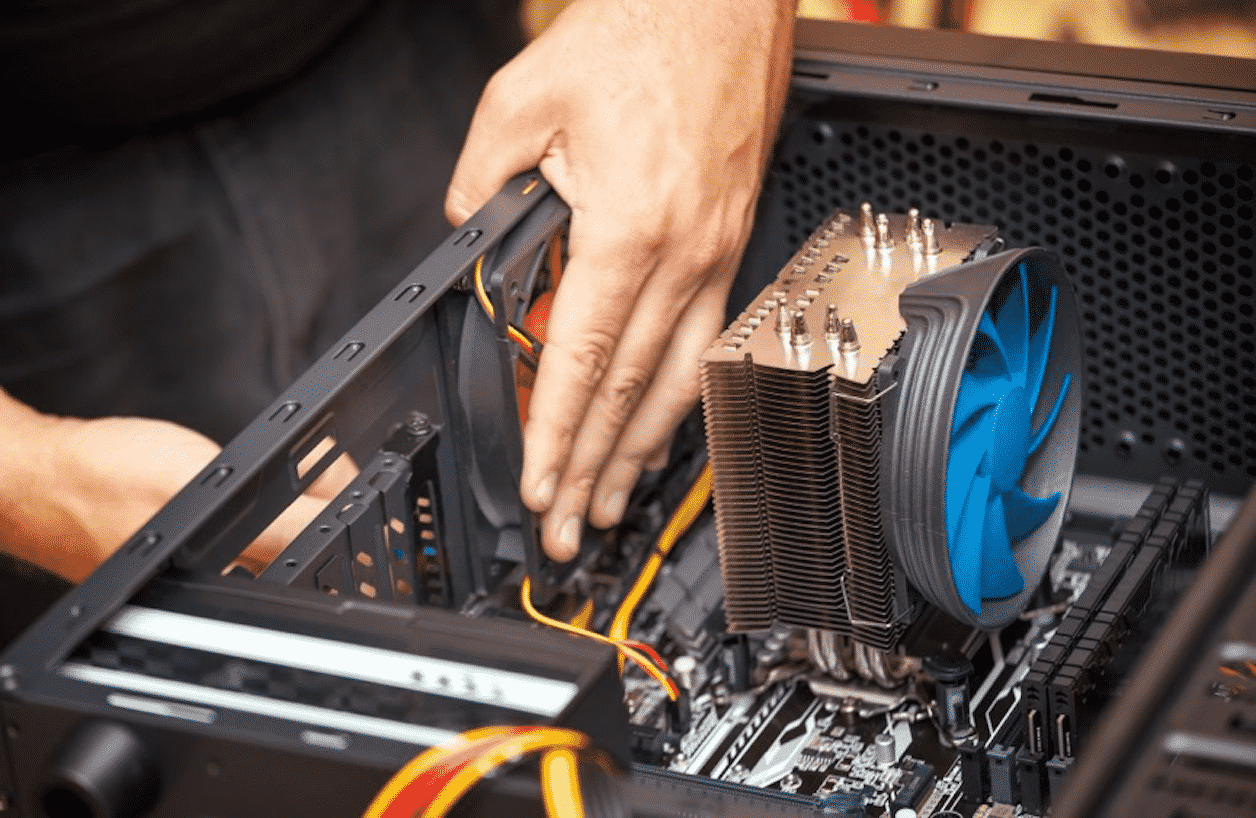
It is necessary to make sure that that the heat isn’t building up & being released in order to avoid overheating and consequently permanent damage.
Here are 8 ways to keep your computer cool:
Create Breathing Space
The surrounding of your computer can play a major factor on how it performs in the long run. If the airflow to your computer is restricted with obstacles or objects, chances are that your computer may tend to overheat.
The ideal situation would be to leave a minimum of 2-3 inches of space on all sides of the computer to avoid overheating and steer clear of placing them into tiny cabinets as that might cause overheating as well.
Be Cautious of Placement
The placement of your computer needs to be taken into consideration, as you don’t want to place it in an area where there are higher chances of overheating or in a temperature sensitive area.
You want to avoid keeping your systems too close to the windows as the heat from the sun will overheat it and you need to avoid placement near vents as well as that may cause overheating as well.
Use a Good Thermal Paste
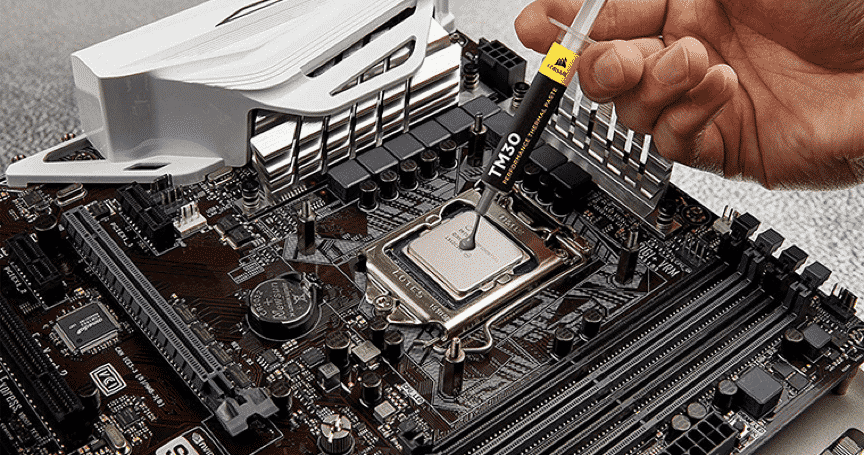
A thermal paste is an excellent and effective solution to keep your system from overheating and causing any permanent damage. The thermal paste works by transferring all of the excessive heat that is being produced by the system on to its cold solution.
However all thermal pastes do not work as effectually. You should definitely invest in the best thermal paste available in the market, which will ensure that heat is efficiently transferred away from the system and onto its surface.
Invest in Case Fans
Case Fans can be an absolute game-changer when trying to keep your system cool. While some parts of the computers have a pre-installed fan to keep them cool such as the CPU, other parts such as the graphics card tend to generate immense amount of heat and require a source to increase airflow and cool it down.
By installing case fans on the front and back of your system you will be able to increase the airflow inside resulting in the components of your computer cooling down. When installing case fans you need to ensure that the intake and exhaust levels match in order to avoid the creation of negative pressure.
Keep Your Fans Clean
Dust and debris can become catastrophic for your system not only do they cause severe internal damage but they also result in more heat production in the computer system.
It is highly necessary that you frequently clean the fans of your computer system. You will notice that there are around 2-3 fans inside the system, you want to avoid using a vacuum to clean them as the static produced by them can also be extremely damaging for the system. Instead try using a canned air duster to get rid of all the piled up dust on your computer’s fans.
Keep your System’s Case Closed
This statement may sound a bit contradictory as a closed system is likely to produce more heat than an open one but it doesn’t work like that.
It is important that you keep your system’s case closed as they are designed in a way that helps in regulating the internal temperature of the computer. More importantly it keeps away all the dust and debris which can take a major toll on the performance of your computer.
Upgrade CPU Fan
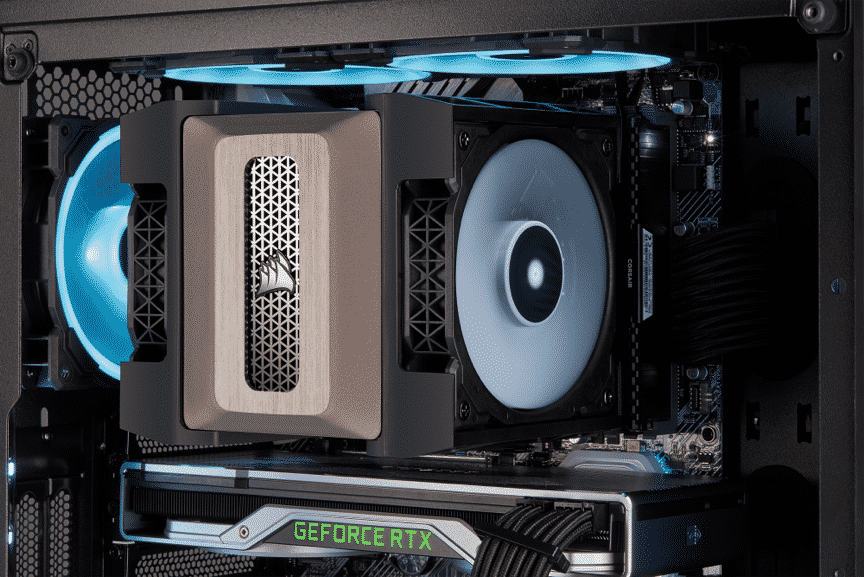
The CPU is probably one of the most important parts of your computer and is also one of the most sensitive and likely to overheat. A computer comes with a pre-installed CPU fan that only serves the purpose of cooling your processor enough to keep it running.
Upgrading to a faster performing and more competent CPU fan will be extremely helpful in keeping the temperature of your overall system down along with ensuring to keep the dust out of your CPU and guaranteeing better performance in the long run.
Keep Check on your Power Supply Fan
If you do not have case fans installed in your computer, the power supply fan is the only thing that is releasing hot air out of the system.
You need to ensure that your power supply fan is working perfectly at all times as otherwise the chances of your system overheating are extremely high. In case your power supply fan is dysfunctional the ideal course of action would be to replace it with a new one before your system suffers permanent damage due to overheating.
Conclusion
If you take the above given factors into consideration and follow the tips given to keep your system cool, the chances of your computer overheating can be highly reduced. This will inevitably maintain the quality of performance of your system and save you from repairs or having to buy another computer.











