
Do you like Disney movies? The must-have enjoyment for a family movie night. However, many users say they have encountered problems when trying to play Disney Plus on smart TV. How to get Disney Plus on TV? In this post, we will share detailed solutions to ensure a perfect moment.
Does Your Smart TV Support Disney+?
First and foremost, you need to figure out whether your smart TV supports Disney Plus.
Here are some brands that support Disney Plus.
1. Samsung Smart TV
Most Samsung smart TVs released from 2016 support Disney Plus, including the KS series, MU series and QN series, etc.
2. LG Smart TV
LG smart TVs from 2016 and later that run webOS 3.0 and above generally support Disney+, including the OLED series, SM series, UM series, etc.
3. Sony Smart TV: Android TVs after 2016 (Android 5.0+), some 4K TVs before 2018 may not support HDR10+picture quality. The following are the installation steps:
4. TCL Smart TV: Newer models (such as the Thunderbird series) can be downloaded directly from the app store, while older models require manual activation of third-party installation permissions.
How to Install Disney+ on Different Smart TVs
See how to install Disney Plus on popular TVs in this part.
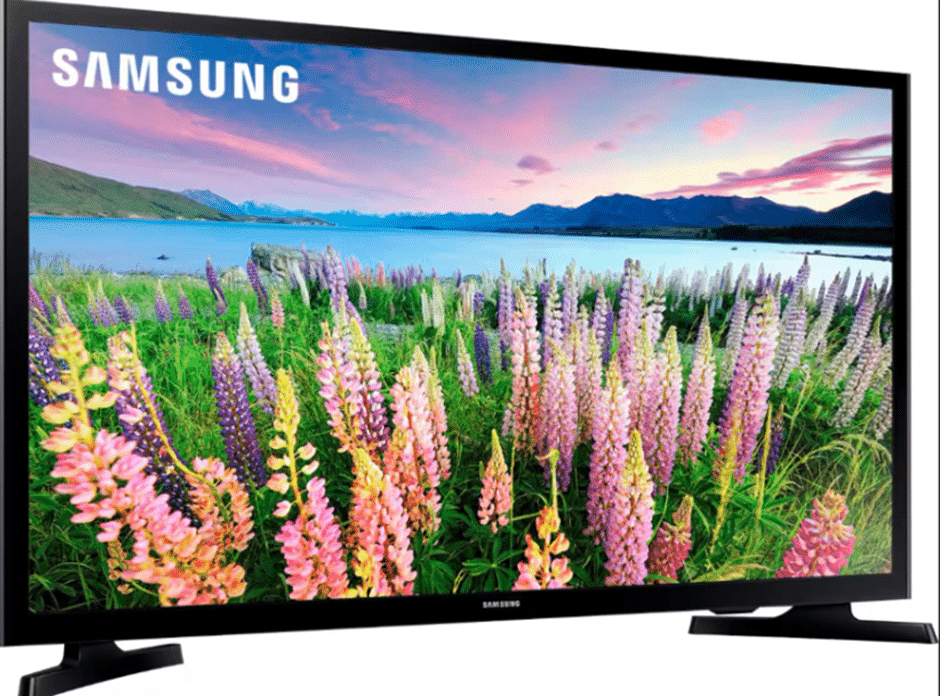
1. Samsung Smart TV (Tizen system)
Step 1. Go to the Apps menu on the homepage and click on the search icon in the upper right.
Step 2. Enter “Disney+” ->select install. After installation, log in to the account.
2. LG Smart TV (webOS system)
Step 1. Open the LG Content Store on the homepage and enter “Disney+” in the top search bar.
Step 2. Click on install, start from the home screen and log in after completion.
Note: the browser cannot play Disney+ and must be accessed through the official app.
3. Sony Smart TV (Android TV/Google TV)
Step 1. Go to the Google Play Store or Sony Select and search for “Disney+”.
Step 2. Click Install and then return to the main screen to open the application and log in.
Alternative Methods for Unsupported Smart TVs
If your smart TV doesn’t support Disney Plus, how to stream Disney Plus on TV? Here are a few solutions.
1. HDMI direct connection to computer or laptop
Applicable scenario: TV supports HDMI.
Step 1. Make sure the computer supports HDMI output (both Windows and Mac). Go to the Disney+ official website on your computer and log in to your account to play content.
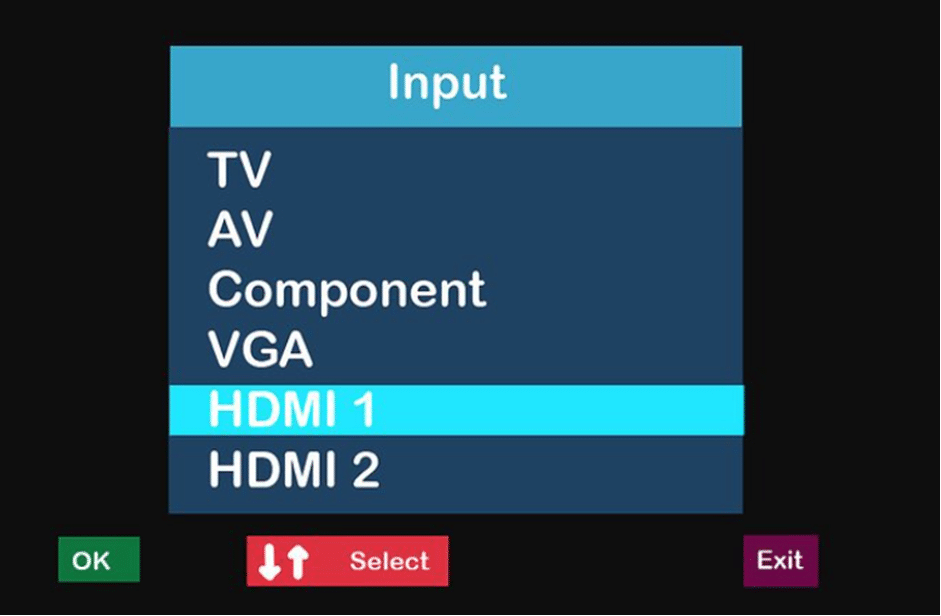
Step 2. Connect the computer and TV via an HDMI cable > Switch the TV to the corresponding HDMI signal source.
Step 3. To improve the image quality:
Windows: Right click on the desktop > Display Settings > Adjust Resolution and HDR Switch.
Mac: System Preferences > Display > Enable “High Dynamic Range”.
2. Casting on mobile devices
Applicable scenario: TV supports DLA/AirPlay protocol
For Android/Windows, enable wireless display function on the mobile phone/computer > turn on the screen mirroring on the TV.
For iPhone/iPad, play Disney+ videos and click on the screen projection icon in the upper right corner. Select the TV name.
3. Streaming media device transfer (optimal solution)
Here are some recommended equipment and relevant pricing for your reference:
| Device | Price | Advantages |
| Chromecast | $30-40 | Google native/mobile one-click projection |
| Fire TV Stick | $30-35 | Supports 4K HDR/voice remote control |
| Roku Express | $20-30 | Minimalist operation/no regional account restrictions |
Troubleshooting Common Disney+ Issues on Smart TVs
How to avoid all the problems of the app not appearing, playback errors, and login problems? The best way is to download Disney Plus videos in advance. How to download Disney plus on smart TV? CleverGet Disney Plus Downloader is what you want!
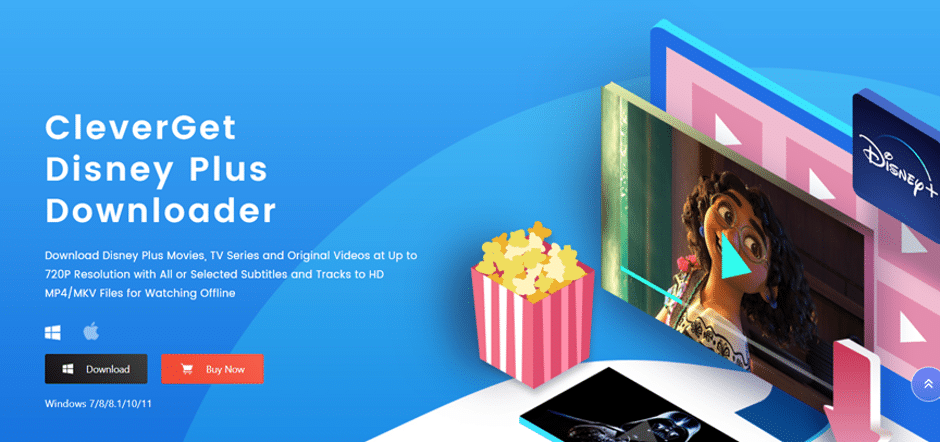
CleverGet Disney Plus Downloader is a professional program to save 720p videos directly from Disney Plus in MKV/MP4 formats. If you are a binge watcher, it is your go-to solution. With only one try, you can save a whole season of episodes. At the same time, you can preserve the audio tracks and subtitles in different languages easily.
Here is how to make good use of this smart helper. You need to download the software from the website first.
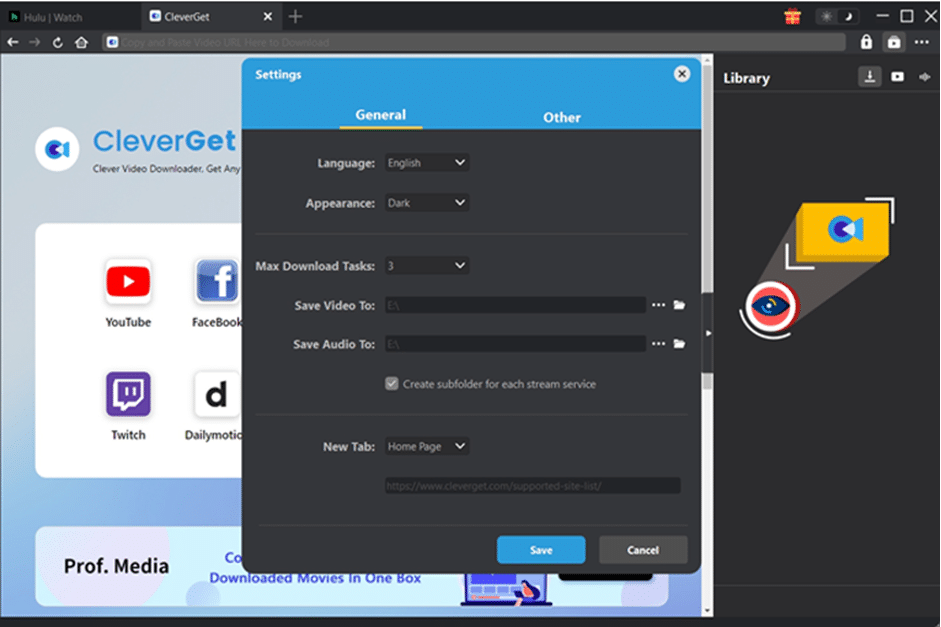
Step 1. Set output directory
Run it and go to the “…” in the upper right. Press the “Settings” button to wake up the Settings section. Here is where you can change the interface color and language. Select a folder to save downloaded Disney Plus movies through the “Save Video To” box.
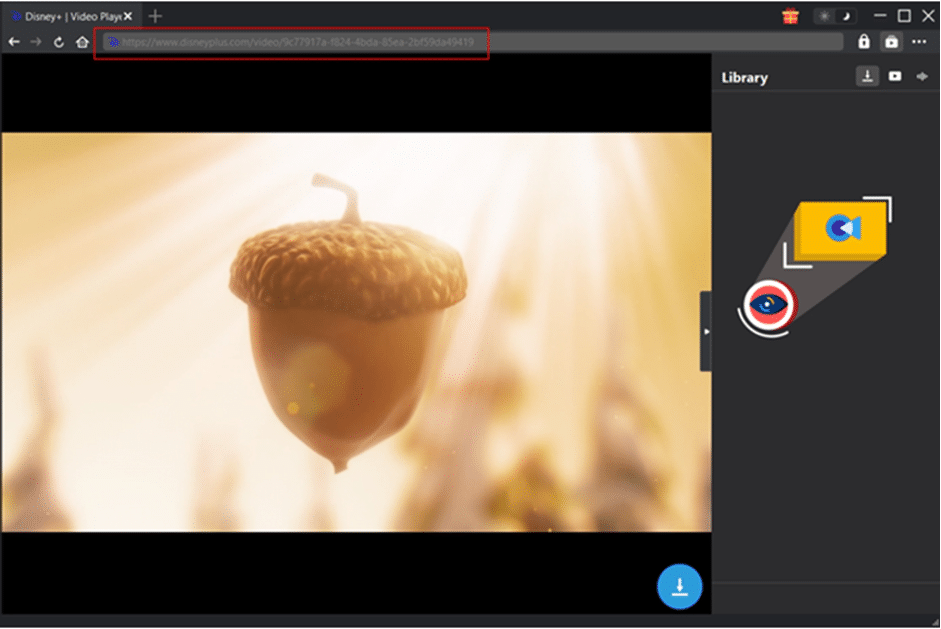
Step 2. Play the target show
Open the Disney Plus website on the embedded browser and search for the title. Play it and the page will be automatically parsed.
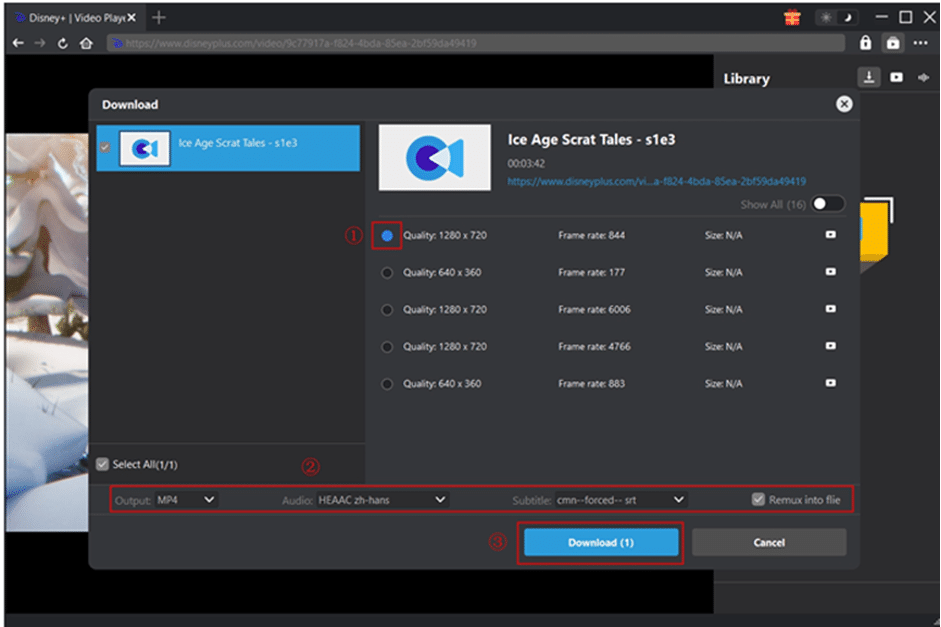
Step 3. Download the Disney Plus movie
You can find an array of videos in various sizes and resolutions. Choose the one you need. Set the parameters for the output format, audio tracks, and subtitles.
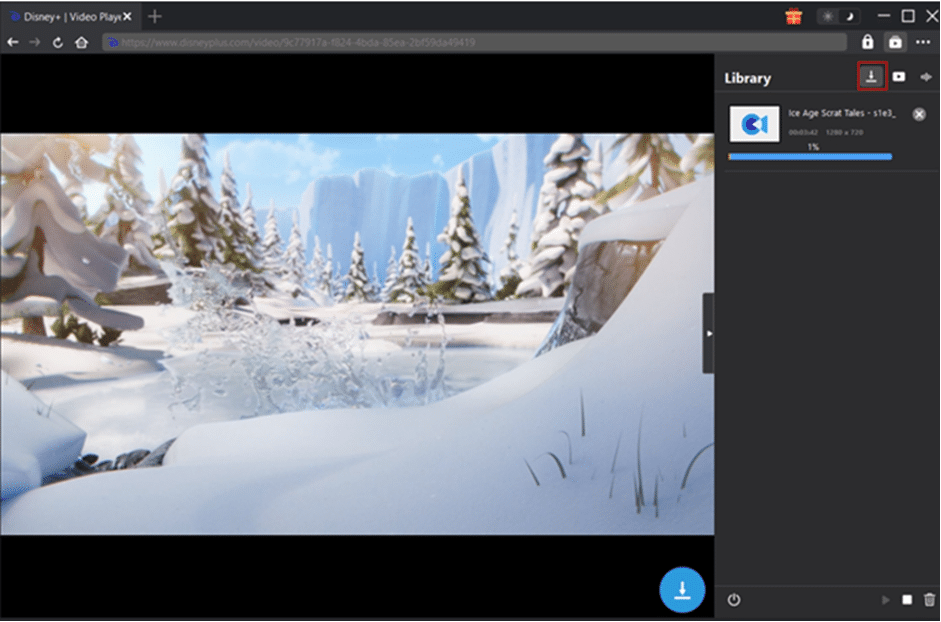
Step 4. Start downloading the Disney Plus show
Hit “Download” to start the task. Track the progress in the right bar. Cancel or stop the task whenever you want. When the tasks are finished, you can find the downloaded videos in the folder you chose.
Conclusion
In conclusion, you can find the best solutions to play Disney Plus videos on your smart TV. Hope you find it helpful. However, if you have really limited knowledge of troubleshooting or smart TV models, CleverGet Disney Plus Downloader is the answer! Give it a try to save your favorite movies on your device for good and watch them whenever you want.











