
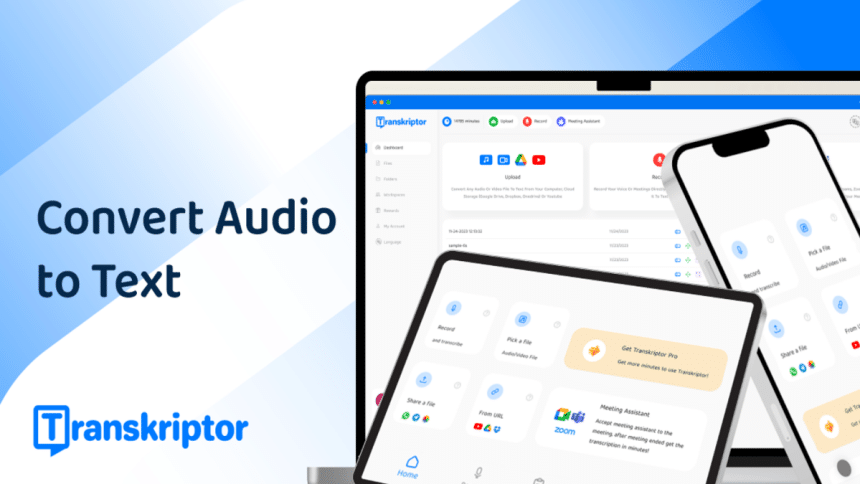
With the increasing demand for efficient and rapid transcription services, the ability to convert audio to text on your iPhone can significantly enhance productivity and accessibility. For journalists required to transcribe extensive interviews, students keen on recording lectures for better study sessions, or professionals who prefer oral notes for later reference, having the right tools is not just an advantage but a necessity. In this landscape of needs, Transkriptor presents itself as a powerful solution for audio transcription, offering seamless audio-to-text conversion capabilities right on your iPhone.
This guide is designed to walk you through using Transkriptor, ensuring your transcription tasks are executed with ease and a high degree of professionalism.
How to Transcribe Audio to Text with Transkriptor?
The 6 easy steps to get audio transcription on iPhone by using Transkriptor are listed below.
Step 1: Download Transkriptor
Begin by downloading Transkriptor from the App Store. This ensures that you’re equipped with the latest version of the app on your iPhone, offering you the newest features and best possible performance for your transcription tasks.
Step 2: Upload or Record Audio
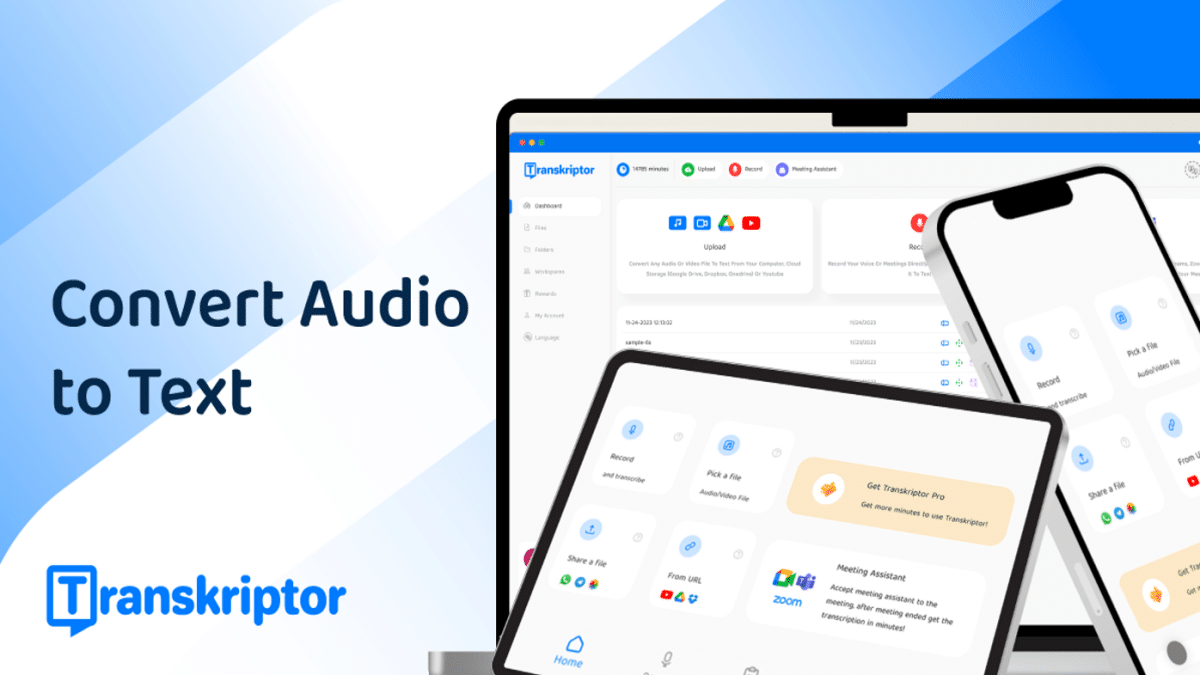
With Transkriptor, you have flexibility in how you provide your audio content. Use the ‘Upload’ button to select an existing audio file from your iPhone’s storage or linked cloud services like iCloud or Dropbox. Alternatively, for new recordings or live events, you can record audio directly within the app, harnessing its capabilities for immediate transcription.
Step 3: Select the Audio’s Language
An essential step in ensuring the accuracy of your transcription is to select the correct language of your audio file before proceeding. Transkriptor supports a range of languages, and choosing the right one helps the app accurately decipher and transcribe spoken words into text.
Step 4:Start Transcription Process
Initiating the transcription is as simple as pressing the ‘Transcribe’ button. The conversion of your audio into text may take some time, varying with the length of the audio file. This process is powered by advanced algorithms to ensure a high level of accuracy in the transcription output.
Step 5: Edit and Review
Once transcription is complete, Transkriptor provides a user-friendly editing interface within the app. This feature enables you to review the transcribed text and make any necessary edits or adjustments, ensuring the final document accurately reflects the audio content.
Step 6: Export or Share
After you have made the necessary edits, Transkriptor facilitates the exportation of the transcribed text into various formats or allows you to share it directly from within the app. With multiple export options available, such as txt, srt, and Word formats, you can select the one that best suits your requirements, whether for academic, professional, or personal use.
Why Choose Transkriptor?
– High Accuracy: Transkriptor uses advanced AI algorithms that ensure transcriptions are precise, capturing not just the words but the nuances of language. It’s especially adept at handling various accents and dialects, making it reliable for diverse audio files.
– Speed: The service boasts rapid turnaround times, leveraging technology to convert speech to text significantly faster than manual transcription processes. This allows users to get their transcriptions almost in real-time, depending on the length of the audio.
– Cost-Effective: With automation at its core, Transkriptor provides a cost-efficient alternative to traditional transcription services. This makes it accessible for individuals and businesses of all sizes, without compromising on quality.
– Ease of Use: Designed with user experience in mind, Transkriptor features an intuitive interface that simplifies the transcription process. Users can upload their audio or video files with ease and start the transcription with just a few clicks.
– Versatility: The platform supports a wide range of file formats and languages, catering to various transcription needs. Whether it’s for academic research, business meetings, or multimedia projects, Transkriptor offers tailored solutions.
– Privacy and Security: Understanding the importance of confidentiality, Transkriptor employs robust security measures to protect user data. Your files are handled with utmost care, ensuring privacy throughout the transcription process.











