
Did you ever record a video on your phone or with a small camera only to discover that it’s vertically oriented and you can’t see it properly? While shooting something in real-time, we don’t have time to evaluate whether “landscape” or “portrait” mode is the best choice for the situation.
In either case, watching a video that is oriented incorrectly can be challenging. Before you strain your neck or rotate your monitor to see your video, let us show you how to flip a video using the easiest ways. This is especially important to know if:
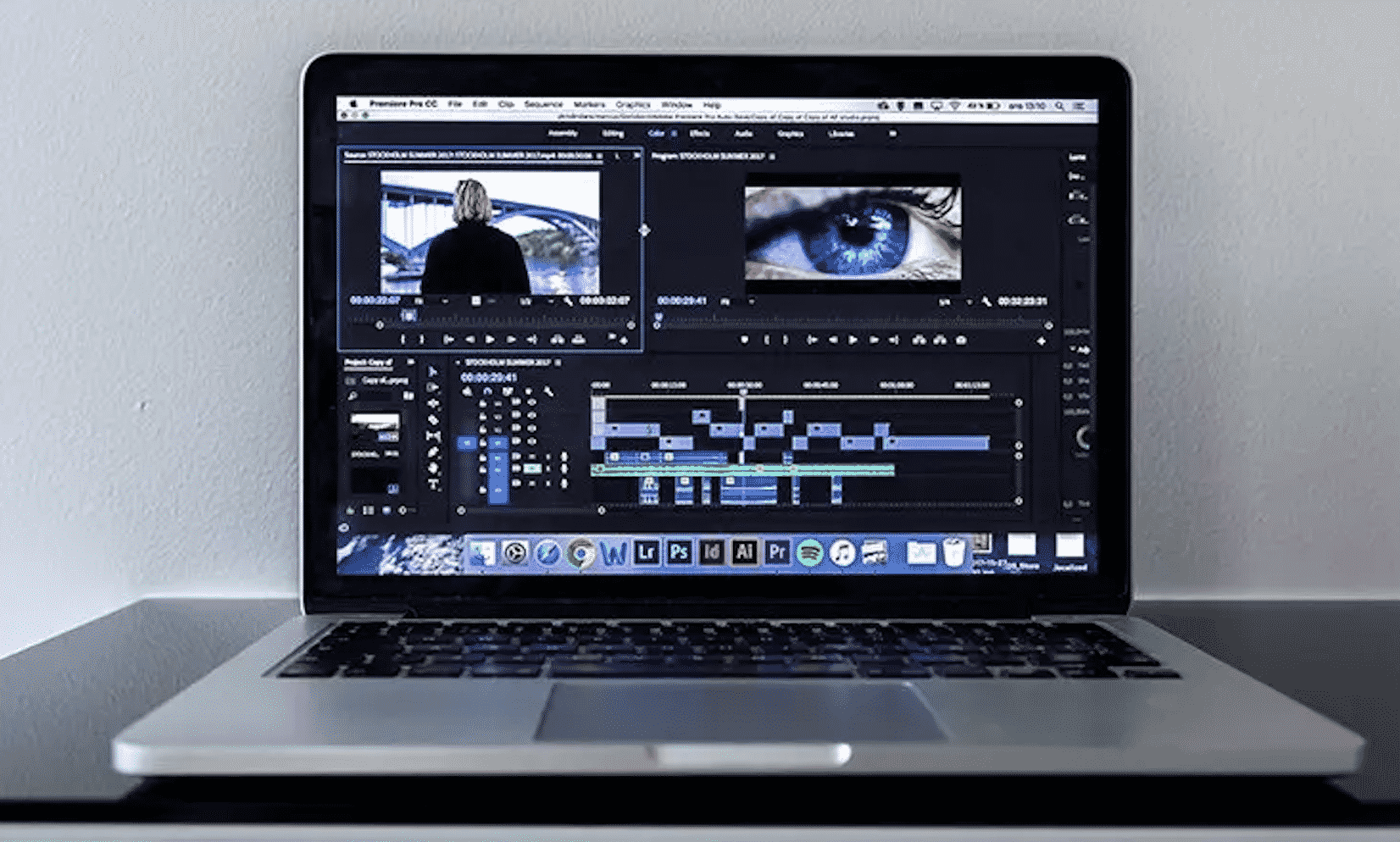
- You’re bringing in footage from your phone that’s not precisely positioned.
- if you’re trying to rotate a YouTube video
- If you are looking to flip a video for social media platforms
How to Flip Videos Online
The most convenient way to flip video clips is by using online tools. Whether you want to flip your existing social media video or want to change the orientation of a video in a flash, you can do it all online for free, or a low-priced premium option is https://online-video-cutter.com/flip-video.
This online video flip tool is meant to let you flip your video quickly and easily. Some videos are filmed backward or upside down. You can edit your footage with their tools to make it look as you want it. Easily upload your video in any format, such as MP4, AVI, or FLV, and it will be flipped horizontally or vertically in seconds.
How to Flip Videos in Windows
Depending on your system, there are a few options for flipping a video on Windows. If you own a Windows 10 computer, you can quickly flip a video using its in-built video editor, which comes as a part of the Windows Photos app. If you have Windows 7, you may use Movie Maker to flip videos.
Step to use Movie Maker.
Step 1: Launch the Windows Movie Maker, and drag the video you wish to flip into the tool.
Step 2: Depending on the direction of your video, press the “Rotate right” or “Rotate left” button. Windows Movie Maker usually takes a little while to process your video.
Step 3: Download and save the video.
How to Flip Videos in Mac
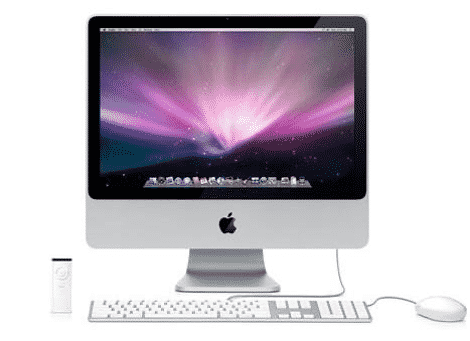
On a Mac, you can effortlessly flip your video clips by using the in-built QuickTime Player. Let’s have a look at how it’s done.
Step 1: Launch QuickTime or right-click on the video, choose the Open With option and select the QuickTime Player icon.
Step 2: Next step is to select the ‘Edit’ option and then choose the ‘Rotate Right’ or ‘Rotate Left’ icon per the direction you want.
Step 3: When the video is finished, go to the file and select the Export option from the menu bar.
Step 4: Give your file a name, select a location to be saved, and click the “Save” button. Because QuickTime does not overwrite the original video, you have the option to save the new version wherever you like.
How to Flip Videos on iPhone

Using your iPhone’s in-built photo/video editor, you can effortlessly flip a video clip. Let’s take a look at how to do it.
Step 1: On your iPhone, open the pictures app and pick the video you want to flip.
Step 2: Then, in the upper right corner of your screen, press the “Edit” button.
Step 3: Next step is to tap the “Crop” button in the bottom right corner of your screen and click the “Rotate” symbol. To flip the other way, just tap the button two more times.
Step 4: When you’re done flipping your video, tap “Done” in the bottom right corner of your screen. Your flipped video should now be available on your Photos app.
How to Flip Videos on Android

In an Android smartphone, there are several ways to rotate your videos. You can flip videos using your default video app or the Google Photos editor, which comes pre-installed right out of the box. If it didn’t, you could get the application from the Google Play Store for free. Let’s see how to use Google Photos to flip a video.
Step 1: Go to Google Photos and search for the video you’d like to flip.
Step 2: Choose the video you want to flip by tapping and selecting it. Afterward, press the “Edit” button present at the bottom of your screen.
Step 3: The next step is to press the ‘Rotate’ button located in the lower right corner of the screen until the video flips to your preferred orientation.
Step 4: When you’re finished flipping your video, go to the right-hand top corner of your screen and select “Save A Copy.” The video will be processed and saved by the application.
Google Photos is a cloud-based photo and video storage service. By connecting to your Google account, you can access them from any device.
Conclusion
Using the methods listed above, you may easily flip a video in any direction. You can confidently shoot any video you like, knowing that you’ll be able to fix it even if it comes out in the wrong orientation.











