
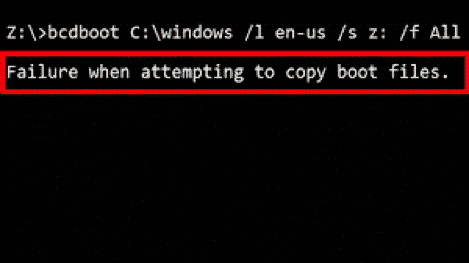
Have you ever received error “Failure when attempting to copy boot files”? Are you still getting stuck with it? When this happens, your new image or computer is unable to boot from the hard drive. But don’t worry, as this article will help you solve this issue.
Fix 1: Set the System Reserved Partition to Action
It is probably that the system reversed partition is not set to active, so that you get the error issue.
System reserved partition is a partition that you can find before the system partition (normally the C: drive). In general, Windows doesn’t assign a drive letter to this partition, hence you’ll only see it when you open Disk Management or a similar utility.
To set the system reserved partition to active, you can use the built-in DiskPart, which is on many Windows systems.
DiskPart is a disk partitioning utility that uses command lines to perform operations. Using DiskPart commands can help you manage your computer’s drives including disks, partitions, volumes, and virtual hard disks.
You can follow the steps below to troubleshoot the issue via the Command Prompt.
Step 1: Prepare a Windows installation bootable USB flash drive in advance. Otherwise, you can create one in advance if you do not have.
Step 2: Connect the bootable USB flash drive with your computer which fails to boot. Boot your computer from the drive and then enter the Windows Repair Environment.
Step 3: Select your preferred language and other settings. Then Next.
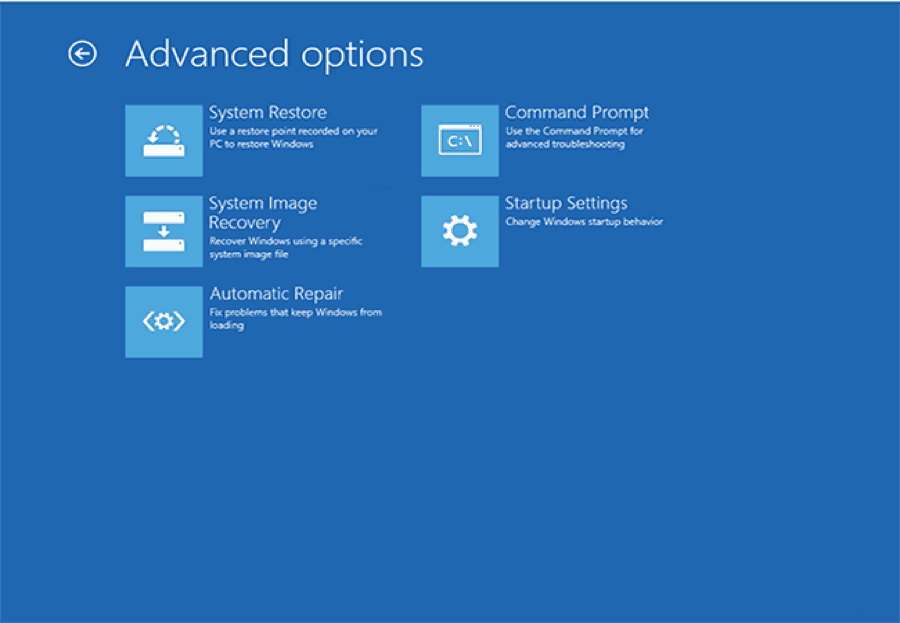
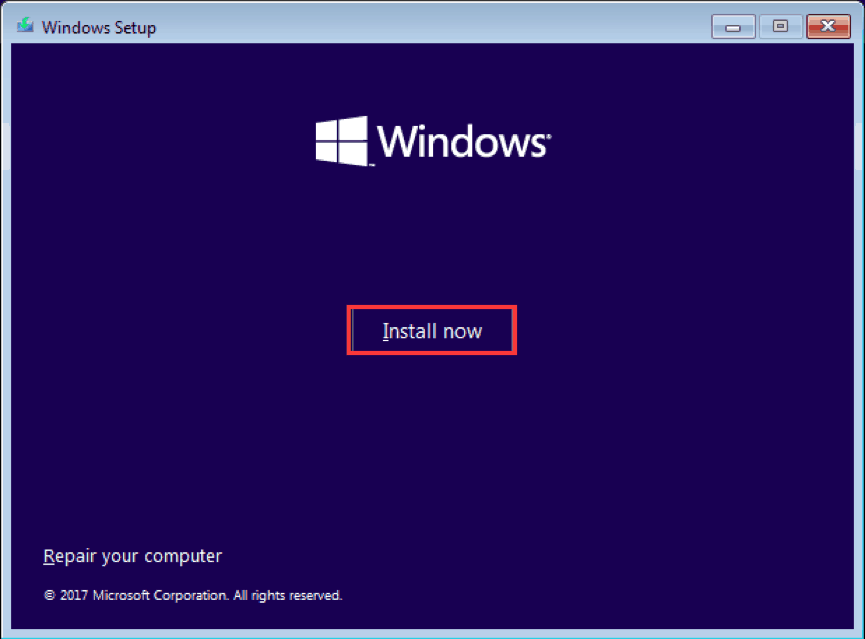
Step 4: Select Repair your computer in the lower-left corner at the Install now screen, click Troubleshoot, then click Advanced options and choose Command Prompt.
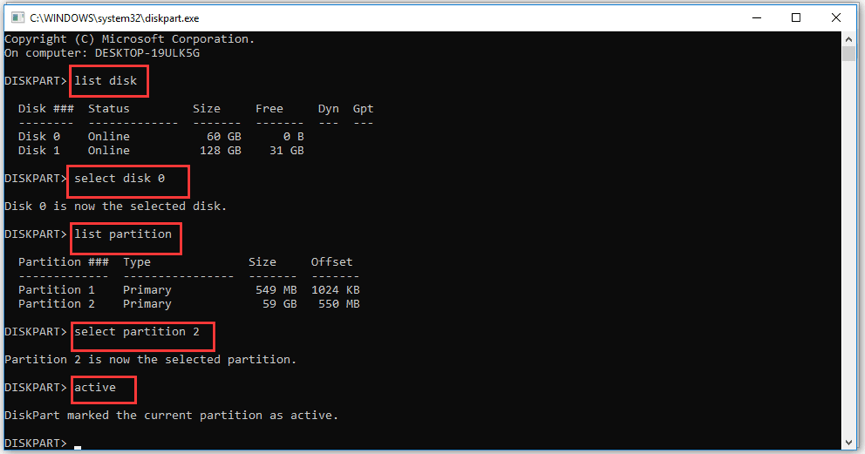
Step 5: After entering the Command Prompt window, you can type commands: diskpart, select disk * (* refer to the number of your system disk), list partition, select partition X (X refers to partition number of the system reserved partition), active and exit in order. After typing each command, you should hit Enter key on the keyword.
Step 6: Type bcdboot X:\windows (X refers to the drive letter of your Windows partition)
Restart your machine to see this fix solution works or not. If it fails, please try the following way.
Fix 2: Restore Data and Reinstall Your Windows
Data loss may occurs when the operating system fails to boot. You can restore the lost data with the help of MiniTool Partition Wizard and then reinstall Windows to fix “Failure when attempting to copy boot files”.
Step 1: Use MiniTool Partition Wizard to create a bootable disk on a normally running computer. After that, connect the disk to the computer fails to boot.
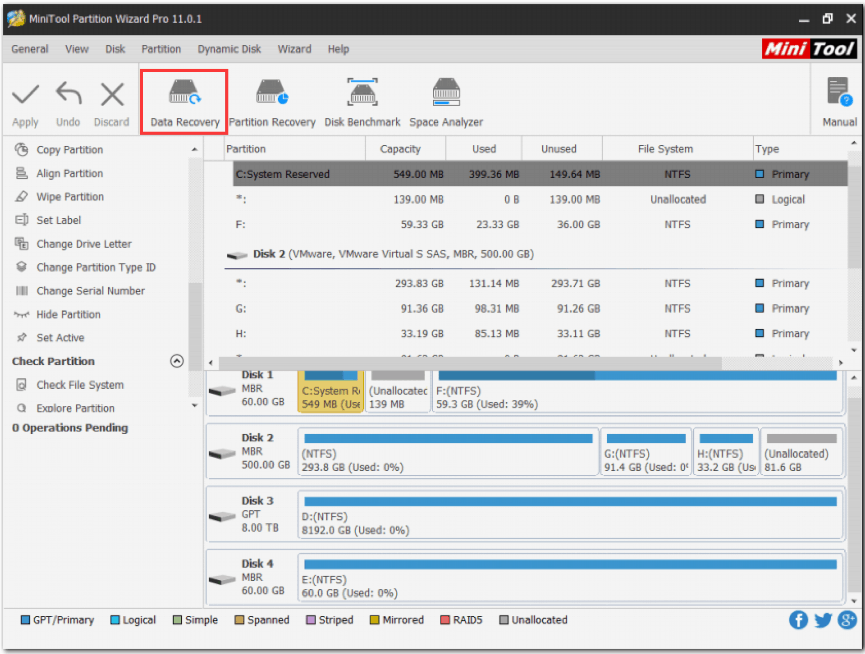
Step 2: Set the bootable disk as the first boot device in BIOS and then wait until MiniTool Partition Wizard popping up. Click Data Recovery feature in the toolbar on the main interface of this program.
Tip: This feature can help you restore the lost data from hard disk drives, such as HDD, SSD and so on.
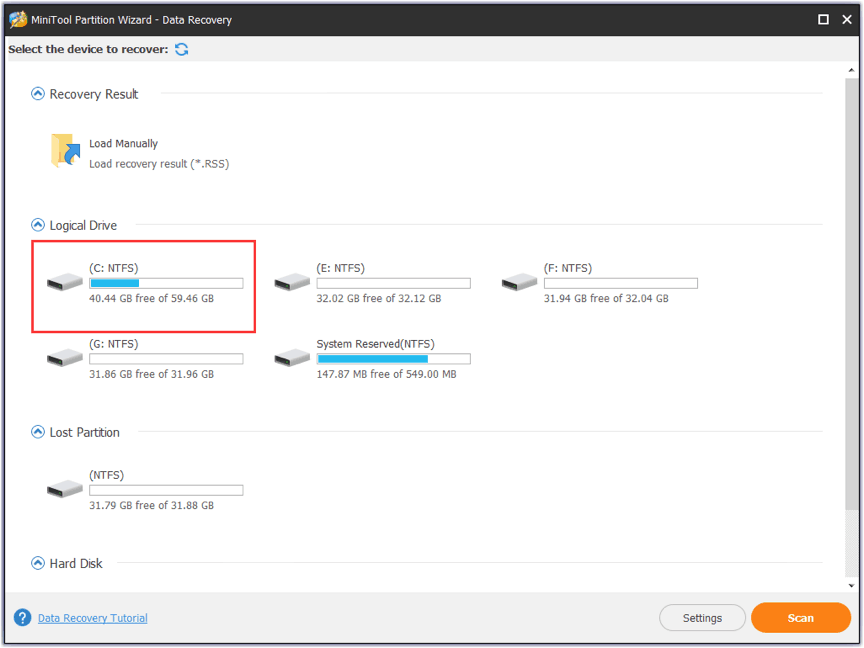
Step 3: After a new window shows up, select one partition related to system. (here I take partition C for example)
Step 4: Wait for MiniTool Partition Wizard finishing scanning the lost data. When the scanning process finishes, you can preview 70 file formats which should be smaller than 100MB.
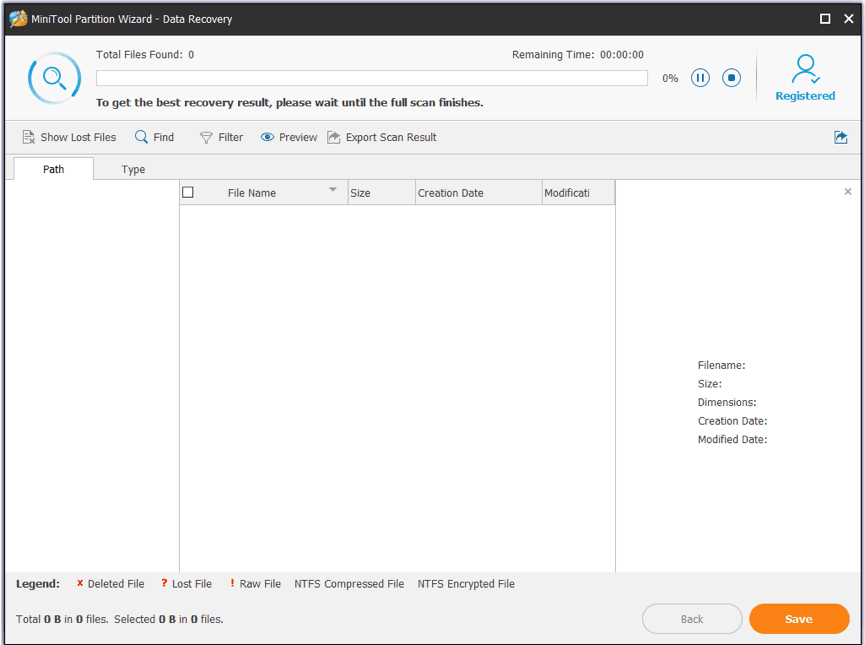
Step 5: Make sure which files need to be restored, and then check the checkbox next to the file name and click Save. Note that you should back up the important files to the non-system partitions or another storage device if you find that the recovered data does not include these files.
Step 6: Choose a directory to save the checked files (you’d better save the lost files to non-system partition or other storage devices).
Now you can reinstall your Windows.
Step 1: Repeat Step 1-3 in Fix 1.
Step 2: Click Install Now on the Windows Setup window and then enter the license key or click I don’t have a product key.
Step 3: Follow the on-screen instructions to complete the setup configuration and let it install. After that, your computer will reboot and you just need to log in with your account.
Related article: How to Deal with BOOTMGR Image Corrupt Easily?
I have introduced two common resolutions that can fix the “Failure when attempting to copy boot files” error for users. Users who have fixed the same issue with other resolutions are welcome to share in the comment.











