
Just watched a great video and wish you could get back to it? While there’s an option to share or embed, YouTube videos in general can’t be saved for later viewing. This is where a video downloader can come in very handy, such as when we come across a super-funny clip or any other cool video we’d want to access offline at any time.
BitDownloader allows you to download any video from YouTube and the most popular video hosting sites. It’s an online tool that gives you the ability to start downloading YouTube videos on any device, without a fuss and for free! Check out how BitDownloader proves to be a useful addition to your everyday arsenal.

Why BitDownloader Could Be The Best YouTube Video Downloader
You Need
BitDownloader has got quite a catchy name, but the software offers much more than just that. It’s an excellent and lightweight online tool that can capture your favorite YouTube videos and convert them to mp4 and others.
The video downloader site works not just on YouTube, but with other websites such as Coub, Instagram, Facebook, Vimeo and more.
As a web tool, BitDownloader has several advantages over apps and software that offer the same thing. One, you won’t have to install anything, because the website will do all the conversion and download for you. This makes it even easier to choose the online videos you want to save in your preferred format.
Two, the web-based YouTube downloader can work on any device you’re using to watch YouTube, including your smartphone, tablet, laptop and more. It supports iOS, Android, Windows, macOS and even Linux. The moment you decide you want to save a particular video, simply pull up your favorite browser and visit BitDownloader.com, then have it save to the device.
The BitDownloader site is very easy to use, and using the online tool is 100% free. There’s no need to register, sign up or install any software.
How To Download From YouTube Using BitDownloader
Step 1. Copy The Link to the YouTube Video
Stumbled upon a great YouTube video? Copy the video’s URL link by highlighting it with a shortcut CTRL+L and follow it up with a CTRL+C, or copy on a Windows machine. Use Command instead of CTRL if you’re on a Mac.
For mobile devices, press and hold on the URL text until the ‘copy URL’ text comes up. Tap that, then proceed to the next step.
Step 2. Go to BitDownloader Website
Everything you need will be up front and center the moment you visit the YouTube video downloader platform.
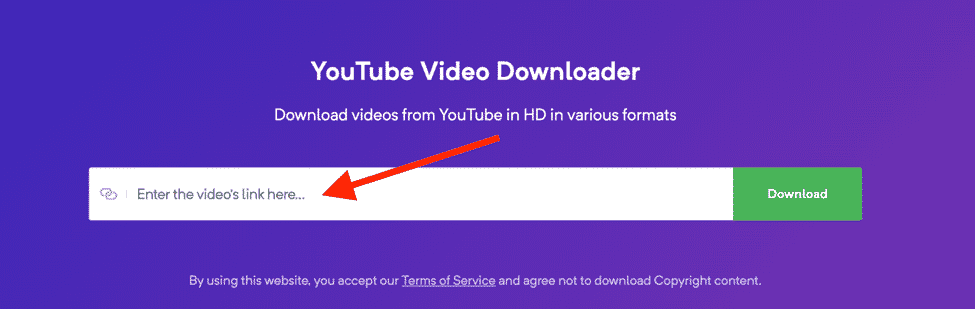
You’ll see a big blank field box right in the middle as soon as you pull a new browser and enter BitDownloader.com. This is the space where you enter the URL of the video you wish to download. After that, click or tap the green ‘Download’ button and proceed to the next step.
Step 3. View the Results, then Download
Allow BitDownloader a few seconds to collect pertinent information. After that, the site will show you the videos it can capture using the link you provided.
You can choose the video you want to save offline by right-clicking or long-pressing, then selecting to ‘download’ or ‘save as’ depending on the device you’re using.
You can also add the letters ‘io’ before putting in the YouTube video link, then press enter to have the site take over. A quick-save pop-up will appear to show you that the video will be converted to mp4 then saved to your device.

Watching YouTube videos offline is a great way to save up on your cellular data allocation. What’s more, you don’t need to be connected to consume your favorite content, so you’re not limited to being stuck doing nothing on trains, plane rides and trips. Enjoy high resolution YouTube, Instagram and Facebook videos even when you’re not on Wi-Fi or data.
Browser Extensions
BitDownloader also has a browser extension for the following browsers:
- Google Chrome
- Safari
- Firefox
- Microsoft Edge
- Opera Next
- Dolphin Browser
- UC Browser
With the extension added to your browser, you don’t really need to visit the BitDownloader website to download a video. So, whenever you play a YouTube video, you will see a download button to download it right away.
Bookmarklet
A Bookmarklet is also available! With the Bookmarklet, you can download videos without having to open the BitDownloader website install any browser extensions.
All you have to do is visit the Bookmarklet page here and click on the purple “Download video” button. This would add a new BitDownloader bookmark link to your browser.
Now as you open any YouTube video, just click on the BitDownloader bookmark link and view the available download links of the video. It’s that simple!











