

If you want to watch YouTube videos offline, especially on your Mac, you just need to know the right tools. Officially, the platform doesn’t make it easy to keep downloaded files permanently. The built-in “download” feature only allows you to watch videos inside the YouTube app. Also, you can download videos in high quality only if you have a Premium subscription. So, how to download a video from YouTube in Mac without any limits to keep it forever? That’s where specialized YouTube playlist downloader comes in. Below, I am going to show you 4 best methods to download videos from YouTube on Mac without limits. So, let’s begin.
Part 1. How to Download a Video from YouTube in Mac with a Premium Account
YouTube has a download feature, but you have to pay for it. This is part of their YouTube Premium subscription. It’s a monthly fee that removes all ads, lets videos play in the background on your phone, and gives you that simple download button. Let’s see how this method works.

Steps to Download YouTube Video with Premium:
If you pay for Premium, here’s how to download videos from YouTube in Mac officially.
Step 1: Open the YouTube website or app on your Mac. Make sure you’re logged into your Premium account.
Step 2: Find the video you want to keep.
Step 3: Click the “Download” button that is right below the video. It looks like a simple downward arrow. Click on it, and your video will start downloading.
This is the easiest way to save a video, but it comes with a lot of limitations. You can only watch the downloaded video inside the YouTube app or browser. It’s not a normal video file like MP4 or MOV, so you can’t open it with other programs, like QuickTime or iMovie. The files are also protected, meaning you can’t edit them or share them with anyone else. And that’s why it matters: if you ever stop paying for your Premium subscription, all your downloaded videos will disappear. They are not really yours; they just stay on your Mac for a little while, locked in YouTube’s system.
Part 2. How to Download Videos from YouTube in Mac Without Limits?
The main problem with YouTube is that it locks your downloads away, especially on a Mac. So, how to download videos from YouTube in Mac without limits? For this, you have to use a third-party downloader that can save your YouTube file in common formats like MP4, MP3, MKV, etc. One of the most recommended choices is FliFlik UltConv Video Downloader. It’s a desktop app, available for both Windows and Mac users. It is built to grab the actual video file from YouTube so you can keep it forever, edit it, or watch it in any player on your Mac, completely free of YouTube’s restrictions.
It’s a powerful download manager and converter all in one place. Not only does it work with YouTube, but over 10,000 other sites like Instagram, TikTok, Vimeo, Facebook, etc, so you aren’t limited to just one platform. You can download videos in the highest quality possible, we’re talking 4K and 8K, and save them to popular formats like MP4 or MP3. Once downloaded to your Mac, you can move your video to any of your devices and keep it forever. No more dealing with the frustration of YouTube download limits.
Key Features of FliFlik UltConv Video Downloader:
- Saves video from over 10,000 sites, like YouTube, Facebook, and Instagram
- Batch downloads many videos at the same time
- Supports 100+ formats like MP4 and MOV, and audio like MP3 and AAC
- Grabs whole playlists and channels in one click
- Saves video quality up to 4K and 8K
- Converts video to audio without losing quality
- Removes protection (DRM) from Spotify and Apple Music
- Downloads up to 10 times faster than normal
- Has a built-in browser for simple downloading
Steps to Download YouTube Videos with UltConv Video Downloader:
Step 1: Get the FliFlik UltConv Video Downloader. Download it and install it on your Mac.
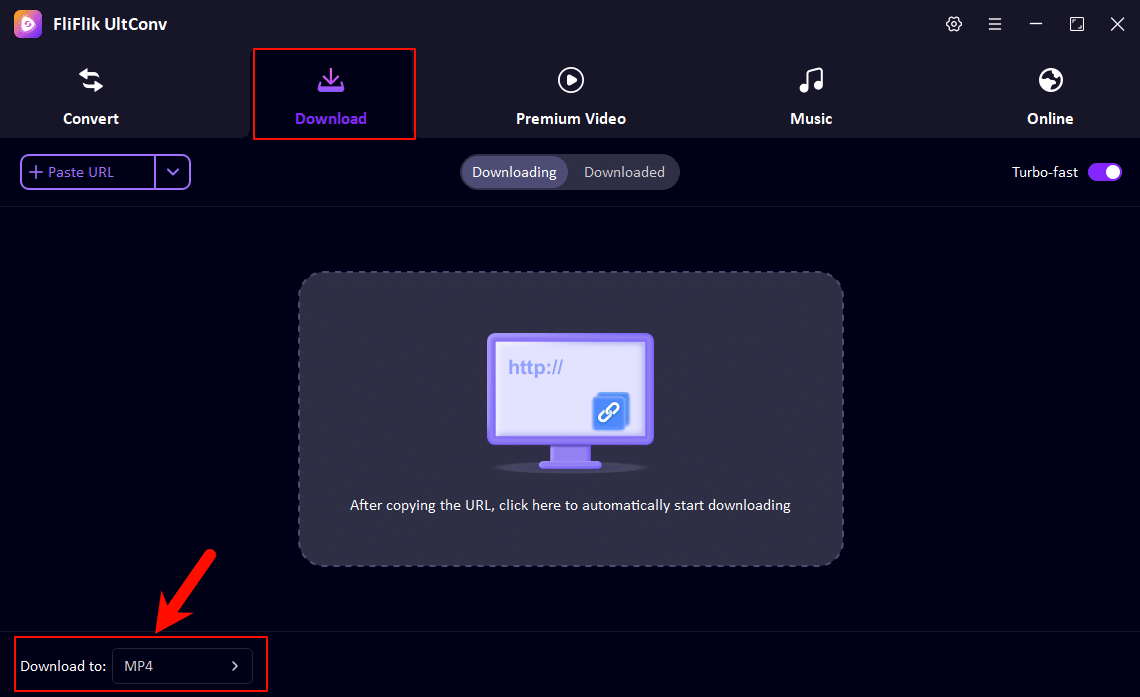
Step 2: Open UltConv Video Downloader on your PC. Go to the Download tab and click the ‘Download to’ button to choose the output format for your playlist.
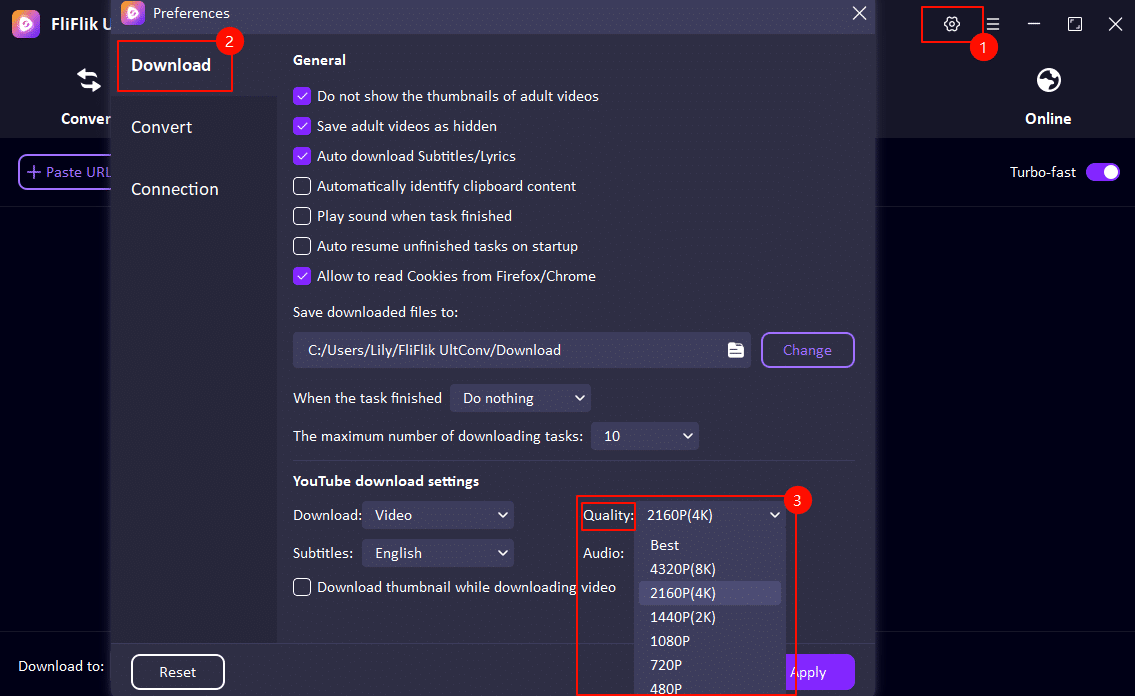
Step 3: Click the settings icon in the upper right corner and select the video resolution you need (from 240P to 8K) in the settings.
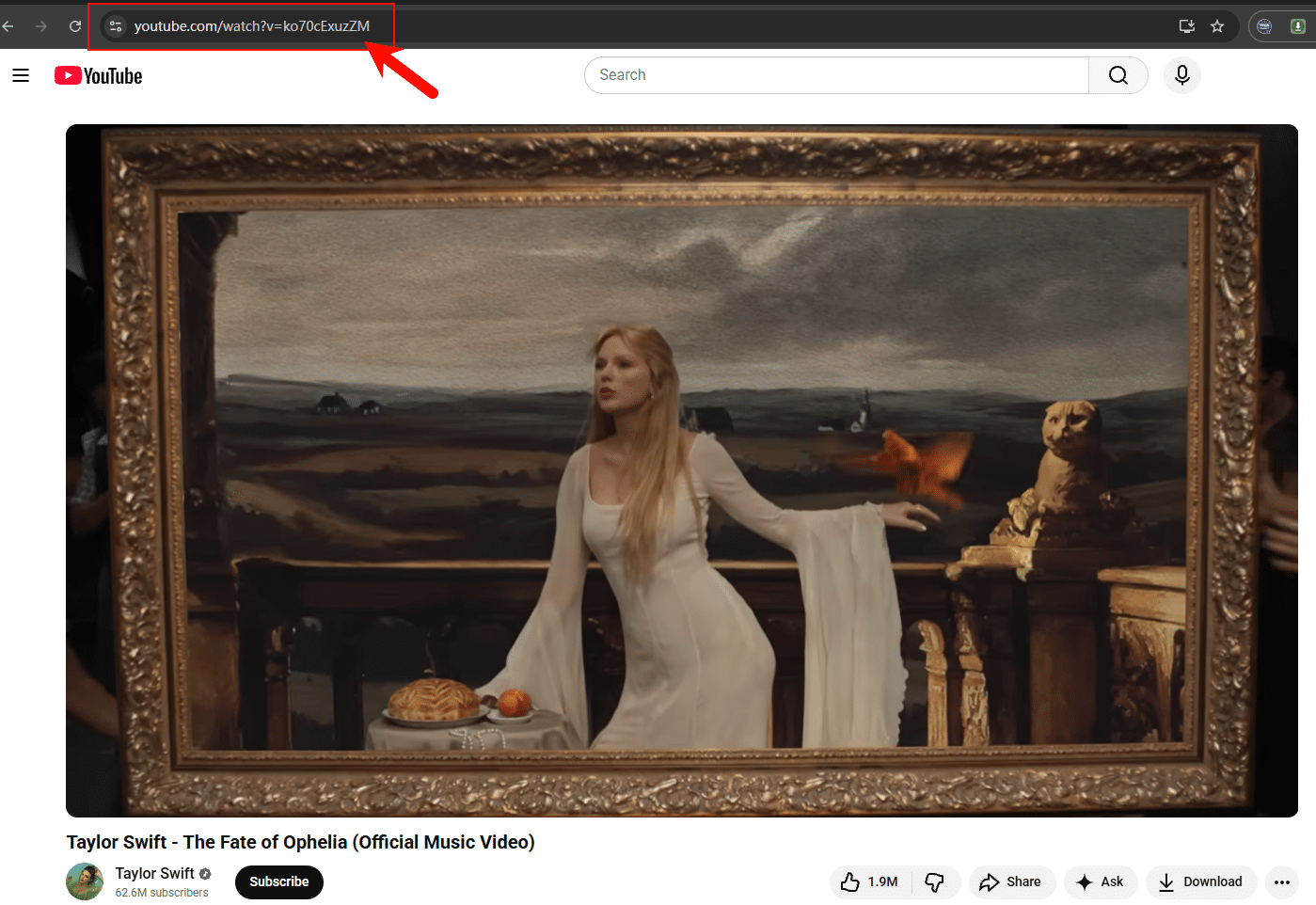
Step 4: Open YouTube and choose the video you want to save. Copy the video link from the address bar.
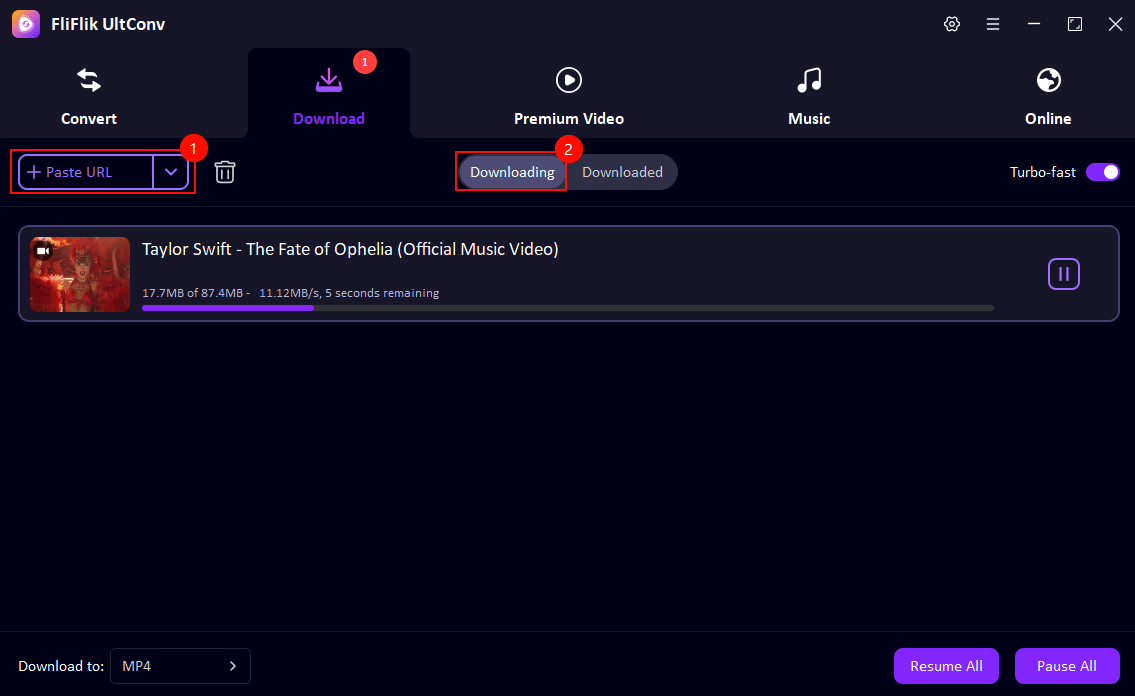
Step 5: Come back to UltConv, clik “Paste URL”, and Ultconv will analyze your video URL automatically. Then you can see the video downloading at high speed.
Part 3. How to Download Videos from YouTube in Mac For Free
Sometimes you just want to know how to download videos from YouTube in mac for free. There are some free online downloaders available. But remember, free tools usually mean less quality, more ads, or a more complicated setup. But if you just want a decent, no-cost file, the methods below might work for you.
iViGo.cc (Online Downloader)
Online download sites are the simplest way to get a video because you don’t have to install any software on your Mac. One good option is iViGo.cc. You can use it on your web browser. This is great when you only need to download a video one time. This method is fast and keeps your Mac clean of extra programs, which is why a lot of people like it for quick, basic downloads. Below, let’s look at some of its pros and cons, and how to use it .
Pros:
- Works directly in your web browser
- No software installation needed
- Very simple and quick for one-time downloads
Cons:
- Lots of pop-up ads
- Video quality is often low
- Can stop working unexpectedly
Steps to Download YouTube Videos with iViGo.cc Downloader:
Step 1: Go to the YouTube video you want. Copy the video link from your browser’s address bar.
Step 2: Open the iViGo.cc website.
Step 3: Paste the YouTube link into the box on the website.
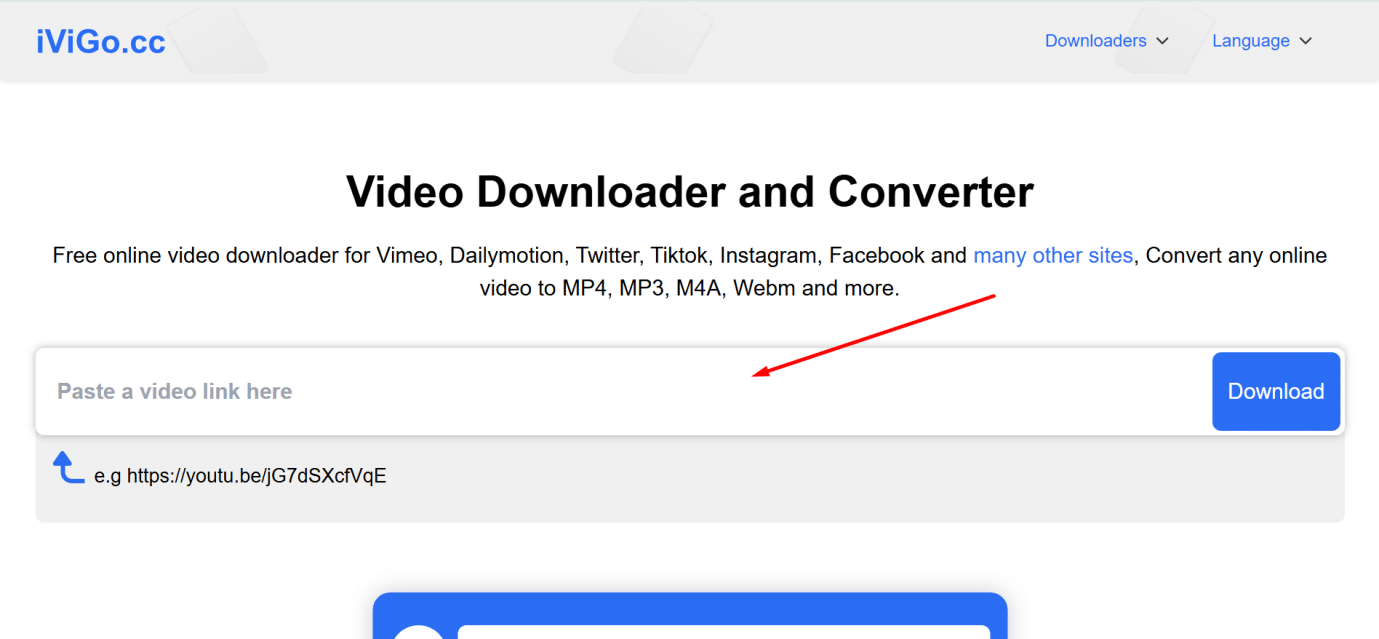
Step 4: The site will analyze the link.
Step 5: Click the download button. You need to be careful here because sometimes the button you click is just an ad.
Video DownloadHelper (Browser Extension)
Another popular option is a browser extension called Video DownloadHelper. This tool attaches itself to your web browser, like Firefox or Edge. It’s helpful because when you are watching a YouTube video, the little icon for the extension lights up. You click the icon, and a menu pops up with all the available download options. It’s a handy way to get a video without leaving the page you are on. Below are some of its pros and cons and a tutorial about how to use it.
Pros:
- Download videos while you watch them
- Supports many websites, not just YouTube
- Basic features are free
Cons:
- Requires an extra helper app on Mac
- Can be slow at times
- Doesn’t work on Chrome
Steps to Download YouTube Videos with Video DownloadHelper:
Step 1: Install the Video DownloadHelper extension in your Firefox or Edge browser.
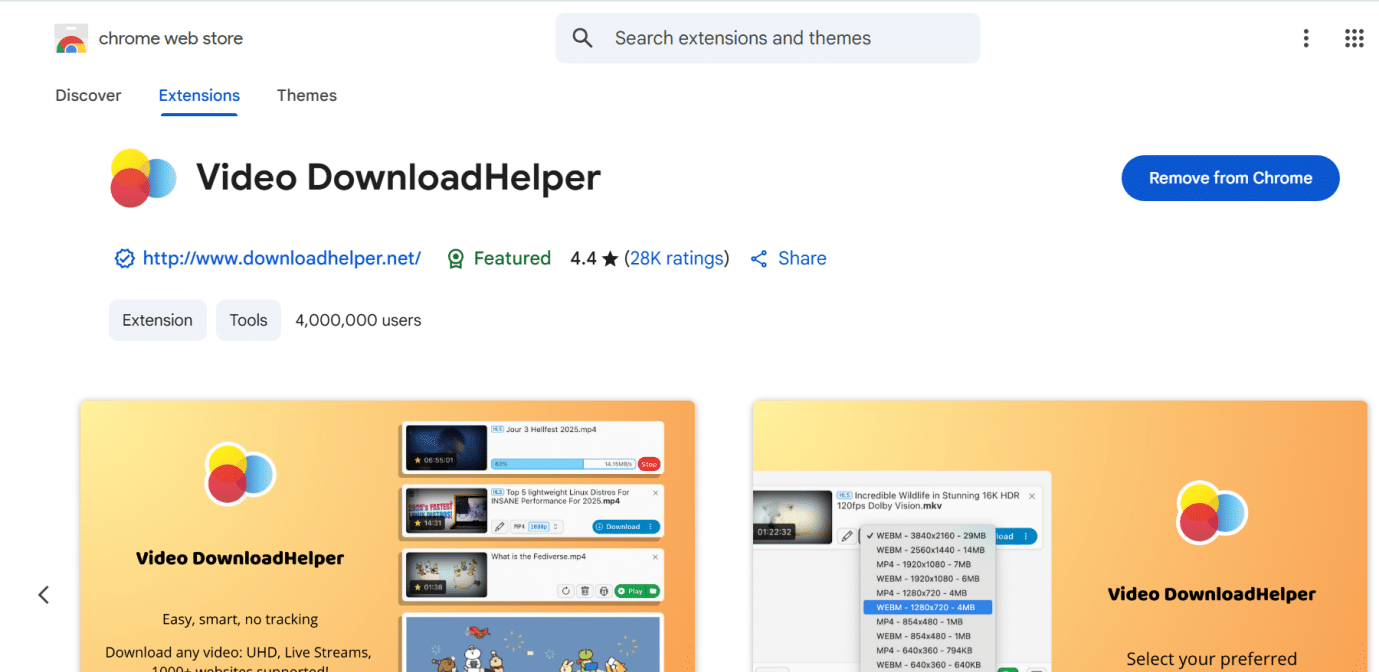
Step 2: Go to the YouTube video page you want.
Step 3: Look for the extension’s icon. Click it when it starts to move or light up.
Step 4: A quality menu will show up. Pick the video quality you need, and the download will start.
Risk Note: When you use free download tools, you need to be really careful. These online sites and extensions often have hidden risks, like viruses or malware. They also show a lot of deceptive ads that look like download buttons. You should be cautious about what you click on these free sites.
Part 4. Quick Comparison among 4 Methods for Mac
So, now you know the 4 main ways to download YouTube videos in Mac. But here’s the thing: each method has different trade-offs. You have to decide if you want to pay for quality and safety, or use a free option that has more limits. This table shows you how the four methods stack up against each other.
| Feature | YouTube Premium | FliFlik UltConv | iViGo.cc (Online Site) | Video DownloadHelper (Extension) |
| Max Quality | Depends on the original | Up to 8K video | Usually up to 720p | Varies, often 720p |
| Batch Download | Yes (playlist) | Yes (full playlists) | No, one by one | Limited/requires pro |
| Download Speed | Fast | Very fast (10x mode) | Slow, depends on web | Medium, depends on browser |
| Output Format | Locked file (DRM) | MP4, MOV, MP3, 100+ formats | MP4, MP3 (simple formats) | MP4, MP3 (simple formats) |
| Native Stability | Excellent (official) | Excellent (desktop app) | Normal | Normal |
| Safety & Privacy | Excellent | Excellent | Low | Medium |
| Ads Free | Yes, fully | Yes, fully | No, lots of ads | No, some ads/prompts |
| Overall Value | Good for ad-free viewing | Best for high-quality files | Best for one-time use | Good for simple, free use |
Final Words:
If you are just trying to avoid ads, YouTube Premium is an easy choice. But here’s the thing: if you want a true, usable video file on your Mac, you have to look elsewhere. Free tools like online sites can help you for a quick fix, but they come with too many limits, low quality, slow speed, and lots of risks. If you really want to know how to download video from YouTube in Mac with no limits on quality, speed, or formats, then a dedicated app is the best way to go. We recommend the FliFlik UltConv Video Downloader. It’s the choice that gives you the highest quality, the fastest speeds, and the freedom to keep, edit, and share your files forever. Ready to start saving videos without any hassle? Get FliFlik UltConv and download what you want, when you want.











