
Remove Duplicate Photos on Mac: 6 Best Methods
You might be asking how to delete duplicate photos on Mac because you are a photographer who probably has tons of duplicate photos cluttering the storage. Or a selfie lover with a surplus of pics that need tidying up.
Whatever the case, having more storage or the cloud won’t solve the clutter or duplicates problem. Moreover, syncing devices only reel in more duplicates. Therefore, in this article, we’ll show you how to erase duplicate photos on Mac both manually and automatically to free up storage space and boost system performance. Let’ dive in!

Part 1: How to Delete Duplicate Photos on Mac
To delete duplicate photos on Mac automatically, use a duplicate finder for Mac photos. Or, if you have some time on your hands and don’t mind sorting through duplicate images, you can either use the Finder or Photos app, depending on where the pics are stored.
1. Use Best Duplicate Photo Finder for Mac
The easiest and quickest way, of course, is to remove duplicate photos Mac with the help of the best duplicate photo finder Mac, like 4DDiG Duplicate File Deleter. It uses an advanced MD5 Message-Digest Algorithm to locate and remove duplicates and organize your files. Here’s what this tool can do:
- Locate duplicate photos, videos, audio, and documents successfully and accurately.
- Provides real-time duplicate reminders.
- Compatible with the latest macOS Sonoma.
- Preview and remove duplicates from Google Drive, network drives, and various internal/external storage devices like hard drives, USBs, and SD cards.
- Customize search options by including/excluding files.
Here’s how to remove duplicate photos on Mac with this tool:
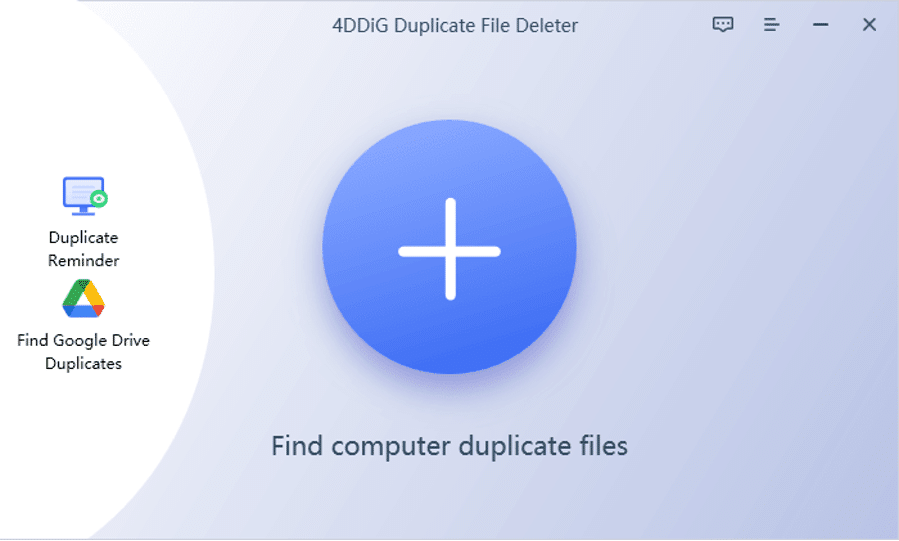
Step 1: Scan for Duplicates
Download and install the tool on your Mac and launch it. Then,click the “+” button to select folders or disks containing duplicate photos for scanning.
Step 2: Customize Scan Settings
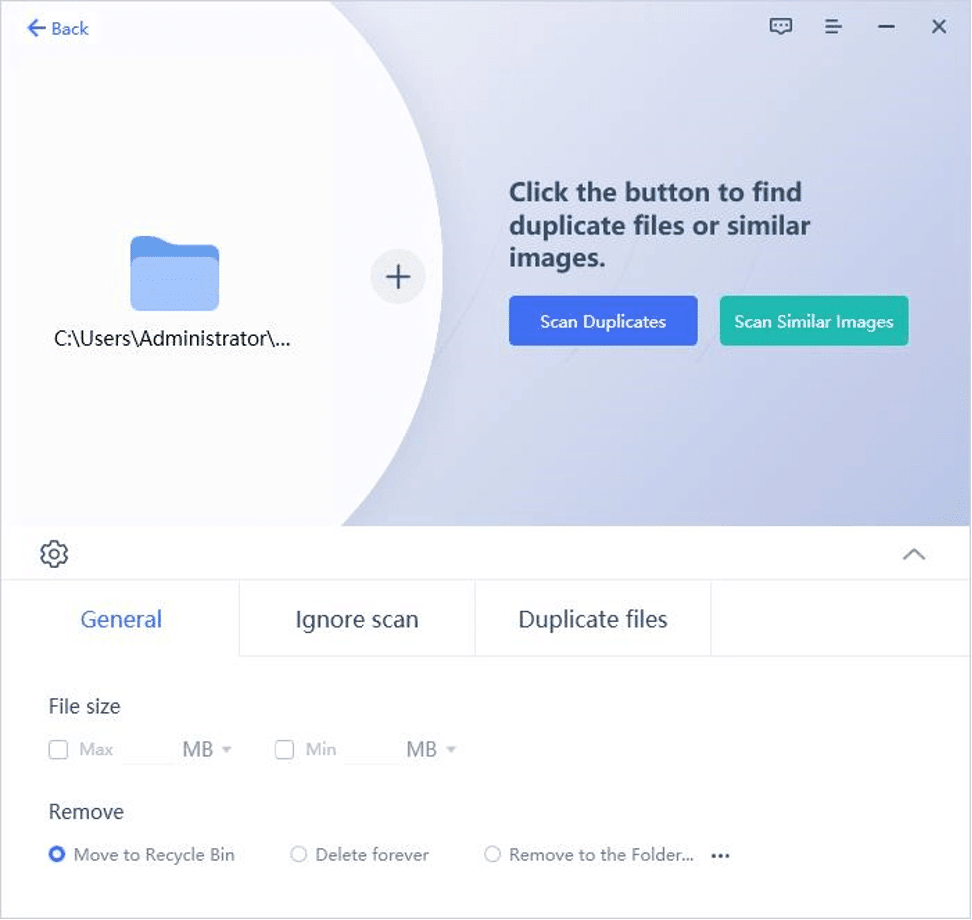
The tool will scan for duplicate images based on your settings. To do so, simply click on the “gear” button in the lower left corner.
Step 3: Preview and Remove Duplicate Photos
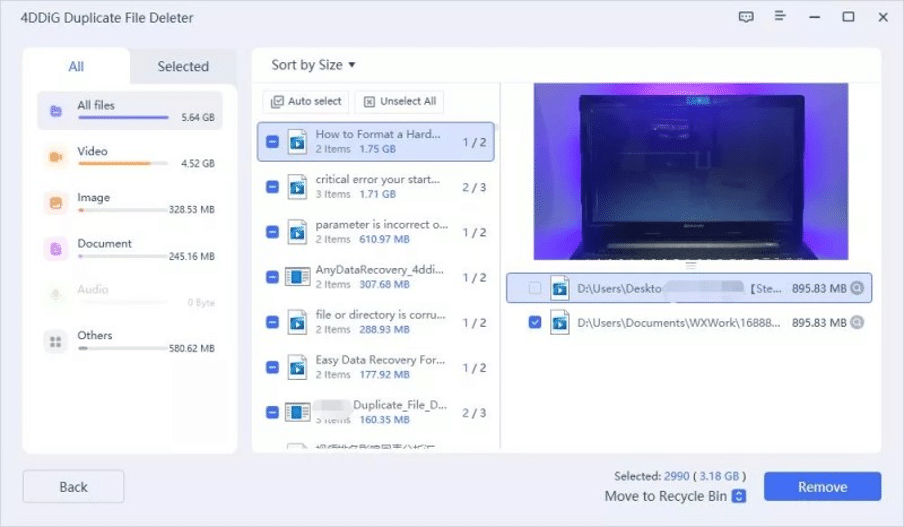
Once the scan is complete, it will display a list of duplicate files categorized by file type. Click “Auto Select” and then click “Remove” to get rid of duplicate photos on your Mac easily and quickly.
With this best duplicate photo finder for Mac, you will no longer need to worry about how to delete duplicate photos on Mac.
2. Delete Duplicate Photos Mac by Finder
If you don’t want to use third-party software to get rid of duplicate photos on your Mac, you can use Finder to tackle those. This program allows you check out details like file names, types, and creation dates in your folders. Just compare the images and pick out the duplicates by eyeballing them. Here’s how to delete duplicate photos on Mac with Finder:
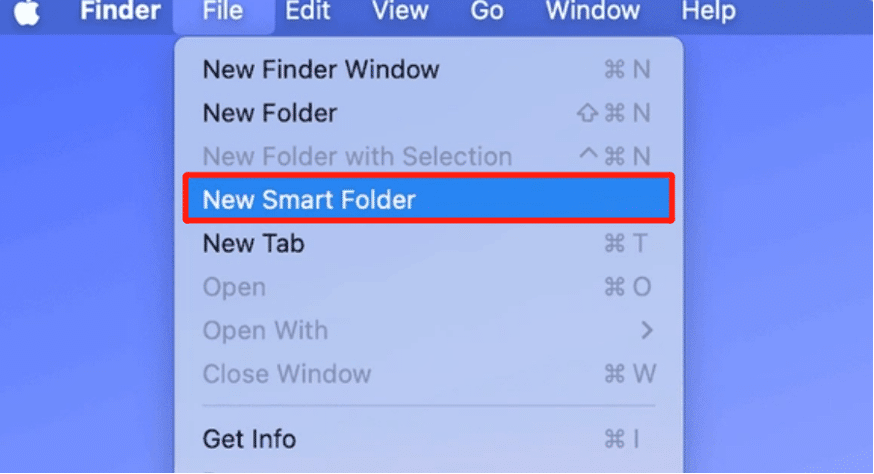
Step 1: Open “Finder,” choose “File,” and then “New Smart Folder.”
Step 2: Select “This Mac” and click the “+” button.
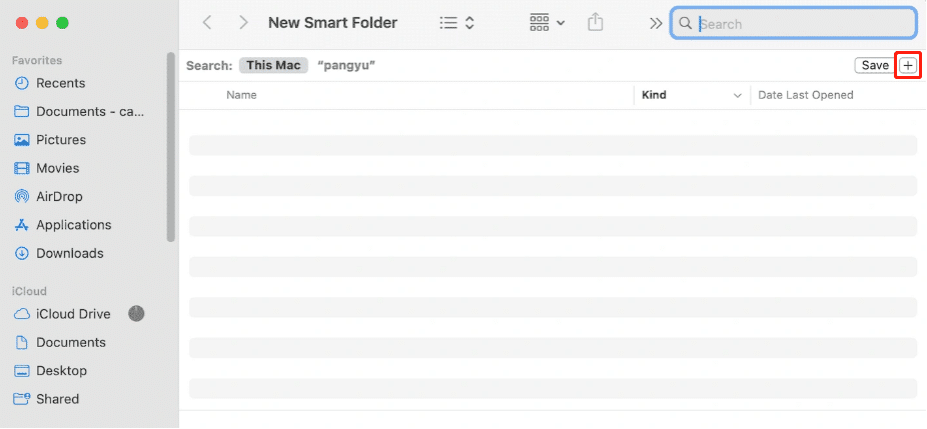
Step 3: From the drop-down list, pick “Kind” and “Image.” To sort your pictures by name, select the “Name” column. Note that duplicates often have similar names, but you can sort by date or size.
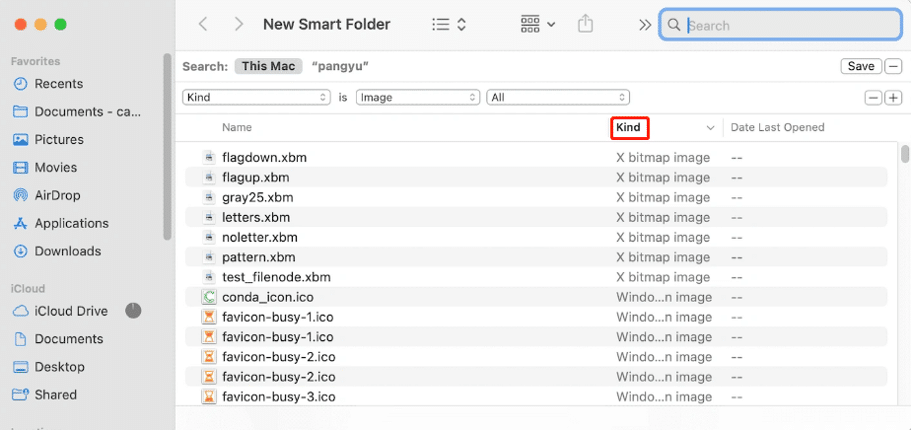
Step 4: Select duplicate photos you want to delete and hit “Save.” Right-click on the selected pictures, and choose “Move to Trash.”
3. Remove Duplicate Photos Mac in Photos App
Honestly, the method above can be time-consuming and less efficient compared to using a specialized duplicate finder for Mac photos. Another manual way to delete duplicate photos on Mac is from the Photos app.
While this app doesn’t have a feature to reveal duplicates, you can use Smart Albums, just like Smart Folders, to find related pics. These Albums also let you filter and view photos based on specific criteria like file name, camera model, date taken, and more.
This method works great if most of your duplicate photos are shot at the same time or at least on the same day. Here’s how to erase duplicate photos on Mac by using the Photos app:
Step 1: Create a new “Smart Album.” To do that, open “File” and choose “New Smart Album.”

Step 2: Now, you can set filter criteria to easily delete duplicate photos on Mac.
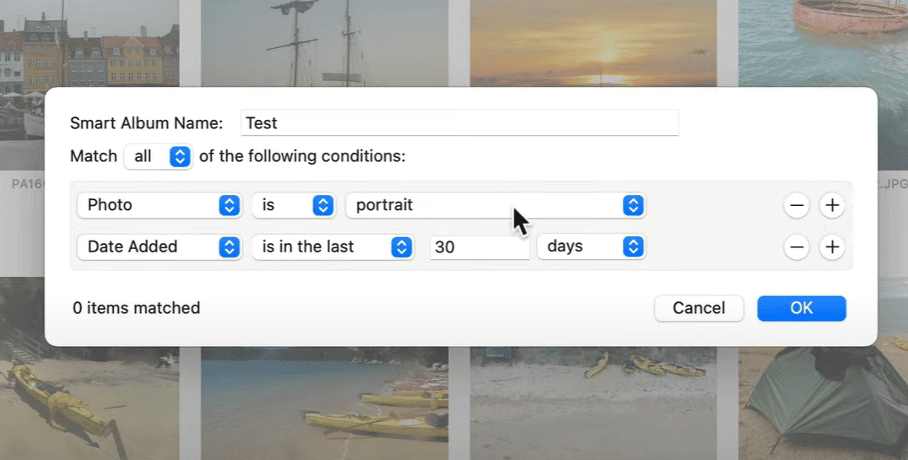
Step 3: Review the photos in the Smart Album to identify potential duplicates.
Step 4: To remove duplicate photos, Mac, select the pics, right-click on them, and hit “Delete.”
4. Delete Duplicates With the “Merge” Feature
- In macOS Ventura and Sonoma, the Photos app also includes a “Merge” feature that can combine duplicate sets into a single photo. You can also merge multiple duplicate sets or all duplicates in your Photo Library. Here’s how to merge duplicate photos on Mac with the Photos app:
- Step 1: Open the Photos app and click “Duplicates” to open the album. Inside the Duplicates album, hold the “Command” key and click to select the duplicates you want to merge.
- Step 2: Click “Merge x Items” at the window’s top-right, where x represents the number of selected images.
- Step 3: Choose “Merge x Exact Copies.” The duplicated photos will move to the “Recently Deleted” album, where you can click “Delete All” to delete them completely.

- Once all duplicates are merged or deleted, the “Duplicates” album will vanish. So, that’s how to merge duplicate photos on Mac.
Part 2: Why Should We Use Duplicate Finder for Mac Photos?
In today’s digital age, managing our growing photo collections is crucial. Using a duplicate finder for Mac photos is a smart move to tackle digital clutter, keeping your photo library accessible and well-organized.
It’s versatile, works with various image formats, and saves you the time and hassle of hunting down duplicate pictures. Here are the advantages of employing a duplicate finder for Mac photos:
- Clearing out duplicate photos frees up valuable disk space, enhancing your Mac’s performance.
- A duplicate finder keeps your photo collection neat and efficient, making image management a breeze.
- Automated duplicate detection and removal save you the hours you’d otherwise spend searching manually.
- A duplicate-free photo library speeds up and makes your backups more space-efficient.
Part 3: Alternatives to the Best Duplicate Photo
Finder for Mac
Aside from the 4DDiG Duplicate File Deleter, undoubtedly the best duplicate photo finder Mac, we’ve got two more fantastic alternatives worth checking out. Here they are:
Option 1: Duplicate Photos Fixer Pro
Duplicate Photos Fixer Pro is a user-friendly choice among those searching for a simple duplicate photo finder. It provides an uncomplicated yet effective way to spot and remove duplicate photos Mac.
It boasts advanced scanning algorithms, compatibility with multiple platforms like Windows, Mac, iOS, and Android, and the handy option to preview duplicates before deletion.
The preview feature ensures you can review duplicates before deciding what to remove.
While the two Standard and Similar Match scan modes offer varying degrees of scanning to find duplicates. Some users have also noted occasional glitches in Duplicate Photos Fixer Pro, and there’s limited support for file formats. But it still delivers great value for its price.

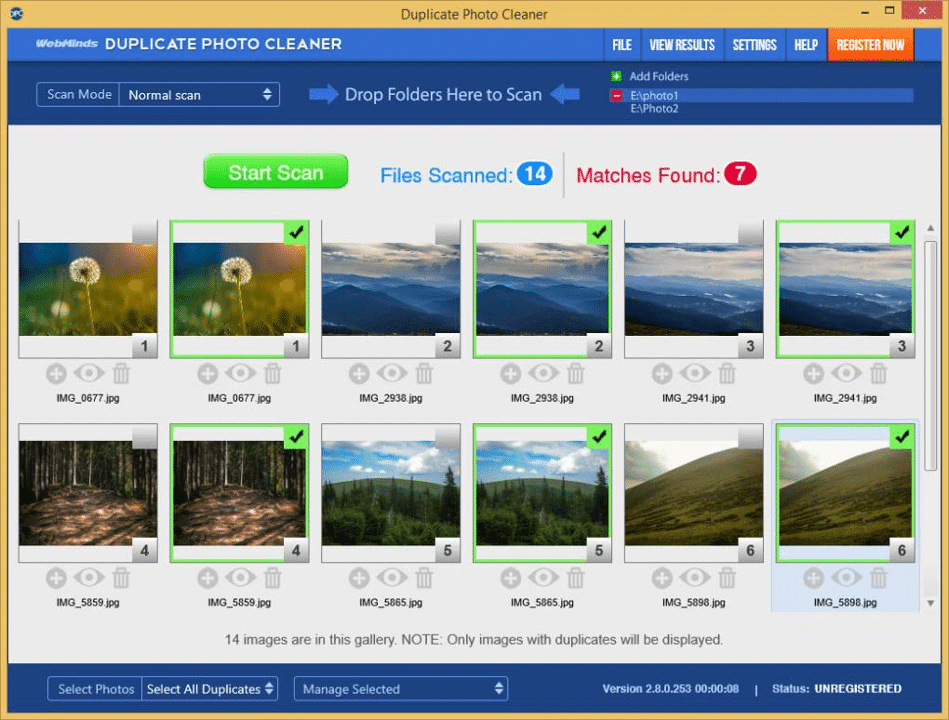
Option 2: Duplicate Photo Cleaner
Duplicate Photo Cleaner is another alternative tool to delete duplicate photos on Mac, especially if you have an extensive collection. It utilizes advanced algorithms to detect duplicates, even if they have slight variations, and you can use it on both Windows and Mac.
The tool offers various scan modes, including Standard, Similar Match, and Exact Match, and support for various file types. Its customizable search criteria allow you to tailor the scan to their preferences.
What sets Duplicate Photo Cleaner apart is its reputation for uncovering the most subtle duplicate images. While it comes at a slightly higher price point, its precision and feature-rich offering make it a valuable investment.
Conclusion
By knowing how to delete duplicate photos on Mac, you can regain valuable storage space and enjoy a more organized digital life. With various manual and automatic methods available, you can choose the best approach that suits your needs.
But the best option to effectively declutter your photo library is the 4DDiG Duplicate File Deleter. It offers an automatic and convenient way to locate, preview, and remove duplicate photos from Mac or other storage devices.
How to Delete Duplicate Photos on Mac FAQs
Q1: Does Mac Have a Duplicate Photo Finder?
Yes, Mac does have a duplicate Photo Finder feature in the Photos app if your device is running on macOS Ventura or Sonoma. This feature, called Merge, automatically finds and groups any duplicate photos in your library so you can review them.
Q2: What is the Best Duplicate Photo Finder for Mac?
The best duplicate photo finder Mac is the 4DDiG Duplicate File Deleter Mac, which uses an advanced algorithm to locate duplicate photos, videos, and documents. Moreover, the tool also helps organize files, delete duplicates, and provide real-time reminders for duplicate files.
Q3: How do I Delete Duplicate Photos in Mac Finder?
To delete duplicate photos in Mac Finder, follow the steps below:
- In “Finder,” click “File” and choose “New Smart Folder.”
- Then, hit the “+” button by the search bar.
- Now, pick “Kind” from the first menu and “Image” from the second.
- Finally, sort the files by name. Since duplicate photos often share the same name, they’ll appear next to each other. Select them to delete.











